During that window, the data is technically still there, just no longer indexed by the active browsing interface.
Think of it like a filing cabinet. When you “clear” a file, you’re just tossing it in a drawer without a label. The drawer still has the contents — until someone empties it completely.
This is great news if you’re acting fast. The longer you wait and keep using your device, the more likely that data gets overwritten.
How Maria Got Deleted History Back?
Maria, a freelance researcher in Chicago, was compiling sources for a client report in January 2026. She cleared her Safari history thinking she was just cleaning up clutter.
Three hours later, she needed a specific journal article she had bookmarked-but-not-saved earlier that week.
With no history, no bookmark, and no memory of the exact URL, she spent two additional hours trying to retrace her steps on Google.
Had she known about Website Data recovery — the first method in this guide — she would have found the URL in under two minutes.
Before You Try Anything: Stop Using Your Device
This is the single most important step that almost every guide skips. The moment you realize you want to restore deleted Safari history, put your phone down or stop using your Mac browser.
Every website you visit, every cached file created, increases the chance of overwriting the data you’re trying to recover.
Method 1: Check Website Data in iPhone Settings (Fastest, No Tools Needed)
This is the most overlooked native method for recovering safari browser history on iOS. Even after you clear Safari history, Apple often retains website cookies and cache data separately.
Scroll to the very bottom of the Safari settings screen.
Tap Advanced.
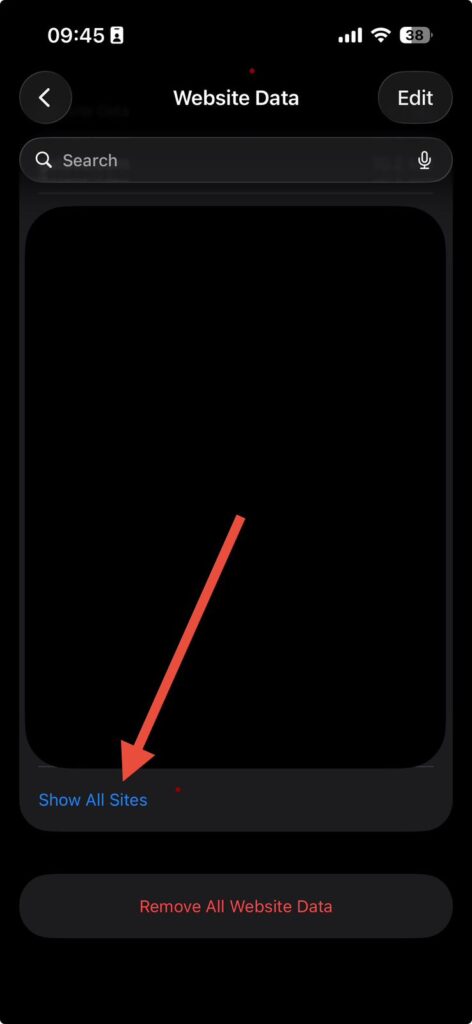
Tap Website Data.
You’ll see a list of domains — websites Safari has stored data for.
Tap Show All Sites to expand the full list.
Access stored website data in Safari settings to find previously visited sites
What you’ll find: This list shows root domains of every site that left a trace on your device. It won’t show individual page URLs, but it confirms you visited a site. You can then go to that domain and use your browser history on that site (if you were logged in) to find the specific page.
Important: This method only works if you have NOT also cleared cookies and website data. If you cleared both history and website data together, skip to Method 3 or Method 5.
Method 2: Use Screen Time to See Browser Activity
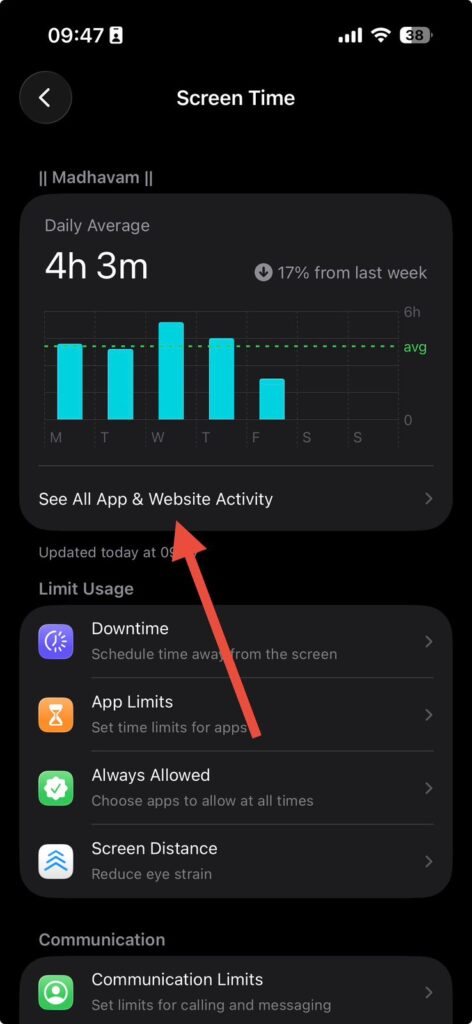
Apple’s Screen Time feature logs app usage and website visits — independently from Safari history.
Use Screen Time to check Safari browsing history and website activity on iPhone
You’ll see domain names and approximate visit times. This is especially useful for pinpointing when you visited a site, which can help narrow your Google Search later.
Note: Screen Time must have been enabled before you cleared your history. If Screen Time was off, this method won’t show data.
Method 3: Restore Deleted Safari History from iCloud Backup (iPhone & iPad)
If you had iCloud backups running before you cleared your Safari history, you can restore deleted Safari history on iPhone by rolling back your entire device to an earlier backup.
Steps:
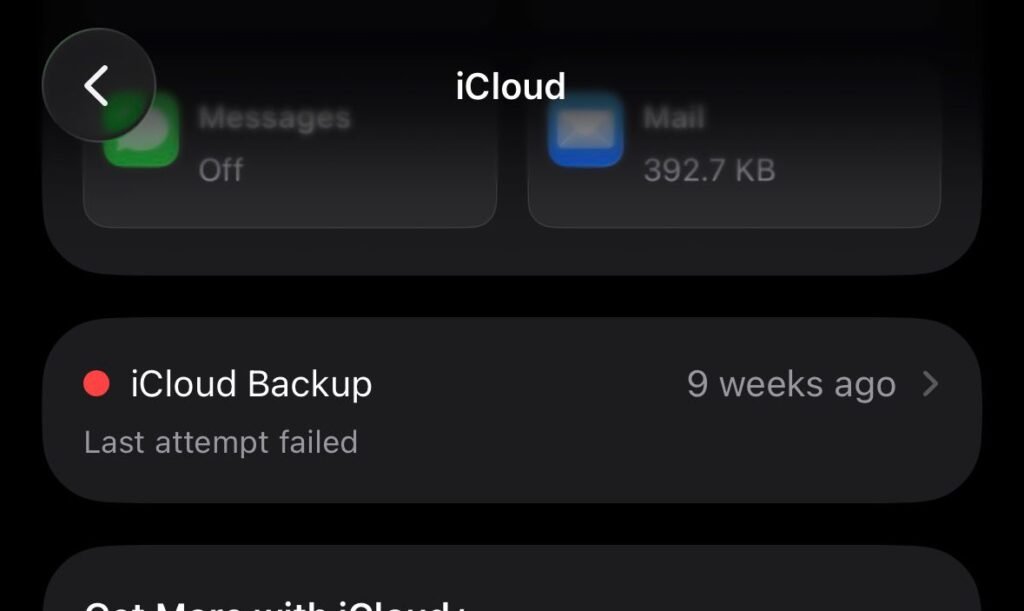
Go to Settings > [Your Name] > iCloud > iCloud Backup.
Confirm your last backup date. It must be from before you cleared history.
Go to Settings > General > Transfer or Reset iPhone.
Tap Erase All Content and Settings and follow the prompts.
During setup, choose Restore from iCloud Backup.
Select the backup dated before your history was deleted.
Tradeoff: This method restores your entire device to that backup state. Any photos, apps, or data added after that backup date will be lost — unless you back up your current state first to a separate location.
⚠️ Back up your current device before restoring. Go to Settings > [Your Name] > iCloud > iCloud Backup > Back Up Now before proceeding.
Restore deleted Safari history by recovering data from an iCloud backup
Method 4: Check Your Google Account Activity
This one catches people off guard. If you were signed into a Google account in Safari when you browsed, Google may have logged that activity — completely independently of Safari.
This won’t recover all your history — only pages visited while signed in and where Google tracking was active. But for many users, this recovers a significant chunk of what they’re looking for.
Method 5: Recover Safari History on Mac Using Time Machine
If you use a Mac and have Time Machine set up, you can perform a surgical recovery of just the Safari History.db file — no need to restore your entire system.
Steps:
Open Finder.
In the top menu bar, click Go > Go to Folder.
Type: ~/Library/Safari/ and press Return.
You’ll see a file called History.db — this is your Safari history database.
Now open Time Machine from your menu bar or Applications folder.
Navigate back in time to a date before you deleted your history.
Locate the History.db file in that older snapshot.
Click Restore to bring that version back.
What the History.db File Actually Is
Think of History.db as a spreadsheet that Safari keeps hidden in a folder. Every URL you visit gets a row added to that spreadsheet. When you “clear history,” Safari wipes the spreadsheet — but Time Machine keeps a photocopy of older versions. Restoring History.db is like unshredding that photocopy and feeding it back into the drawer.
💡 Expert Insight: The iCloud Sync Problem
One of the most common mistakes people make: they restore an old iCloud backup to get their Safari history back — only to watch it disappear again seconds later. Why? Because iCloud Safari sync is bidirectional and continuous. The moment your restored device reconnects to iCloud, it syncs the current (empty) history from the cloud right back onto your device, overwriting your recovered data.
The fix: Before restoring a backup, go to Settings > [Your Name] > iCloud > Show All and temporarily toggle off Safari sync. Restore your backup, export or screenshot the history you need, then re-enable Safari sync.
Method 6: Use a Third-Party Data Recovery Tool
If you have no backup and Website Data came up empty, third-party iOS recovery tools are your next option. These tools scan your device’s memory directly for remnants of deleted data.
Well-known tools as of 2026 include:
PhoneRescue by iMobie — scans device storage without requiring a full backup restore
iMyFone D-Back — can extract Safari history from device, iTunes, or iCloud backups selectively
Tenorshare UltData — supports scanning for browsing history specifically
General Steps (Most Tools Follow This Pattern):
Download and install the recovery tool on your Windows PC or Mac.
Connect your iPhone or iPad via USB cable.
Trust the computer on your device when prompted.
Select Safari History as the data type to scan.
Run the scan and preview the results.
Select the history entries you want and click Recover.
Honest caveat: These tools are not guaranteed to work. Their success rate depends heavily on how long ago you deleted your history and how much you’ve used your device since. Most require a paid upgrade to actually restore data after the free scan. Always download from the developer’s official website.
Method 7: Check Recently Closed Tabs (For Very Recent Deletions)
If you just closed a tab seconds or minutes ago and haven’t cleared history, Safari’s Recently Closed Tabs feature can save you immediately — no recovery needed.
On iPhone/iPad:
Open Safari.
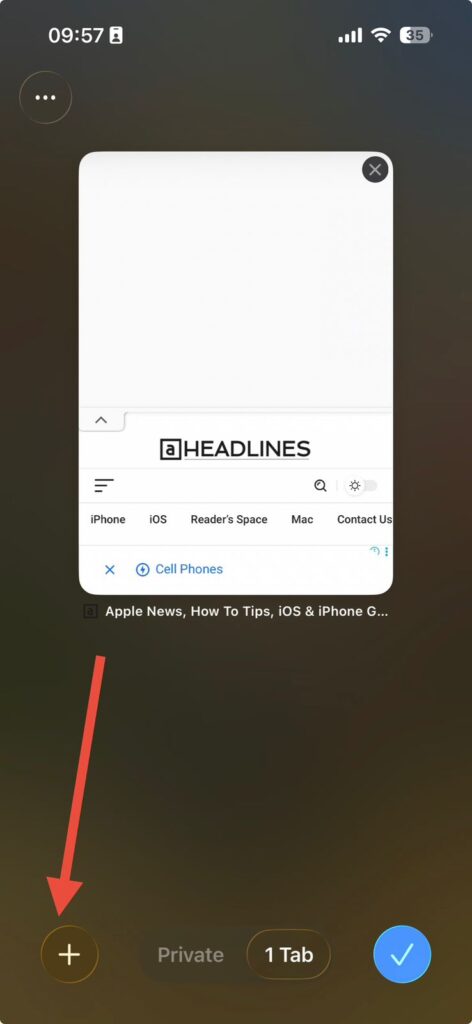
Tap the Tabs icon (two overlapping squares) in the bottom right.
Press and hold the + (New Tab) button.
A list of recently closed tabs will appear.
On Mac:
In Safari, go to History in the top menu bar.
Click Recently Closed.
Or press ⌘ + Z immediately after closing a tab to undo.
Use Safari tab view to reopen recently closed tabs and recover lost pages
Troubleshooting: What If None of These Methods Work?
“Website Data is empty.”
This means you cleared cookies and website data along with history, or iOS has since purged the cache. Move on to iCloud backup or third-party tools.
“I don’t have an iCloud backup from before I cleared history.”
Check Screen Time (Method 2), Google Activity (Method 4), and third-party recovery tools (Method 6). Also check if you have an iTunes/Finder backup on your Mac — open Finder, click your device in the sidebar, and look under Backups.
“Time Machine doesn’t have the History.db file.”
If Time Machine wasn’t running before the deletion, this method won’t work. Check whether you have any other backup solution — Carbon Copy Cloner, Backblaze, or a manual copy of your Mac’s files.
“The third-party tool found nothing.”
Unfortunately, this likely means the data has been overwritten. Continued device use after deletion is the number-one reason recovery fails. At this point, try Google Activity (Method 4) as a last resort.
“I accidentally deleted the Safari app entirely.”
Don’t panic — re-download Safari from the App Store for free. Go to Settings > Screen Time > Content & Privacy Restrictions and check if Safari is restricted.
If you i deleted safari by accident, your history may still be partially accessible through iCloud after reinstalling, provided history sync was enabled.
Quick-Reference: Which Method Is Right for You?
Situation
Best Method
Cleared history recently, cookies intact
Method 1 — Website Data
Need to know what sites you visited
Method 2 — Screen Time
Have an iCloud backup from before deletion
Method 3 — iCloud Restore
Were signed into Google while browsing
Method 4 — Google Activity
Mac user with Time Machine
Method 5 — Restore History.db
No backup at all
Method 6 — Third-Party Tool
Just closed a tab seconds ago
Method 7 — Recently Closed Tabs
Frequently Asked Questions
Q1: Can I recover Safari history after clearing it on iPhone without a backup?
Yes, it’s possible — but not guaranteed. Your best options are Settings > Safari > Advanced > Website Data (works if you didn’t clear cookies too), Screen Time activity, or a third-party data recovery tool. The sooner you try after deletion, the better your odds.
Q2: Does iCloud automatically back up Safari history?
Yes, if iCloud Safari sync is enabled. Go to Settings > [Your Name] > iCloud > Show All and check if Safari is toggled on. However, clearing history on one iCloud-synced device clears it across all your synced devices almost instantly.
Q3: How far back can I recover Safari history?
On iPhone and iPad, deleted history data typically stays in device memory for around 30 days. On Mac, the History.db file can retain data for up to 12 months before it’s purged. Time Machine backups extend this further, depending on how far back your backup history goes.
Q4: Is Private Browsing history recoverable?
No. Safari’s Private Browsing mode deliberately does not save history, cookies, or cache data. There is no known method to recover Private Browsing activity after a session ends.
Q5: Will recovering Safari history from an iCloud backup delete my current photos?
Yes — restoring an iCloud backup replaces everything on your device with the state from that backup date. Photos, messages, and apps added after that backup will be gone. Always back up your current device first, and consider using a third-party tool to selectively extract just the history if a full restore feels too risky.
What You Should Do Right Now
If you need to recover deleted Safari history today, here’s your action plan:
Stop using your device to avoid overwriting data.
Check Settings > Safari > Advanced > Website Data first.
Check Screen Time for domain-level activity.
If you have iCloud or Time Machine backups, use those next.
Try Google Activity if you were signed into a Google account.
As a last resort, evaluate a reputable third-party recovery tool.
The window for recovery is open — but it won’t stay open long. Take action now.
Have a recovery method that worked for you? Share it in the comments below — your tip might save someone else’s research.
Disclaimer
The methods described in this article are based on publicly available iOS and macOS features and general knowledge of Apple’s software as of 2026. Data recovery success depends on individual device usage patterns, iOS/macOS version, and time elapsed since deletion. AppleHeadlines.com does not guarantee that any method will successfully recover your specific data. Third-party tools mentioned are provided for informational purposes only — AppleHeadlines.com does not endorse or have an affiliate relationship with any recovery software vendor. Restoring your device from a backup will erase current data; always create a fresh backup before attempting a restore. If you are attempting to recover data for legal or evidentiary purposes, consult a professional data recovery service and your legal counsel before proceeding.
Virginia J. Alfonso is a seasoned technology writer with a passion for all things digital. With over a decade of experience covering the latest in tech innovation, gadgets, and software, Virginia brings a unique blend of technical expertise and accessible writing to her work. Her articles focus on making complex tech topics easy to understand for readers of all levels.