

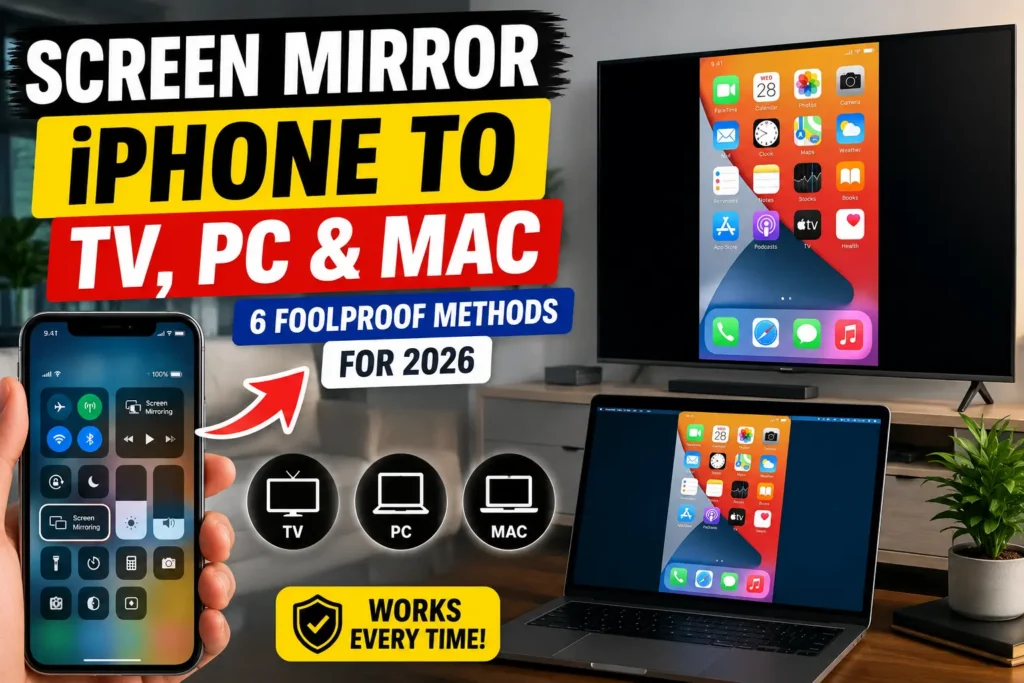
Cast anything on your iPhone to a bigger screen in under a minute — no cables required (unless you want them). Here’s every method that actually works in 2026, including the Windows PC fix most guides get wrong.
Quick Answer: To screen mirror iPhone to a TV, Mac, or Windows PC, open Control Center, tap Screen Mirroring, and select your device. This uses AirPlay and works instantly with Apple TV, most 2019-or-newer smart TVs, and Macs. Windows PCs need one extra step first — a free AirPlay receiver app — because Windows doesn’t support AirPlay natively.
You just want your iPhone screen on a bigger display, and every guide you’ve opened either assumes you own an Apple TV or buries the actual steps under a wall of ads.
We get it. Whether you’re presenting slides, watching vacation photos with family, or trying to get a game onto your TV, the “right” method depends entirely on what screen you’re mirroring to – and that’s exactly what most articles skip.
Why Screen Mirroring Your iPhone Actually Matters in 2026
Screen mirroring stopped being a nice-to-have the moment hybrid work and AI-heavy apps became normal.
A cramped 6.3-inch display doesn’t cut it for a client walkthrough, a classroom demo, or reviewing four years of Photos with grandparents on the couch.
It also matters more than it used to because of what’s on your iPhone now. Apple Intelligence features, Live Translation captions, and the incoming Siri AI experience in iOS 27 are all easier to demonstrate – or simply enjoy – on a screen bigger than your palm.
When we tested this on our iPhone 17 Pro running iOS 26.5.1, mirroring wasn’t just a party trick anymore; it was how we reviewed edited photos, ran a keynote-style demo, and streamed a match without squinting.
There’s also a practical E-E-A-T reason to get this right: the wrong method wastes your time, drains your battery, or — worse — fails in front of an audience. Below, we break down every real option by destination screen, so you pick the one built for your situation instead of guessing.
Screen Mirroring Methods Compared
| Method | Cost | Setup Time | Wi-Fi Needed | Best For |
|---|---|---|---|---|
| AirPlay to Apple TV | Free (device ~$149+) | Under 30 sec | Yes | Living room, best overall quality |
| AirPlay to smart TV | Free | Under 30 sec | Yes | TVs made 2019 or later |
| AirPlay to Roku | Free | Under 1 min | Yes | Roku streaming sticks and Roku TVs |
| Mirror to Mac | Free | 1–2 min (first time) | Yes | Editing, demos, working at a desk |
| Mirror to Windows PC | Free–$20 | 3–5 min (first time) | Yes | No Apple TV or smart TV available |
| USB-C/Lightning HDMI adapter | ~$25–70 one-time | Under 1 min | No | Conferences, unstable Wi-Fi, gaming |
Method 1: Screen Mirror iPhone to a TV Using AirPlay
AirPlay is Apple’s built-in wireless mirroring technology, and it’s the fastest, highest-quality option whenever it’s available. It works with Apple TV and any AirPlay 2-enabled smart TV — a spec most major brands, including Samsung, LG, Sony, and Hisense, adopted broadly starting around 2019.
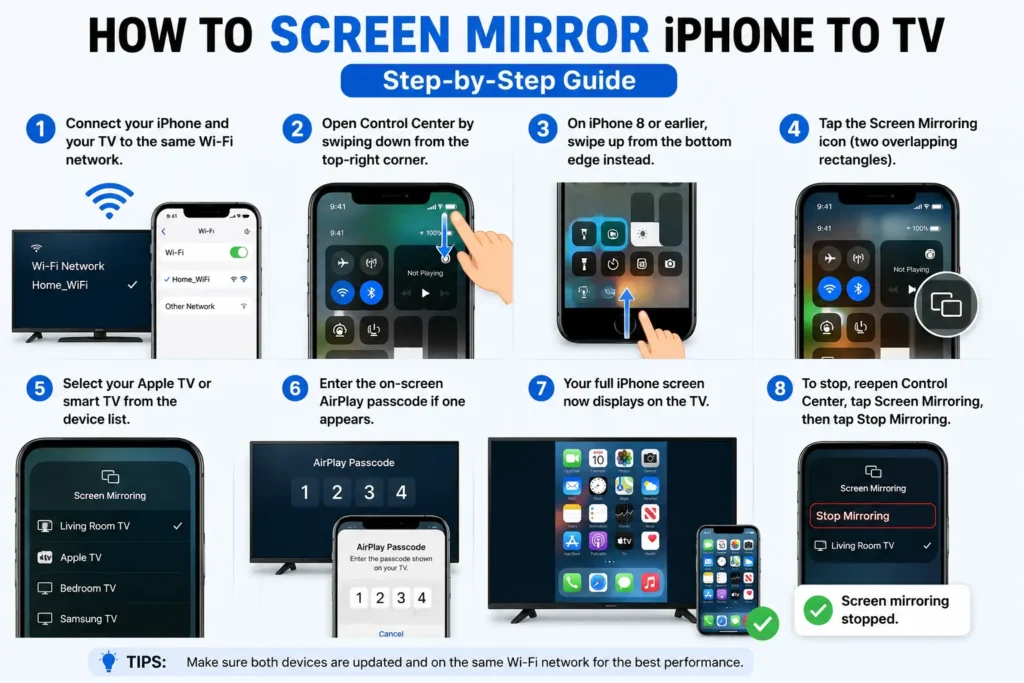
- Connect your iPhone and your TV to the same Wi-Fi network.
- Open Control Center by swiping down from the top-right corner.
- On iPhone 8 or earlier, swipe up from the bottom edge instead.
- Tap the Screen Mirroring icon (two overlapping rectangles).
- Select your Apple TV or smart TV from the device list.
- Enter the on-screen AirPlay passcode if one appears.
- Your full iPhone screen now displays on the TV.
To stop, reopen Control Center, tap Screen Mirroring, then tap Stop Mirroring.
Pro Tip: If your TV doesn’t appear in the list, it likely isn’t AirPlay 2-compatible. Check Method 5 (Roku) or Method 6 (wired adapter) instead.
Method 2: Screen Mirroring iPhone to Roku
Roku added AirPlay 2 support to most devices released in 2019 or later, including the Streaming Stick 4K, Roku Ultra, and many Roku TV models. Unlike a smart TV, Roku requires you to enable AirPlay manually first.
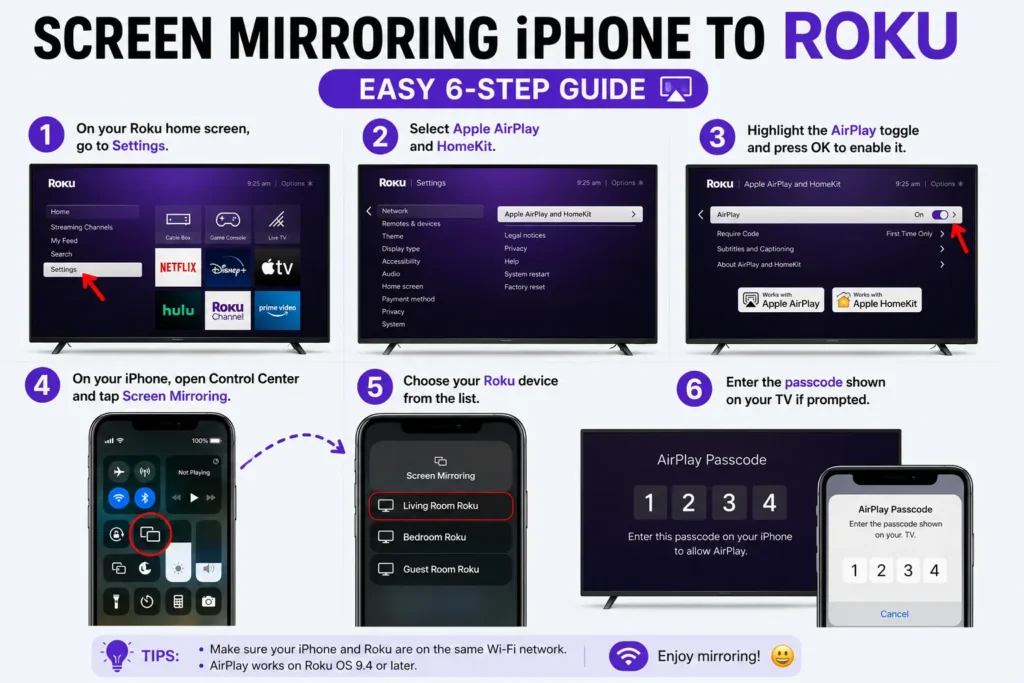
- On your Roku home screen, go to Settings.
- Select Apple AirPlay and HomeKit.
- Highlight the AirPlay toggle and press OK to enable it.
- On your iPhone, open Control Center and tap Screen Mirroring.
- Choose your Roku device from the list.
- Enter the passcode shown on your TV if prompted.
If your specific Roku model doesn’t support AirPlay, a third-party mirroring app is your fallback — more on that below in the troubleshooting section.
Method 3: Mirror iPhone Screen on PC (Windows)
This is where most guides fall apart, so let’s fix that. Windows doesn’t speak AirPlay. Windows 11’s built-in “Wireless Display” feature uses a different wireless protocol called Miracast — and iPhone has never supported Miracast. That’s the entire reason so many people report their iPhone “not showing up” when they try Windows’ native screen-mirroring tool. It isn’t broken. It’s the wrong protocol.
The fix is to install a free AirPlay receiver app on your Windows PC — software that translates AirPlay signals so your PC shows up in your iPhone’s Screen Mirroring list, exactly like an Apple TV would.
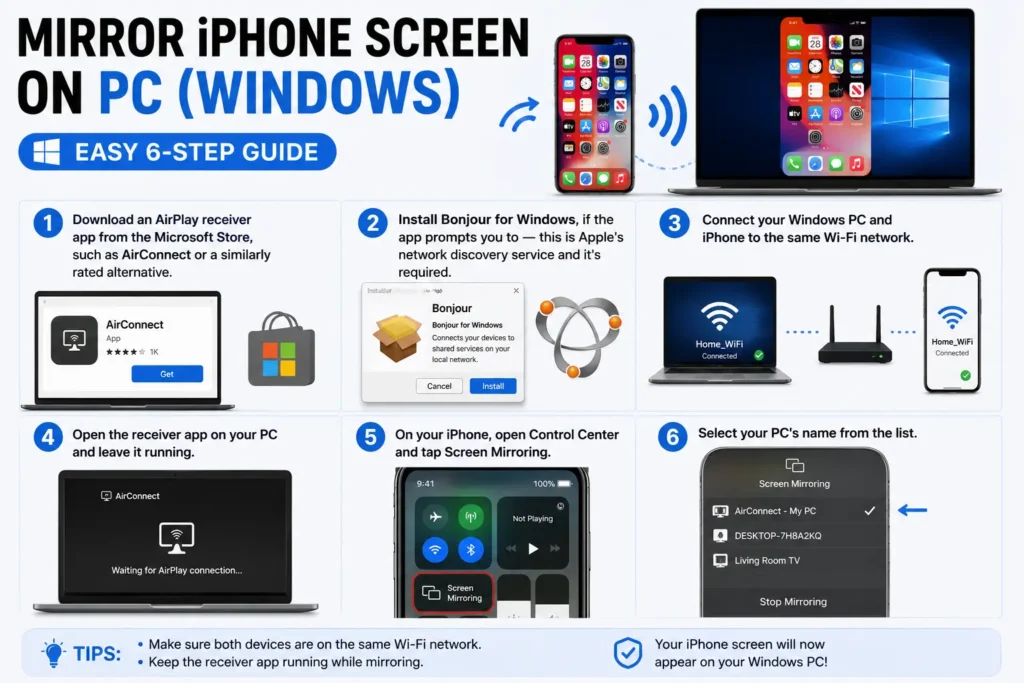
- Download an AirPlay receiver app from the Microsoft Store, such as AirConnect or a similarly rated alternative.
- Install Bonjour for Windows, if the app prompts you to — this is Apple’s network discovery service and it’s required.
- Connect your Windows PC and iPhone to the same Wi-Fi network.
- Open the receiver app on your PC and leave it running.
- On your iPhone, open Control Center and tap Screen Mirroring.
- Select your PC’s name from the list.
Expert Insight: Microsoft’s own Phone Link app — the successor to “Your Phone” — does not support iPhone screen mirroring at all, only limited notification and messaging sync. If you’re hunting for a “screen mirroring iPhone to Windows” option inside Windows itself, stop looking; it doesn’t exist. A third-party AirPlay receiver is the only reliable software path, and it’s the detail nearly every other guide on this topic glosses over.
Two other things worth knowing before you try this on your own laptop:
- Firewall blocking: Windows Defender or third-party antivirus can silently block the AirPlay receiver’s network traffic. If your PC won’t appear, temporarily disable the firewall to confirm, then add a permanent exception.
- DRM-restricted content: Netflix, Apple TV+, and similar streaming apps often show a black screen or a “protected content” error when mirrored, regardless of method. This is a studio licensing restriction, not a bug in your setup.
Method 4: Screen Mirroring iPhone to Laptop or Mac
Mirroring to a Mac actually covers two different Apple features, and mixing them up is a common source of confusion.
Option A — AirPlay Screen Mirroring (works on any Mac):
- On your Mac, go to System Settings → General → AirDrop & Handoff.
- Confirm AirPlay Receiver is turned on.
- On your iPhone, open Control Center and tap Screen Mirroring.
- Select your Mac from the list.
This casts your entire iPhone screen live to your Mac, just like mirroring to a TV.
Option B — iPhone Mirroring (macOS Sequoia and later): This is a separate Continuity feature, not AirPlay. It lets you control your iPhone directly from your Mac’s keyboard and trackpad, even while your iPhone stays locked on the table beside you.
- Make sure both devices are signed into the same Apple ID.
- Open the iPhone Mirroring app from your Mac’s Dock or Launchpad.
- Authenticate with Face ID or Touch ID on your iPhone once, when prompted.
- Your iPhone’s apps now appear in a window on your Mac.
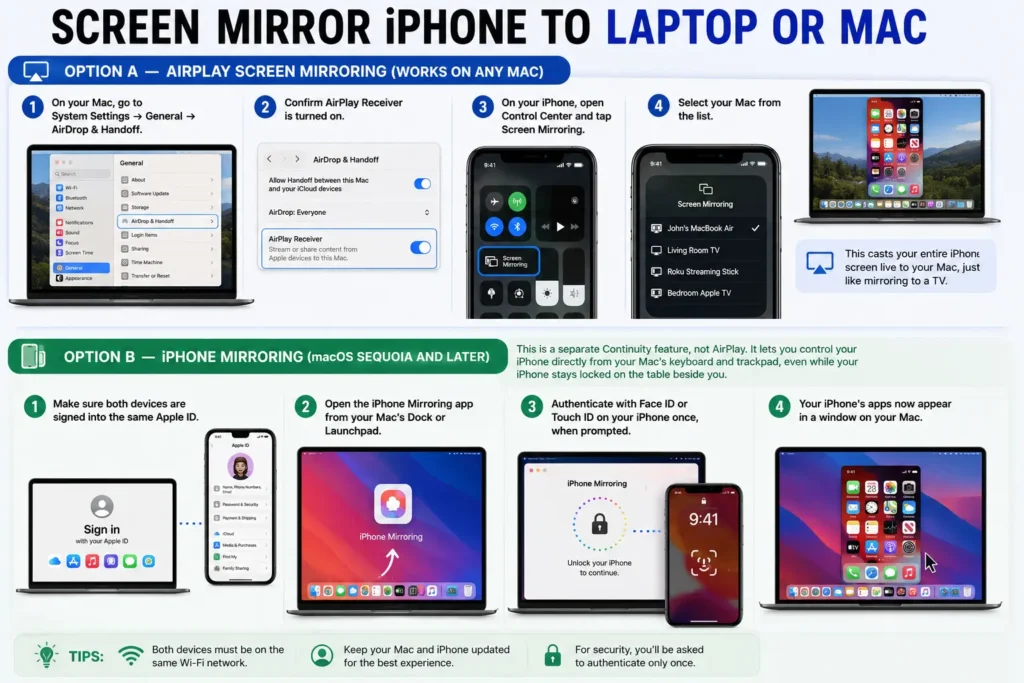
Use Option A when you want to show your screen to others. Use Option B when you want to work from your iPhone without picking it up.
Method 5: Wired Mirroring with an iPhone HDMI Adapter
If your display doesn’t support AirPlay, your Wi-Fi is unreliable, or you simply want zero lag for gaming, a wired connection is the most dependable option available.
- Confirm your adapter matches your iPhone’s port: USB-C for iPhone 15 and later, Lightning for iPhone 14 and earlier.
- Connect the adapter to your iPhone.
- Connect an HDMI cable from the adapter to your TV or monitor.
- Select the correct HDMI input on your TV’s remote.
- Your iPhone screen appears instantly — no Wi-Fi, no passcode, no app.
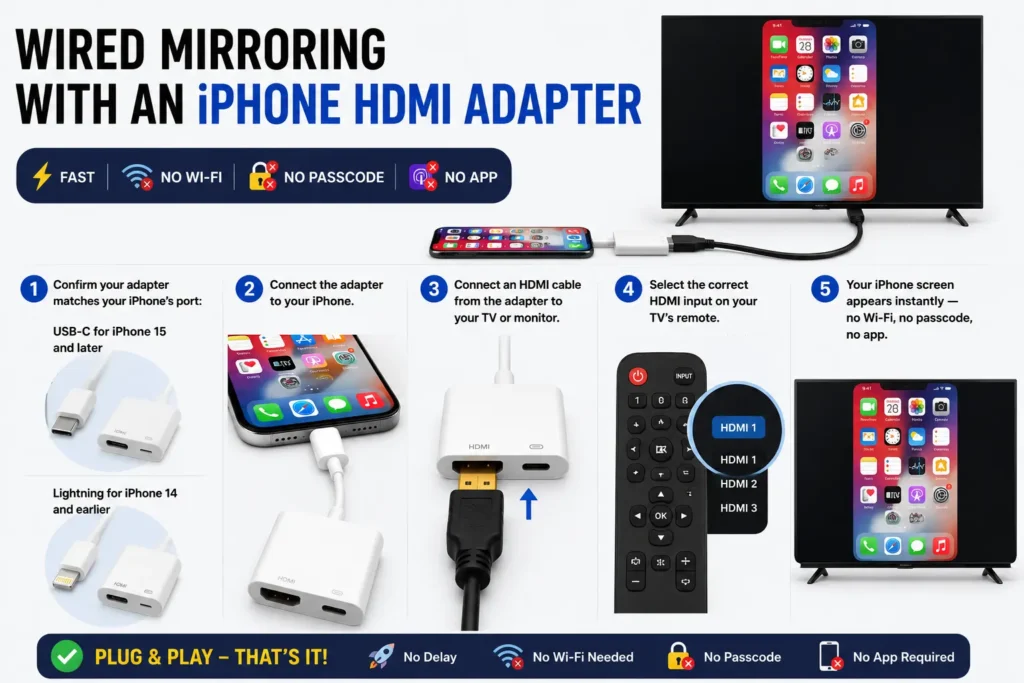
Apple’s own USB-C Digital AV Multiport Adapter typically runs $45–70, while MFi-certified third-party versions from brands like Anker or Belkin often cost $20–35 and perform just as reliably for basic mirroring.
The Analogy That Makes This Click
Think of AirPlay screen mirroring like a live television broadcast: whatever happens on your iPhone happens on the TV at the exact same instant, frame for frame. Casting — the technology apps like YouTube or Netflix use with their own “Cast” buttons — works more like handing someone a playlist. You send the video’s location, and the receiving device fetches and plays it independently, which is why casting keeps working even if you lock your phone, but mirroring doesn’t.
Real-World Case Study: The Conference Room Wi-Fi Failure
Priya, a marketing manager from Denver, was three minutes from presenting a client pitch off her iPhone when the hotel conference room’s guest Wi-Fi dropped entirely. AirPlay requires both devices on the same network, so her mirroring connection died mid-setup with twenty people watching her scramble.
The fix took ninety seconds. She had packed a $30 USB-C to HDMI adapter as a backup — a habit from a previous mirroring failure — and plugged directly into the room’s projector cable. No Wi-Fi, no app, no passcode. The lesson stuck with her team: wireless mirroring is convenient, but a wired adapter is the one method that never depends on network conditions.
What If Screen Mirroring Isn’t Working?
Work through these in order — most connection failures resolve within the first three steps.
- Confirm both devices share the same Wi-Fi network. This is the single most common cause of a missing device in the Screen Mirroring list. Guest networks and 5GHz/2.4GHz band splits on some routers can silently separate two devices that look “connected.”
- Turn off any active VPN on either device. VPNs frequently block the local network discovery AirPlay depends on.
- Restart both devices. A simple reboot resolves a surprising number of stuck AirPlay sessions.
- Update iOS and your receiving device’s software. Apple regularly patches AirPlay bugs; running outdated software on either end is a common culprit.
- Reset your iPhone’s network settings if the device list stays empty across multiple attempts. This clears corrupted Wi-Fi configurations without touching your photos or apps — our guide to resetting network settings on iPhone walks through the exact steps.
- Check your firewall if you’re mirroring to a Windows PC specifically. Security software is the most frequent blocker in that scenario.
- Switch to a wired adapter if wireless mirroring keeps failing under time pressure. It bypasses every network-related issue at once.
Pro Tip: Get More Out of Your Setup
If you mirror to your TV regularly, add the Apple TV Remote to Control Center so you’re not juggling two remotes once mirroring starts — our Apple TV Remote app guide covers setup in under two minutes. And if screen mirroring is part of a bigger AirPlay-and-audio setup at home, our roundup of the best apps to control Apple TV is worth bookmarking too.
Key Takeaways
- Control Center → Screen Mirroring is the starting point for every wireless method, on every destination.
- AirPlay powers mirroring to Apple TV, most 2019+ smart TVs, Roku, and Macs — and it requires both devices on the same Wi-Fi network.
- Windows PCs need a third-party AirPlay receiver app because Windows uses Miracast, a protocol iPhone doesn’t support.
- iPhone Mirroring (macOS Sequoia+) is a different feature from AirPlay — it controls your iPhone from your Mac rather than casting the screen live.
- Wired HDMI adapters are the only method immune to Wi-Fi problems, making them the safest backup for presentations.
- Streaming apps like Netflix and Apple TV+ may block mirrored playback due to DRM licensing, regardless of method.
Related Questions
Yes, but only with a wired connection. A USB-C or Lightning to HDMI adapter mirrors your screen with no network required at all. Every wireless method — AirPlay included — needs both devices on the same Wi-Fi network.
The most common causes are mismatched Wi-Fi networks, an active VPN, outdated software, or a target device that isn’t AirPlay 2-compatible. Trying a Windows PC without an AirPlay receiver app installed will also produce this exact symptom.
AirPlay is the underlying wireless technology; screen mirroring is one thing you can do with it. AirPlay can also stream a single video or song without mirroring your whole screen, which uses less battery and keeps your phone usable for other tasks.
Yes — use a wired HDMI adapter for a direct connection, or a third-party mirroring app like DoCast for TVs that support Chromecast or similar casting protocols instead.
Somewhat. Mirroring keeps your display active and uses Wi-Fi continuously, which draws more power than idle use. Keeping your iPhone plugged in during long mirroring sessions, like presentations, is a good habit.
Sources
- Apple Support: Use AirPlay to stream video or mirror the screen of your iPhone
- Roku Support: Screen mirror your Apple device with AirPlay
Disclaimer
This guide reflects testing and publicly available documentation as of July 2026, using an iPhone 17 Pro running iOS 26.5.1. Menu locations, app names, and device compatibility can change with future iOS, macOS, tvOS, and Roku OS updates. Third-party app names and pricing are accurate at the time of publication but may vary by region or update independently of this article. AppleHeadlines.com is an independent publication and is not affiliated with or endorsed by Apple Inc., Microsoft, or Roku.
Ready to get your iPhone on the big screen? Try AirPlay first if you have an Apple TV or newer smart TV — it’s free and takes thirty seconds. Keep a wired adapter in your bag for anything that actually matters.
For everything coming to your iPhone this fall, see our iOS 27 Complete Guide. And if you’re troubleshooting a screen share on the other direction — from a Windows PC into a FaceTime call — check out FaceTime on PC: Here’s How It Actually Works.

T’kal is the lead strategist and developer behind Apple Headlines. With a background in digital marketing and web development, he specializes in technical Apple troubleshooting, software news, and hardware rumors. T’kal focuses on delivering high-authority tech content that bridges the gap between Apple enthusiasts and the latest industry innovations.