


Quick Answer: Most stuck updates come from four things: an unsupported watch, an iPhone on old software, a weak connection, or low storage.
Check compatibility first. watchOS 27 needs an Apple Watch Series 9 or newer, Ultra 2 or newer, or an SE 3, paired with an iPhone on iOS 27.
If your watch qualifies, charge it above 50%, restart both devices, and retry on Wi-Fi. Still stuck? Unpair, set up as new, then update.
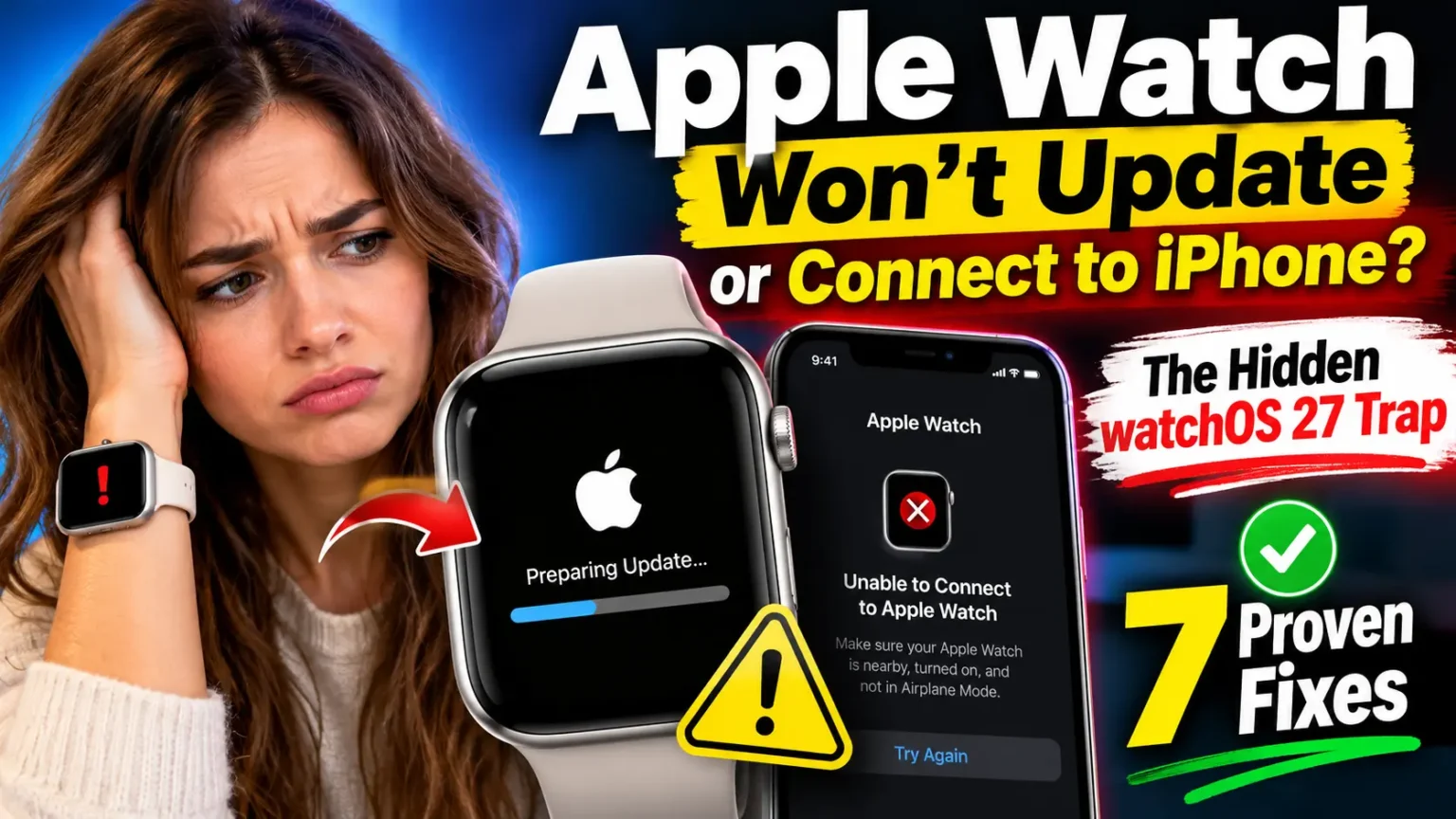
Your Apple Watch has said “Verifying Update” for an hour.
Or the red iPhone icon won’t go away. Or Software Update shows nothing at all.
It’s maddening, especially when you rely on the watch for workouts, calls, and payments.
The good news is that this is almost always fixable at home.
Even better, one cause hides in plain sight this year. watchOS 27 retired several older models, so your watch may be fine, just too old.
Why This Problem Matters More Than It Looks
A stuck update isn’t just annoying. Updates carry security patches and bug fixes.
Apple also warns that some iPhone updates require a matching watchOS update, so your Activity data keeps syncing.

Updating and connecting are really one problem.
Your iPhone usually downloads the update, then passes it to the watch.
If that link is shaky, both fail.
Our team has covered Apple Watch charging, resets, and unpairing, and every fix below is cross-checked against Apple’s support pages from July and September 2026.
Step Zero: Is Your Apple Watch Even Eligible for watchOS 27?
Skip this check and you could burn an evening resetting a healthy watch. Apple released watchOS 27 on September 14, 2026, and it dropped several models.
| Status | Apple Watch models |
|---|---|
| Eligible | SE 3, Series 9, 10, 11, 12, Ultra 2, Ultra 3, Ultra 4 |
| Not eligible | Series 8 and older, SE (1st and 2nd gen), Ultra (1st gen) |
Your iPhone matters too.
You need an iPhone 11 or later, or an iPhone SE (2nd generation) or later, running iOS 27. Not sure about that jump?
Read our guide on whether to upgrade to iOS 27.
Here’s the catch behind searches like “update required but no update available.”
On an unsupported watch, Software Update shows the newest version your model can run. Nothing is broken.
Your watch has simply reached the end of the line.
Searching “Apple Watch won’t update to iOS 26”? Those are two systems.
iPhones run iOS. Watches run watchOS, and the watch follows the iPhone’s lead.
Match Your Symptom to the Right Fix
| What you see | Likely cause | Start here |
|---|---|---|
| Stuck on “Verifying” or “Unable to Verify Update” | Weak connection or bad download | Fixes 1, 2, 4 |
| “Unable to Check for Update” | Old iOS on iPhone, or a VPN | Fix 1 |
| Red iPhone icon or red X in Control Center | Lost Bluetooth or Wi-Fi link | Fix 3 |
| Update won’t start | Battery under 50% or not charging | Fix 1 |
| “Update required,” nothing to install | Unsupported model | Step Zero |
| Won’t pair after an update | Stale pairing data | Fix 7 |
Apple Watch Won’t Update or Connect to iPhone? Try These Fixes
When we tested this on an iPhone 18 Pro running iOS 27.0.1 with an Apple Watch Series 11, this order cleared a stalled update fastest.
Don’t skip ahead. The simple fixes work more often than you’d expect.
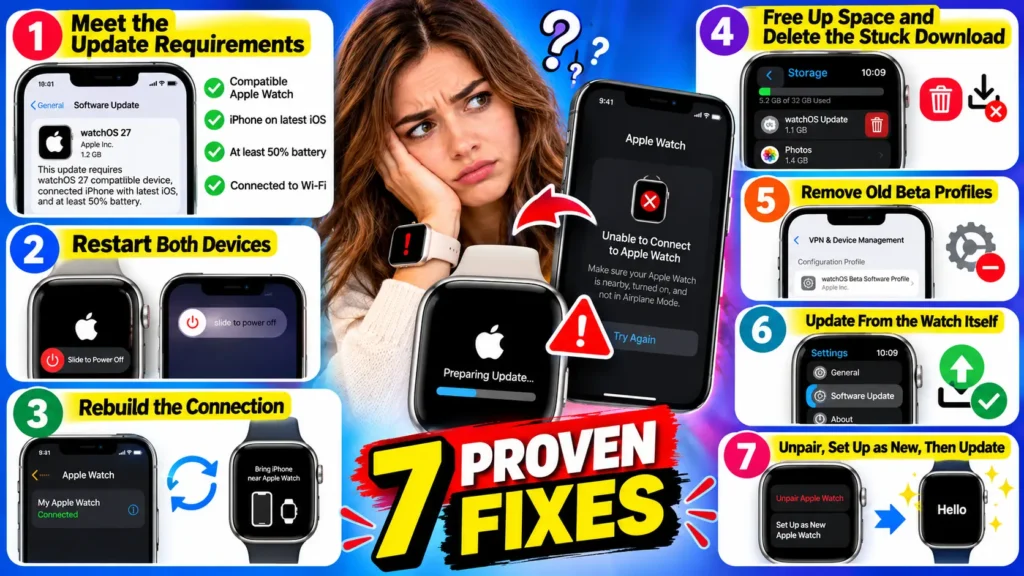
Fix 1: Meet the Update Requirements
- Place your watch on its charger. It needs at least 50% battery.
- Update your iPhone to the latest iOS first.
- Connect your iPhone to Wi-Fi. Turn off any VPN.
- Keep both devices close until the update finishes.
Apple says the install can take several minutes to an hour. Be patient.
Fix 2: Restart Both Devices
- Press and hold the side button on your watch.
- Drag the Power Off slider, then wait 30 seconds.
- Turn the watch back on.
- Restart your iPhone too.
- Open Software Update again and retry.
Need help with step one? See how to turn off an Apple Watch on any model.
Fix 3: Rebuild the Connection
A red iPhone icon or red X in Control Center means your devices lost each other. A green iPhone icon means they’re connected.
- Bring the watch and iPhone close together.
- On your iPhone, open Control Center. Confirm Airplane Mode is off.
- Make sure Wi-Fi and Bluetooth are on.
- On your watch, press the side button. Confirm Airplane Mode is off there too.
- Restart both devices, then look for the green icon.
Fix 4: Free Up Space and Delete the Stuck Download
- On your iPhone, open the Apple Watch app.
- Tap General, then Storage.
- Delete the update file if you see one.
- Remove synced music and photos from your watch.
- Delete apps you never use, then try again.
Fix 5: Remove Old Beta Profiles
Apple says you must remove a beta profile before the next major update.
- In the Apple Watch app, tap My Watch, then General, then Profiles.
- Choose the beta profile and tap Delete Profile.
- On your iPhone, check Settings, General, then Profiles & Device Management.
- Restart both devices and check for the update.
Fix 6: Update From the Watch Itself
This skips the iPhone download. Users on AppleVis report it worked when the iPhone route sat on “Verifying” forever.
- Connect your watch to Wi-Fi.
- Open Settings on the watch.
- Tap General, then Software Update.
- Tap Install, and leave the watch on its charger.
Fix 7: Unpair, Set Up as New, Then Update
This is the heavy option. It clears corrupted files and stale pairing data.
- Keep your watch and iPhone close together.
- Open the Apple Watch app and tap All Watches.
- Tap the info button, then Unpair Apple Watch.
- Keep your cellular plan if asked, then confirm.
- Set up the watch again. Choose Set Up as New this time.
- Install the update before restoring anything.
Your iPhone makes a fresh backup before erasing the watch.
Want your data back? Unpair a second time, then choose Restore from Backup.
Yes, it’s two rounds, but it’s the cleanest path.
Our unpair guide for every Apple Watch series has the details.
A Simple Way to Picture What’s Going Wrong
Think of the update as a package delivery.
Your iPhone is the driver.
Your watch is a house with a small mail slot.
The driver needs a clear road, which is Wi-Fi, and a full tank, which is battery.
The slot must be big enough, which is storage.
If any piece fails, the box sits on the porch marked “Verifying.”
If your watch is unsupported, it’s simply the wrong address. No amount of driving fixes that.
Pro Tip: Wait 20 Minutes Before You Restart. A frozen-looking “Verifying” screen is often still working. Give it about 20 minutes on Wi-Fi first. But once the progress wheel appears on your watch, stop touching things. Apple says not to restart either device mid-install. A badly timed restart can corrupt the download and send you back to Fix 4.
Real-World Case: The Series 6 That Wasn’t Broken
Here’s a composite of a question we see constantly. A reader with a Series 6 installed iOS 27 on her iPhone. Her watch showed “Unable to Verify Update.” She restarted twice, deleted apps, then unpaired. Still nothing.
The cause was simple. Series 6 isn’t on the watchOS 27 list. Software Update was showing the newest version her model could run, and she already had it. She spent three evenings fixing a problem that didn’t exist. Check Step Zero before you reset anything.
Model-by-Model Notes
- Series 2 and Series 4: These stopped getting major updates years ago. Very old watches can also lose pairing support with newer iPhones.
- Series 6, 7, 8, SE 2, and Ultra 1: You’re on watchOS 26. That’s normal, not a fault.
- Series 9 to 11, Ultra 2 and 3, SE 3: You should see watchOS 27. Apple briefly listed Series 9 as unsupported, then confirmed it works.
- Series 12 and Ultra 4: A watchOS 27.0.1 update arrived for these two only, fixing random restarts. Other models won’t see it. See our Series 12 and Ultra 4 guide.
What If This Doesn’t Work?
Try these in order:
- Switch networks. Use your iPhone hotspot or a different Wi-Fi network.
- Reset your iPhone’s network settings. It can repair stubborn links. Our Reset All Settings guide shows what gets wiped.
- Erase the watch directly. Open Settings, General, Reset, then Erase All Content and Settings. Our Apple Watch reset guide covers every method.
- Check the charger. A watch that won’t charge can’t update. See Apple Watch won’t charge.
- Book a repair check. Use our Genius Bar appointment tips.
Key Takeaways
- Check watchOS 27 eligibility before you reset anything.
- Charge above 50%, update your iPhone first, and use stable Wi-Fi.
- Wait about 20 minutes on “Verifying,” then restart both devices.
- Update from the watch itself if the iPhone route stalls.
- Unpair only after the easier fixes fail.
- No watchOS 27.0.1 is normal unless you own a Series 12 or Ultra 4.
Frequently Asked Questions
Usually your model is unsupported, so Software Update shows the newest version it can run. It can also mean your iPhone needs its own iOS update first.
Apple says several minutes to an hour. Keep the watch charging and your iPhone nearby. Don’t restart either device once installation begins.
Yes. If the watch is already set up and on Wi-Fi, go to Settings, General, Software Update on the watch. A brand-new or erased watch must be paired once during setup.
Your iPhone backs up the watch before erasing it. You can restore from that backup afterward.
No. Series 6, 7, 8, SE 2, and the first Ultra are not on Apple’s list. They stay on watchOS 26.
Sources
- Apple Support, “Update your Apple Watch” (September 14, 2026): https://support.apple.com/108926
- Apple Support, “Unable to Verify Update” (September 14, 2026): https://support.apple.com/en-us/111816
- Apple Support, “Apple Watch isn’t connected or paired” (July 7, 2026): https://support.apple.com/en-us/108360
- 9to5Mac, watchOS 27 compatibility list: https://9to5mac.com/?p=1054887
- iThinkDiff, watchOS 27.0.1 release coverage: https://www.ithinkdiff.com/apple-releases-watchos-27-0-1-for-apple-watch-series-12-and-apple-watch-ultra-4-with-a-restart-fix/
- Appuals, “Apple Watch Won’t Update?”: https://appuals.com/apple-watch-wont-update/
- AppleVis community thread: https://mail.applevis.com/comment/121765
Disclaimer
This guide is for general information. Menu names and steps can change with new watchOS and iOS releases. Unpairing and erasing a watch removes data stored only on it, so back up first. Apple Headlines is not affiliated with Apple Inc. For hardware faults, contact Apple Support or an authorized service provider.
Still stuck? Tell us your watch model and the exact error message in the comments, and we’ll help you narrow it down. Want more fixes like this?
Explore our Apple Watch Ultimate Guide.
Related Posts:
- Apple Watch Series 12 Keeps Restarting? The Hidden Neural Engine Bug Behind It (Plus 5 Steps to Stop It)
- Apple TV 4K Dolby Atmos Not Working: The ARC Trap Silencing Your Soundbar (+6 Checks)
- Apple Watch Won’t Update or Connect to iPhone? The Hidden watchOS 27 Trap (Plus 7 Proven Fixes)
- Apple Health Data Not Syncing? Why Your iPhone, iPad and Watch Disagree (7 Hidden Culprits)
- AirPods 5 Hurt Ears? The Hidden Fit Trap – and 6 Ways Out

T’kal is the lead strategist and developer behind Apple Headlines. With a background in digital marketing and web development, he specializes in technical Apple troubleshooting, software news, and hardware rumors. T’kal focuses on delivering high-authority tech content that bridges the gap between Apple enthusiasts and the latest industry innovations.