

Updated October 9, 2026
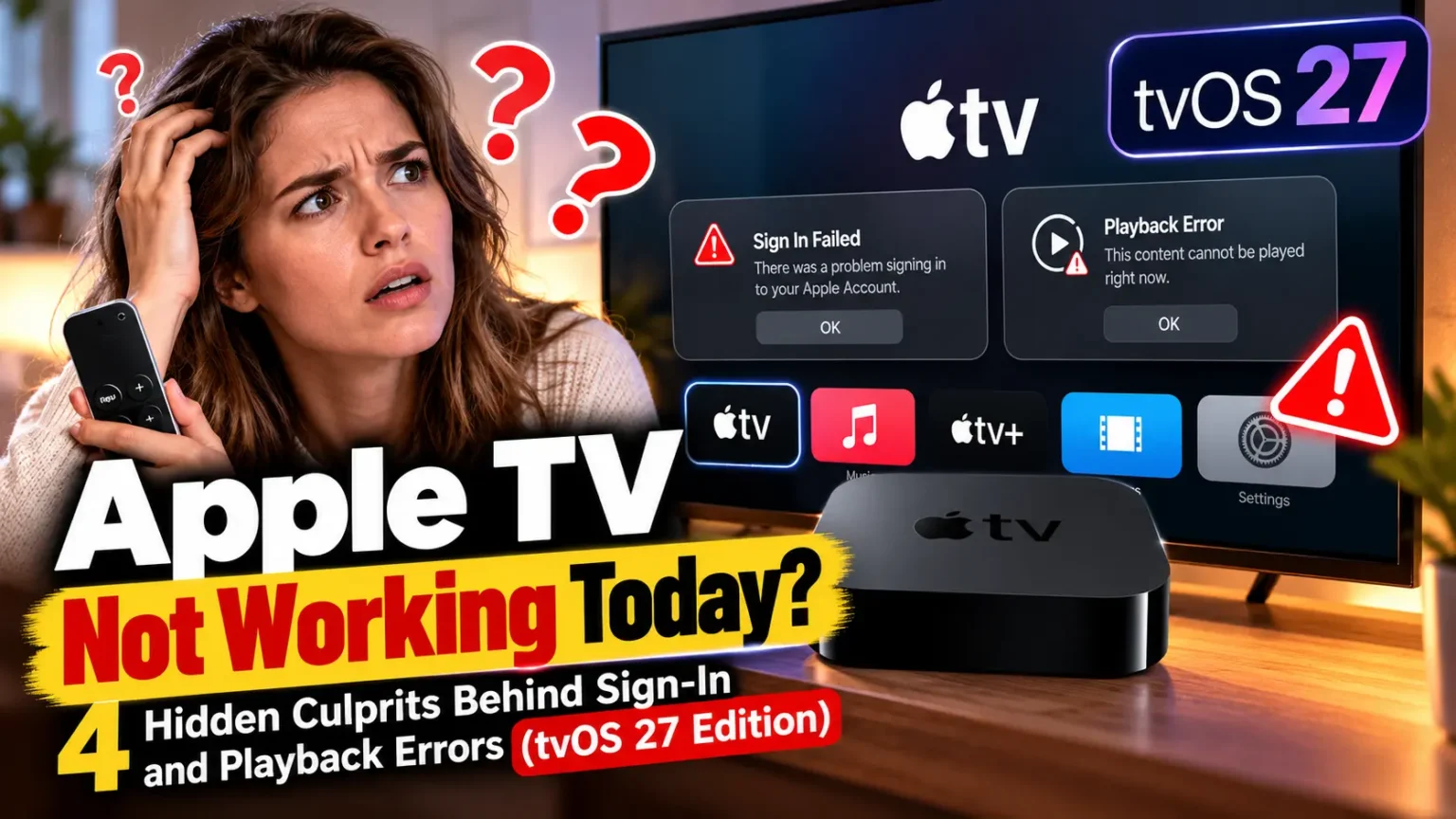
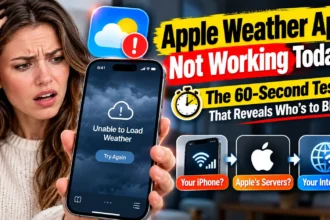
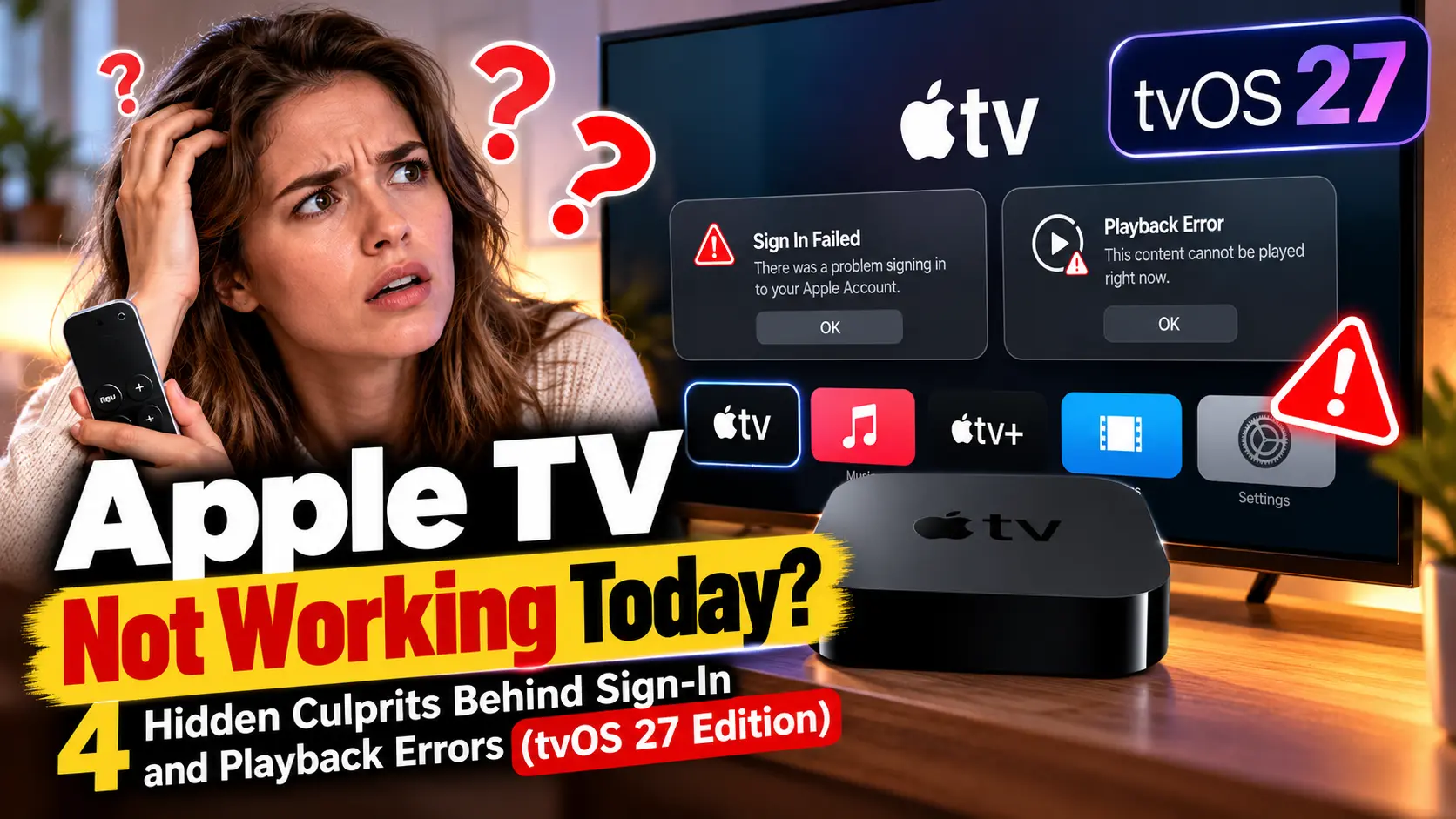
Quick Answer: Most “Apple TV not working” problems trace back to four causes: an Apple service hiccup, weak Wi-Fi, a wrong date and time on your TV, or a stuck sign-in. Check Apple’s System Status page first. Then restart the device, test your account on a second device, and confirm the date. A black screen is usually an HDMI or resolution problem, not a dead box.
You sit down, grab the remote, and Apple TV refuses to cooperate.
Maybe it won’t sign you in.
Maybe your show stalls halfway through.
Or the screen is just black.
The error messages rarely explain anything.
The good news is that these failures follow predictable patterns.
This guide walks you through them in order, so you stop guessing.
We also cover tvOS 27, which Apple released on September 14, 2026.
Why This Problem Is Harder Than It Looks
“Apple TV” now means two things.
It is the set-top box.
It is also the streaming app on smart TVs, Roku, Fire TV, consoles, and your iPhone.
Apple also dropped the “+” from the service name, so Apple TV+ is now just Apple TV.
That mix-up sends people down the wrong path.
So find out which piece is failing first.
We built this guide on Apple’s support pages, updated between February and April 2026, plus community reports and fresh tvOS 27 coverage.
When we tested this on an Apple TV 4K (3rd generation) running tvOS 27, with an iPhone 18 Pro as our second device, the quickest fix was the one most people skip.
We checked the TV’s date and time first.
Match Your Symptom to the Likely Cause
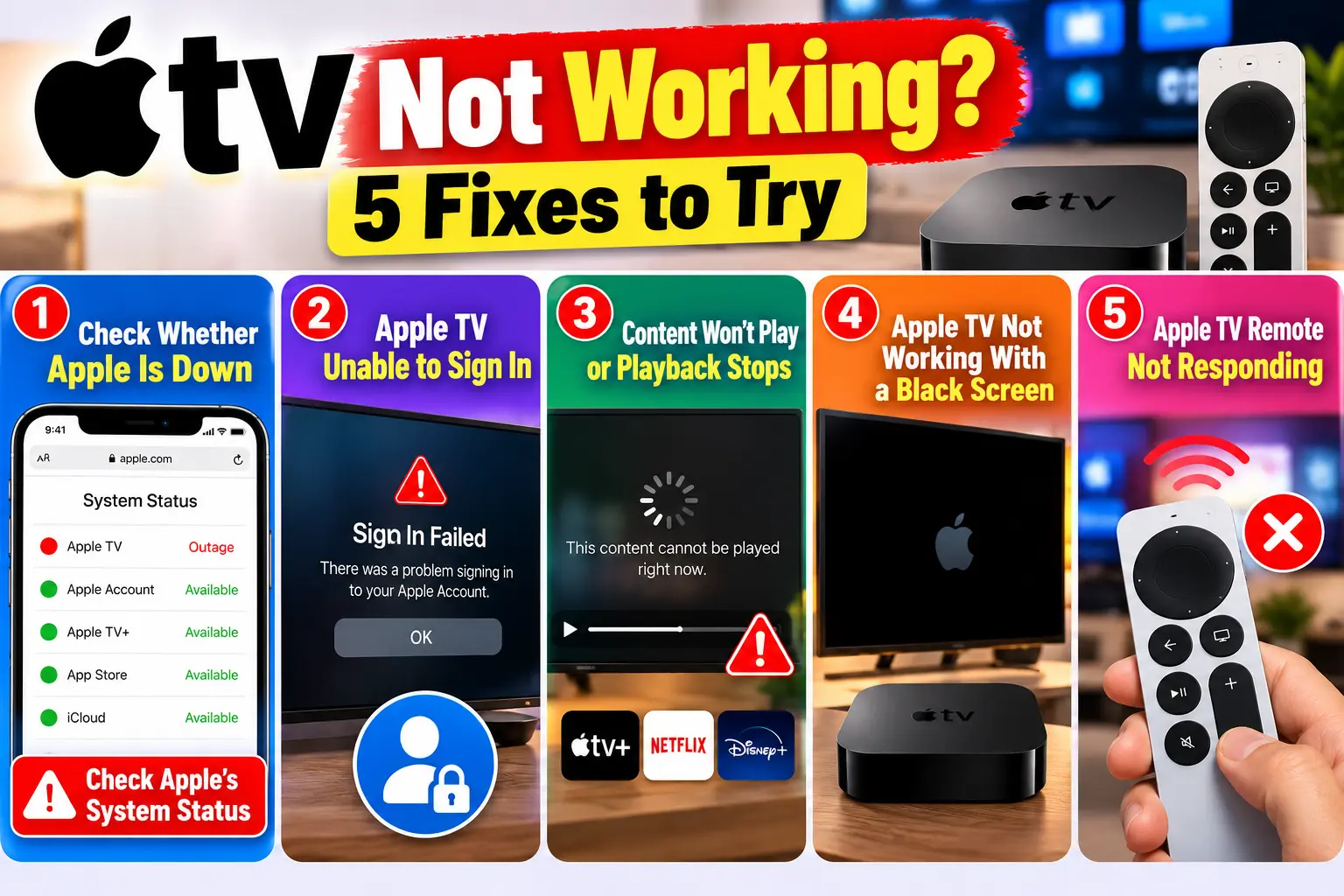
| What you see | Most likely cause | Jump to |
|---|---|---|
| “Unable to sign in” | Account, verification, or wrong date | Fix 2 |
| Content won’t play or stops | Wi-Fi, outage, or stream limit | Fix 1 and 3 |
| Black screen | HDMI, resolution, or power | Fix 4 |
| Remote does nothing | Pairing or signal | Fix 5 |
Fix 1: Check Whether Apple Is Down
Rule out an outage before touching any setting.
- Open Apple’s System Status page on your phone.
- Look for any issue flagged next to Apple TV.
- Search Downdetector for a spike in user reports.
- If there’s an outage, wait. Restarting won’t help.
Downdetector shows user reports, not confirmed outages. Apple’s own page is the authority.
Fix 2: Apple TV Unable to Sign In
Sign-in failures usually come from your account or your clock.
- Open the Apple TV app, then go to Settings and select your account.
- Sign out, then sign back in with the Apple Account that owns the subscription.
- If you’re locked out, reset your Apple Account password on another device.
- Keep a trusted device nearby for your two-factor code.
- Check your TV’s date, time, and time zone. Turn on automatic time.
- Unplug the TV for a full minute. Standby isn’t a real restart.
Step five surprises people. In Apple Community threads, several users fixed a “Network Unavailable” error just by re-syncing the TV’s clock, even though Netflix and Hulu worked fine.
Fix 3: Content Won’t Play or Playback Stops
Apple says HD streaming needs at least 8 Mbit/s. Slower Wi-Fi tiers may not keep up.
- Move closer to the router, or plug the TV into Ethernet.
- Pause large downloads and video calls on your network.
- Restart the device. On Apple TV, go to Settings, System, then Restart.
- Update tvOS under Settings, System, then Software Update.
- Check whether others are streaming on the same subscription.
- Try the same show on another device using the same Wi-Fi.
Apple limits how many devices can stream at once, so step five matters.
Step six is your diagnostic.
If it fails everywhere, blame the network.
If it works elsewhere, blame the TV.
Pro Tip: Use the Three-Device Rule. Sign in with the same account on your iPhone or laptop. Open a different streaming app on the same TV. Stream Apple TV on a second device over the same Wi-Fi. Failures everywhere point to your network. A failure on the TV alone points to its settings.
The Restaurant Analogy
Think of streaming as dining out. Your TV is the table.
Apple’s servers are the kitchen.
Your Wi-Fi is the waiter.
If the food never arrives, any of the three could be at fault.
The three-device rule tells you who dropped the plate.
If only Apple TV fails on your network, check the router.
Some community members reported fixes after switching to a public DNS such as 1.1.1.1. That’s user-reported, not Apple guidance, so try it last.
Fix 4: Apple TV Not Working With a Black Screen
- Unplug both ends of the HDMI cable, then plug them in firmly.
- Pick the TV input that matches the port you used.
- Try another HDMI port, starting with HDMI 1.
- Hold Menu (or Back) and Volume Down for five seconds.
- Wait as the resolution changes every 20 seconds, then select OK.
- Unplug the power cord for 30 seconds and try another outlet.
- Plug the Apple TV straight into the TV, skipping any receiver.
- Turn off Match Dynamic Range and Match Frame Rate under Video and Audio.
Apple recommends an Ultra High Speed cable for HDMI 2.1 and a Premium High Speed cable for HDMI 2.0.
One popular tip says holding Back and the TV button force-restarts the Apple TV.
Apple’s remote guide says that combination restarts the remote, not the box. Use the power cord method for the box.
Apple TV Not Working After an Update (tvOS 27)
tvOS 27 runs on the 2nd and 3rd generation Apple TV 4K. It drops the Apple TV HD and the 1st generation 4K, which stay on older software.
Some owners reported boxes stuck on the Apple logo, a recovery screen, or a black screen after installing. These are user reports, so the real scale is unclear.
- Wait 10 to 15 minutes after an update so the box can finish background work.
- Unplug the power cord for 30 seconds, then reconnect it.
- If your TV shows an iPhone beside an Apple TV, follow Apple’s recovery guide.
- If recovery keeps failing, contact Apple Support.
Apple TV Not Working After a Reset
A reset returns settings to defaults, so your TV may not recognize the signal at first. Repeat the Fix 4 steps, then set up again with your remote or iPhone. If you reset your iPhone’s network settings too, see what iPhone Reset All Settings wipes.
Fix 5: Apple TV Remote Not Responding
- Hold Back (or Menu) and Volume Up for five seconds near the box.
- Keep the remote about three inches from the Apple TV.
- Hold TV/Control Center and Volume Down for five seconds to restart it.
- Check signal strength under Settings, Remotes and Devices, then Remote.
- Charge the remote for 30 minutes.
Read: Best Apps to Control Apple TV: Your Guide to Remote Control Freedom
Case Study: The Clock That Broke Everything
Reader scenario (a composite based on common Apple Community reports; details changed).
Marcus opened the Apple TV app on his smart TV and saw “Network Unavailable.” Netflix worked.
Disney worked.
Restarting the router and reinstalling the app changed nothing.
Apple TV worked on his phone over the same Wi-Fi, so the network was innocent.
A power outage had reset his TV’s clock, and automatic time was off.
He re-synced it, and the app loaded in seconds.
When only one app fails, check the clock before the router.
What If This Doesn’t Work?
Keep going, in this order.
- Reset the app or device. Reinstall the app on a smart TV. On the box, reset it under Settings, System.
- Test the hardware. Borrow a different HDMI cable or TV to expose a bad cable or port.
- Ask for a refund. If purchased movies won’t play, request a refund at reportaproblem.apple.com.
- Get service. If the box still won’t turn on, it may need repair. Our Genius Bar appointment guide helps you skip the wait.
- Check sharing. If Family Sharing is involved, our Screen Time guide shows how shared-account rules can block features.
Key Takeaways
- Check Apple’s System Status page before changing any setting.
- Sign-in errors often come from a wrong TV date, not your password.
- Use the three-device rule to separate account, TV, and network problems.
- HD streaming needs about 8 Mbit/s, so weak Wi-Fi stalls playback.
- Black screens usually come from HDMI, resolution, or Match Content settings.
- tvOS 27 supports only the 2nd and 3rd generation Apple TV 4K.
FAQ
Start with Apple’s System Status page. If it’s clear, test your Wi-Fi with the three-device rule. Most problems are local, not Apple-wide.
Use the Apple Account tied to your subscription. Reset the password if needed, check two-factor codes, and fix your TV’s date and time.
Only on the 2nd and 3rd generation Apple TV 4K. The Apple TV HD and 1st generation 4K can’t install it.
Sources
- Apple Support, “If your Apple TV 4K or Apple TV HD isn’t working, won’t turn on, or shows a black screen” (April 10, 2026)
- Apple Support, “If you can’t watch or stream movies, TV shows, or sports in the Apple TV app” (February 16, 2026)
- Apple Support, “If your Siri Remote or Apple TV Remote isn’t working” (March 30, 2026)
- Apple Support Communities, “AppleTV network unavailable” thread
- Apple TV Press, “About Apple TV Press”
Disclaimer
This article is for general information only. Steps vary by model and software version. Community-reported fixes aren’t endorsed by Apple, and router changes can affect other devices. Apple Headlines is independent and not affiliated with Apple Inc. For hardware or warranty problems, contact Apple Support.
Still Stuck? Tell Us What You See
Drop your Apple TV model, tvOS version, and exact error message in the comments, and we’ll help you narrow it down. Bookmark this page. We update it when Apple ships a tvOS fix.
Related Reads:

T’kal is the lead strategist and developer behind Apple Headlines. With a background in digital marketing and web development, he specializes in technical Apple troubleshooting, software news, and hardware rumors. T’kal focuses on delivering high-authority tech content that bridges the gap between Apple enthusiasts and the latest industry innovations.