

Quick Answer: An iOS 27 unresponsive touchscreen is usually a software freeze, not a broken display.
Force restart your iPhone.
Press Volume Up, press Volume Down, then hold the Side button until the Apple logo appears.
Next, install iOS 27.0.1 or later in Settings > General > Software Update.
If one part of the screen stays dead after that, you likely have a hardware problem and need Apple service.
Your iPhone screen is lit, but nothing responds.
You tap, swipe, and hold the Side button.
Nothing.
That feels awful, especially right after a big update.
Here is the good news.
Most iOS 27 touch freezes are software glitches, and Apple already patched the worst one.
This guide shows you how to get control back fast.


You will also learn which iPhones are affected and how to tell a glitch from a hardware fault.
Why an iOS 27 Unresponsive Touchscreen Is a Bigger Deal Than a Normal Glitch
A frozen touchscreen blocks everything.
You cannot answer calls, open Wallet, or even reach the power-off slider.
That is why this bug spread so fast after iOS 27 landed on September 14, 2026.
We have tracked iOS 27 since the first beta.
Our team tests fixes on an iPhone 17 Pro and an iPhone 18 Pro before we publish them.
The scope is wider than one bug.
TechRadar found multiple Reddit threads describing unresponsive touchscreens and stuttering.
Cybernews added that older phones, like the iPhone 13 Pro, were hit too.
These iOS 27 issues point to a rough launch month, not a dying screen.
What Actually Causes the Freeze?

The headline culprit is a gesture clash.
Cult of Mac documented it on September 17.
Swipe down from the top-left corner to open Notification Center.
Before it finishes, swipe down from the top-right corner for Control Center.
Then dismiss Control Center.
When we tried this on our iPhone 18 Pro running iOS 27.0, the lock screen looked frozen in place.
The Camera and Flashlight buttons stuck near the top.
Taps stopped registering.
Holding the Side button did nothing.
Think of it like a four-way stop with no traffic light.
Two cars enter the intersection at the same moment.
The traffic cop, which is your iPhone’s system interface, cannot decide who goes first.
So the whole intersection locks up.
A force restart is the tow truck that clears the road.
The bug is harmless.
It does not damage your data or hardware.
Still, other causes exist:
- Widget edits: One iPhone 13 Pro owner said editing home screen widgets crashed the whole interface.
- Post-update indexing: TechRadar noted that things may settle once iOS finishes background indexing.
- Crowded home screens: A Redditor linked too many app icons to stuttery launch animations.
- Physical issues: Cases, screen protectors, moisture, and damaged displays can all block touch.
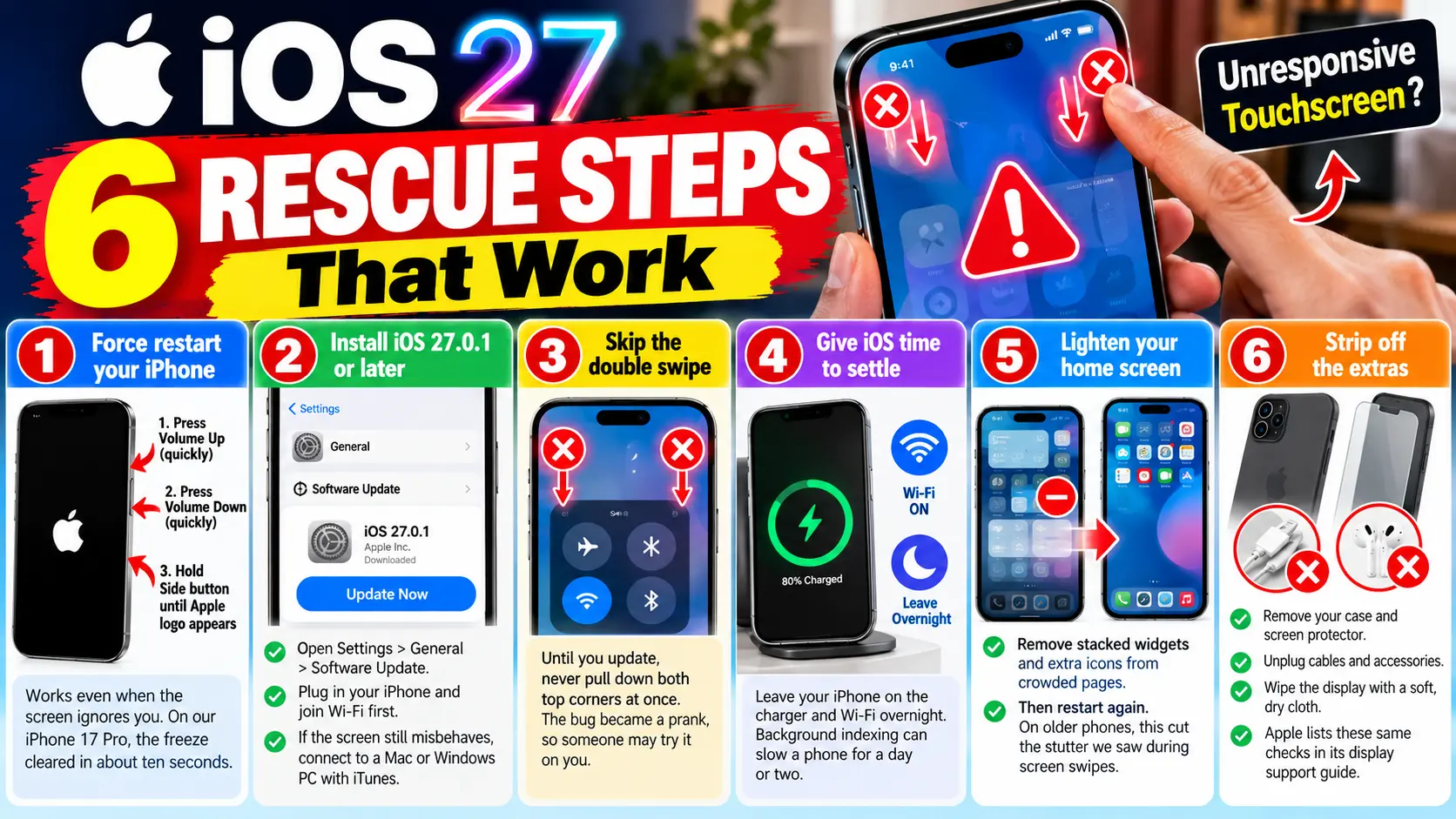
6 Rescue Steps That Work
Follow these in order. Stop when your touchscreen responds.
- Force restart your iPhone. Press and quickly release Volume Up. Press and quickly release Volume Down. Hold the Side button until the Apple logo appears. This works even when the screen ignores you. On our iPhone 17 Pro, the freeze cleared in about ten seconds.
- Install iOS 27.0.1 or later. Apple released it on September 28, 2026. Open Settings, tap General, then Software Update. Plug in your iPhone and join Wi-Fi first. If the screen still misbehaves, connect to a Mac or a Windows PC with iTunes.
- Skip the double swipe. Until you update, never pull down both top corners at once. The bug became a prank, so someone may try it on you.
- Give iOS time to settle. Leave your iPhone on the charger and Wi-Fi overnight. Background indexing can slow a phone for a day or two.
- Lighten your home screen. Remove stacked widgets and extra icons from crowded pages. Then restart again. On older phones, this cut the stutter we saw during screen swipes.
- Strip off the extras. Remove your case and screen protector. Unplug cables and accessories. Wipe the display with a soft, dry cloth. Apple lists these same checks in its display support guide.
💡 Pro Tip: Check Your Version First
Open Settings > General > About and read the iOS Version line. If it says 27.0, you are still exposed to the freeze bug. If it says 27.0.1 or higher, look elsewhere. This ten-second check saves hours of chasing hardware ghosts.
Which iPhones and iOS Versions Are Affected?
Cult of Mac said the freeze can hit any iPhone on iOS 27. Here is how the reports break down.
| iPhone and iOS | What users reported | Best first move |
|---|---|---|
| Any iPhone on iOS 27.0 | Freeze after the two-corner swipe | Force restart, then update to 27.0.1 |
| iPhone 18 Pro / Pro Max on 27.0 | Random restarts when Face ID fails | Update to 27.0.1, which Apple says fixes it |
| iPhone 17 Pro Max on iOS 27 | Choppy animations in Reddit, WhatsApp, Wallet | Restart, wait out indexing, trim widgets |
| iPhone 13 Pro on iOS 27 | Widget edits crash the interface | Restart, remove stacked widgets, update |
Why Is My iPhone Not Responding to Touch but the Screen Is On?
This question has two very different answers. Use this quick triage.
It is probably software if:
- The whole screen freezes, including the power-off slider.
- A force restart brings touch back.
- The problem started right after an update.
It is probably hardware if:
- One strip or corner stays dead after restarting.
- The screen taps by itself, which is called ghost touch.
- It began after a drop, a crack, or water exposure.
Apple’s advice is blunt. If part of the screen does not respond, book service.
One overlooked setting can also fool you.
Go to Settings > Accessibility > Touch > Touch Accommodations.
A long Hold Duration makes every tap feel dead.
If it is switched on, turn it off and test again.
Real-World Example: The “Broken” iPhone That Wasn’t
A reader we will call Marcus, who owns an iPhone 17 Pro, went to dinner with family.
His nephew showed him a “cool trick” and swiped from both top corners. The phone froze solid.
Marcus assumed he had destroyed the screen and nearly booked a Genius Bar visit.
Instead, he searched online and found the force restart.
Ten seconds later, the phone was fine.
He installed the update that night.
Before you panic or pay for repairs, rule out the software bug first.
What If This Doesn’t Work?
Try these escalation steps in order.
- Force restart twice. Sometimes the first attempt stops too early. Wait for the Apple logo each time.
- Update from a computer. Connect your iPhone to a Mac or a PC running iTunes. Choose Update, not Restore.
- Reset your settings. If you can navigate, open Settings > General > Transfer or Reset iPhone > Reset > Reset All Settings. Your data stays safe.
- Back up before service. Connect to a computer and back up if the screen allows it.
- Book a repair. A dead zone that survives every step points to the display. Use our guide to booking a Genius Bar appointment.
Avoid a factory reset as your first move. It erases data and rarely helps with a hardware fault.
If your iPhone also runs hot or drains fast after updating, read our iPhone battery draining fast guide. For the wider picture, see our iOS 27 complete guide.
Key Takeaways
- An iOS 27 unresponsive touchscreen is usually a software freeze, not a failed display.
- The best fix is a force restart, then an update to iOS 27.0.1 or later.
- The freeze triggers when Notification Center and Control Center open back to back.
- Check Settings > General > About to confirm your iOS version.
- A dead zone that survives a restart points to hardware and needs Apple service.
- Check Touch Accommodations before you assume the display is broken.
FAQ
Yes, for the main bug. Apple’s release notes say it fixes the freeze caused by opening both panels together. It does not cover hardware faults or every slowdown report.
No. A force restart only reboots your iPhone. Your photos, apps, and settings stay put.
No. Cult of Mac called it a harmless glitch that does not damage data or hardware. It is annoying, not risky.
Usually a software freeze or a stuck gesture. Force restart first. If a zone stays dead afterward, suspect the display or digitizer and contact Apple.
Sources
- Cult of Mac, “iPhone software patch fixes nasty iOS 27 freeze bug and more,” September 28, 2026
- TechRadar, “Is your iPhone’s touchscreen sometimes unresponsive after upgrading to iOS 27?” September 28, 2026
- Cybernews, “Crashing UI, drained battery life, and random restarts: iPhone users report bugs after updating to iOS 27,” September 28, 2026 (updated September 29)
- Apple Support, “Force restart iPhone” and “Get help with the display on your iPhone, iPad, or iPod touch” (support.apple.com)
Disclaimer
This article is for general information. Steps may vary by iPhone model and iOS version. Back up your data before changing settings or updating. AppleHeadlines.com is an independent publication and is not affiliated with Apple Inc. For hardware faults, contact Apple Support or an Apple Authorized Service Provider.
Still Stuck? Tell Us Your Model
Drop your iPhone model and iOS version in the comments, and we will help you troubleshoot. Bookmark this page. We update it whenever Apple ships a new iOS 27 fix.
Related Posts:

T’kal is the lead strategist and developer behind Apple Headlines. With a background in digital marketing and web development, he specializes in technical Apple troubleshooting, software news, and hardware rumors. T’kal focuses on delivering high-authority tech content that bridges the gap between Apple enthusiasts and the latest industry innovations.