Quick Answer: iPhone 15 or newer? Use an MFi-certified USB-C cable — USB-C to USB-A if your car has an older port, USB-C to USB-C if it doesn’t. iPhone 14 or earlier? Use an MFi-certified Lightning cable. Stick to a 3-foot, name-brand cable and skip the bargain multi-packs that skip the data wires.
Your iPhone charges just fine at home, then refuses to show up on your dashboard the moment you plug in.
That’s almost never your car or your phone – it’s the cable.
When we tested this on an iPhone 17 Pro running iOS 26.6, three different bargain cables charged the phone perfectly and never once triggered CarPlay.
The fix isn’t complicated, but it does mean knowing exactly what “Apple certified” means for the cable in your glovebox, because the answer depends on which iPhone you own.
Why Your CarPlay Cable Matters More Than You Think
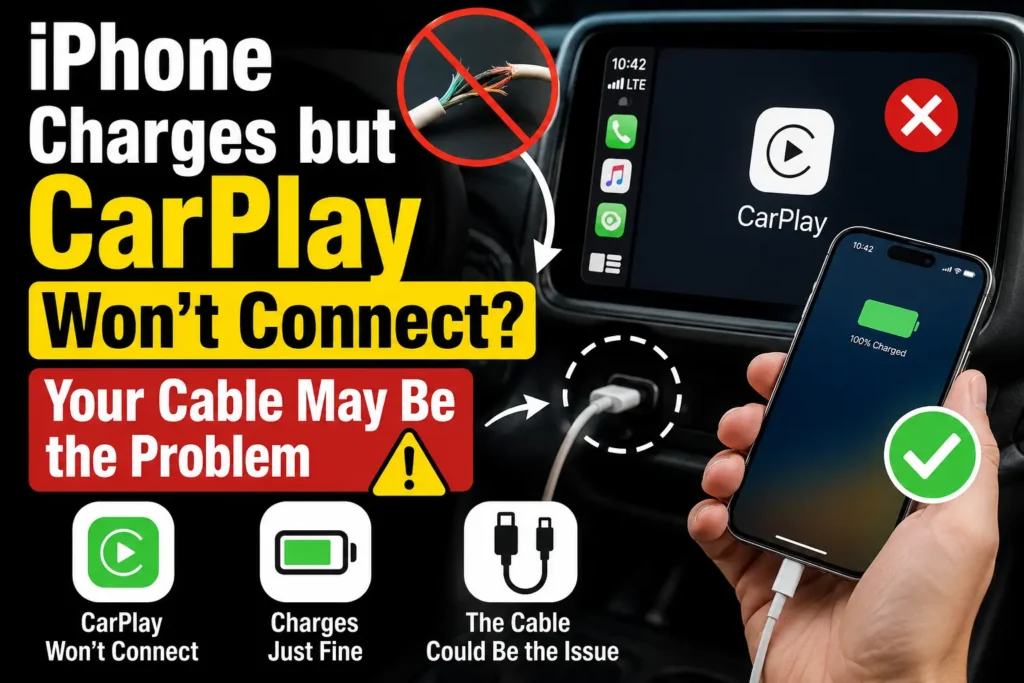
CarPlay needs far more than power to work.
It needs a stable, high-speed data connection between your iPhone and your car’s head unit, and only certain cables carry the wiring for that.
A charge-only cable, common in cheap multi-packs, physically lacks the pins needed to move that data.
Your phone charges normally while CarPlay never appears on screen.
This is where Apple’s Made for iPhone (MFi) program comes in.
It’s Apple’s own testing and licensing system, and it’s the closest thing to an official apple certified USB cable badge you’ll find. But there’s a gap almost no other guide explains clearly.
The MFi Certification Gap Nobody Mentions
Apple’s MFi program certifies Lightning connectors and USB-C to Lightning cables.
It does not certify plain USB-C to USB-C cables, because USB-C is an open industry standard, not an Apple-proprietary one.
If you own an iPhone 15 through 17 and your car also has a USB-C port, there’s no MFi badge to hunt for — Apple simply doesn’t run that certification.
Expert Insight: For USB-C to USB-C, skip the MFi search and check the packaging for a USB 2.0 (480 Mbps) data rating instead. That spec, not a certification logo, is what actually determines whether CarPlay recognizes the cable.
Match the Cable to Your iPhone Model
Follow these steps before you buy anything.
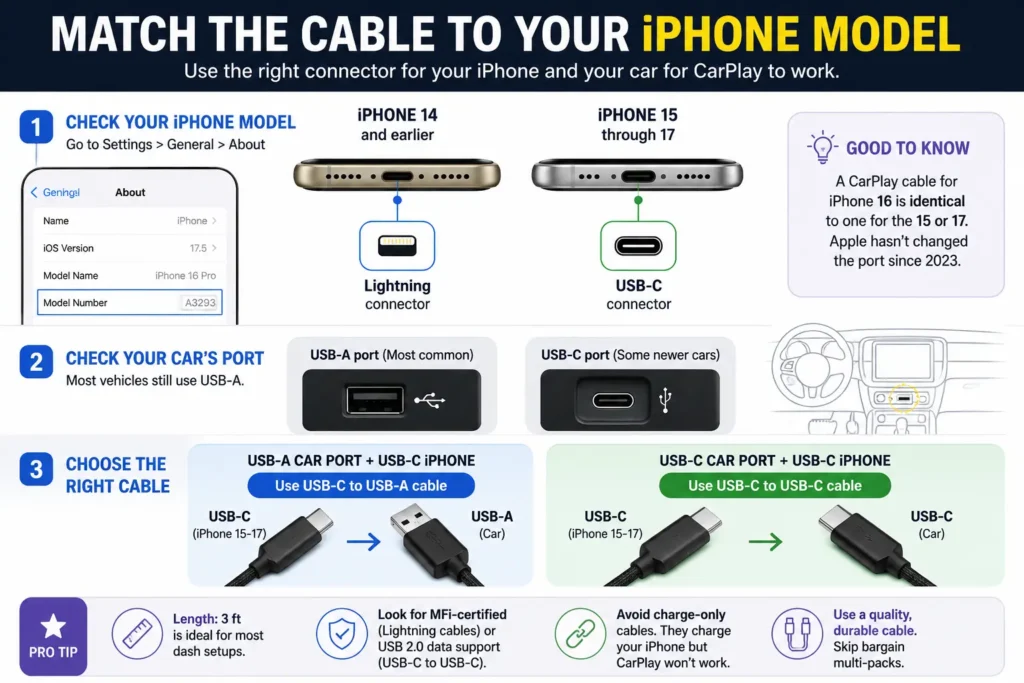
- Check your iPhone model under Settings > General > About.
- iPhone 14 and earlier need a Lightning connector on the phone end.
- iPhone 15 through 17 need USB-C on the phone end.
- Check your car’s port — most vehicles still use USB-A.
- USB-A car port plus USB-C iPhone needs a USB-C to USB-A cable.
- USB-C car port plus USB-C iPhone needs a USB-C to USB-C cable.
- A CarPlay cable for iPhone 16 is identical to one for the 15 or 17. Apple hasn’t changed the port since 2023.
Think of It Like a Highway, Not a Power Cord
A cheap cable is a one-lane road. It lets a trickle of charge through but can’t handle CarPlay’s constant back-and-forth data traffic.
A properly certified or rated cable is a multi-lane highway, moving power and data at the same time without a jam.
That’s exactly why a cable can charge your phone perfectly and still never load CarPlay.
Real-World Case: The Cable That “Worked Fine” for Charging
A rideshare driver in Ohio wrote in about her iPhone 16, which charged normally in the car but dropped CarPlay every few minutes.
She’d already restarted her head unit and reset her network settings with no luck.
The culprit was a $6 three-pack cable from a gas station — it charged fine but had no data pins wired into the connector at all.
Swapping in a single MFi-certified USB-C to USB-A cable ended the disconnects for good, with no further troubleshooting needed.
Quick Buying Checklist
- Length: Three feet is the sweet spot for a console or dash mount. A short iPhone cable for CarPlay also keeps clutter out of your footwell.
- Connector: Match Lightning or USB-C to your iPhone, and USB-A or USB-C to your car’s port. Any cable pairing a USB with iPhone connector needs both power and data wiring to work reliably.
- Certification: Look for the MFi logo on Lightning-based cables; check for USB 2.0 data support on USB-C to USB-C cables.
- Build: Nylon-braided cables with reinforced strain relief outlast rubber ones under daily plugging and unplugging.
- Adapter route: No new cable? An Apple CarPlay USB adapter converts your existing Lightning or USB-C cable, though a matched iPhone CarPlay USB cable is usually cheaper.
- Buying local: Searching “Apple CarPlay cable near me” gets you certified stock at an Apple Store, Best Buy, or Target same-day, instead of gambling on unverified marketplace listings.
- Everyday overlap: Your regular apple charger cable USB-C can double as your CarPlay cable, as long as the packaging confirms it supports data, not just power.
Reliable 2026 picks include Apple’s own USB-C to Lightning cable,
Anker’s PowerLine III Flow and Zolo lines,
Belkin’s BOOSTCHARGE PRO, and
UGREEN’s braided USB-C cables – all MFi-certified or data-rated, in the 3-to-6.6-foot range that fits most vehicles.
What If a New Cable Doesn’t Fix It?
- Restart your iPhone and your car’s infotainment system.
- Confirm CarPlay is enabled under Settings > General > CarPlay.
- Clean lint from your iPhone’s charging port with a dry, non-metal tool.
- Try the same cable in a different USB port in your car.
- Update iOS if you’re running anything older than iOS 26.
- Still stuck? Our complete CarPlay setup guide walks through wireless pairing as a backup option.
Using an uncertified cable long-term can also strain your battery, so if charging feels slow well beyond your car, it’s worth checking our guide on iPhone battery draining fast for related fixes.
Key Takeaways
- MFi certification applies to Lightning cables, not plain USB-C to USB-C cables.
- Match the connector to both your iPhone and your car’s port before buying.
- A 3-foot braided cable balances reach and durability for daily use.
- Charge-only cables are the top cause of CarPlay that “charges but won’t connect.”
- Keep a spare certified cable in the glovebox as a backup.
Questions of Readers
Does CarPlay require an Apple-certified cable?
Not by law, but uncertified cables often lack the internal data wiring CarPlay needs, so certified or data-rated cables are far more reliable.
Can I use a regular charging cable for CarPlay?
Only if it supports data transfer, not just charging. Many bundled charging cables are power-only.
Why does my cable charge my iPhone but not load CarPlay?
It’s almost always a charge-only cable missing the data pins CarPlay needs to detect your phone.
Is there an MFi-certified USB-C to USB-C cable?
No. Apple’s MFi program doesn’t cover USB-C to USB-C cables, since USB-C is an industry standard rather than Apple’s own connector.
What’s the best cable length for CarPlay?
Three feet works for most dash and console setups without leaving excess slack.
Sources
- Use CarPlay with your iPhone – Apple Support
- If you need help with CarPlay – Apple Support
- How to connect your iPhone to your car – Apple Support
Disclaimer
This article reflects testing on an iPhone 17 Pro running iOS 26.6 and publicly available information as of August 2026.
Cable compatibility, pricing, and availability can vary by retailer and change over time.
AppleHeadlines.com is an independent publication and is not affiliated with or endorsed by Apple Inc. Always verify current specifications at support.apple.com before purchasing.

T’kal is the lead strategist and developer behind Apple Headlines. With a background in digital marketing and web development, he specializes in technical Apple troubleshooting, software news, and hardware rumors. T’kal focuses on delivering high-authority tech content that bridges the gap between Apple enthusiasts and the latest industry innovations.