


Can You Split Screen on an iPhone?
No — iPhones do not have a native split-screen feature like iPads or Android phones. Apple has kept Split View and Slide Over exclusive to the iPad, and as of iOS 26, that hasn’t changed.
That doesn’t mean you’re stuck switching apps one at a time. iOS offers several built-in workarounds, and third-party apps can give you a true side-by-side experience.
Here’s everything that actually works in 2026.
Method 1: Picture-in-Picture (PiP) – The Closest Native Option
Picture-in-Picture is Apple’s primary multitasking solution for iPhone.
It lets you keep a video or FaceTime call floating in a small window while you use any other app.
What PiP Is Good For
- Watching a tutorial while taking notes
- Keeping a FaceTime call going while checking messages
- Following a recipe video while shopping for ingredients
- Streaming Netflix, YouTube (with Premium), or Apple TV while browsing
How to Enable PiP
How to Use PiP
- Start playing a video in a supported app (FaceTime, Netflix, Apple TV, Disney+, Hulu, etc.)
- On Face ID iPhones: Swipe up from the bottom to go home
- On Home Button iPhones: Press the Home button
- The video shrinks into a small floating window in the corner of your screen
Controlling the PiP Window
- Reposition: Drag the window to any corner of your screen
- Resize: Pinch in or spread two fingers to shrink or enlarge
- Hide temporarily: Swipe it off the left or right edge (audio keeps playing)
- Close: Tap the window and hit the X button
- Return to full screen: Tap the expand icon in the corner
PiP Limitations
PiP only works with video and video calls—you can’t PiP text-based apps like Safari, Messages, or Notes.
Using Picture-in-Picture on YouTube
Good news! As of 2026, YouTube officially supports Picture-in-Picture for all users on iPhone — no Premium subscription required for standard videos.
How to enable PiP on YouTube:
- Open the YouTube app and start playing a standard long-form video (vlogs, tutorials, news, etc.).
- Simply swipe up from the bottom of your screen to return to the Home screen, or swipe up and hold to open the App Switcher and jump into another app.
- The video will automatically minimize into a floating window that stays on top of your other apps.
A quick heads-up: While PiP works for most content, music videos and YouTube Shorts might still have restrictions depending on regional licensing. But for 90% of everyday content, it works flawlessly without paying a dime!
Method 2: Landscape Two-Pane View (Larger iPhones Only)
On iPhone Plus, Max, and Pro Max models, rotating your phone to landscape orientation unlocks a two-pane view inside certain built-in apps.
This isn’t split-screen between two different apps—it’s a split view within a single app. But it does let you see two panels at once.
Apps That Support Landscape Two-Pane View
| App | Left Panel | Right Panel |
|---|---|---|
| Inbox list | Email content | |
| Messages | Conversation list | Chat window |
| Settings | Menu | Options |
| Notes | Note list | Note content |
| Files | Folder navigation | File list |
How to Use It
- Open one of the supported apps
- Rotate your iPhone to landscape orientation
- The two-pane layout appears automatically
Make sure rotation lock is off: Swipe into Control Center and check that the rotation lock icon isn’t highlighted.
Method 3: App Switcher – Fast App Switching
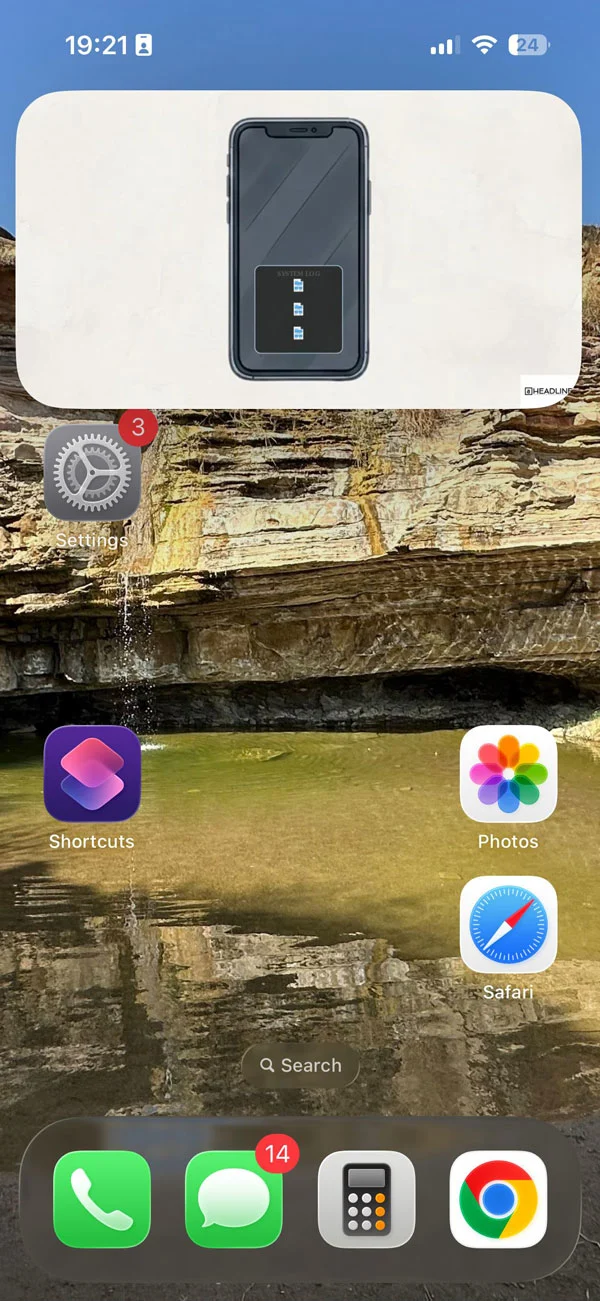
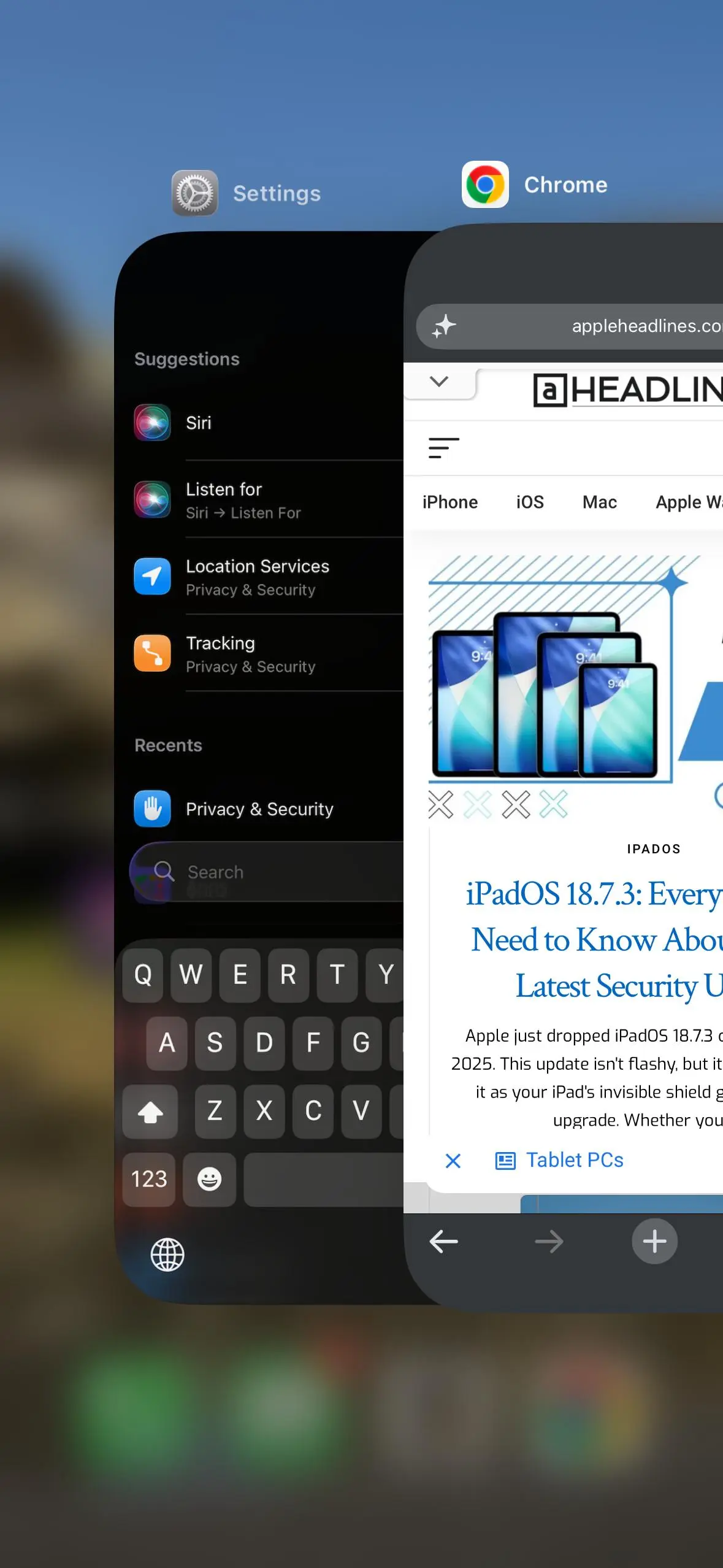
While not split screen, the App Switcher is the fastest way to jump between recently used apps—and when combined with PiP, it creates a solid multitasking workflow.
How to Open the App Switcher
- Face ID iPhones: Swipe up from the bottom and hold
- Home Button iPhones: Double-press the Home button
Pro Tip
Use PiP + App Switcher together:
- Start a video in PiP mode
- Use the App Switcher to quickly bounce between apps
- The video stays floating while you work
Method 4: Third-Party Split Screen Apps (True Side-by-Side)
If you need true side-by-side viewing, third-party apps from the App Store are your best option. These apps create a dual-view layout that lets you run two browser windows or two apps simultaneously.
Best Split Screen Apps for iPhone
| App | Best For | Key Feature |
|---|---|---|
| Split Screen – Dual Window | Browsing two websites | Side-by-side web views |
| Split Web Browser | Research & comparison | Two browser windows |
| MultiWindow | Multiple app types | Adjustable resizing |
How to Use a Split Screen App
- Download the app from the App Store
- Open the app and choose which two screens/websites to display
- Adjust the split ratio to your preference
- Start multitasking—browse and message simultaneously
These apps are ideal for students, researchers, professionals, or anyone who needs two screens at once.
Method 5: iPad-Style Split View (iPad Only)
If you also own an iPad, you get Apple’s full Split View experience. Here’s a quick refresher on how it works:
- Make sure both apps support Split View
- Open the first app
- Swipe up slightly from the bottom to open the Dock
- Drag the second app from the Dock to the left or right side of the screen
- Both apps appear side by side—drag the divider to adjust space
Comparison: Which Method Is Right for You?
| Method | Best For | Works With | Split Screen? |
|---|---|---|---|
| Picture-in-Picture | Watching video while using other apps | Video/FaceTime only | ❌ No |
| Landscape Two-Pane | Viewing two panels within one app | Select Apple apps on large iPhones | ❌ No |
| App Switcher | Fast switching between apps | All apps | ❌ No |
| Third-Party Apps | True side-by-side browsing | Web browsers & select apps | ✅ Yes |
| iPad Split View | Full split-screen multitasking | iPad only | ✅ Yes |
Our Reader’s Questions
Does the iPhone 16 have split screen?
No. As of iOS 26 and the iPhone 16 & 17 series, Apple has not added native split-screen to any iPhone model.
Why doesn’t Apple add split screen to iPhone?
The most likely reason is screen size—even a 6.7-inch Pro Max is tight for two apps running side by side with full usability. The rumored iPhone Fold is expected to be the first iPhone with true split-screen multitasking.
Can I split screen on iPhone without an app?
Only Picture-in-Picture and landscape two-pane view are built into iOS. For true side-by-side, you need a third-party app.
Does YouTube support Picture-in-Picture on iPhone?
Absolutely. As of 2026, YouTube has rolled out PiP support to all iPhone users globally. Just play a supported video and swipe up—it works without a Premium subscription for most non-music, long-form content.
What’s the difference between Split View and Slide Over?
Split View shows two apps side by side (iPad only). Slide Over shows a floating app window on top of another (iPad only). Neither is available on iPhone.
Final Verdict
The iPhone does not have native split screen—and that’s unlikely to change anytime soon. But with Picture-in-Picture, landscape two-pane view on larger models, fast app switching, and third-party apps, you can get surprisingly close to a multitasking experience.
For most users, PiP + App Switcher is the winning combination. If you truly need two screens side by side, download a split-screen browser app from the App Store—it’s the closest you’ll get on an iPhone today.

T’kal is the lead strategist and developer behind Apple Headlines. With a background in digital marketing and web development, he specializes in technical Apple troubleshooting, software news, and hardware rumors. T’kal focuses on delivering high-authority tech content that bridges the gap between Apple enthusiasts and the latest industry innovations.