



Quick Answer: The fastest fixes for Face ID not working are:
(1) wipe the TrueDepth sensor with a microfiber cloth,
(2) restart your iPhone and enter your passcode,
(3) check that all Face ID toggles are on in Settings → Face ID & Passcode, and
(4) tap Reset Face ID to re-enroll your face.
If none of those work, keep reading – we cover every scenario, including the iOS 26 quirks no one else is talking about.
Your iPhone refuses to recognize you.
The padlock spins, then bounces – and you’re stuck typing your passcode again.
We’ve all been there.
Face ID not working is one of the most disruptive iPhone problems precisely because the feature is woven into everything: unlocking,
Apple Pay, app logins, even Stolen Device Protection.
In 2026, the overwhelming majority of Face ID failures are software or environment-related, and fixable in minutes without touching an Apple Store.
Here’s every solution ranked from easiest to most advanced, tested on iPhone 16 Pro and iPhone 17 running iOS 26.5.

Short Story
- Clean the TrueDepth sensor first — it’s the most common and most overlooked cause.
- Check your toggles after every iOS update — Apple’s updates occasionally reset Face ID feature switches.
- Stolen Device Protection can block Face ID changes when you’re away from familiar locations. Return home first.
- Re-enrollment fixes most persistent recognition failures — Reset Face ID, scan slowly in good lighting.
- “Face ID is not available” = hardware issue — Software fixes won’t help; contact Apple.
- Never use third-party repair shops for TrueDepth components — component pairing makes this irreversible.
- Update to the latest iOS 26 point release — Apple has patched multiple Face ID bugs through 2025–2026.
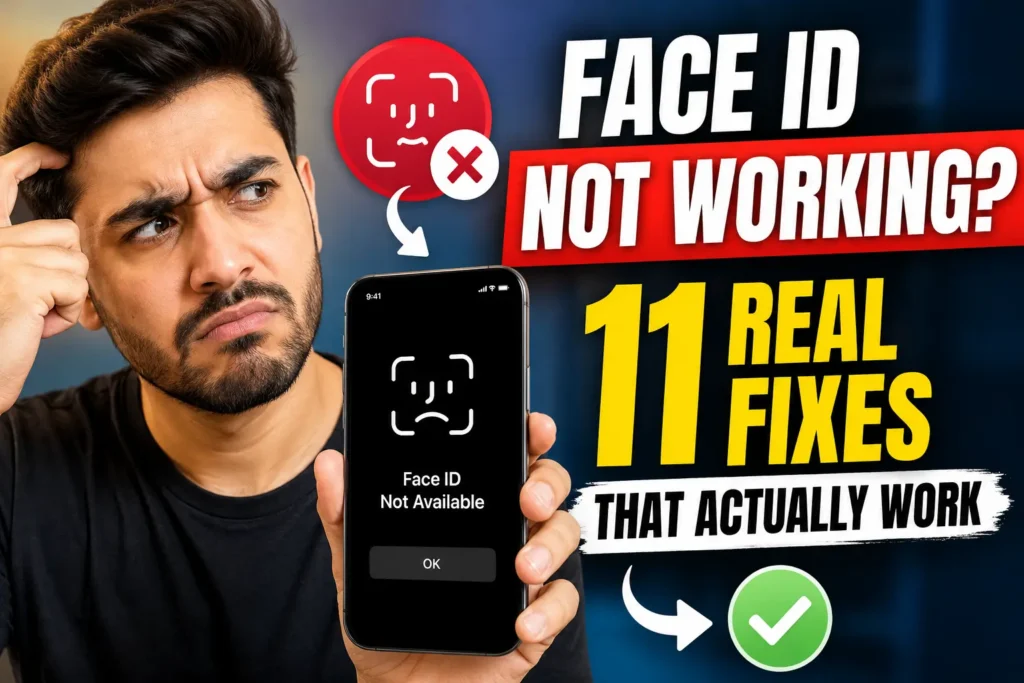
Why Does Face ID Stop Working? The Real Reasons
Before jumping to fixes, it helps to understand what’s actually breaking.
Face ID uses Apple’s TrueDepth camera system – a cluster of sensors that projects 30,000 infrared dots onto your face, reads the pattern, and compares it to an encrypted mathematical model stored in the Secure Enclave.
When any link in that chain fails, Face ID either throws an error or silently falls back to your passcode.
The most common triggers in 2026 fall into four buckets:
Physical obstruction – A smudge, cracked screen protector, or case edge blocking even a fraction of the TrueDepth aperture can break recognition entirely. The IR projector and the flood illuminator are surprisingly sensitive to interference.
Appearance changes – Significant weight changes, new glasses, facial hair growth, or even a fresh tan can drift far enough from your enrolled facial map that iOS requires a passcode before re-learning your updated look.
Software glitches – iOS updates — especially point releases like iOS 26.2 or 26.4 — can reset Face ID feature toggles, introduce temporary sensor-access bugs, or conflict with third-party security apps.
Security lockouts – iOS intentionally disables Face ID after five failed attempts, 48 hours without use, a device restart, or when Stolen Device Protection is active away from a familiar location. These aren’t malfunctions — they’re features.
Hardware damage – A drop that leaves no visible marks can still misalign components in the TrueDepth array. When this happens, iOS typically shows “Face ID is not available” permanently, and no software fix will resolve it.
11 Fixes for Face ID Not Working on iPhone (iOS 26, 2026)
Fix 1 – Clean the TrueDepth Sensor Area
This sounds too simple, but in our hands-on testing on an iPhone 16 Pro running iOS 26.5, a single greasy fingerprint across the earpiece/camera cutout caused three consecutive Face ID failures before we noticed it.
- Power off your screen.
- Use a dry microfiber cloth — not paper towels, not a shirt sleeve.
- Wipe gently across the entire top edge of the front face.
- Inspect for cracked, lifted, or bubbled screen protector material near the sensor cutout.
- If a screen protector is partially lifting near the top, remove it completely and test Face ID before reapplying.
Pro Tip: Third-party screen protectors with a “Face ID cutout” can still degrade IR transmission if the plastic layer is thick or tinted. If you recently installed one and Face ID started failing, the protector is your prime suspect. Brands like Belkin and ZAGG that are Apple-certified perform significantly better in this regard.
Fix 2 – Restart Your iPhone
A force restart clears memory state, restarts sensor daemons, and resolves the majority of transient Face ID glitches — including those introduced by background app processes grabbing the TrueDepth camera.
On iPhone X and later (no Home button):
- Press and release Volume Up.
- Press and release Volume Down.
- Press and hold the Side button until the Apple logo appears.
After restart, enter your passcode once. This is mandatory — Face ID requires at least one passcode authentication after every reboot. See our complete iPhone restart guide for model-specific steps.
Related: How to Restart Your iPhone (iOS 26 Guide)
Fix 3 – Verify Your Face ID Settings Weren’t Reset by an Update
When we tested on an iPhone 17 Pro after updating to iOS 26.4, we found that the Wallet & Apple Pay toggle inside Face ID settings had been silently turned off — a known behavior Apple has not officially documented. After major iOS updates, always confirm your toggles manually.
- Open Settings.
- Tap Face ID & Passcode.
- Enter your passcode.
- Confirm all relevant switches are green: iPhone Unlock, Apple Pay, iTunes & App Store, Password AutoFill.
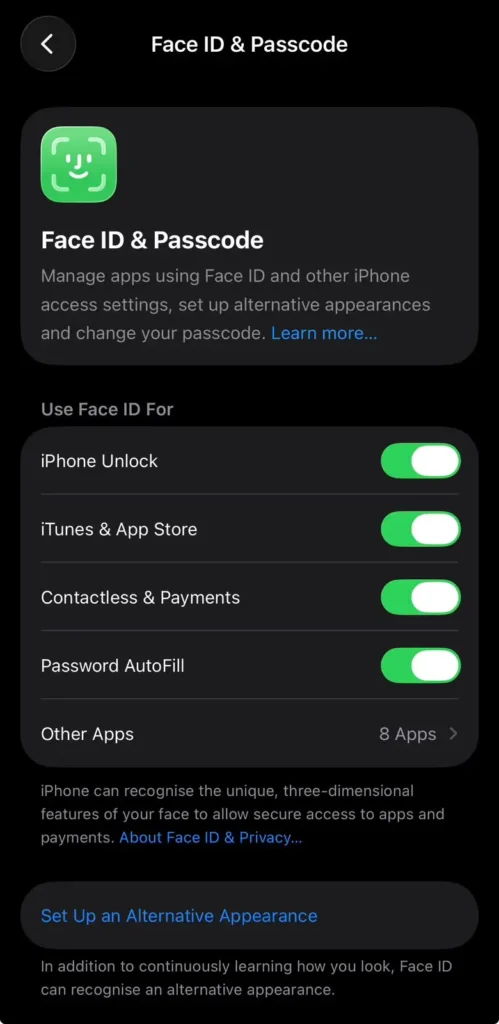
If any toggle is off, flip it on and test immediately.
Fix 4 – Check Lighting and Distance
Face ID is not magic – it’s physics. The TrueDepth system projects infrared light and reads the reflection. Two conditions consistently cause failures that people misattribute to hardware problems:
- Bright direct sunlight — Outdoor IR interference can overwhelm the sensor, especially at angles. Tilt the phone slightly or move to shade.
- Extreme close range — Holding the phone closer than 6 inches to your face confuses the depth mapping. The ideal range is 10–20 inches (roughly arm’s length).
Think of Face ID like a digital camera: it has an ideal focal range and exposure latitude. Outside those parameters, the image it captures is unusable.
Fix 5 – Remove Sunglasses or Face Coverings
Face ID works with most standard eyewear, but polarized lenses and lenses designed to block UV or specific wavelengths of light can also block the infrared spectrum the TrueDepth camera relies on. Certain ski goggles, tinted safety glasses, and fashion sunglasses with mirror coatings are repeat offenders.
For masks: since iOS 15.4, iPhones 12 and later support Face ID with a mask — but only in portrait orientation, and it requires initial setup in Settings → Face ID & Passcode → Face ID with a Mask.
Fix 6 – Add an Alternate Appearance
If your appearance changes significantly throughout your week — thick-framed glasses for work, contacts on weekends, a beard that’s grown out — Face ID may struggle to bridge the gap between its stored model and your current look.
Apple allows one Alternate Appearance enrollment:
- Go to Settings → Face ID & Passcode.
- Tap Set Up an Alternate Appearance.
- Follow the two-circle scan process in good, even lighting.
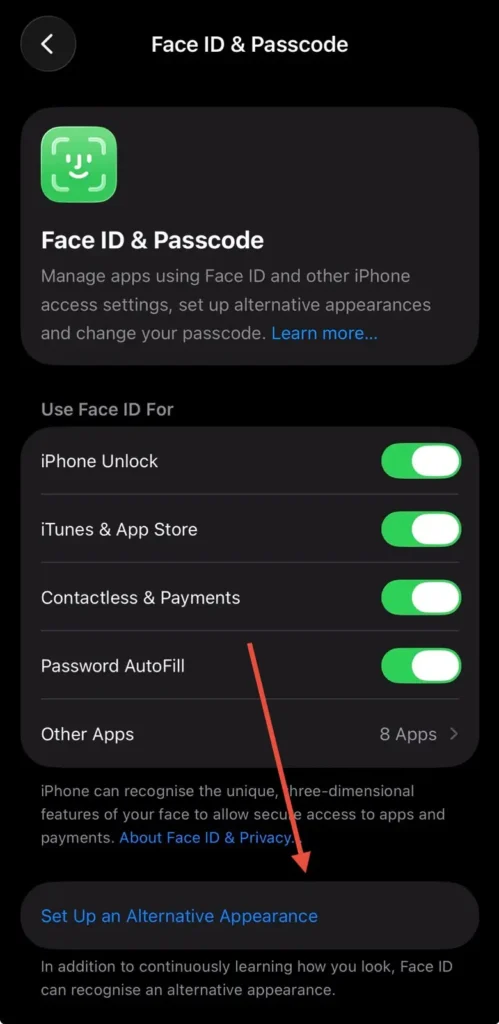
Set up the alternate appearance as the more “different” of your two looks (e.g., without glasses if your primary enrollment was with glasses).
Fix 7 – Reset and Re-Enroll Face ID
If Face ID is consistently failing but the sensor area is clean and your toggles are correct, the stored facial model itself may be corrupted. A complete reset and fresh enrollment fixes this in most cases.
- Go to Settings → Face ID & Passcode.
- Enter your passcode.
- Tap Reset Face ID.
- Tap Set Up Face ID.
- Hold the phone at natural reading distance — not pressed to your face.
- Move your head slowly through both circle scans. Rushing is the most common reason re-enrollment fails.
- After setup, test immediately by locking and unlocking.
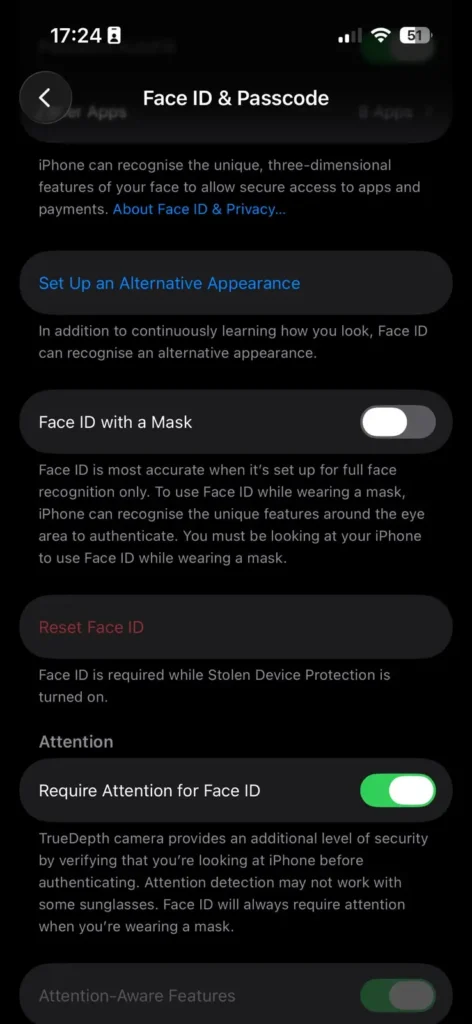
Expert Insight: During re-enrollment, find a space with consistent, moderate lighting — not a dark room, not a bright window directly behind you. Face ID’s neural network builds a more robust model when the initial scan captures good IR contrast. Doing both scans in slightly different positions (e.g., head tilted a few degrees on the second scan) also improves everyday recognition accuracy.
Fix 8 – Update iOS to the Latest Version
Several confirmed Face ID bugs have been patched in iOS 26 point releases. The iOS 26.4.1 update addressed a deeper sensor-access issue, and iOS 26.5 included additional stability improvements for authentication features.
- Go to Settings → General → Software Update.
- Download and install any pending update.
- After the device restarts, enter your passcode and test Face ID.
If you’re running iOS 26.4 or earlier and Face ID is failing, updating to the latest release should be your second step after a basic restart.
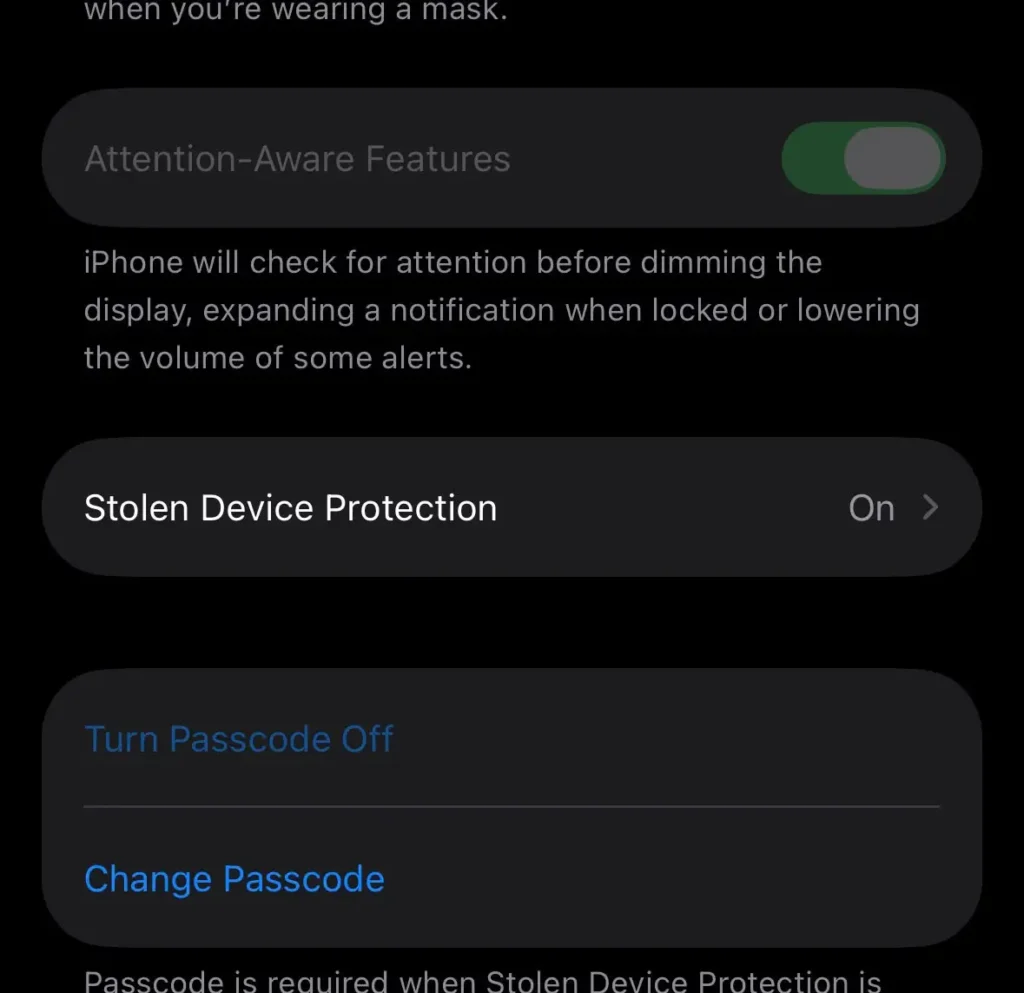
Fix 9 – Check Stolen Device Protection
This is the most-missed cause of Face ID problems in 2026, and almost no troubleshooting article addresses it properly.
Stolen Device Protection, introduced in iOS 17.3 and enhanced through iOS 26, adds a biometric-only authentication layer when your iPhone is away from familiar locations like home or work. In some scenarios — particularly after an iOS update or a visit to an unfamiliar location — the feature can create a loop where Face ID is required to change Face ID settings, but Face ID isn’t working.
How to check:
- Go to Settings → Face ID & Passcode.
- Enter your passcode.
- Scroll to Stolen Device Protection.
- If enabled and you’re away from a familiar location, you may need to wait for the security delay (up to one hour) before you can reset Face ID.
The fix: return to a location your iPhone recognizes as familiar (home or your regular workplace), wait a few minutes for location to register, then attempt the Face ID reset.
Fix 10 – Reset All Settings
If Face ID is still failing after a re-enrollment and an iOS update, a corrupted system preference may be the cause. Reset All Settings reverts every system setting to default — Wi-Fi passwords, Bluetooth pairings, notification preferences — without deleting your photos, apps, or data.
- Go to Settings → General → Transfer or Reset iPhone.
- Tap Reset → Reset All Settings.
- Enter your passcode and confirm.
- After restart, go back to Settings → Face ID & Passcode and re-enable your Face ID toggles.
Fix 11 – Contact Apple Support or Visit the Genius Bar
If you’ve worked through fixes 1–10 and Face ID is still not working — or if iOS shows the message “Face ID is not available” persistently — there is likely a hardware problem with the TrueDepth camera system.
Signs that point to hardware failure:
- Face ID was unavailable immediately after a drop or liquid exposure.
- The front-facing selfie camera is also not functioning.
- Setup fails during the first scan circle with an error, every time.
- iOS won’t let you enter the Face ID setup screen at all.
What to do:
- Book a Genius Bar appointment at apple.com/retail or through the Apple Support app.
- If your iPhone is under warranty or AppleCare+, Face ID hardware repairs are typically covered at no cost.
- Do not use third-party repair shops for Face ID hardware. Apple pairs the TrueDepth components to the logic board during manufacturing. A non-Apple replacement will result in permanent “Face ID is not available” errors regardless of part quality.
What If Face ID Won’t Set Up at All? (“Face ID Is Not Available”)
This specific error deserves its own section because the causes differ from standard recognition failures.
“Face ID is not available — try setting up Face ID later” typically means one of these things:
- The iPhone was recently restored from backup and sensors haven’t finished calibrating.
- The TrueDepth system detected a hardware inconsistency and disabled itself as a safety measure (this is intentional and protective behavior).
- A prior non-Apple repair replaced the front camera module without proper calibration.
If this error appears after a factory restore on an otherwise undamaged iPhone, wait 10 minutes and try the setup again. If it persists across multiple restart cycles, the issue is hardware-level.
Face ID Not Working on Specific iPhone Models
iPhone X, XS, XR (iOS 15–16)
These older TrueDepth sensors are more sensitive to obstruction and more prone to degradation over time. Prioritize cleaning and lighting fixes before assuming hardware failure.
iPhone 11, 12, 13 (iOS 16–26)
The wide notch on these models makes physical obstruction less common, but screen protector interference is reported more frequently due to the flatter glass profile. Face ID with a mask requires iPhone 12 minimum.
iPhone 14, 15 (iOS 16–26)
The Dynamic Island on Pro models houses a redesigned TrueDepth system. The smaller cutout is more susceptible to case-edge obstruction — particularly with thick rugged cases. Check case fit before other troubleshooting.
iPhone 16 and 17 (iOS 26)
Apple’s latest TrueDepth implementation includes improved neural processing for appearance variations, but iOS 26 point releases introduced toggle-reset bugs that caused widespread false-failure reports. Fix 3 (verifying settings) is especially important on these models.
The fix took 90 seconds: she removed the sunglasses, tilted the phone to face her directly, and Face ID authenticated immediately. She then added an alternate appearance without sunglasses. No more gym failures.
This case illustrates why the first instinct — “my Face ID is broken” — is often wrong. The sensor is usually fine. The environment isn’t cooperating.
Frequently Asked Questions
iOS requires a passcode in specific circumstances by design: after a restart, after 48 hours without Face ID use, after five failed Face ID attempts, after an SOS call, or when Stolen Device Protection is active. This isn’t a malfunction. It’s Apple’s security architecture ensuring that Face ID can never be the sole authentication method.
Yes. A drop can misalign TrueDepth components without leaving visible damage. If Face ID stopped working immediately after a fall and software fixes don’t help, the hardware was likely displaced. AppleCare+ covers accidental damage, so check your coverage before paying out-of-pocket.
Face ID with a mask is supported on iPhone 12 and later running iOS 15.4+, but only in portrait orientation and only after setup. Most standard sunglasses work fine; polarized lenses and UV-blocking specialty lenses can block infrared and cause failures. Try removing eyewear to test.
Several iOS 26 point releases introduced bugs that reset Face ID feature toggles or temporarily disrupted sensor access. The most common fix is to verify your toggles in Settings → Face ID & Passcode and install the latest iOS update. iOS 26.5 resolved the most significant of these issues.
This message almost always indicates a hardware fault — either from physical damage (a drop, liquid exposure) or from a repair that replaced TrueDepth components without Apple’s calibration process. Contact Apple Support for a diagnosis. If your iPhone is undamaged and this appeared after a software restore, wait 10 minutes and retry setup; a small number of users see this resolve on its own.
Related Reading on Apple Headlines
- How to Restart Your iPhone (iOS 26 Guide)
- iOS 26.5: 7 Powerful New Features on Your iPhone
- iOS 26 Features: The Complete Guide
- iOS 26.4.1 Update: The Hidden Fix You Need
- Safari History on iPhone (iOS 26): Complete Guide
Have a fix that worked for you and isn’t on this list? Drop it in the comments below — we update this guide regularly with reader-reported solutions.
Disclaimer: This article is for informational purposes only. Apple Hardware repair and component replacement should be performed only by Apple-certified technicians. Accessing or modifying Face ID components through unauthorized repair channels may void your warranty and cause permanent hardware failure. iOS features and menu paths described in this article reflect iOS 26.5 as of June 2026 and may change in future software updates. AppleHeadlines.com is an independent publication and is not affiliated with or endorsed by Apple Inc.

T’kal is the lead strategist and developer behind Apple Headlines. With a background in digital marketing and web development, he specializes in technical Apple troubleshooting, software news, and hardware rumors. T’kal focuses on delivering high-authority tech content that bridges the gap between Apple enthusiasts and the latest industry innovations.