



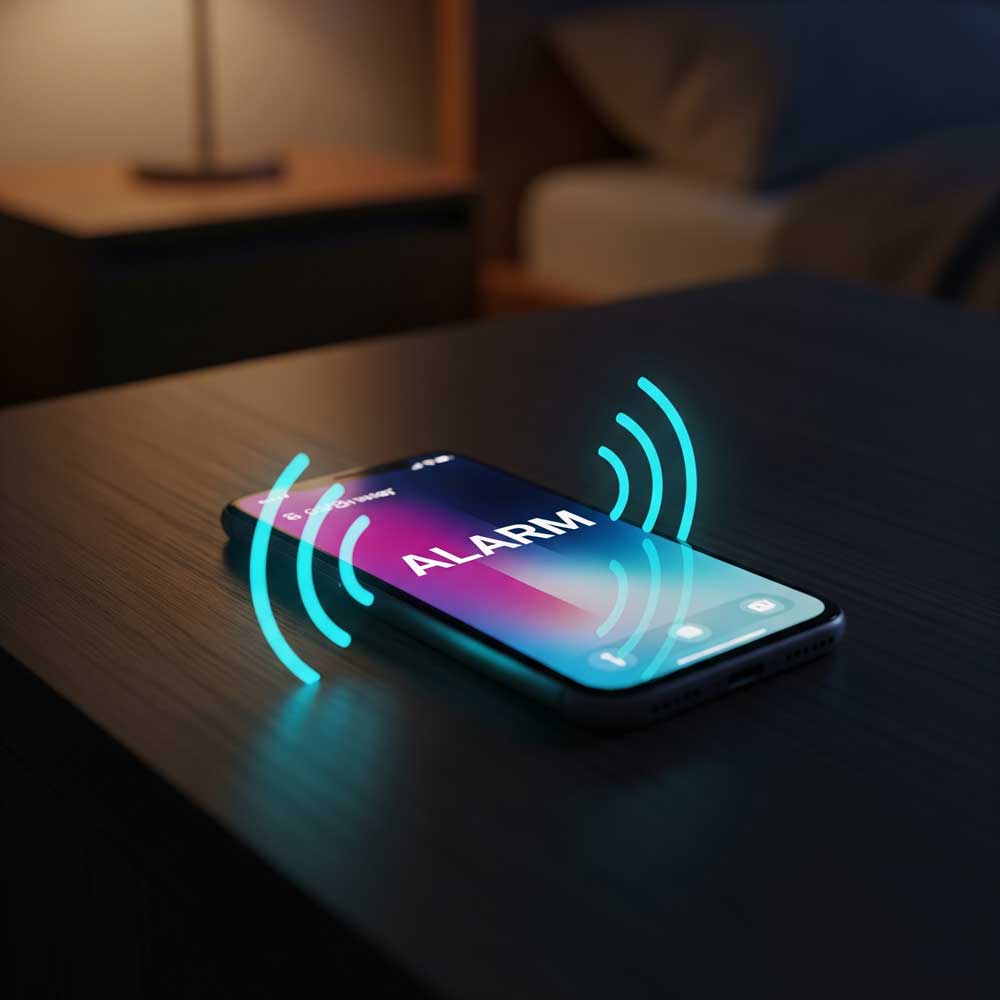
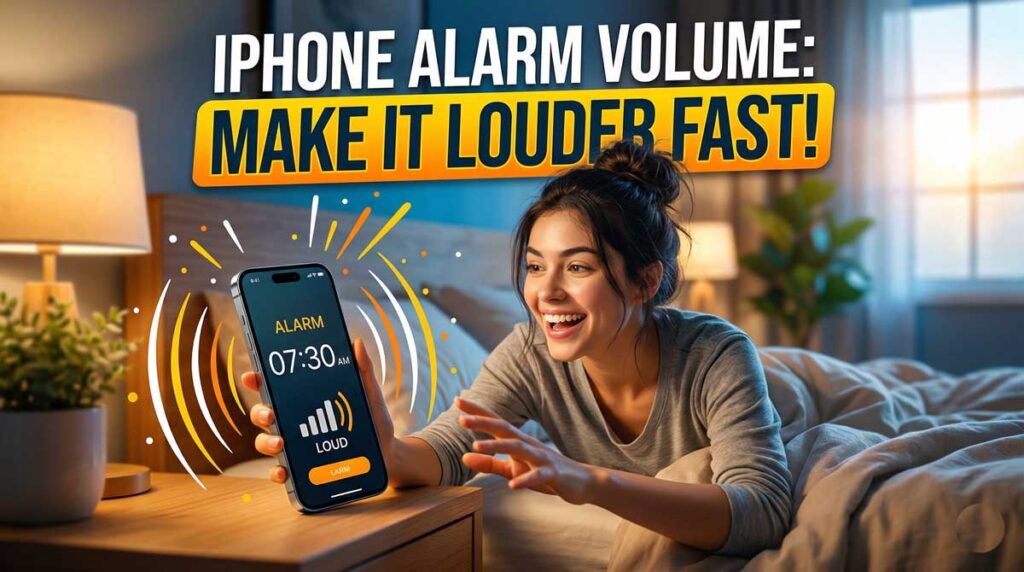
The frustration of a missed wake-up call creates immediate stress and disrupts productivity. For many, a quiet iPhone alarm is more than a nuisance; it is a professional risk.
When a device fails to project sound at the necessary decibel level, the user faces a frantic morning of recovery.
This technical report examines why these alerts fail and provides specific, high-authority solutions for the iOS 26 ecosystem.
By understanding the underlying software logic and hardware capabilities, one can transform an unreliable device into a guaranteed wake-up system.
Quick Info for Maximum Volume
- Sliders: Always maximize the “Ringtone and Alerts” slider in Settings.
- Locking: Disable “Change with Buttons” to prevent accidental muting.
- Sensors: Turn off “Attention-Aware Features” to stop the phone from dimming the sound.
- Frequencies: Use classic, jarring tones like “Digital” for better brain arousal.
- Automation: Use the Shortcuts app to force volume to 100% every night at 3 AM.
- Hygiene: Keep speaker grilles clean with a soft toothbrush to avoid physical muffling.
The Critical Importance of Alarm Reliability in the Modern Workplace
Economic data suggests that punctual arrival remains a key performance indicator in most US industries.
The reliance on mobile devices for time management has replaced traditional mechanical clocks.
This shift places a heavy burden on the iPhone to function as a life-critical alerting system.
If an alarm sounds too softly, it fails to breach the auditory arousal threshold of the sleeping brain.
This threshold is significantly higher during deep sleep cycles, known as N3 or slow-wave sleep.
Expert research into sleep physiology confirms that the brain actively suppresses external sounds during restorative rest.
A failure to provide a high-decibel, high-frequency alert means the signal never reaches the conscious mind.
This can lead to missed meetings, loss of income, or academic failure. Understanding the settings required to maximize loudness is therefore a form of professional insurance.
This report provides the technical framework to ensure that the device speakers operate at their peak physical and software-governed capacity.
Core Mechanisms of iPhone Sound Management
The iPhone does not treat alarm volume as a distinct category in the same way it treats media volume.
This is the primary source of confusion for most users. In the iOS environment, alarms are categorized under “Ringtone and Alerts“.
This means that the loudness of a phone call, a text message, and a morning alarm are typically tethered to the same master slider.
If a user lowers their ringer during a meeting, they may inadvertently silence their wake-up call for the following morning.
Adjusting the Master Volume Slider
The most direct method to increase the intensity of an alarm involves the system-wide sound settings. This is the foundation of all volume management on the device.
This slider controls the peak output of the internal speakers for all system alerts.
It is important to note that this slider is separate from the media volume adjusted in the Control Center while watching videos.
A user might see a “loud” volume bar while watching a movie, but the “Ringtone and Alerts” slider could still be at 10%. This discrepancy is a leading cause of missed alarms.
The Problem with Physical Button Control
Apple provides a feature called “Change with Buttons” within the Sounds & Haptics menu.
When this is enabled, the physical volume rockers on the side of the phone will adjust the alert volume.
While this seems convenient, it often leads to catastrophic errors. If a user is adjusting the volume of a podcast before bed, they might accidentally turn down the system ringer instead.
For maximum reliability, the “Change with Buttons” toggle should be set to the OFF position.
This locks the alarm volume at the level specified in the Settings app.
Even if the user mutes their phone for a theater performance or lowers the volume for a video, the alarm will still fire at the pre-set, maximum decibel level.
Solving the Attention-Aware Silent Alert Issue
Modern iPhones equipped with Face ID use sophisticated sensors to monitor user engagement.
The TrueDepth camera system scans for “Attention Awareness” to determine if a human is looking at the screen.
This feature is designed to be helpful. If the phone rings and the user looks at it, the system lowers the volume because it assumes the user is now aware of the call.
Why Face ID Can Silence Your Morning
The technical conflict arises when the phone is on a nightstand.
If a user rolls over or moves their hand near the phone while the alarm is ringing, the sensors may falsely detect “attention“.
Once the system thinks it has the user’s focus, it immediately dims the alarm to a whisper. The user, who is actually still asleep or only partially conscious, may then sleep through the silenced alert.
How to Disable Attention-Aware Dimming
To ensure the alarm stays at its peak volume until it is manually snoozed or stopped, one must disable this detection logic.
Once disabled, the iPhone will no longer lower the volume of alerts based on visual detection. This is perhaps the most important “hidden” setting for heavy sleepers using recent iPhone hardware.
Scientific Analysis of Wake-Up Frequencies
The perceived loudness of an alarm is not just about raw decibels; it is about the frequency of the sound waves.
Acoustic engineering research shows that the human ear and brain are more sensitive to certain wave patterns during sleep.
This is a concept known as the Auditory Arousal Threshold (AAT).
The 520 Hz Square Wave Advantage
Studies conducted on sleeping adults indicate that high-pitched, melodic tones are significantly less effective at waking people up than lower-frequency sounds.
Most modern iPhone tones are designed to be “pleasant,” using sine waves and high frequencies around 3000 Hz.
Research suggests that a 520 Hz square wave signal is the gold standard for emergency awakening.
A square wave is “rougher” and more jarring than a smooth sine wave. It contains more harmonic energy that prevents the brain from habituating to the sound.
Habituation is the process where the brain learns to ignore a repetitive noise, such as a fan or distant traffic.
Because the “Classic” iPhone sounds like “Digital” or “Alarm” use these sharper, more aggressive wave patterns, they are technically “louder” to the sleeping brain even at the same decibel level.
| Sound Type | Frequency Range | Brain Response | Effective for Heavy Sleepers |
|---|---|---|---|
| Modern Melodic | 2000 – 4000 Hz | High Habituation | Low |
| Classic Digital | 400 – 1000 Hz | High Arousal | High |
| Voice Alarms | Varies | Cognitive Processing | Moderate |
| 520 Hz Square | Fixed 520 Hz | Maximum Impact | Very High |
The Impact of iOS 26 Hardware and Software Redesigns
The year 2026 brought significant changes to both the physical construction of the iPhone and the user interface of the Clock app.
These changes have created new challenges for volume management.
The iPhone 17 and 18 Pro models introduced enlarged earpiece speakers to facilitate “Pseudo-Surround Sound“.
While this increases the potential loudness, it also changes how sound projects from the device.
Hardware Evolution and Thermal Management
The A19 Pro and A20 Pro chips are built on 2nm processes, offering extreme efficiency but also generating concentrated heat.
To manage this, Apple introduced vapor chamber cooling in the iPhone 17 Pro. The physical layout of this vapor chamber can affect how sound resonates through the aluminum chassis.
If the device is running a heavy background update or charging rapidly, the internal temperature might cause the system to throttle the power sent to the speakers, leading to a slightly quieter alarm.
The Side Button Behavior Shift in 2026
A major change in iOS 26 involves the logic of the side button (the Power/Action button). In previous versions, pressing any button while the alarm was ringing would usually trigger a “Snooze“.
In the current version of iOS, a single press of the side button now silences the alarm entirely. To trigger a snooze, the user must now press the button twice.
This has led to an epidemic of oversleeping, as users accidentally silence their alarms with a single groggy press and then never receive a follow-up alert.
Analogy: The Alarm as a Firefighter
To understand why simply turning up the volume isn’t always enough, imagine the iPhone alarm system as a firefighter trying to wake you from a house fire.
If the firefighter stands outside and plays a flute (a melodic, high-pitched ringtone), you might incorporate the music into your dream.
If the firefighter rings a loud, heavy bell (a 520 Hz digital tone), your brain recognizes the urgency.
If the firefighter sees you move and assumes you are awake, they might stop ringing the bell too soon (Attention-Aware Features).
For the firefighter to be successful, they must be loud, persistent, and ignore your minor movements until you are standing up and talking.
The Bluetooth Spiking Phenomenon
A specific bug identified in early 2026 involves the interaction between the iPhone and Bluetooth speakers.
Users reported that when an alarm triggers while a phone is connected to a speaker, the volume of the background music (like a sleep-sounds app) would spike to 100% for a fraction of a second before the alarm sound began.
This jarring spike is often followed by the alarm playing only through the speaker and not the phone’s internal hardware.
This indicates that the “handshake” between the iOS audio engine and external hardware remains a point of failure.
For those who need absolute reliability, disconnecting all Bluetooth devices before sleep is the only way to ensure the alarm plays through the optimized internal speakers at the intended volume.
Advanced Automation: Separating Alarm and Ringer Volume
A common request among power users is to have the iPhone alarm volume separate from the ringer.
While Apple does not provide a native toggle for this, the Shortcuts app allows for a sophisticated workaround. By using automation, a user can ensure their phone is silent during the day but “screaming” in the morning.
Creating a Volume Automation Shortcut
One can program the device to automatically adjust its internal sliders based on the time of day. This prevents the human error of forgetting to turn the volume back up after a quiet day at the office.
This script acts as a digital safety net. It forces the system to maximum loudness every night, regardless of what the physical buttons were doing during the day.
Troubleshooting: What if the Alarm is Still Too Quiet?
If the software settings are optimized but the output remains muffled, the issue is likely physical. Over years of use, the speaker grilles on an iPhone collect an incredible amount of microscopic debris.
The “Silent” None Setting
A surprisingly common mistake is having the alarm sound set to “None”. In this state, the phone will only vibrate. If the phone is on a soft surface like a mattress, the vibration may be silent.
Hardware Maintenance and Cleaning
The iPhone 17 and 18 models have very fine speaker grilles to maintain water resistance. These holes are easily blocked by pocket lint or oils.
- Soft Brushing: Use a clean, dry toothbrush to gently brush the bottom speakers and the top earpiece.
- Adhesive Putty: Press a small piece of cleaning putty into the holes and pull it away to lift out dirt.
- Tape Method: Painter’s tape can be rolled onto a finger and used to “dab” the grilles for surface-level lint.
- Micellar Water: For stubborn wax in the earpiece, a tiny amount of micellar water on a soft brush can dissolve the debris without damaging the mesh.
| Cleaning Tool | Risk Level | Best Use |
|---|---|---|
| Soft Toothbrush | Low | General debris and lint. |
| Adhesive Putty | Moderate | Deep cleaning of speaker holes. |
| Compressed Air | High | Not recommended; can damage internals. |
| Micellar Water | Moderate | Dissolving oils and earwax. |
Expert Says: The Sleep Schedule Secret Slider
There is a secondary alarm system hidden within the Health app called “Sleep Schedule”.
This system has a different volume logic than the standard alarms in the Clock app. Even if the ringer is set to 100%, a Sleep Schedule alarm might be quiet because it has its own dedicated slider.
To find this, the user must tap “Change” on the next wake-up alarm in the Clock app and scroll to the very bottom. This “secret” slider is a frequent culprit for quiet alarms that seem to defy all other settings.
Case Study: The “Fade-In” Feature Failure
A user reported a consistent issue where their alarm would begin at a low volume and slowly increase, but they would wake up and turn it off before it ever reached 100%. This “Fade-In” or “Progressive Volume” feature is intended to be a gentle way to wake up. However, for those with high auditory thresholds, the “gentle” start is not enough to break the sleep cycle.
Unlike some Android devices, the iPhone does not have a toggle to disable the “Fade-In” for all sounds. The solution is to choose a sound that starts with a sharp, immediate peak, such as “Bell Tower” or “Old Phone,” rather than “Slow Rise” or “Silk”. This ensures that the first millisecond of the sound is at the maximum allowed decibel level.
Frequently Asked Questions
Q: Does the Silent Switch turn off my iPhone alarm?
No. The physical Ring/Silent switch on the side of the iPhone only affects calls and text notifications. Alarms will still play at their set volume even if the phone is in Silent Mode or Do Not Disturb.
Q: Why is my alarm volume different every morning? This is usually caused by having “Change with Buttons” enabled. If you adjust the volume of a video or music before bed, you might be accidentally changing the alarm volume too. Disabling this in Settings > Sounds & Haptics will keep it consistent.
Q: Can I make the alarm play through a Bluetooth speaker? Yes, if a speaker is connected, the sound will play through both the phone and the speaker. This is prone to bugs in iOS 26. For the loudest, most reliable sound, it is best to use the phone’s internal speakers.
Q: What if my alarm only vibrates? Check the specific alarm in the Clock app. Ensure the “Sound” is not set to “None.” Also, verify that the master “Ringtone and Alerts” slider in Settings is turned up.
Q: How do I make my alarm louder than the default limit? The physical limit is fixed by the hardware. Selecting a “Classic” tone like “Digital” or “Alarm” provides a higher perceived loudness than melodic tones. You can also place the phone in a ceramic bowl or on a wooden surface to amplify the sound through resonance.
Disclaimer: This guide is for informational purposes. Modifying system settings is done at the user’s risk. While these steps are designed to increase reliability, software bugs or hardware failures can still occur. Always test your alarm settings before relying on them for critical wake-up times. AppleHeadlines.com is not responsible for any consequences arising from missed alarms.
Don’t let a quiet phone ruin your career.
Follow these steps today and experience the peace of mind that comes with a guaranteed wake-up call.
For more expert iOS 26 tips, sign up for our newsletter at AppleHeadlines.com!
Best for iPhone





T’kal is the lead strategist and developer behind Apple Headlines. With a background in digital marketing and web development, he specializes in technical Apple troubleshooting, software news, and hardware rumors. T’kal focuses on delivering high-authority tech content that bridges the gap between Apple enthusiasts and the latest industry innovations.