



By using this site, you agree to the Privacy Policy and Terms of Use.
Accept
Apple Headlines Logo Image Apple Headline's White Logo
  • 🔥 Trending:
  • iOS
  • iPadOS
  • Apple Tech
  • iPhone
  • iOS
  • Reader’s Space
  • Mac
  • Contact Us
Reading: 6 (Fixed) Ways to Clear Cache on iPhone Quickly
Apple HeadlinesApple Headlines
Font ResizerAa
  • iPhone
  • iOS
  • Reader’s Space
  • Mac
  • Contact Us
Search
  • iPhone
  • iOS
  • Reader’s Space
  • Mac
  • Contact Us

Must Read

Clear cache iPhone – illustration of multiple ways to clear cache with arrows showing different directions

6 (Fixed) Ways to Clear Cache on iPhone Quickly

iOS 26.4 beta 3 update graphic showing new features, hidden tips, and system improvements on iPhone

Unlock iOS 26.4 Beta 3: Hidden Features and Pro Tips

how to use apple Intelligence

How to Use Apple Intelligence: The Ultimate 2026 Guide to Apple AI

How to see blocked numbers on iPhone blocked contacts screen with unblock option

Can’t Find Blocked Numbers? See Blocked Numbers on iPhone

Unhide apps on iPhone home screen tutorial showing iPhone interface and app icons

Unhide Apps on iPhone NOW: 5-Min Fix for Missing Icons!

Follow US
© Apple Headlines. All Rights Reserved.
Home » 6 (Fixed) Ways to Clear Cache on iPhone Quickly
iPhone

6 (Fixed) Ways to Clear Cache on iPhone Quickly

T'kal By T'kal March 5, 2026
6 Min Read
SHARE

If your iPhone feels slow, apps crash often, or storage suddenly fills up, clearing cache can help improve performance.

Main Topics
What is Cache on iPhone?Method 1: Clear Safari Cache on iPhoneMethod 2: Clear App Cache by Offloading AppsMethod 3: Delete and Reinstall AppsMethod 4: Restart Your iPhoneMethod 5: Clear Chrome Cache (If You Use Chrome)Method 6: Free Up System Cache by Updating iOSSigns You Should Clear Cache on iPhoneHow Often Should You Clear Cache?Tips to Prevent Cache BuildupFAQFinal Thoughts

Many users search for ways to clear cache on iPhone to speed up their device and free storage space.

Unlike Android phones, iPhones don’t have a single button to clear all cache.

But, you can remove cached data from apps, browsers, and system settings using a few simple steps.

In this guide, you’ll learn how to clear cache on your Apple iPhone safely and improve its performance.

What is Cache on iPhone?

Cache is temporary data stored by apps and websites to help them load faster.

Examples of cached data include:

  • images from websites
  • app temporary files
  • login session data
  • browsing history

While cache helps apps run faster, too much cached data can slow down your iPhone and take up storage.

Clear cache iPhone – illustration of multiple ways to clear cache with arrows showing different directions
6 Best Ways to Clear Cache on iPhone – simple steps to boost speed and free up storage.

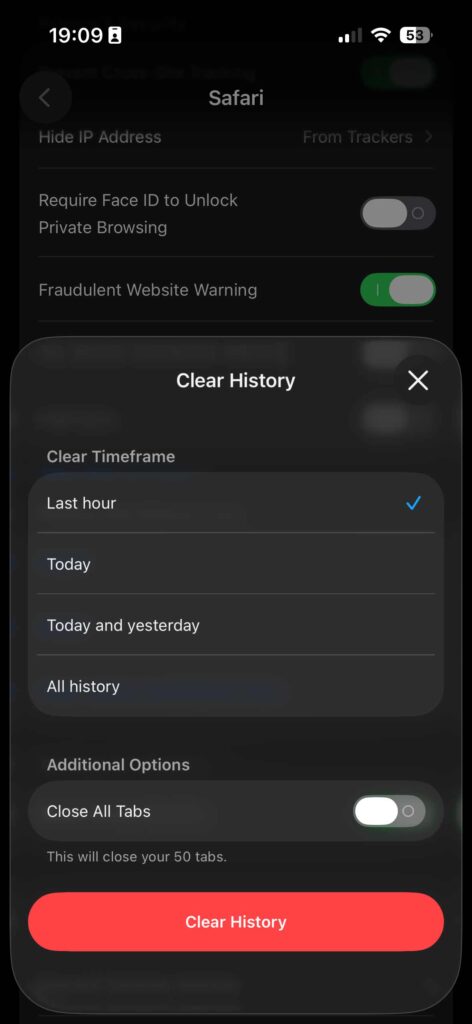
Method 1: Clear Safari Cache on iPhone

If you use Safari regularly, clearing its cache can free storage and fix browsing issues.

Steps to clear Safari cache
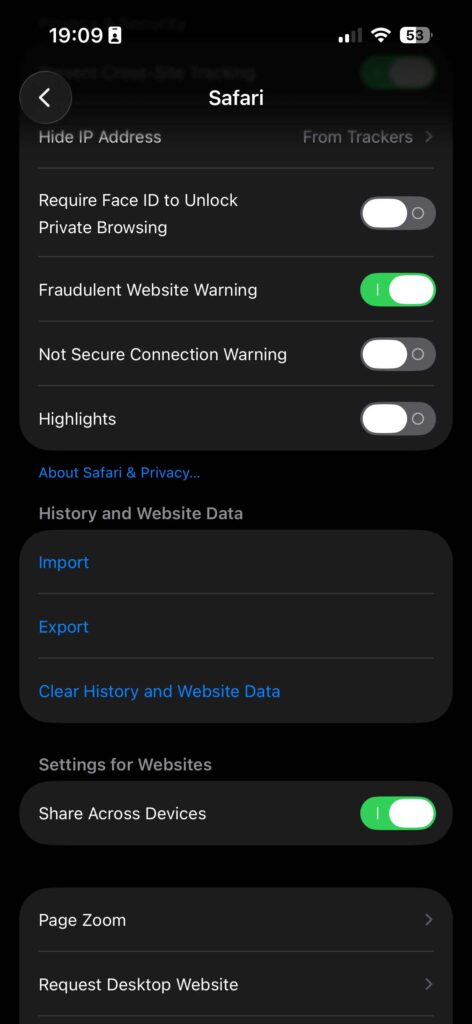
  • Open Settings on your iPhone
  • Scroll down and tap Safari
  • Tap Clear History and Website Data
  • Confirm by tapping Clear History and Data

This removes:

  • browsing history
  • cookies
  • cached images

It can immediately improve browsing performance.

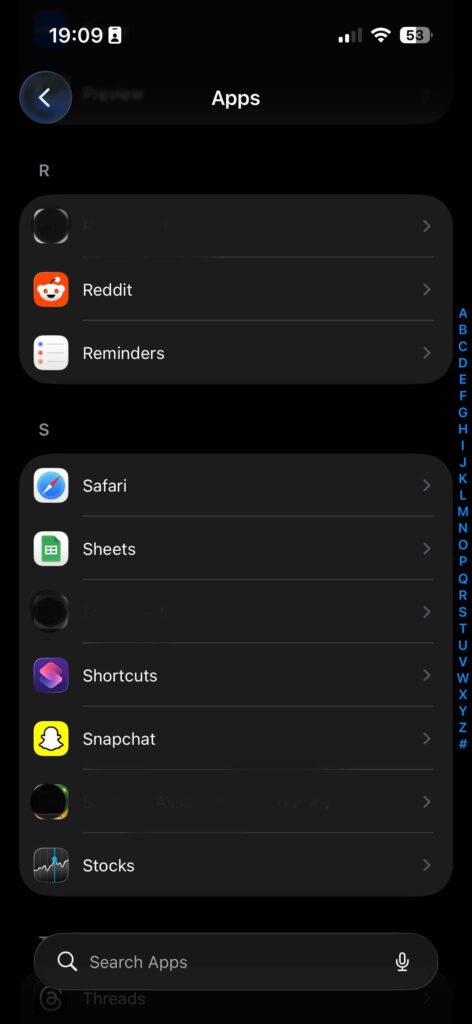
Method 2: Clear App Cache by Offloading Apps

Some apps store large cache files that slow down your phone.

You can clear them using the Offload App feature.

Steps
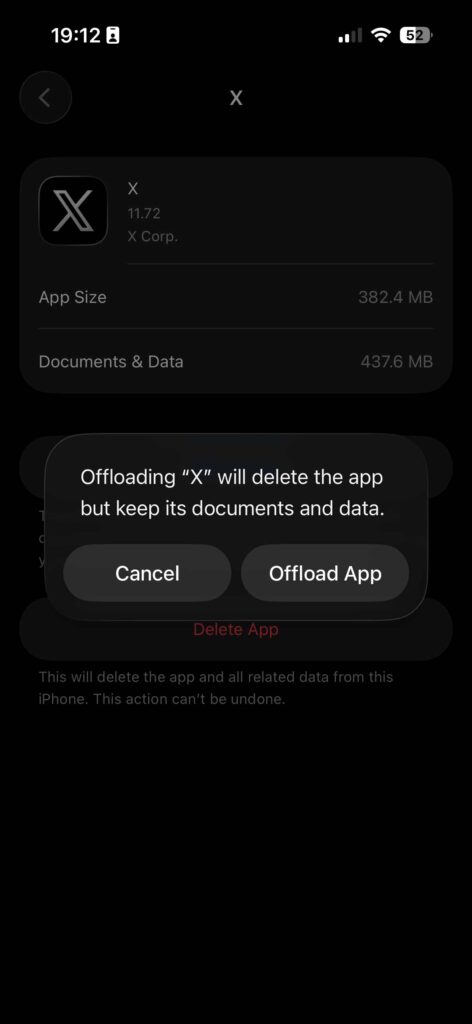
  • Open Settings
  • Tap General
  • Tap iPhone Storage
  • Select the app using the most storage
  • Tap Offload App

This removes cached data but keeps your documents and settings.

When you reinstall the app, it starts fresh without unnecessary cache.

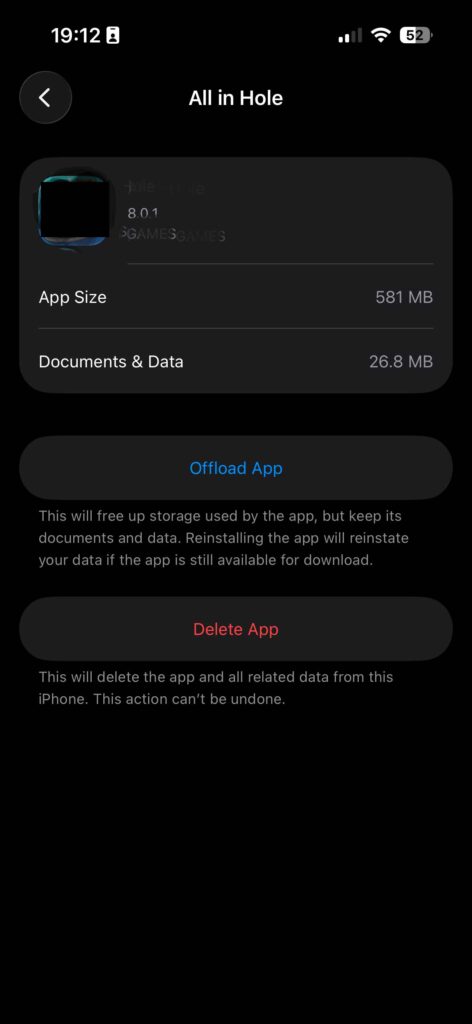
Method 3: Delete and Reinstall Apps

Some apps don’t provide a built-in option clearing cache.

The easiest solution is:

  1. Delete the app
  2. Reinstall it from the App Store

Steps

  • Tap and hold the app icon
  • Tap Remove App
  • Tap Delete App
  • Reinstall from App Store

This removes all cached files stored by that app.

Method 4: Restart Your iPhone

Restarting your device clears temporary system cache and background processes.

Steps
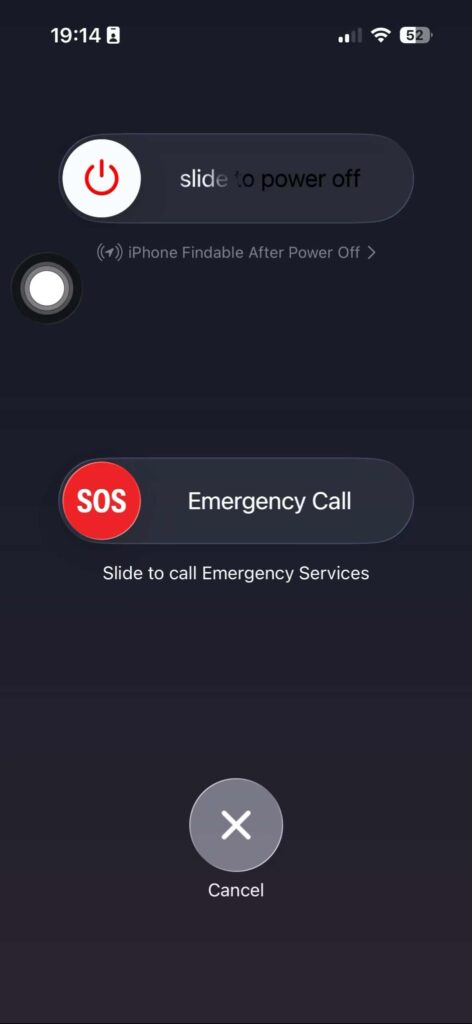
  • Press and hold the Power button + Volume button
  • Slide to power off
  • Turn your phone back on

This simple trick can fix many performance issues.

Detailed Article on Restart Your iPhone
How to restart iPhone from Settings shown on tutorial banner with iPhone General menu screen

iPhone Frozen? How to Restart iPhone (iOS 26 Updated Guide)

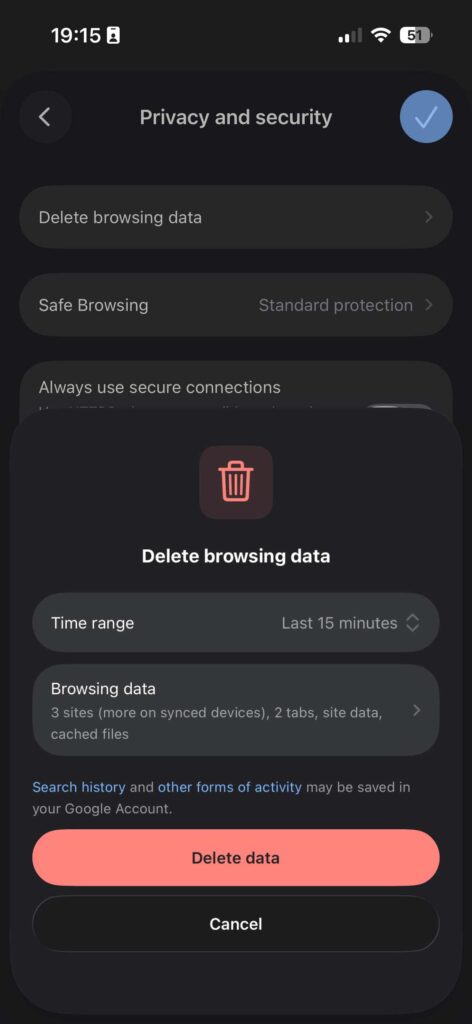
Method 5: Clear Chrome Cache (If You Use Chrome)

If you use Google Chrome, you can clear its cache directly.

Steps
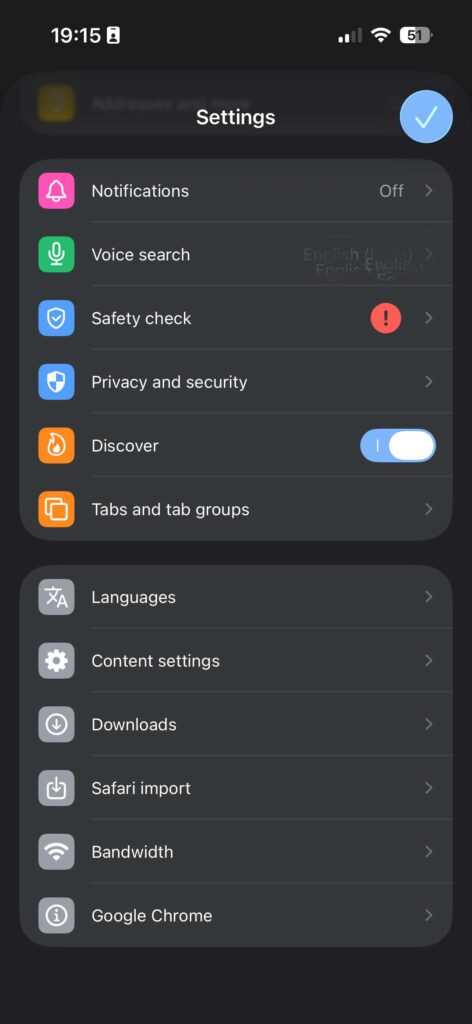
  • Open Chrome
  • Tap the three dots
  • Tap Settings
  • Tap Privacy
  • Tap Clear Browsing Data

    Select:

    • cookies
    • cached images
    • browsing history

    Then tap Clear Browsing Data.

    Method 6: Free Up System Cache by Updating iOS

    Apple often clears system cache when installing updates.

    To update your iPhone:

    • Open Settings
    • Tap General
    • Tap Software Update
    • Install the latest update

    Updates improve performance and remove unnecessary temporary files.

    Signs You Should Clear Cache on iPhone

    You may need to clear cache if you notice:

    • apps crashing frequently
    • slow browsing
    • storage filling up quickly
    • apps loading slowly
    • device overheating

    Clearing cached files can help resolve these issues.

    How Often Should You Clear Cache?

    You don’t need to clear cache daily.

    Recommended frequency:

    • once every 1–2 months
    • when storage is almost full
    • when apps behave unexpectedly

    Regular cleaning keeps your iPhone running smoothly.

    Tips to Prevent Cache Buildup

    To keep your iPhone optimized:

    • Delete unused apps
    • Clear Safari history regularly
    • Update iOS frequently
    • Restart your device weekly

    These simple habits can help maintain performance.

    FAQ

    Does clearing cache delete my data?

    No. Clearing cache removes temporary files but does not delete personal data like photos, contacts, or messages.

    Will clearing cache make my iPhone faster?

    Yes. Removing unnecessary cached files can improve app performance and free storage.

    Is there a button to clear all cache on iPhone?

    No. iPhones don’t have a universal cache cleaner. You need to clear cache from individual apps or browsers.

    Does restarting iPhone clear cache?

    Restarting removes temporary system cache and refreshes background processes.

    Final Thoughts

    Clearing cache on your Apple iPhone is a simple way to improve performance, free storage, and fix common app issues.

    By clearing Safari data, offloading apps, deleting unused apps, and restarting your device regularly, you can keep your iPhone running smoothly.

    If your phone feels slow or storage fills up quickly, clearing cache is one of the easiest fixes.

    T'kal
    T'kal
    Share This Article
    Facebook Twitter Pinterest Whatsapp Whatsapp
    Previous Article iOS 26.4 beta 3 update graphic showing new features, hidden tips, and system improvements on iPhone Unlock iOS 26.4 Beta 3: Hidden Features and Pro Tips
    Leave a comment Leave a comment

    Leave a Reply Cancel reply

    Your email address will not be published. Required fields are marked *

    Follow Us On Social

    FacebookLike
    InstagramFollow
    YoutubeSubscribe

    Must Read

    Clear cache iPhone – illustration of multiple ways to clear cache with arrows showing different directions

    6 (Fixed) Ways to Clear Cache on iPhone Quickly

    iOS 26.4 beta 3 update graphic showing new features, hidden tips, and system improvements on iPhone

    Unlock iOS 26.4 Beta 3: Hidden Features and Pro Tips

    how to use apple Intelligence

    How to Use Apple Intelligence: The Ultimate 2026 Guide to Apple AI

    How to see blocked numbers on iPhone blocked contacts screen with unblock option

    Can’t Find Blocked Numbers? See Blocked Numbers on iPhone

    Unhide apps on iPhone home screen tutorial showing iPhone interface and app icons

    Unhide Apps on iPhone NOW: 5-Min Fix for Missing Icons!

    AirPods earbuds with text showing how to check AirPods battery on iPhone

    AirPods Dying? Here’s How to Check Battery Percentage on iPhone

    Apple Headlines Logo Image

    Apple Headlines delivers fresh, reliable Apple news, how-to guides, and tips for every Apple user.

    Topics

    • Apple Headlines
    • iOS
    • iPhone
    • Mac

    Quick Links

    • Home
    • About Us
    • Privacy Policy
    • Terms of Service
    • Contact Us
    Apple Headlines Logo Image

    Designed By Apple Headlines

    appleheadlines.com