



By using this site, you agree to the Privacy Policy and Terms of Use.
Accept
Apple Headlines Logo Image Apple Headline's White Logo
  • 🔥 Trending:
  • iOS
  • iPadOS
  • Apple Tech
  • iPhone
  • iOS
  • Reader’s Space
  • Mac
  • Contact Us
Reading: How to Convert Picture to PDF on iPhone Without App in 7 Seconds?
Apple HeadlinesApple Headlines
Font ResizerAa
  • iPhone
  • iOS
  • Reader’s Space
  • Mac
  • Contact Us
Search
  • iPhone
  • iOS
  • Reader’s Space
  • Mac
  • Contact Us

Must Read

Dual camera setup on iPhone 17 showing wide and ultra-wide lenses

Dual Camera iPhone 17 Explained Simply: Specs, Features, and Why It Rocks

How to share location on iPhone using Apple Maps with pinned location and map preview

How to Share Location on iPhone

iPhone displaying iOS 18.7.5 update screen with features, fixes, and performance guide text.

iOS 18.7.5 Update: Features, Fixes, and Performance Guide

iOS 26.3 RC update graphic showing privacy, performance, and cross-platform features on a black background.

Apple Rolls Out iOS 26.3 RC: Privacy, Performance, and Cross-Platform Updates

Close-up of iPhone 18 triple camera module with three 48MP lenses and advanced sensor design

iPhone 18 Camera: 48MP Leaks, Variable Aperture & What to Expect

Follow US
© Apple Headlines. All Rights Reserved.
Home » How to Convert Picture to PDF on iPhone Without App in 7 Seconds?
iPhone

How to Convert Picture to PDF on iPhone Without App in 7 Seconds?

T'kal By T'kal November 2, 2023
3 Min Read
SHARE

Here is the step-by-step process for converting image to pdf without any iOS app.

Main Topics
Create PDF From Directly Photos app (Print option).From the iPhone file folder.For Multiple pdf Converts How to save photo As pdf on iPhone?how to turn a picture into a pdf on iPhone?

Apple iOS gives an inbuilt function that convert images directly to PDF file format without any third-party application.

Whenever you want free PDF for converts just follow these easy steps.

There are many simple ways to turn PDF from your photos. But here we are sharing only one and the best options to make PDFs.

Create PDF From Directly Photos app (Print option).

Photos app on your iPhone can help to get PDF file easily by few steps. (Refer Images)

Step 1: Open Photos App on app screen.

Step 2: Open photo which you want to convert to PDF. 

Step 3: Tap share Icon (Bottom Left)
More Read

How to share location on iPhone using Apple Maps with pinned location and map preview
How to Share Location on iPhone
iPhone displaying iOS 18.7.5 update screen with features, fixes, and performance guide text.
iOS 18.7.5 Update: Features, Fixes, and Performance Guide
Close-up of iPhone 18 triple camera module with three 48MP lenses and advanced sensor design
iPhone 18 Camera: 48MP Leaks, Variable Aperture & What to Expect

Step 4: Drag down to Print option and Select Print

Step to Step instructions, open tap and select print.
Image For Step 1 to Step 4

Step 5: Tap Share Option (Upper Right)

Step 6: Now you are asked to save your created PDF.

Step 7: Select save to files option

Step 8: Chose a folder where you need to save this PDF.
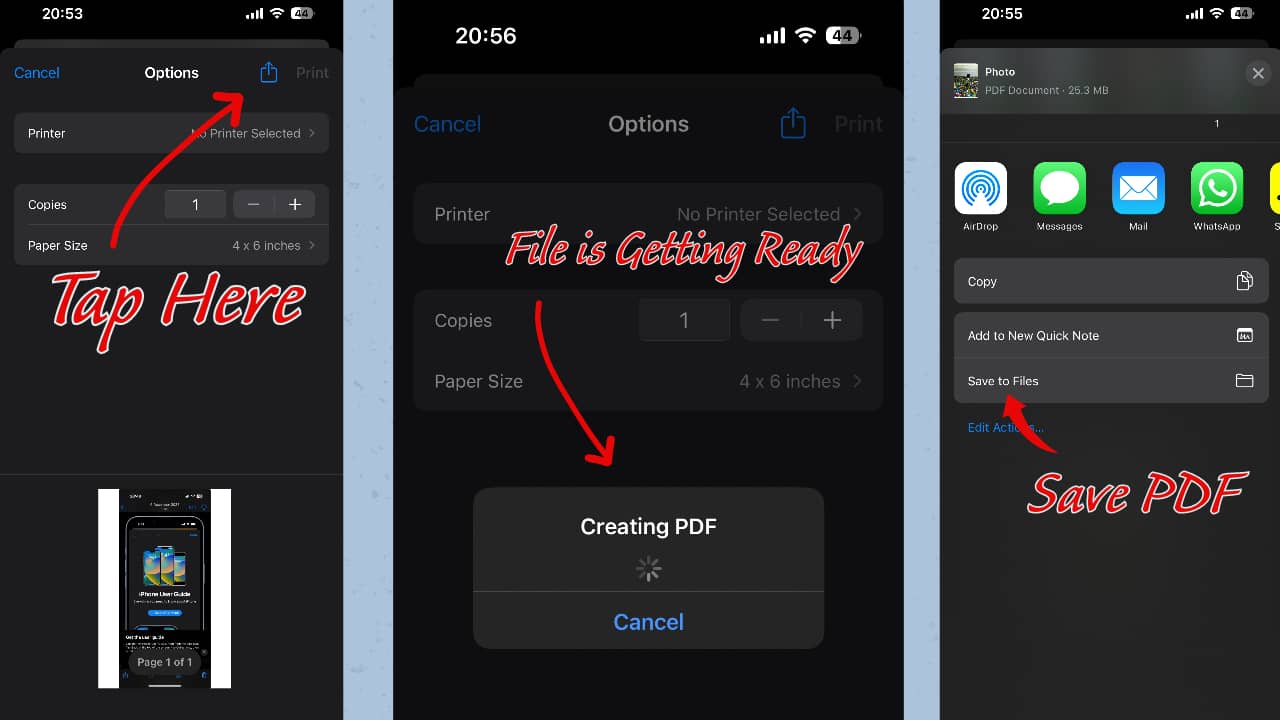
iPhone screenshots for demonstrate Converting Photos to PDF, Step By Step
Image For Step 5 To Step 8

From the iPhone file folder.

If images are in file folder on iPhone and those need to be converted as PDF file. so, there is an option available there for creating PDF files.

Here are given steps below for do that easily.   

  1. Look for the files app folder in app library.
  2. Browse for my “On iPhone option”.
  3. Go to your photo/folder.
  4. Open Image and Choose Print option and do the same as given above.

For Multiple pdf Converts 

Select photos and find print option by this you can convert more than one image/photo to PDF file.  

There are also other ways to save photo as pdf in iPhone. such as share as a Book, and file app on your phone. but the directly printer option is the shortest ways to make free PDF from Photos app in your iPhone.

How to save photo As pdf on iPhone?

By using your iPhone’s Photos app and you can turn your taken images to PDF files and save it to on your iPhone. 

how to turn a picture into a pdf on iPhone?

There are many ways to turn your pictures into a PDF file for free. You can use your iPhone’s Photos, share as a book option, print option or you can use third party application (not needed any app to create PDF on iPhone) to make PDF. 

T'kal
T'kal
Share This Article
Facebook Twitter Pinterest Whatsapp Whatsapp
Previous Article A boy is happy after fixing iMassage photo issue iMessage Pictures not Loading Issue – Fixed in Just 34 Seconds
Next Article Denticon user login in to the system How to Login Denticon on Your Apple Devices?

Follow Us On Social

FacebookLike
InstagramFollow
YoutubeSubscribe

Must Read

Dual camera setup on iPhone 17 showing wide and ultra-wide lenses

Dual Camera iPhone 17 Explained Simply: Specs, Features, and Why It Rocks

How to share location on iPhone using Apple Maps with pinned location and map preview

How to Share Location on iPhone

iPhone displaying iOS 18.7.5 update screen with features, fixes, and performance guide text.

iOS 18.7.5 Update: Features, Fixes, and Performance Guide

iOS 26.3 RC update graphic showing privacy, performance, and cross-platform features on a black background.

Apple Rolls Out iOS 26.3 RC: Privacy, Performance, and Cross-Platform Updates

Close-up of iPhone 18 triple camera module with three 48MP lenses and advanced sensor design

iPhone 18 Camera: 48MP Leaks, Variable Aperture & What to Expect

iPhone 18 rumors graphic showing leaked features like A20 Pro chip, smaller Dynamic Island, and camera upgrades

iPhone 18 Rumors: All Leaks Revealed

Apple Headlines Logo Image

Apple Headlines delivers fresh, reliable Apple news, how-to guides, and tips for every Apple user.

Topics

  • Apple Headlines
  • iOS
  • iPhone
  • Mac

Quick Links

  • Home
  • About Us
  • Privacy Policy
  • Terms of Service
  • Contact Us
Apple Headlines Logo Image

Designed By Apple Headlines

appleheadlines.com