



Updated October 8, 2026 ·
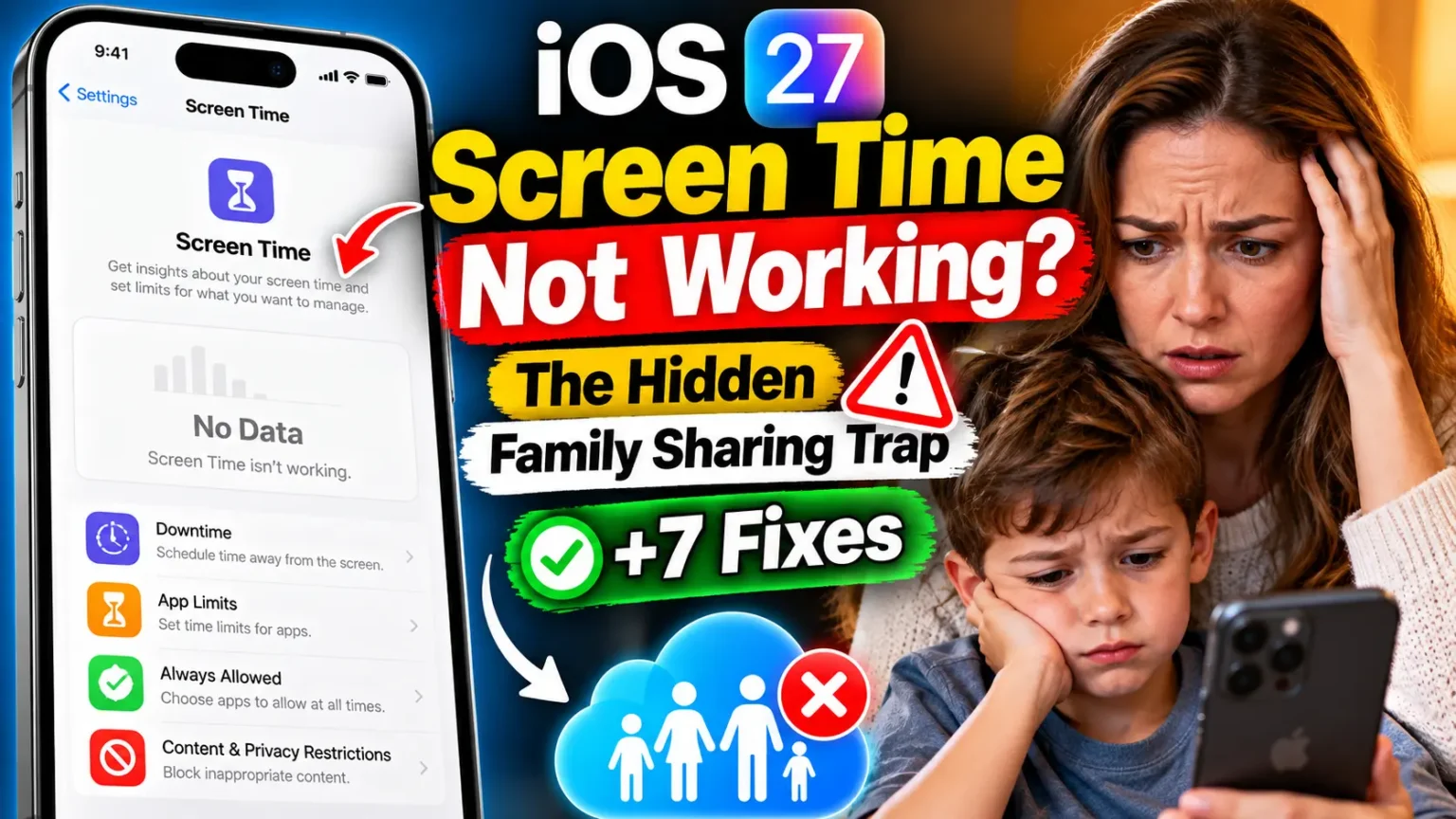
Quick Answer: Screen Time usually fails on iOS 27 because one device in your Family Sharing group is still on an older version.
Apple says every family device must run version 27 to use the new controls.
Update each device, restart it, then rebuild only the limit that still fails.
Start with the family device list.
It takes about ten minutes.
You updated to iOS 27, and now Screen Time is acting up.
Limits don’t block apps.
Your child’s report is blank.
The passcode feels useless.
That’s stressful when you’re counting on those rules.
Here’s the good news: the cause is often a version mismatch, not a broken phone.



This guide shows you how to find it, fix it, and avoid wiping settings you don’t need to touch.
Why iOS 27 Screen Time Is Breaking for So Many Families
Apple released iOS 27 on September 14, 2026, with a rebuilt Screen Time.
Downtime and App Limits gave way to Schedules and Time Allowances.
Schedules decide when apps are open.
Allowances decide how long each category can run.
That redesign changed how your devices coordinate.
Apple’s support pages say the new features need version 27 on all your Apple devices.
Inside Family Sharing, every family device must be updated first.
This matters because Screen Time is a trust tool.
When it fails quietly, a child may have open access while a parent assumes limits are active.
We’ve tracked iOS 27 problems since launch day, and this is the one families miss most.
Many top guides bury it under generic restarts or point you to paid desktop tools.
We start with the Apple-documented cause instead.
Apple’s first patch, iOS 27.0.1, arrived September 28.
According to reports, it fixed a Face ID restart bug, a camera artifact, and a frozen touchscreen.
Those reports don’t mention Screen Time. So don’t wait for a patch to solve this. For a wider view, see our iOS 27 complete guide.
The Family Sharing Trap, Explained With a Group Chat
Picture a group chat where one friend still uses plain SMS.
Everyone else has iMessage, yet the whole thread drops to green bubbles and loses its extras.
Family Sharing works much the same way. One iPad, Mac, Apple Watch, or old iPhone stuck on iOS 26 can keep the group from using the new controls.
When we tested this on an iPhone 17 Pro running iOS 27.0.1, the parent’s phone showed which family devices still needed updates.
Apple also lists devices that can’t update at all under Legacy Devices.
Those keep using the older iOS 26 Screen Time settings.
Our iOS 27 vs iOS 26 comparison shows what else changed.
Which iPhones can’t make the jump?
iOS 27 supports the iPhone 11 and later, plus the second-generation iPhone SE and later.
The iPhone XS, iPhone XR, and anything older are stuck on iOS 26.
| Your situation | What happens | Your move |
|---|---|---|
| Every device runs version 27 | New controls work | Check settings (Fixes 4–7) |
| One device can update but hasn’t | New controls stall for the group | Update it (Fixes 1–3) |
| One device is too old to update | It shows as a Legacy Device | Keep old settings or replace it |
Fixes 1–3: Solve the Version Problem First
- Update a parent’s iPhone first. Go to Settings > General > Software Update. Install iOS 27.0.1 or newer. The family list only appears after this step.
- Open the family device list. Tap Settings > Family, then View Family Devices. Menu wording can shift between builds. Look for every device that needs an update.
- Update the rest, or sort out legacy devices. Update each child’s iPhone, iPad, Mac, and Apple Watch. Then reopen the list. A device under Legacy Devices can’t update. Keep its older settings, or replace it.
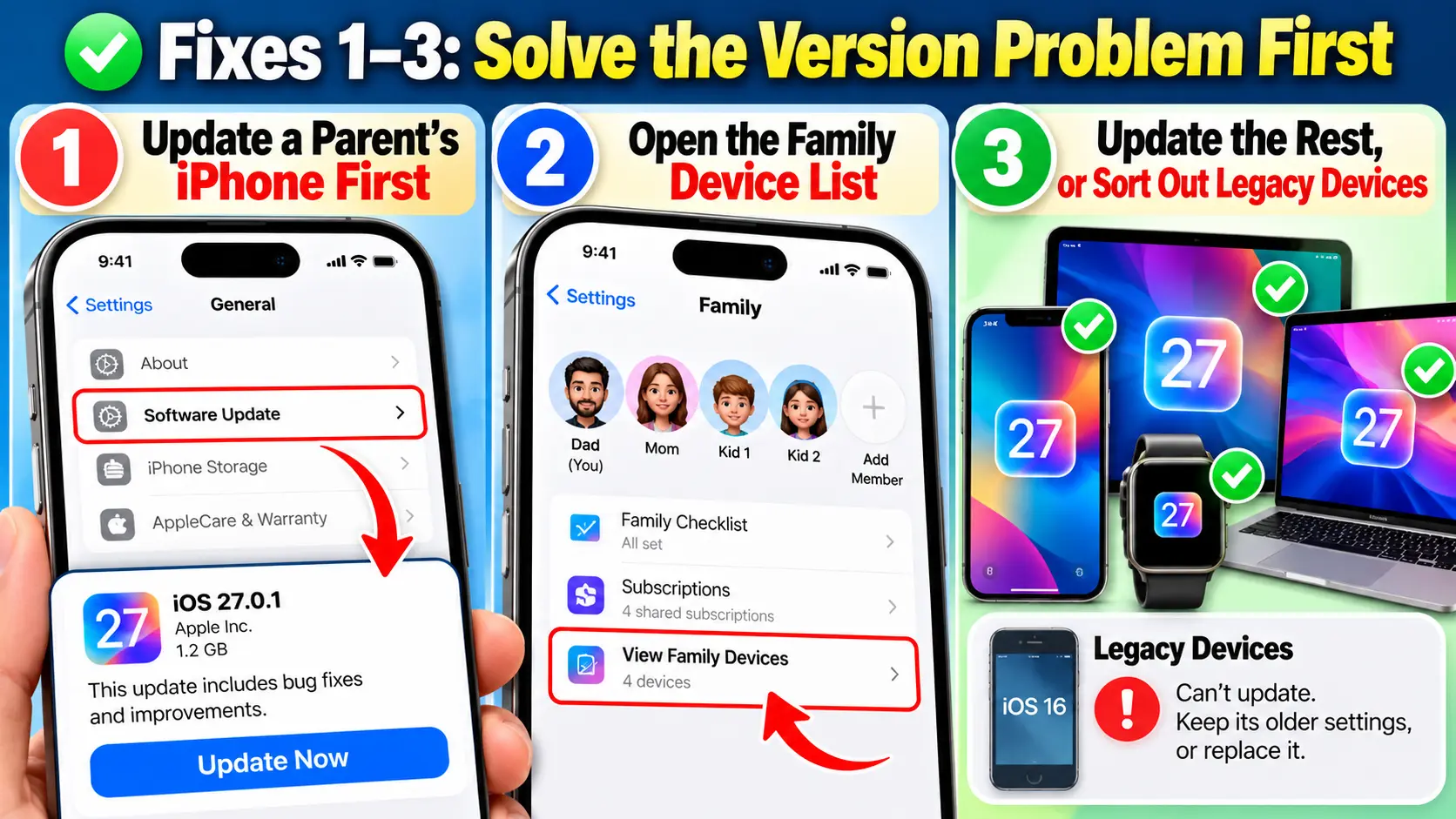
Pro Tip: Update in this order: parent iPhone, children’s phones, then iPads, Macs, and Watches. Before you touch anything, screenshot each Time Allowance and Schedule. If a setting vanishes after an update, you can rebuild it in two minutes. That small habit saves real time.
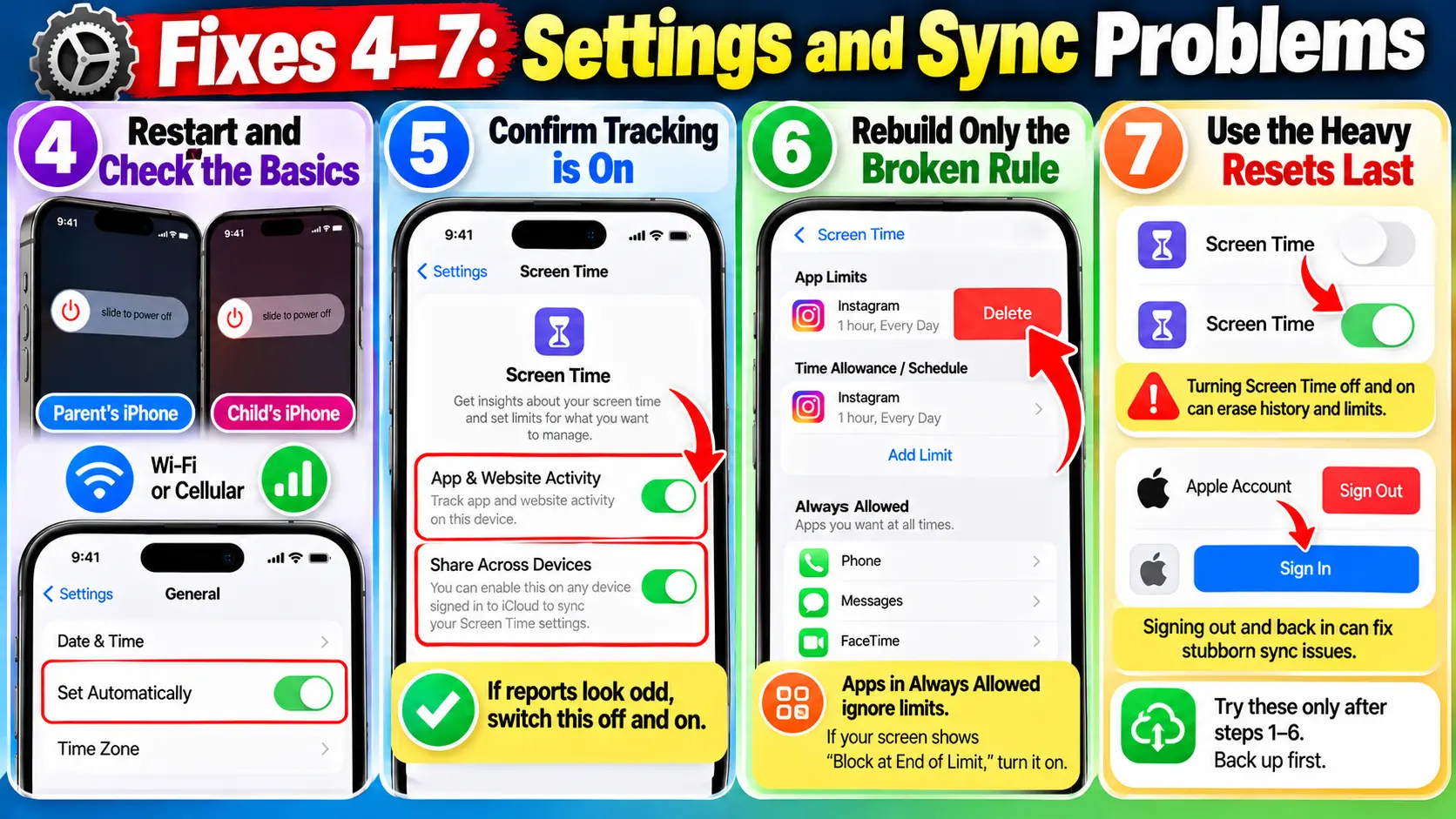
Fixes 4–7: Settings and Sync Problems
- Restart and check the basics. Restart the parent’s and child’s devices. Confirm both have Wi-Fi or cellular. Then open Settings > General > Date & Time and turn on Set Automatically. A wrong clock breaks daily resets.
- Confirm tracking is on. Open Settings > Screen Time. Make sure App & Website Activity is on. Check Share Across Devices too. If reports look odd, switch that one off and on.
- Rebuild only the broken rule. Delete the one failing Time Allowance or Schedule. Create it again. Check Always Allowed, because apps listed there ignore limits. Older guides mention Block at End of Limit. If your screen shows it, turn it on.
- Use the heavy resets last. Turning Screen Time off and on can erase history and limits. Signing out of your Apple Account and back in can fix stubborn sync. Try these only after steps 1–6. Back up first.
If cellular trouble is stalling the sync, our iOS 27 cellular data fix can help.
Case Study: The Forgotten iPad
This example blends common reader reports. Details are changed.
A dad in Ohio updated his iPhone 17 Pro to iOS 27 on release day. His daughter’s bedtime schedule stopped working that evening.
He restarted both phones twice. He even turned Screen Time off and on. Her limit still failed.
The culprit sat in a drawer. An old iPad, still signed in to the family account, had never been updated.
The family device list flagged it in seconds. He updated the iPad, and the schedule worked again within minutes.
His mistake was common.
He wiped settings before checking the list.
Check the list first, and you skip the rebuild. Among iOS 27 iPhone problems and solutions, this one is the cheapest to fix.
Forgot Screen Time Passcode, iPhone Unavailable Screen, and Screen Time Bypass
People searching this topic often mix up three different problems. Here’s how to sort them.
Forgot Screen Time passcode.
Open Settings > Screen Time > Change Screen Time Passcode. Tap it again, then choose Forgot Passcode.
Enter the Apple Account you added during setup. For a child, the Family organizer resets it from their own device. No recovery account? Contact Apple Support.
iPhone Unavailable screen.
This is your device passcode, not Screen Time. Apple’s iPhone Unavailable fix is Security Lockout.
Tap Start iPhone Reset, enter your Apple Account password, then erase. It needs Wi-Fi or cellular, plus Find My. It deletes your data, so check your backup.
Screen Time bypass.
We won’t teach workarounds.
Parents should know the usual culprit, though: kids changing the clock. Keep Set Automatically on.
Be careful with third-party passcode removers.
One popular guide tells you to turn off Find My first. It also has you set the phone up as new afterward. Apple’s own reset path is free.
What If This Doesn’t Work?
Still stuck? Work through this short list of iPhone troubleshooting checks.
- Recheck every version. A device that quietly failed to update looks fine but isn’t. Open Software Update on each one.
- Wait and retest. Apple’s iOS 27.0.1 notes don’t list a Screen Time fix. Watch Settings > General > Software Update for the next release.
- Look for a crash. If Settings freezes or Screen Time won’t open, back up first. Then book help through our Apple Genius Bar appointment guide.
- Avoid paid “repair” tools. Apple’s free steps cover most Screen Time cases. Try them before you spend money.
Key Takeaways
- Most iOS 27 Screen Time failures trace back to a version mismatch inside Family Sharing.
- Every device in the group needs version 27 for the new controls.
- iPhones older than the iPhone 11 can’t update. They show as Legacy Devices.
- Check the family device list before you reset anything.
- Rebuild one broken rule instead of wiping everything.
- Forgot passcode, iPhone Unavailable, and Screen Time bypass are separate problems.
- iOS 27.0.1 didn’t list a Screen Time fix.
FAQ
Usually a device in the group runs an older version. A dropped connection can also stall it. Check the family list, then restart both phones.
Yes, with limits. Apple says devices that can’t update still use Screen Time and Family Sharing settings from iOS 26 or earlier.
It can. One competing guide says it clears usage history and resets limits. Screenshot everything first.
Reports on Apple’s notes list Face ID, camera, and touchscreen fixes. Screen Time isn’t among them. Install it anyway for stability.
Use Change Screen Time Passcode, then Forgot Passcode. Sign in with the Apple Account you used during setup.
Sources
- Apple Support, “Update your family devices to iOS 27, iPadOS 27, macOS 27, watchOS 27, and visionOS 27”:
- Apple Newsroom, “Apple’s new child safety features now available” (September 14, 2026):
- Apple Support, “If you forgot your Screen Time passcode”:
- Apple Support, “If you see an iPhone unavailable message or Security Lockout screen”:
Disclaimer
AppleHeadlines.com is an independent publication. It isn’t affiliated with or endorsed by Apple Inc. Menu names and steps can vary by iOS version, device, and region. Back up your device before you reset, sign out, or erase anything. This article offers general technical information, not legal advice. Parental controls don’t replace honest talks with your child. For family privacy questions, ask a qualified professional.
Still stuck? Tell us which device was blocking your Screen Time in the comments, and bookmark our iOS 27 complete guide for the next fix.
Related Reads
- iOS 27 Screen Time Not Working: The Hidden Family Sharing Trap (+7 Fixes)
- iPhone Reset All Settings: 17 Hidden Things It Wipes (Your Photos Aren’t One)
- iOS 27 Unresponsive Touchscreen: The Sneaky 2-Swipe Bug Freezing iPhones (Plus 6 Rescue Steps)
- iPhone 18 Pro Speaker Crackling: Why a Replacement May Not Fix It (4 Smart Moves)
- iPhone 18 Pro Max AT&T SOS: 7 Critical Facts About Apple’s Cellular Replacement Problem

T’kal is the lead strategist and developer behind Apple Headlines. With a background in digital marketing and web development, he specializes in technical Apple troubleshooting, software news, and hardware rumors. T’kal focuses on delivering high-authority tech content that bridges the gap between Apple enthusiasts and the latest industry innovations.