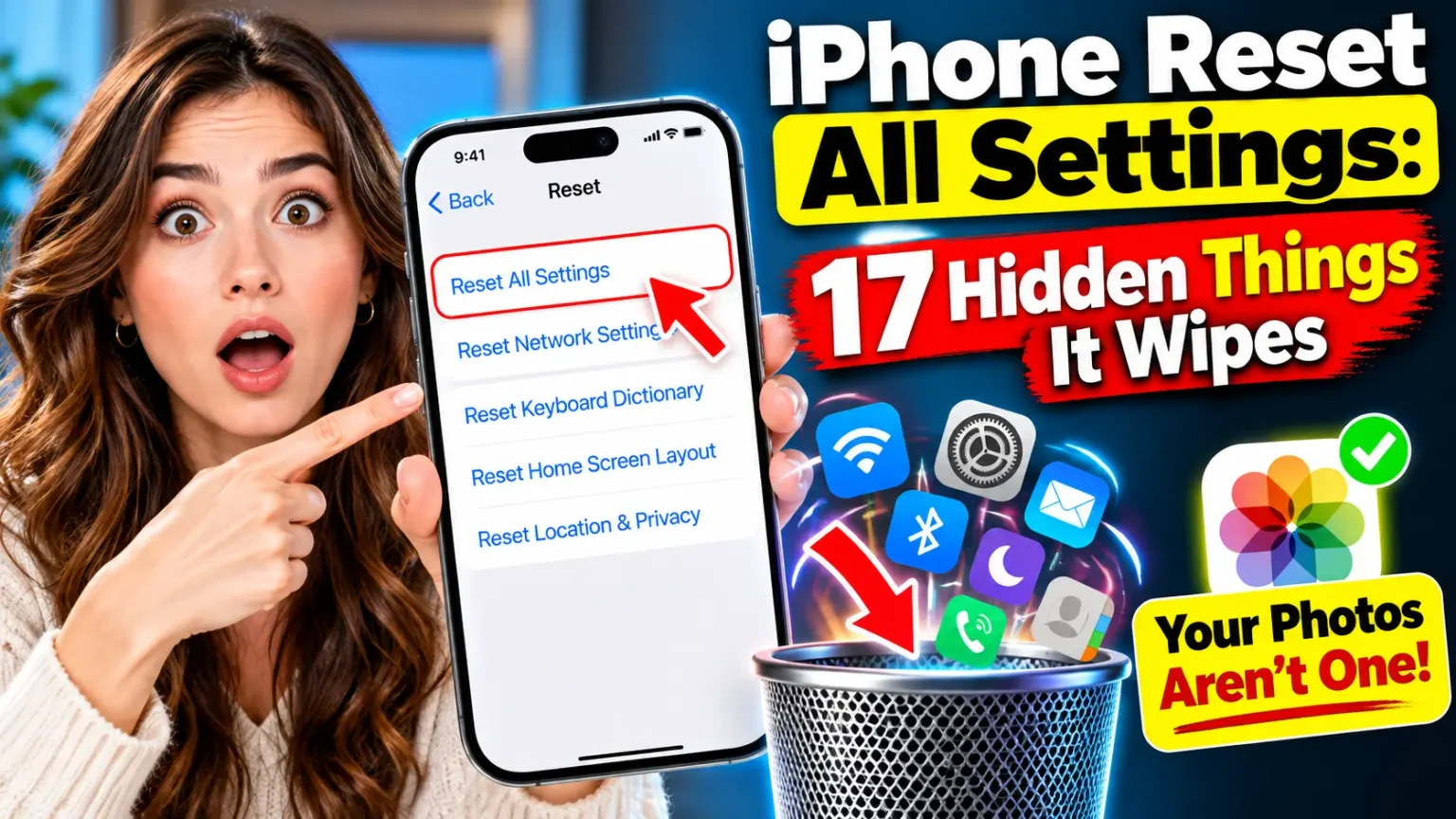



Quick Answer: Open Settings > General > Transfer or Reset iPhone > Reset > Reset All Settings.
Enter your passcode and confirm.
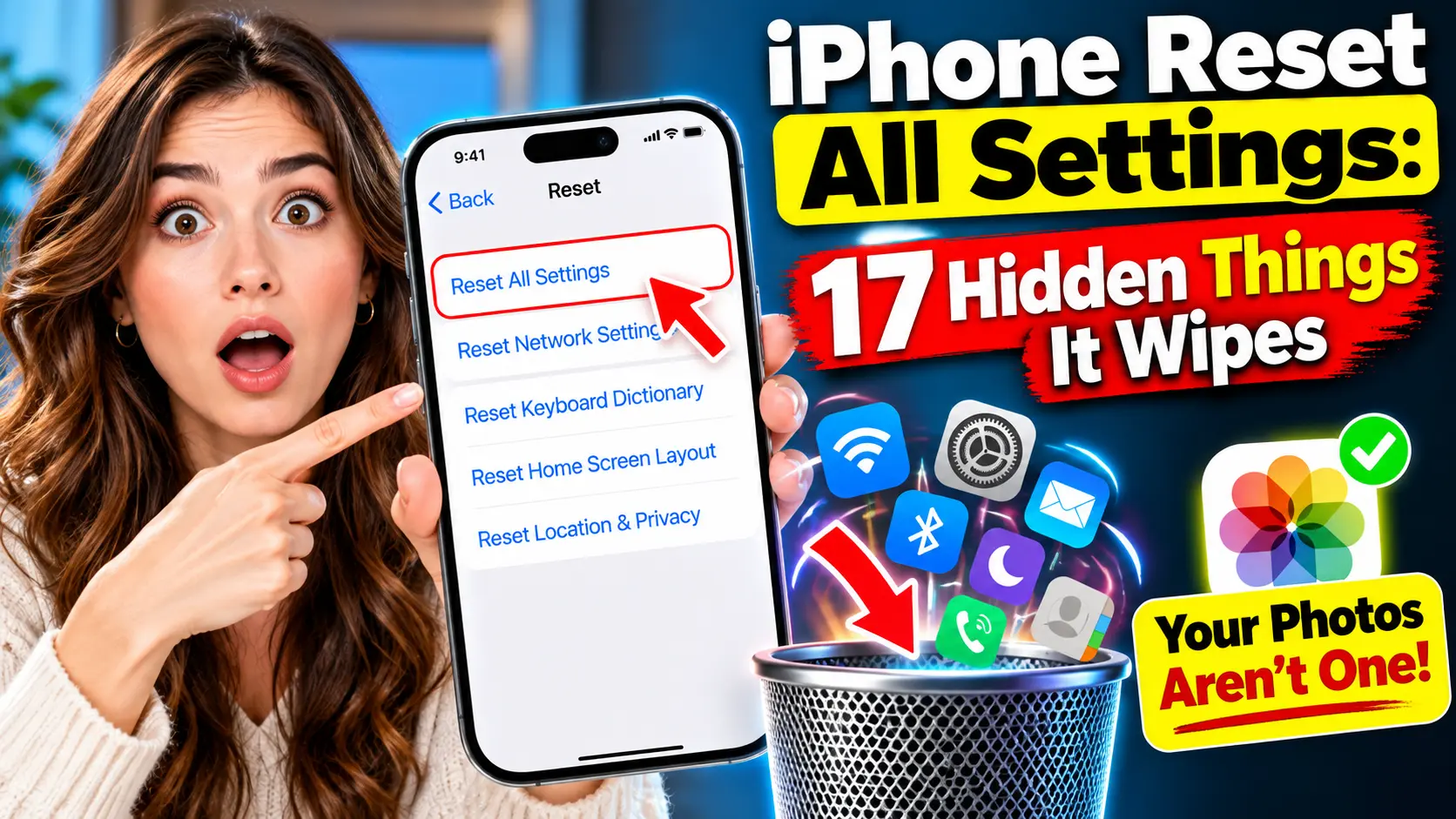
Your iPhone returns 17 types of settings to default, including Wi-Fi passwords, Face ID, Apple Pay cards, and Apple Watch pairings.
Photos, apps, messages, and files stay untouched. Back up first, because reconnecting everything takes a while.
Your iPhone is acting up.
Wi-Fi keeps dropping, notifications disappear, or one setting refuses to stick.
Someone told you to reset all settings, but “reset” sounds risky.
Will your photos vanish?
What about Apple Pay and your Apple Watch?
Here is the short version: your files stay, but your settings do not.
This guide shows what gets wiped, what survives, and how to do it on iOS 27 without surprises.


We also cover the buttons method for a true factory reset.
Why Apple Treats This Reset as a Last Resort
Apple’s support page, published May 8, 2026, tells you to restart your iPhone first.
It also calls Reset All Settings rarely necessary.
We agree.
A restart fixes most glitches in 30 seconds and costs you nothing.
So why use it at all?
Settings can get corrupted.
A bad update or a half-installed VPN profile can break features that a restart cannot touch.
Apple says the reset can fix problems from incorrect or damaged settings without touching your apps, photos, or personal data.
When we tested this on our iPhone 18 Pro Max running iOS 27.0.1, the reset took about two minutes.
Rebuilding our setup took far longer. Most guides skip that cost.
Think of It Like Resetting a Rented Apartment
Picture your iPhone as an apartment.
Your photos, apps, and messages are the furniture.
Your settings are the thermostat, the light switches, and the Wi-Fi password sticky note.
Reset All Settings flips every switch back to the landlord’s defaults and bins the sticky notes.
The furniture stays put.
Erase All Content and Settings empties the whole apartment.
What Resets When You Reset All Settings on iPhone
Apple’s support page lists 17 items.
Most quick answers name only a handful.
Here is the full list, grouped so you can scan it fast.
| Group | What gets reset or removed |
|---|---|
| Connections | Wi-Fi passwords and networks, Wi-Fi connections, Bluetooth pairings, VPN configurations |
| Security and access | Face ID settings, Touch ID settings, Privacy & Security settings, Location Services preferences, previously trusted computers and accessories |
| Look and sound | Display & Brightness, Home Screen layout and wallpaper, Sounds & Haptics, Notification settings, Accessibility settings |
| Typing and payments | Keyboard dictionary, Apple Pay cards, Apple Watch pairings |
Three items surprise people most.
Apple Pay cards come off your iPhone, so re-add them before your next coffee run.
Apple Watch pairings are removed, so you will pair the watch again.
Your Home Screen layout snaps back to default, though your apps stay installed.
What stays safe: photos, videos, music, apps and app data, messages, call history, contacts, calendar events, documents, and downloads.
Apple confirms none of it is deleted.
Apple’s list does not name your cellular plan, but check your eSIM afterward.
How to Reset All Settings on iPhone (iOS 27)
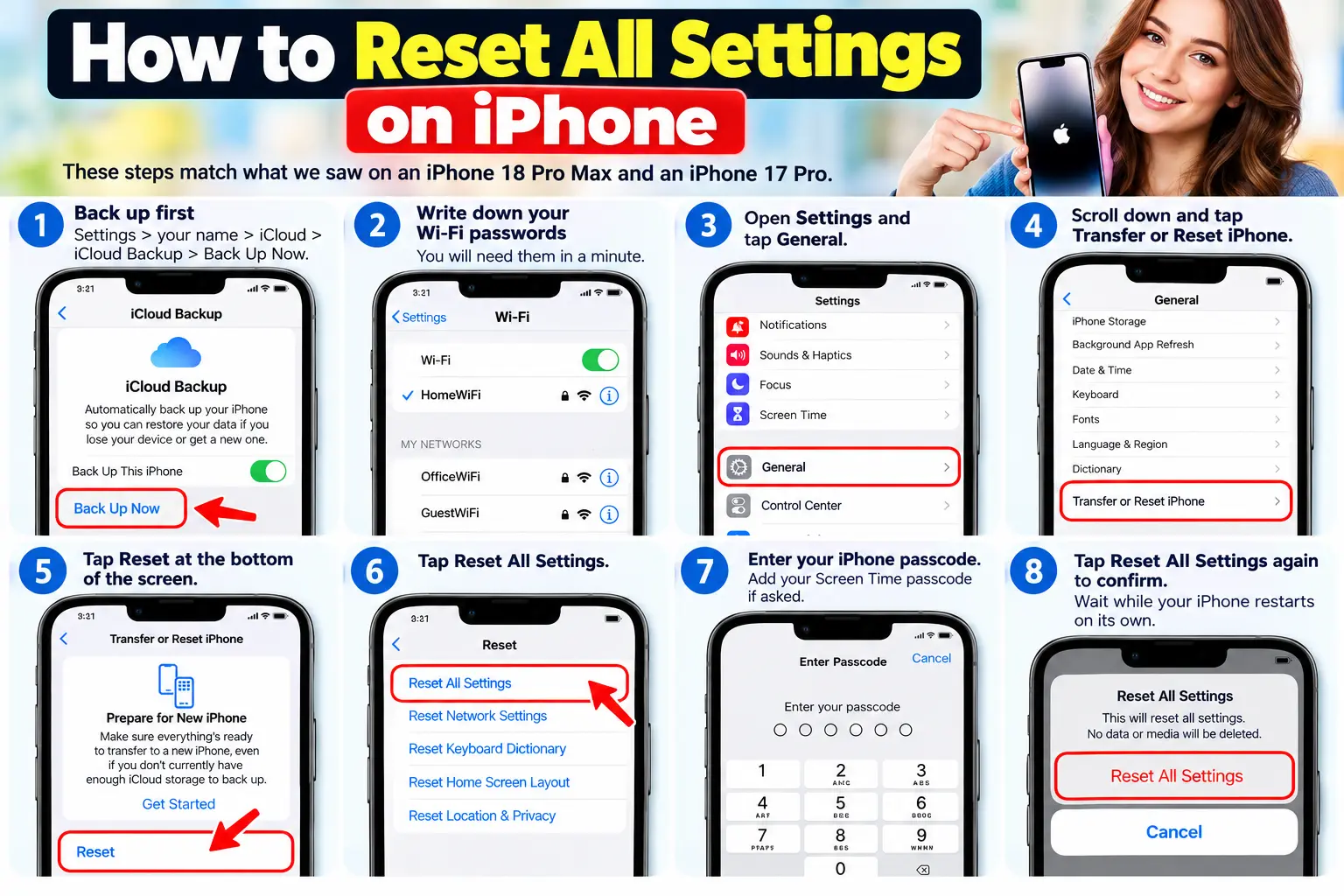
These steps match what we saw on an iPhone 18 Pro Max and an iPhone 17 Pro.
- Back up first: Settings > your name > iCloud > iCloud Backup > Back Up Now.
- Write down your Wi-Fi passwords. You will need them in a minute.
- Open Settings and tap General.
- Scroll down and tap Transfer or Reset iPhone.
- Tap Reset at the bottom of the screen.
- Tap Reset All Settings.
- Enter your iPhone passcode. Add your Screen Time passcode if asked.
- Tap Reset All Settings again to confirm.
- Wait while your iPhone restarts on its own.
Your After-Reset Checklist
Apple lists what you must redo. Our order, most urgent first:
- Reconnect to your Wi-Fi networks.
- Re-add your cards in the Wallet app.
- Set up Face ID again.
- Pair your Bluetooth devices, like AirPods and your car.
- Pair your Apple Watch again.
- Rebuild your Home Screen and notification preferences.
Pro Tip: Try a smaller reset first.
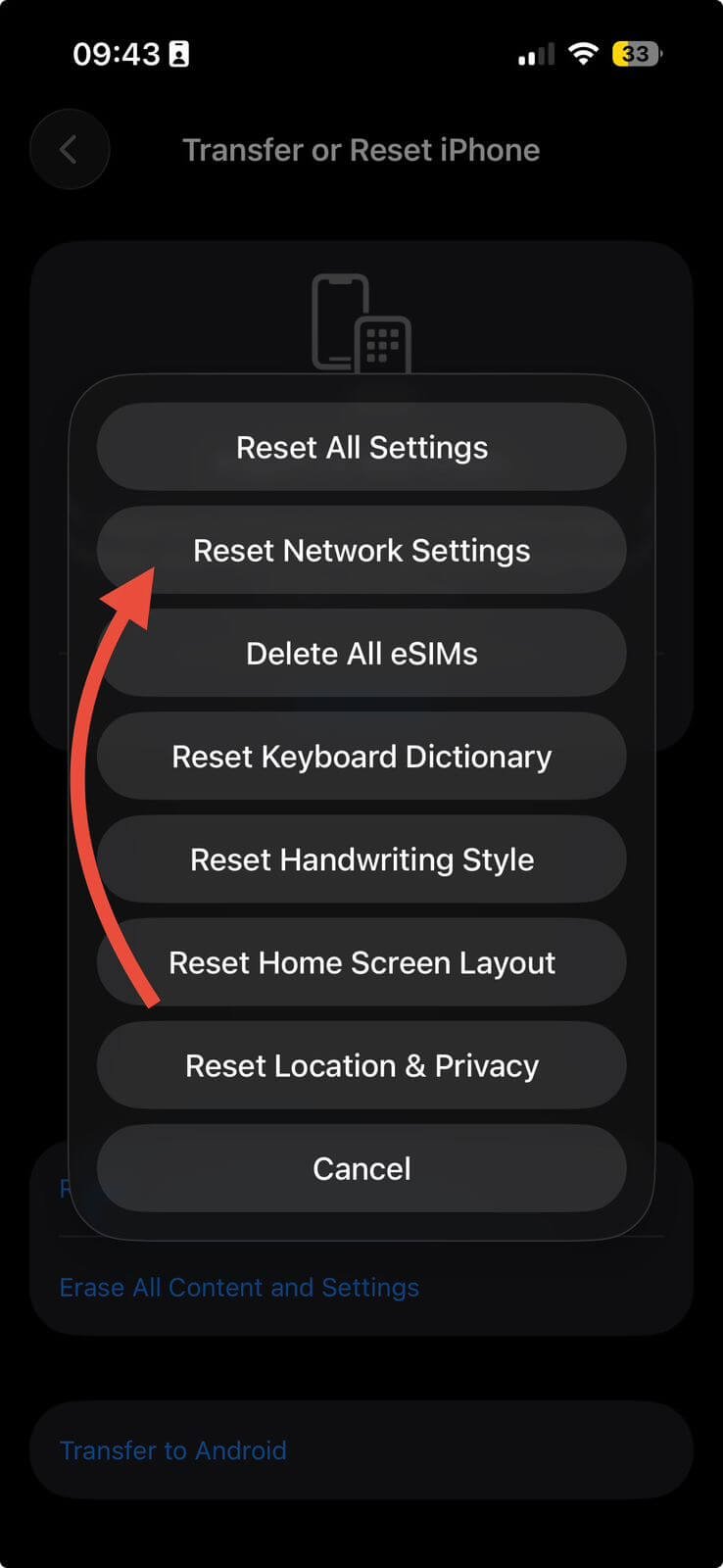
The same Reset menu also offers Reset Network Settings, Reset Keyboard Dictionary, Reset Home Screen Layout, and Reset Location & Privacy.
If only Wi-Fi misbehaves, reset just the network.
You keep Face ID, Apple Pay, and your watch pairing. It is the cheapest fix on the list.
Does Reset All Settings Ask for a Password?
It asks for your device passcode, not your Apple Account password.
If you use Screen Time, expect a prompt for that passcode too.
Your Apple Account password only appears when you choose Erase All Content and Settings, according to Apple’s factory reset steps.
Forgot your passcode? Reset All Settings will not help, because you cannot reach the menu. Your only route is recovery mode, which erases the phone. We cover that below.
What Is Reset Network Settings on iPhone?
Reset Network Settings is the small, safe cousin of Reset All Settings.
It clears saved Wi-Fi networks and passwords, cellular settings, and VPN and APN settings you used before.
Apple Community guidance adds that Wi-Fi switches off and back on, and settings installed by a work profile stay.
The path is the same on iPhone 13 and every newer model: Settings > General > Transfer or Reset iPhone > Reset > Reset Network Settings.
Installed eSIMs normally stay put, per Apple Community moderators.
Use it when calls drop, mobile data stalls, or Wi-Fi refuses to join. Our guide on iOS 27 cellular data not working shows what to check first.
How to Reset an iPhone Without Losing Everything
Only one of these three options deletes your data. Pick the lightest fix.
| Option | What it removes | Your data safe? | Best for |
|---|---|---|---|
| Reset Network Settings | Wi-Fi, cellular, VPN, APN | Yes | Connection trouble |
| Reset All Settings | 17 settings types | Yes | Odd system glitches |
| Erase All Content and Settings | Everything | No | Selling or full wipe |
To keep your data, never tap Erase All Content and Settings. Back up anyway.
How to Factory Reset an iPhone With Buttons (iPhone 17 and 18 Pro)
The buttons alone do not wipe your iPhone. They put it into recovery mode, and then a computer restores it. This works on iPhone 17, iPhone Air, iPhone 17 Pro, and iPhone 18 Pro.
- Back up first if you can. Restoring erases everything.
- Connect your iPhone to a Mac or PC with a USB-C cable.
- Open Finder on a Mac, or the Apple Devices app on Windows.
- Press and release Volume Up, then press and release Volume Down.
- Press and hold the Side button until the recovery screen appears.
- Click Restore when your computer offers Update or Restore.
- Wait while iOS reinstalls, then set up your iPhone.
No computer nearby? Use Settings > General > Transfer or Reset iPhone > Erase All Content and Settings instead. Apple’s steps also ask for your passcode and Apple Account password there.
Real-World Example: The Coffee Shop Surprise
A reader with an iPhone 16 Pro had a rough Monday.
After an iOS 27 update, notifications went silent and Wi-Fi kept dropping.
A restart did nothing, so he ran Reset All Settings at his desk.
It worked. Then he held his phone to a coffee shop reader, and nothing happened.
His Apple Pay cards were gone, and his watch had unpaired.
The lesson: reset at home, and re-add your cards before you leave.
What If This Doesn’t Work?
Most problems have a quick fix. Try these in order.
- The reset does nothing. Force restart, then update iOS. iOS 27.0.1 fixed a freeze bug, so see our iOS 27 complete guide.
- The passcode is rejected. Wait out any lockout timer, then retry. If you truly forgot it, use recovery mode.
- The problem is still there. A reset cannot fix hardware faults. Book a Genius Bar appointment if the glitch survives.
- Battery still drains fast. Settings are rarely the cause. Try our iPhone battery draining fast checklist.
Key Takeaways
- Reset All Settings restores 17 settings types and deletes no personal data.
- Apple Pay cards, Face ID, Wi-Fi passwords, and Apple Watch pairings must be set up again.
- Try a restart, then Reset Network Settings, before the bigger reset.
- You need your device passcode. Your Apple Account password is for a full erase.
- The buttons method means recovery mode plus a computer, and it wipes everything.
- Back up first. Reset at home, not on the go.
FAQ
Does Reset All Settings delete my photos?
No. Apple confirms photos, videos, messages, apps, contacts, and documents are not deleted.
Is Reset All Settings the same as a factory reset?
No. A factory reset erases all content. This reset only restores settings.
Will Reset All Settings remove my eSIM?
Apple’s list does not include cellular plans. Installed eSIMs normally stay. Confirm with your carrier afterward.
How long does Reset All Settings take?
The reset takes minutes. Rebuilding Wi-Fi, Wallet, Face ID, and your watch takes longer.
Can I reset network settings without losing everything?
Yes. Reset Network Settings clears only Wi-Fi, cellular, VPN, and APN settings. Your data stays.
Sources
- Apple Support, “Reset All Settings on iPhone or iPad” (published May 8, 2026):
- Apple iPhone User Guide, “Reset iPhone settings to their defaults”:
- Apple Support, “How to factory reset your iPhone, iPad, or iPod touch”:
- Apple Support, recovery mode steps:
- Apple Support Community, eSIM and network reset thread:
- Verizon Support, “Apple iPhone Reset All Settings”:
Disclaimer
This guide is general information. Menu names can change with iOS updates and iPhone models. Back up before any reset, because AppleHeadlines.com cannot recover lost data. Apple, iPhone, Apple Pay, and Face ID are trademarks of Apple Inc. We are not affiliated with Apple or any carrier.
Ready for more iPhone fixes? Bookmark AppleHeadlines.com and check back for our next iOS 27 troubleshooting guide.
Related Reads:
- iPhone Reset All Settings: 17 Hidden Things It Wipes (Your Photos Aren’t One)
- iOS 27 Unresponsive Touchscreen: The Sneaky 2-Swipe Bug Freezing iPhones (Plus 6 Rescue Steps)
- iPhone 18 Pro Speaker Crackling: Why a Replacement May Not Fix It (4 Smart Moves)
- iPhone 18 Pro Max AT&T SOS: 7 Critical Facts About Apple’s Cellular Replacement Problem
- Should I Upgrade to iOS 27? 5 Must-Do Checks Before You Can’t Go Back

T’kal is the lead strategist and developer behind Apple Headlines. With a background in digital marketing and web development, he specializes in technical Apple troubleshooting, software news, and hardware rumors. T’kal focuses on delivering high-authority tech content that bridges the gap between Apple enthusiasts and the latest industry innovations.