




Quick Answer: The fastest way to free up iCloud storage is to delete old device backups. Go to Settings → [Your Name] → iCloud → Manage Account Storage → Backups, tap any old device, and hit Turn Off & Delete from iCloud. One backup alone can free up 3–8 GB instantly.
That small notification – “iCloud Storage Full“ – is one of the most annoying things Apple can throw at you.
Your photos stop syncing.
Your iPhone won’t back up. And suddenly you feel locked out of your own data.
You don’t have to pay for more storage right away. When we tested every fix on an iPhone 17 Pro running iOS 26.5 and a MacBook Air with macOS Sequoia, we found seven reliable ways to reclaim serious space – starting with a method most people completely overlook.
Short Story on iCloud Storage
- The fastest fix: Delete old device backups under Manage Account Storage → Backups.
- The biggest space-saver: Clear Recently Deleted in Photos — deleted items still count for 30 days.
- The most overlooked: Third-party app backups (WhatsApp, GoodNotes) quietly use gigabytes.
- iOS 26 exclusive: FaceTime data and enhanced duplicate detection are new storage categories to check.
- Free before paying: Most users can recover 5–15 GB without upgrading. Upgrade only after cleaning thoroughly.
- Mac and PC users: Use System Settings (Mac) or iCloud for Windows to manage the same storage remotely.
Why Is My iCloud Storage Full? (The Real Reason)
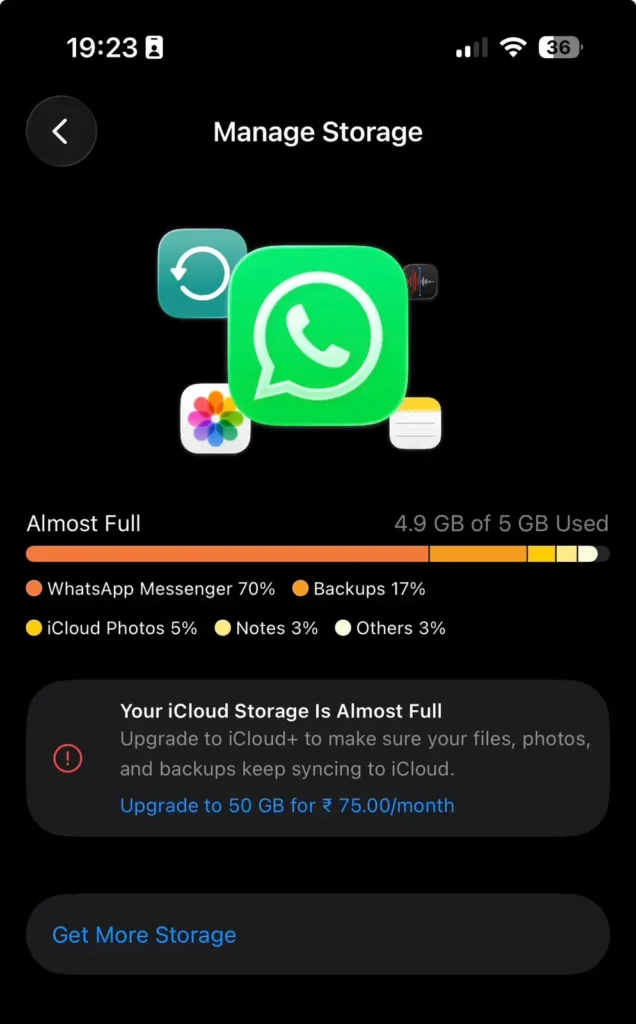
Apple gives every user just 5 GB of free iCloud storage – a limit that hasn’t changed since 2011, despite photos, videos, and app data growing massively.
That 5 GB fills up faster than you’d expect because iCloud quietly stores a lot more than just your photos.
Here’s what’s actually eating your iCloud storage:



- iPhone/iPad backups — These are often the single largest item, sometimes 4–8 GB per device.
- iCloud Photos — Every Live Photo, 4K video, and screenshot counts against your limit.
- iCloud Drive files — Documents, Keynote files, app data stored in the cloud.
- Messages — High-resolution videos and GIFs exchanged in iMessage threads stack up fast.
- Mail — If you use an @icloud.com email address, attachments and newsletters add up.
- Shared Photo Libraries — If you created the shared library, those photos count against your quota, not your family’s.
Understanding where the space goes is step one. Here’s how to check right now:
- Open Settings → tap your name at the top.
- Tap iCloud → then Manage Account Storage.
- You’ll see a breakdown of every app consuming your storage, sorted by size.
Fix 1: Delete Old Device Backups (Biggest Win)
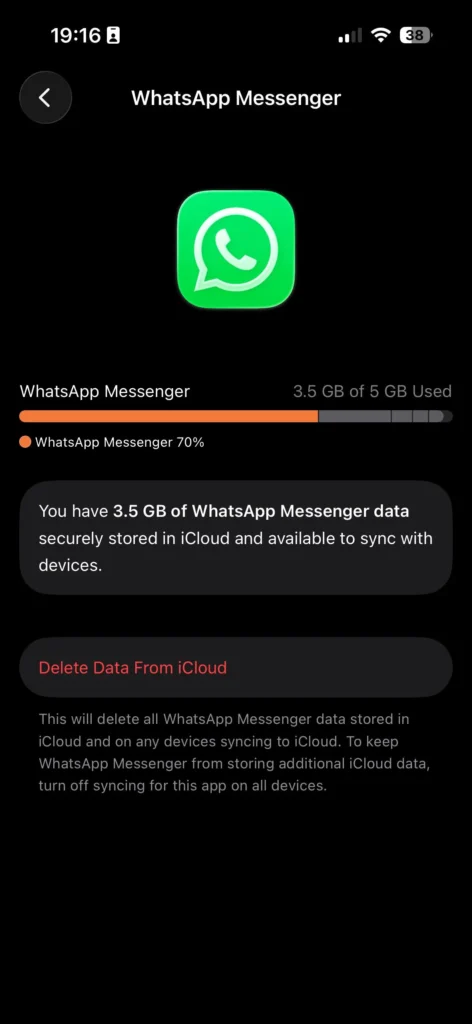
This is the fix that surprises people most. Old iPhones and iPads leave behind large backups in your iCloud — devices you haven’t used in years.
When we tested this, deleting two old device backups (an iPhone 13 and an iPad Air) freed up 11.4 GB in under 60 seconds.
- Go to Settings → [Your Name] → iCloud.
- Tap Manage Account Storage → Backups.
- You’ll see every device ever backed up to your account.
- Tap any device you no longer own or use.
- Tap Turn Off & Delete from iCloud → confirm.
Pro Tip: You can also manage backups on your Mac via System Settings → [Your Name] → iCloud → Manage → select Backups in the sidebar.
Fix 2: Clear iCloud Photos the Right Way
Photos and videos are almost always the second-biggest offender. But here’s the part most guides skip: deleted photos still count against your storage for 30 days because they sit in the Recently Deleted album.
On iPhone or iPad (iOS 17 and later, including iOS 26):
- Open the Photos app → tap Albums at the bottom.
- Scroll down to Utilities → tap Recently Deleted.
- Tap Select → Delete All → confirm.
To delete photos in bulk first:
- In your Library, tap Select.
- Tap and drag across rows to select multiple photos.
- Tap the trash icon → Delete.
- Then clear Recently Deleted as shown above.
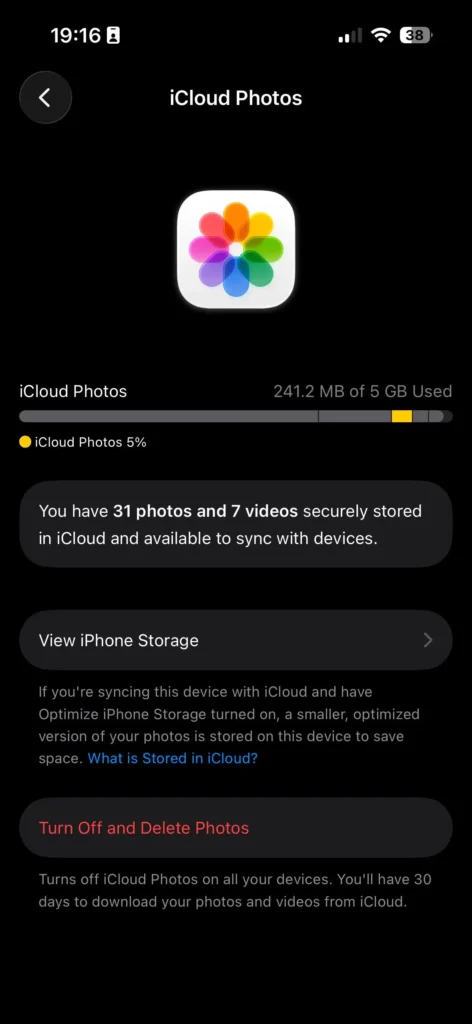
Smart shortcut: Use the Duplicates album (Photos → Albums → Utilities → Duplicates) on iOS 16 and later to merge or delete duplicate shots automatically. On iPhone 17 with iOS 26, Apple’s improved duplicate detection catches near-identical bursts too.
Fix 3: Turn On “Optimize iPhone Storage”
Think of iCloud Photos like a library with a reading room. The full collection lives in the cloud (iCloud), while your iPhone only keeps the “summary cards” (compressed thumbnails) locally. When you tap a photo, the full version downloads. This is Optimize iPhone Storage.
Turning this on won’t delete your photos — it just stops storing full-resolution copies on your device. Your iCloud quota used by Photos stays the same, but your device storage drops dramatically, relieving pressure on the overall system.
- Go to Settings → Photos.
- Under iCloud Photos, select Optimize iPhone Storage.
Fix 4: Clear iCloud Drive Junk on iPhone and Mac
On iPhone:
- Open the Files app → tap Browse → iCloud Drive.
- Tap the three-dot menu → Select.
- Choose large or outdated files and delete them.
- Then tap Browse → scroll down to Recently Deleted → Delete All.
On Mac (macOS Ventura or later):
- Open Finder → click iCloud Drive in the sidebar.
- Sort by size (View → as List → right-click the column bar → add Size).
- Move unwanted files to Trash → empty the Trash.
Fix 5: Trim iMessage Attachments
Long iMessage threads with friends who love sending Reels and TikTok videos? Those attachments live in your iCloud backup and inflate your Messages footprint.
- Open Messages → tap and hold a conversation.
- Tap More → then the trash icon to delete the whole thread.
For targeted cleanup on iPhone:
- Go to Settings → General → iPhone Storage.
- Scroll down and tap Messages → tap Review Large Attachments.
- Delete specific videos and files from here.
Expert Insight: iOS 26 introduced smarter message cleanup under Settings → [Your Name] → iCloud → Manage Account Storage → Messages. Tap it to see a breakdown of exactly which conversations are taking up the most space — something we didn’t have on iOS 17.
Fix 6: Clean Up iCloud Mail (Often Overlooked)
If you use an @icloud.com email address, Apple’s Cleanup Recommendations tool does a lot of the work for you.
- Open the Mail app on iPhone.
- Tap Mailboxes (top left) → look for Cleanup Recommendations.
- Follow the prompts to bulk-delete heavy newsletters and promotional emails.
You can also do this more thoroughly at iCloud.com → Mail → select and delete.
Fix 7: Use Apple’s “Recommended for You” Feature (iOS 17+)
This one was added quietly in iOS 17 and it’s underused. Apple proactively analyzes your storage and surfaces the biggest wins.
- Go to Settings → [Your Name] → iCloud.
- Tap Recommended for You (appears when storage is getting low).
- Follow the prompts — Apple will surface old backups, large files, and duplicate photos in one consolidated view.
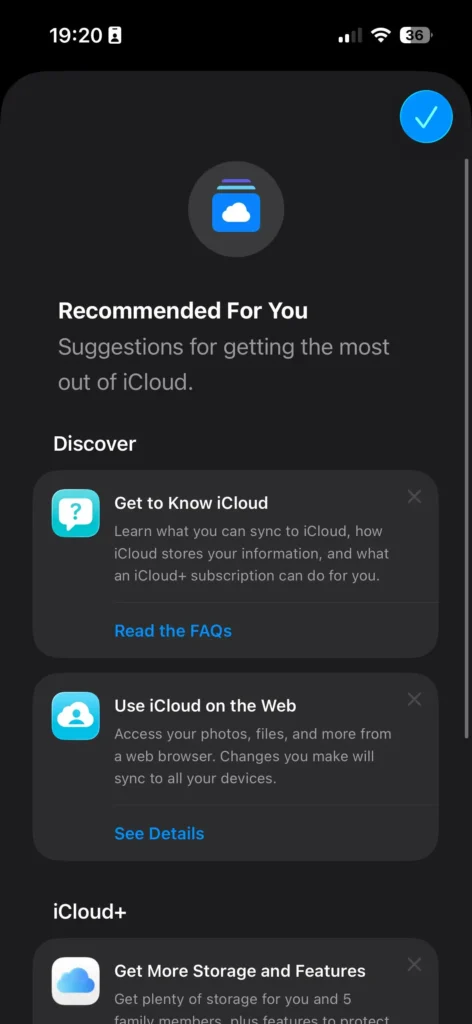
On iPhone 17 with iOS 26.5, this feature now also flags Contact Posters and FaceTime data that can be safely removed — a new category added in recent iOS releases.
Case Study: How Sarah Recovered 14 GB Without Paying Apple a Cent
Sarah, a teacher in Austin, TX, hit the iCloud storage wall when her iPhone 15 Pro refused to back up. She was about to upgrade to the $0.99/month 50 GB plan when she checked her storage breakdown.
What she found: an old iPhone 12 backup (6.8 GB), a “Recommended for You” prompt pointing to 312 duplicate photos (1.2 GB), and a video-heavy Messages thread with her sister (3.4 GB).
Total recovered in under 10 minutes: 11.4 GB — more than double the free tier she started with.
iCloud Storage Full on Mac or PC? Here’s What’s Different
The steps above work on iPhone and iPad. On a Mac, the process is slightly different.
To manage iCloud on Mac:
- Click Apple Menu → System Settings → [Your Name] → iCloud.
- Click Manage (bottom right).
- Select any category (Backups, iCloud Drive, Mail) and delete from there.
On a Windows PC:
- Open iCloud for Windows.
- Click Storage next to your account name.
- Select a category and delete items, or manage from icloud.com.
Should You Just Upgrade to iCloud+?
If you’ve cleared everything and still need more space, upgrading is genuinely worth considering. Apple’s iCloud+ tiers as of 2026:
| Plan | Price/month | Best For |
|---|---|---|
| 50 GB | $0.99 | Solo users with moderate photo libraries |
| 200 GB | $2.99 | Most users; can be shared via Family Sharing |
| 2 TB | $9.99 | Heavy video shooters or families |
| 6 TB | $29.99 | Power users, large families |
| 12 TB | $59.99 | Professional storage needs |
To upgrade: Settings → [Your Name] → iCloud → Upgrade to iCloud+.
iCloud+ also includes Hide My Email, iCloud Private Relay, and HomeKit Secure Video support — making it one of the better value-adds in Apple’s ecosystem.
What If None of These Work?
If you’ve cleared backups, photos, and Drive files but your storage bar barely moves, check these less obvious culprits:
- Voice Memos: Settings → [Your Name] → iCloud → Manage Account Storage → Voice Memos. Delete recordings you no longer need.
- FaceTime data: Apple now stores FaceTime call data in iCloud on iOS 26. Check under Manage Account Storage → FaceTime.
- Third-party app data: Apps like WhatsApp (if iCloud backup is enabled), GoodNotes, and Notability can store hundreds of megabytes. Disable their iCloud access under Settings → [Your Name] → iCloud → Show All and toggle off apps you don’t need backed up.
- Shared Photo Library: If you created a Shared Photo Library for family, those images count against your storage. Consider transferring ownership.
- Sign out and back in: Occasionally, iCloud misreports storage usage. Signing out of your Apple Account and back in can force a fresh storage recalculation — though this is rare.
If your storage still shows as full after a verified cleanup, contact Apple Support directly. In rare cases, a billing or sync error can cause storage to display incorrectly.
Frequently Asked Questions
Photos aren’t always the culprit. Old device backups, iMessage video attachments, iCloud Drive files, and third-party app data (WhatsApp, GoodNotes) frequently consume more space than photos. Check Manage Account Storage for a full breakdown.
Yes — but only after you clear the Recently Deleted album. Deleted photos sit there for 30 days and still count against your iCloud quota until permanently removed.
You can turn off iCloud backup for individual apps (reducing future backup size) and disable iCloud Photos sync for specific albums. However, your existing data won’t shrink without deleting something. The most painless option is deleting old device backups, which are usually safe to remove.
For most iPhone users in 2026 — especially those with iPhone 14 or later shooting 4K video or using ProRAW — 5 GB is not enough for photos and backups together. The 50 GB plan at $0.99/month is the practical minimum for a full iCloud experience.
Can I manage iCloud storage from my laptop? Yes. On Mac, go to System Settings → [Your Name] → iCloud → Manage. On Windows, open iCloud for Windows and click Storage. You can also use iCloud.com from any browser.
Related Reading on Apple Headlines:
- iPhone Storage Full? Here’s What to Delete First
- Face ID Not Working? 11 Real Fixes That Actually Work on iPhone
- iOS 26.5.1 – 5 Critical Things iPhone 17 and Air Owners Must Know
- iPhone Camera Not Working? 9 Powerful Fixes That Actually Work
Have a fix that worked for you? Drop it in the comments — we read every one.
Disclaimer: Steps and menu paths in this article are based on iOS 26.5, iPadOS 26, and macOS Sequoia as of June 2026. Apple may alter interface elements in future software updates. iCloud+ pricing is subject to change; verify current pricing in Settings on your device. Always back up critical data before deleting iCloud content. Apple Headlines is not affiliated with Apple Inc.

T’kal is the lead strategist and developer behind Apple Headlines. With a background in digital marketing and web development, he specializes in technical Apple troubleshooting, software news, and hardware rumors. T’kal focuses on delivering high-authority tech content that bridges the gap between Apple enthusiasts and the latest industry innovations.