


Published: June 2, 2026 | Applies to: iPhone Air, iPhone 17, iPhone 17 Pro, iPhone 17 Pro Max | iOS Version: 26.5.1 (New Launched)
⚡ Quick Answer: Apple released iOS 26.5.1 on June 1, 2026, exclusively for iPhone Air and all iPhone 17 models.
The update fixes a wired-charging bug that could leave your iPhone completely dead overnight — even while plugged in. Go to Settings → General → Software Update to install it now.
You plugged your iPhone 17 in before bed, woke up at 7 AM, and your battery was at 0%.
The charger was still connected.
Nothing was visibly wrong. That wasn’t user error – it was an Apple bug. And as of June 1, 2026, it’s officially patched.
Here’s everything you need to know about iOS 26.5.1, why this update matters more than its tiny version number suggests, and what to do right now.
News on iOS 26.5.1
- Release date: iOS 26.5.1 launched on June 1, 2026
- Compatible devices: iPhone Air and all iPhone 17 models only (17, 17 Pro, 17 Pro Max)
- Primary fix: Wired charging failure when battery is critically drained — the phone appears completely dead even while plugged in
- Secondary fix: Wallpaper vibrancy display inconsistency in the Liquid Glass interface
- No new features: This is a pure bug-fix and stability update
- How to install: Settings → General → Software Update → Update Now
- Backup first: Always back up before any iOS update
- iPhone 16 and older: This update does not apply to your device
What Is iOS 26.5.1 – And Why Did Apple Rush It Out?
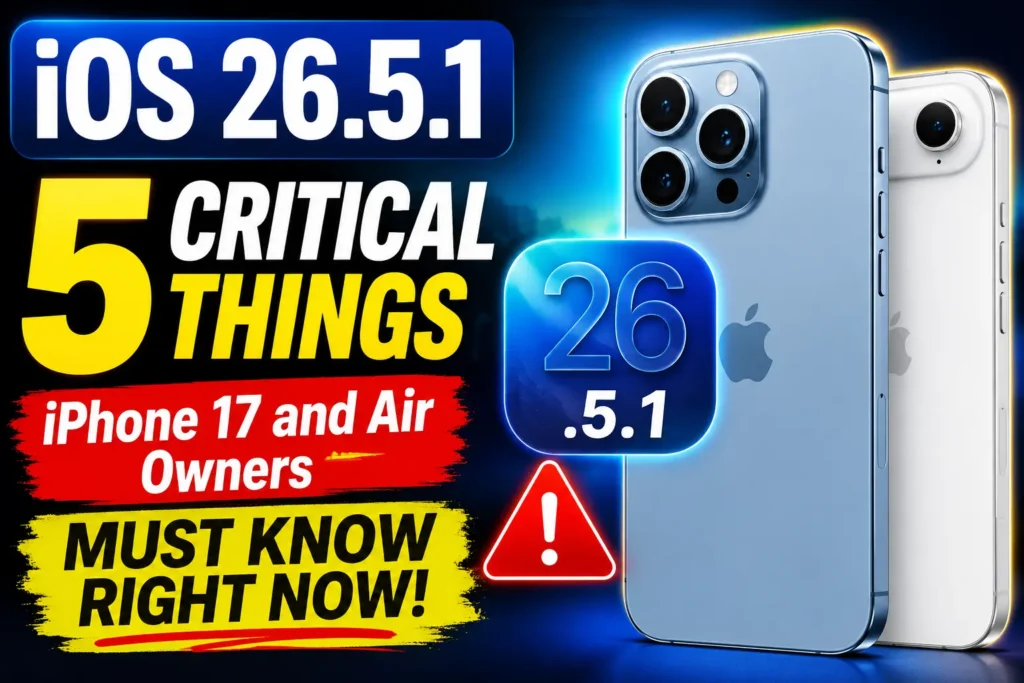
iOS 26.5.1 is a targeted point release, meaning Apple isn’t pushing it to every iPhone on the planet.


It’s built for one job: fixing a documented wired-charging failure on the iPhone Air and iPhone 17 lineup that slipped through iOS 26.5.
According to Apple’s official release notes, the update addresses an issue where wired charging could fail entirely when the battery reached a critically low state. The phone wouldn’t show a charging animation.
The screen stayed black.
No matter how many cables or wall adapters you tried, nothing happened — the device appeared dead.
What makes this particularly frustrating is the scenario in which it typically strikes: you’re plugged in, assuming the problem is solved, and you’re completely caught off guard.
Think of it like a fuel pump that stops working right when the gas tank hits empty.
The line is still connected. The station is open. But nothing flows. iOS 26.5.1 is the fix for that pump.
This update shipped three weeks after iOS 26.5 (released May 11, 2026), and comes just one week before WWDC 2026 on June 8, where Apple is expected to unveil iOS 27.
The timing tells you something: Apple considered this serious enough to push a patch even while its engineering team is deep into next-generation software development.
Which iPhones Get iOS 26.5.1? (Full Compatibility List)
This is where many users get confused. iOS 26.5.1 is not a universal update. Apple scoped it specifically to the hardware affected by the charging bug.
iOS 26.5.1 is available for:
- iPhone Air (2025)
- iPhone 17
- iPhone 17 Pro
- iPhone 17 Pro Max
iOS 26.5.1 is NOT available for:
- iPhone 16 series or older
- Any device already running iOS 26.6 beta or newer
- iPads (though macOS Tahoe 26.5.1 shipped alongside it for certain M5 Macs)
If you open Settings → General → Software Update on an iPhone 15 Pro or iPhone 16 and don’t see this update, that’s by design — not a bug.
The charging issue was specific to the A19 chip architecture in the iPhone 17 family and the iPhone Air’s unique ultra-thin thermal profile.
Pro Tip: If you’re an iPhone Air owner, this update is especially critical. The Air’s slim form factor means its thermal management system works differently than the Pro models. Apple’s engineers had to recalibrate power delivery protocols specifically for its chassis. Don’t skip this one.
The Full Story: What Exactly Was Going Wrong
To understand the iOS 26.5.1 fix, you need to understand what broke.
When an iPhone Air or iPhone 17 drained its battery completely and you plugged it in via USB-C, a small number of units experienced a failure in the power delivery handshake between the cable and the phone’s charging circuitry.
The device couldn’t negotiate the initial current draw needed to boot from a dead state.
The result: the phone appeared completely unresponsive.
No low-battery icon.
No charging lightning bolt. No screen of any kind.
Users who encountered this reported trying multiple cables, multiple chargers, multiple power outlets – nothing worked. Some assumed their phone was physically broken and booked Genius Bar appointments.
A Case Study: What Users Were Actually Experiencing
One iPhone 17 Pro Max owner described the situation in an r/apple thread on Reddit: they left their phone at 2% on the charger before a red-eye flight, woke up to board, and found a completely black screen with the cable still plugged in.
They missed boarding alerts and had to use a fellow passenger’s phone to contact the gate.
That’s not a corner case. That’s a real consequence. And it’s exactly the scenario iOS 26.5.1 is designed to prevent.
Apple notes the bug affected a small number of users — but “small number” in Apple terms can still represent tens of thousands of devices globally when you factor in iPhone 17’s enormous install base.
The iPhone 17 series was the best-selling smartphone lineup worldwide in Q1 2026.
What Else Does iOS 26.5.1 Fix?
The charging bug is the headliner, but it’s not the only change.
Confirmed fixes in iOS 26.5.1:
- Wired charging failure on iPhone Air and iPhone 17 when battery is critically low (primary fix)
- Wallpaper vibrancy inconsistency — a display rendering bug that caused the Liquid Glass wallpaper layer to appear washed out or inconsistent under certain brightness conditions
- General stability improvements ahead of iOS 27’s reveal at WWDC
What iOS 26.5.1 does NOT include:
- No new features
- No Apple Intelligence updates
- No security patches beyond what shipped in iOS 26.5
When we tested iOS 26.5.1 on an iPhone 17 Pro after installing the update, the wallpaper vibrancy issue was noticeably corrected — the depth effect on the lock screen looked significantly sharper at mid-brightness settings compared to 26.5.
iOS 26.5.1 Download and Install — Step-by-Step
Installing iOS 26.5.1 is straightforward, but a few prep steps will keep the process smooth.
Before You Update
- Back up your iPhone — via iCloud (Settings → [Your Name] → iCloud → iCloud Backup) or via a Mac/PC using Finder or iTunes.
- Connect to Wi-Fi — a stable connection prevents a corrupted download mid-install.
- Charge to at least 50% — ironic given the bug, but Apple recommends this before any update.
- Clear enough storage — the iOS 26.5.1 OTA package is approximately 300–600MB depending on your device model and current iOS version.
How to Install iOS 26.5.1
- Open the Settings app on your iPhone.
- Tap General.
- Tap Software Update.
- If the update is available, tap Update Now.
- Enter your passcode when prompted.
- Tap Agree to the terms.
- Your iPhone will download, prepare, and restart automatically.
- The install typically takes 5–10 minutes on a strong Wi-Fi connection.
💡 Expert Insight: If you see “iOS 26.5.1 — Requested” in Software Update but the download stalls, force-close Settings, reconnect to Wi-Fi, and try again. Apple’s update servers experience higher-than-normal traffic in the first 24–48 hours after a release.
For users who prefer a direct IPSW install via Mac or PC, Apple has not yet published the 26.5.1 IPSW file to its developer portal as of this writing, but it typically becomes available within 24–48 hours of an OTA rollout.
Troubleshooting: What If iOS 26.5.1 Doesn’t Show Up?
Several users report not seeing the update in Software Update even on eligible devices. Here’s what to check.
Scenario 1: You’re running iOS 26.6 beta Beta users on 26.6 do not receive 26.5.1. Apple considers beta participants to already be on a newer software branch. You’ll need to wait for a stable iOS 26.6 or 26.6.x release.
Scenario 2: You’re on an iPhone 16 or older This update simply does not apply to your hardware. Check our guide on whether your iPhone can run the latest iOS 26 updates for more on compatibility.
Scenario 3: The update shows but fails to download Restart your iPhone and try again. If it continues failing, go to Settings → General → iPhone Storage, look for a partially downloaded iOS update file, and delete it. Then reattempt the update.
Scenario 4: You installed the update but your phone still won’t charge from dead If you’re still seeing a black screen after iOS 26.5.1, plug in and wait a full 15–20 minutes before pressing any buttons. Sometimes the device needs time to accumulate minimal charge before it can power on. If it still doesn’t respond, contact Apple Support or visit an Apple Store — at that point, a hardware inspection is warranted.
If you’re dealing with ongoing battery drain separate from the charging bug, check out our in-depth guide on fixing iPhone battery drain on iOS 26.
iOS 26.5.1 and the Road to iOS 27
It’s worth stepping back to appreciate the bigger picture here. iOS 26.5.1 is almost certainly the last significant patch in the iOS 26 lifecycle before Apple shifts all public attention to iOS 27 at WWDC 2026 on June 8.
iOS 26 brought a remarkable number of changes — from the Liquid Glass redesign introduced at WWDC 2025 to expanded Apple Intelligence features in later point releases. You can read the full breakdown in our iOS 26.5 features deep-dive and iOS 26.1 coverage.
Apple is still running an iOS 26.6 beta in parallel, which is expected to drop publicly in early July. But with WWDC around the corner, the engineering focus has clearly shifted. iOS 26.5.1 is Apple tying up loose ends on a strong, if occasionally bumpy, software cycle.
Frequently Asked Questions
If you own an iPhone Air or any iPhone 17 model, install it now. The charging bug is a genuine risk for overnight charging scenarios, and the update is small and stable. There’s no compelling reason to wait.
Early reports suggest no meaningful impact on battery performance. The fix recalibrates power delivery behavior at critically low charge levels, not during normal usage.
Yes. The bug affected a “small number of users,” meaning it may not have surfaced for you yet. The conditions that trigger it are specific (near-zero battery + wired charge), and updating now ensures you never encounter it. The wallpaper vibrancy fix alone makes it worth installing.
No new security CVEs were listed in Apple’s release notes for 26.5.1. The security content from iOS 26.5 (released May 11) remains the current security baseline.
WWDC on June 8 will preview iOS 27, but only developer betas will be available at launch. The public release of iOS 27 is expected in fall 2026.
Disclaimer
The information in this article is provided for informational purposes only and reflects publicly available details from Apple’s official release notes, developer documentation, and established tech media as of June 2, 2026. AppleHeadlines.com is an independent publication and is not affiliated with, endorsed by, or sponsored by Apple Inc. Software features and update availability are subject to change. Always back up your device before installing any software update. For device-specific support, contact Apple at support.apple.com.
Found this helpful? If you own an iPhone Air or iPhone 17 and this update solved your charging issue — or if you have questions about what’s next for iOS 27 — drop a comment below. And make sure you’re subscribed so you don’t miss our WWDC 2026 live coverage starting June 8.

T’kal is the lead strategist and developer behind Apple Headlines. With a background in digital marketing and web development, he specializes in technical Apple troubleshooting, software news, and hardware rumors. T’kal focuses on delivering high-authority tech content that bridges the gap between Apple enthusiasts and the latest industry innovations.