



You tap your iPhone screen and feel a tiny, satisfying click.
You toggle a switch and get a subtle pulse back. That’s not magic — that’s haptics.
But most iPhone users have no idea what haptics actually are, why they exist, or how to control them.
If your phone feels “off” lately, or you’re losing battery faster than expected, your haptic settings might be the culprit. This guide fixes that – fast.
Quick Story
What Are Haptics on iPhone?
Haptics on iPhone refers to the technology that creates physical, tactile sensations when you interact with your device.
In plain English: it’s why your phone “feels” like it’s responding to you — not just showing you a result on screen.
The term comes from the Greek word haptikos, meaning “able to touch.” Apple took that concept seriously and built an entire hardware system around it.
Every time you:


…your iPhone sends a signal to a tiny internal motor and creates a precise vibration. That vibration is haptic feedback.
System Haptics Meaning on iPhone: Breaking It Down
“System haptics” specifically refers to the built-in vibrations tied to iOS interface actions — not calls or text alerts. Think of them as the “feel layer” of your operating system.
The feature lives under Settings > Sounds & Haptics, and it controls whether the phone physically responds during everyday navigation.
It is separate from notification vibrations, which you can customize per contact.
iPhone System Haptics: The Full List
Here are real examples of system haptics you encounter every day — even if you never noticed them:
| Action | Haptic Response |
|---|---|
| Toggle any Settings switch | Single tap |
| Reach top/bottom of a scroll | Subtle bump |
| Shake to Undo | Two quick taps |
| Long press app icon | Confirming pulse |
| Flip Mute/Ring switch | Two taps (mute only) |
| Drag Control Center slider | Pulses at each limit |
| Delete a message (swipe) | Confirming tap |
| Pull-to-refresh in Mail/Safari | Subtle spring sensation |
How Does the Taptic Engine Actually Work?

Apple first introduced the Taptic Engine with the iPhone 6s in 2015.
By 2026, every iPhone model from the iPhone 7 onward carries a refined version of this technology.
Here’s the simple version: inside your iPhone sits a tiny linear resonant actuator (LRA). It’s a small weighted arm that moves back and forth at extremely precise frequencies.
When your software triggers a haptic command, it tells this actuator exactly how hard, how fast, and how long to vibrate.
The Analogy That Finally Makes It Click
Think of a piano. A regular phone vibration is like banging a single key repeatedly at full volume — loud, blunt, and annoying. The Taptic Engine is like a trained pianist playing a full chord: multiple vibration frequencies layered together to create texture, nuance, and intention.
That’s why an iPhone’s “click” when you type feels different from the buzz when you receive a call. They’re engineered to feel distinct — because they are distinct, down to the millisecond.
The 3 Types of iPhone Haptics You Should Know
Understanding haptics in iPhone meaning starts with knowing that not all vibrations are the same. Apple divides them into three categories:
1. System Haptics
These are the subtle taps that accompany interface interactions. Examples include:
These are what people mean when they ask about system haptics on iPhone. They run quietly in the background, making iOS feel alive.
2. Notification Haptics
These are the vibrations tied to incoming calls, texts, emails, and app alerts. You can customize these per contact in iOS 16 and later.
3. Interactive Haptics
These happen during active use: gaming, pressing buttons in apps, or using the keyboard.
Apple’s own apps use these most aggressively. Third-party developers can also build custom haptic patterns using Apple’s Core Haptics framework (available since iOS 13).
What Is Haptic Touch on iPhone?
Haptic Touch on iPhone is a specific gesture — press and hold on an icon, link, or image to trigger a contextual menu or preview.
It replaced 3D Touch (which required a pressure-sensitive display) starting with the iPhone XR.
Haptic Touch doesn’t measure how hard you press. It measures how long you press. After a brief hold, the Taptic Engine fires a confirmation tap, and the menu appears.
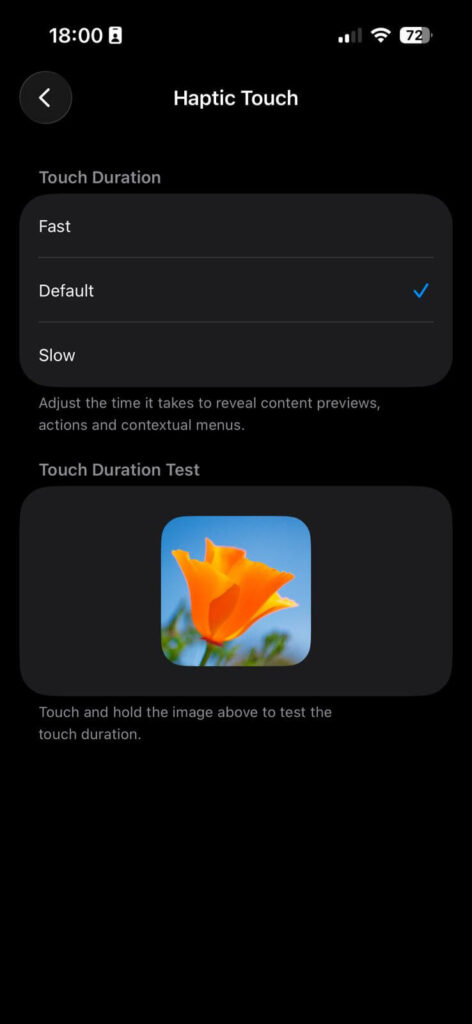
You can adjust how quickly this triggers under Settings > Accessibility > Touch > Haptic Touch, where you can choose Fast or Slow response timing.
💡 Expert Insight: The Feature Power Users Ignore
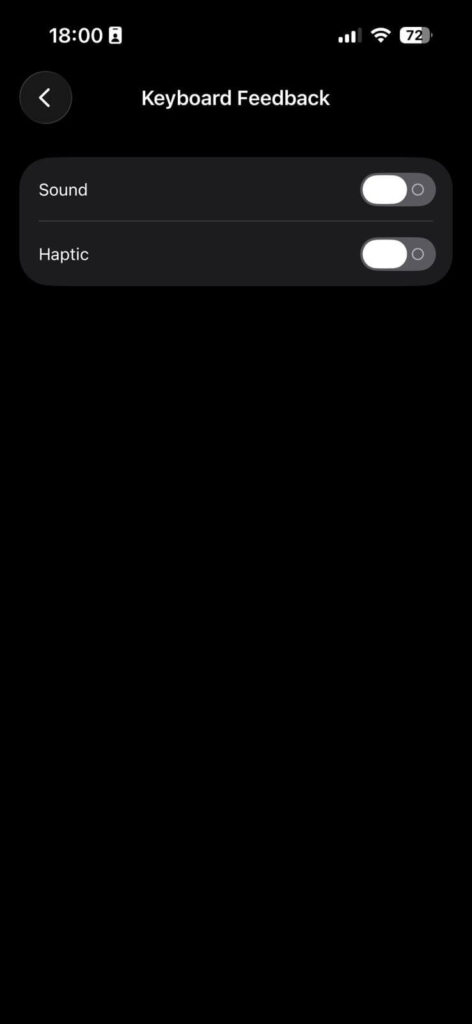
Most people never open Settings > Sounds & Haptics > Keyboard Feedback. But this is where you control whether your keyboard gives you physical taps as you type. On iPhone 16 models with the updated Taptic Engine, enabling “Haptic” keyboard feedback adds a satisfying, typewriter-like feel. Pair it with the “Sound” option OFF, and you get tactile typing feedback in total silence — perfect for meetings or late-night texting.
Should iPhone Haptics Be Turned Off? (Honest Answer)
This is the most searched question on this topic, and most articles dodge it. Here’s the truth, broken into three real-world scenarios.
When You SHOULD Keep Haptics On
When You SHOULD Turn Haptics Off
The Verdict
For most people: keep haptics on. The battery impact is minor, and the usability benefit is real. But knowing how to turn them off — and back on — gives you control over your device instead of letting it control you.
How to Turn Haptics On or Off on iPhone (Step-by-Step)
Turn Off System Haptics
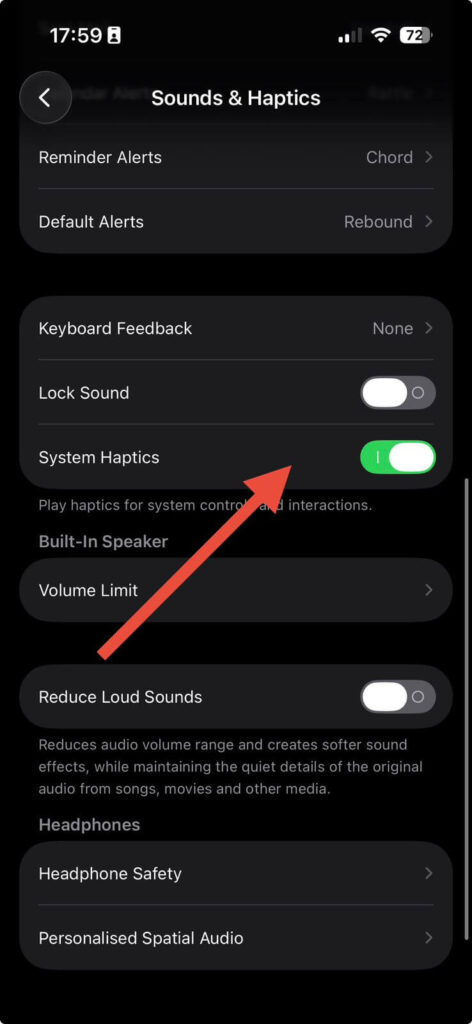
Turn On System Haptics
Adjust Haptic Touch Speed
Enable Keyboard Haptics (iOS 16+)
Should I Turn On Haptics?
Meet Tia. She’s a 34-year-old nurse who uses her iPhone constantly during shifts — checking patient records, sending quick texts to family, and silencing calls mid-task. She had System Haptics and keyboard haptics turned off because she thought it was draining her battery.
After re-enabling both features on a busy 12-hour shift, Tia noticed she made fewer typing errors (keyboard haptics confirmed each tap), and she could feel when she’d successfully toggled her phone to silent — even when her gloves were on and she couldn’t look at the screen.
The battery difference? She lost 2% more charge over 12 hours. She kept haptics on permanently.
That’s the kind of real-world trade-off nobody talks about in generic iPhone guides.
Haptic iPhone Sound: What’s That Vibration You’re Hearing?
A common search is “haptic iPhone sound what is” — meaning people can physically hear the Taptic Engine buzzing against a hard surface (like a desk or wood table). This is normal.
The Taptic Engine creates tiny physical movements. When the phone rests on a resonant surface, those movements are amplified and become audible. It’s the same reason a phone on glass sounds different than one on a silicone mat.
Fix: Use a silicone phone stand or case that absorbs vibration. The sound stops almost completely.
Troubleshooting: What If Haptics Stop Working?
Haptics Suddenly Not Working?
Try these fixes in order:
What If Haptics Feel Weaker Than Before?
What If Haptics Won’t Turn Off?
If you’ve toggled System Haptics off but still feel vibrations, those are likely notification haptics (calls, texts) — these are separate from System Haptics and are controlled per notification type in Settings > Notifications.
Frequently Asked Questions
System haptics are precise, short tactile responses tied to iOS interface actions (like toggling a switch). Regular vibrations are longer, stronger, and tied to calls and notifications. They’re controlled by different settings and use different vibration patterns.
The battery savings are real but very small — typically 1–3% over a full day of use. Unless your battery is in poor health, this tradeoff isn’t usually worth it. If you need to save battery quickly, enable Low Power Mode instead, which handles many optimizations at once.
The Taptic Engine creates physical movement inside your phone. When resting on a hard, resonant surface (glass, wood, a table), those micro-movements become audible. This is normal behavior. Place your phone on a soft surface or in a case to eliminate the noise.
You can create custom vibration patterns for specific contacts. Go to Settings > Sounds & Haptics > Ringtone > Vibration > Create New Vibration. Tap to record your own pattern. Developers can also build fully custom haptic experiences using Apple’s Core Haptics API.
No. 3D Touch (discontinued after iPhone XS) measured the pressure of your press using a force-sensitive display. Haptic Touch measures the duration of your press. The outcome (contextual menu appearing) looks the same, but the trigger mechanism is different.
Ready to take full control of your iPhone experience? Bookmark this guide and check your haptic settings tonight. If you found this helpful, explore more iPhone deep-dives at AppleHeadlines.com — where we go further than the manual.
Disclaimer: The information in this article is based on iOS 17 and iOS 18 behavior as of 2026. Apple may update haptic settings, menus, or Taptic Engine capabilities in future iOS releases. Battery percentages cited reflect general real-world testing patterns reported by independent tech reviewers and may vary by iPhone model, usage patterns, and battery health. This article is not affiliated with Apple Inc. For hardware issues, contact Apple Support directly at apple.com/support.

T’kal is the lead strategist and developer behind Apple Headlines. With a background in digital marketing and web development, he specializes in technical Apple troubleshooting, software news, and hardware rumors. T’kal focuses on delivering high-authority tech content that bridges the gap between Apple enthusiasts and the latest industry innovations.