




You’re holding your iPhone and something’s gone wrong — it’s slow, frozen, or you’re handing it to someone else and you don’t want your life on it.
A factory reset sounds intimidating, but it takes under five minutes when you know what you’re doing.
This guide covers every scenario, every model (yes, including the iPhone 17), and what to do when the normal steps don’t work.
Quick Read
Why a Factory Reset Matters More Than You Think
Most people only think about a factory reset when they’re selling or giving away their phone.
But there are several situations where knowing how to factory reset your iPhone can save you real headaches:
Here’s the part most guides skip: a factory reset doesn’t just erase your files — it removes your Apple ID, your payment methods, and your personal settings from the device.
That’s a critical security step, especially before handing the phone to someone else.
In 2026, with iOS 26 and the iPhone 16 lineup now mainstream,
Apple has made the reset process slightly different from older models — particularly around eSIM handling and the Activation Lock screen.
We’ll walk you through all of it.
Here's How to Reset Without Password
Before You Reset: Do These 3 Things First
Think of a factory reset like moving out of an apartment. You wouldn’t leave without taking your stuff and returning the keys. These three steps are your checklist before the movers show up.
Step 1: Back Up Your iPhone
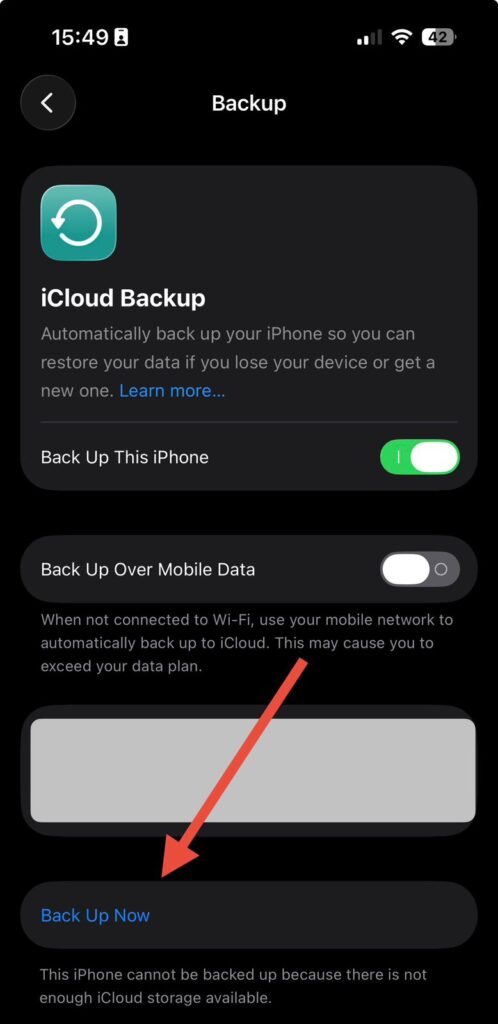
You cannot get your data back after a reset without a backup. Period. Here’s how to create one:
Via iCloud (easiest):
Via Mac or PC (more reliable for large storage):
Pro Tip: If your iCloud storage is almost full, do a computer backup instead. It’s free, it’s local, and it’s faster. A 128GB iPhone can take 20–30 minutes to back up to iCloud on a slow connection — plan accordingly.
Step 2: Sign Out of iCloud (Disable Activation Lock)
This step is the most important one people skip — and the one that causes the most problems for buyers of used iPhones.

This step disables Find My iPhone and removes Activation Lock.
Without doing this, whoever receives your phone after the reset will be stuck at a screen asking for your Apple ID — and they won’t be able to use the device.
Step 3: Make Note of Your eSIM (iPhone XS and Later)
If your iPhone uses an eSIM for your cellular plan — which is standard on iPhone 16 models in the US, you’ll be asked during the reset whether to keep or delete it.
If you’re keeping the phone, keep the eSIM. If you’re selling it, delete it and contact your carrier to transfer the plan.
How to Factory Reset Your iPhone Through Settings
This is the standard method for anyone who can still access their phone. It works on every model from the iPhone 8 all the way to the iPhone 16 Pro Max.
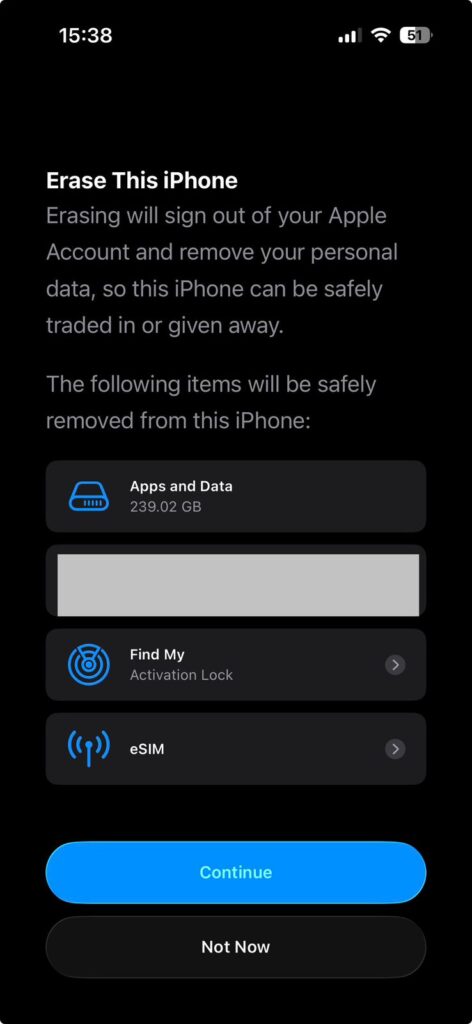
Your iPhone will show an Apple logo and a progress bar. Do not unplug or turn off the phone during this process.
Depending on your model and how much data you have, the reset can take anywhere from 2 to 15 minutes.
When it’s done, your iPhone will restart to the “Hello” setup screen — exactly like it came out of the box.
How to Factory Reset iPhone with a Computer
If your iPhone won’t turn on properly, is stuck in a boot loop, or you just prefer a clean reset via your Mac or PC, this method uses Recovery Mode.
It also installs the latest version of iOS automatically.
This method works for: iPhone 11, iPhone 13, iPhone 14, iPhone 16, and all other models.
On Mac (macOS Catalina or Later) or PC with iTunes
First, put your iPhone into Recovery Mode:
Then:
Expert Insight: If the iOS download times out (this happens on slow connections), try connecting to a faster network or use a hotspot. The download file is typically 6–8GB.
How to Factory Reset iPhone Without Passcode or When Locked
This is the most searched scenario — and the most misunderstood.
Here’s the truth: Apple does not allow a passcode bypass for security reasons. But there are legitimate paths forward.
Option A: Use Recovery Mode (Computer Required)
If you’ve forgotten your passcode and have never synced with a computer, Recovery Mode (described above) is your best option.
You will lose all data unless you have an iCloud backup.
Option B: Use iCloud’s Find My — Erase Remotely
If Find My iPhone was turned on before you got locked out:
This remotely wipes the phone. After the reset, you can restore from your iCloud backup during setup.
Option C: If You Used Screen Time Passcode + Forgotten iPhone Passcode
This is a tricky situation.
Apple added extra steps here in iOS 17 and later.
You’ll need to use Recovery Mode and accept data loss, unless you have a computer backup made before the lockout.
After the Reset: What to Do Next
Once your iPhone shows the “Hello” screen, you have two options:
Restore from Backup: Choose this if you’re keeping the phone and want your apps, settings, and photos back. Select your iCloud backup or connect to a computer to restore.
Set Up as New: Choose this if you’re selling the phone, starting fresh, or troubleshooting a software issue. This gives the new user (or you) a clean slate.
What If the Reset Doesn’t Work? Troubleshooting Guide
The reset gets stuck on the Apple logo
Hold the Side button and Volume Down (iPhone 8+) until the phone restarts. If it keeps happening, use Recovery Mode via a computer.
“Erase All Content and Settings” is grayed out
This usually means Screen Time restrictions are turned on. Go to Settings > Screen Time > Content & Privacy Restrictions and disable it, or enter your Screen Time passcode.
iPhone says “iPhone is disabled, connect to iTunes”
Recovery Mode is the only option here. Connect to a Mac or PC and choose Restore in Finder or iTunes.
The reset completed but Activation Lock is still on
This means you didn’t sign out of iCloud before resetting. You’ll need to enter the original Apple ID and password to get past this screen. If you’ve lost access to that Apple ID, contact Apple Support — they have an account recovery process, but it can take several days.
iTunes doesn’t recognize my iPhone
Try a different USB cable (a surprising number of Lightning and USB-C cables are charge-only and don’t carry data). Also try a different USB port, or restart both devices.
Frequently Asked Questions
Q: Will a factory reset remove my phone number?
A: No. Your phone number is tied to your SIM or eSIM and your carrier account — not to the iPhone itself. It stays active unless you specifically delete the eSIM during the reset.
Q: How do I factory reset my iPhone 11 specifically?
A: The process is identical to any modern iPhone. Go to Settings > General > Transfer or Reset iPhone > Erase All Content and Settings. The iPhone 11 doesn’t have an eSIM in most US carrier configurations, so you won’t see the eSIM prompt.
Q: Can I factory reset my iPhone 16 without a passcode?
A: Not through Settings — you need a passcode or Apple ID password. Your options are Recovery Mode (via Mac or PC) or a remote erase through iCloud’s Find My if it was enabled.
Q: How long does a factory reset take? A: Between 2 and 15 minutes for the erase itself. If you’re restoring from an iCloud backup afterward, add another 20–45 minutes depending on backup size and connection speed.
Q: Does a factory reset remove the iOS version?
A: Resetting through Settings keeps your current iOS version. Resetting through Recovery Mode (computer) downloads and installs the latest available iOS version.
Ready to Reset?
Whether you’re passing your iPhone to a family member, troubleshooting a software problem, or starting fresh, now you have everything you need. Follow the steps above in order, don’t skip the backup, and your reset will go smoothly.
Bookmark this page before you start — you’ll want it open while you work through the steps.
Disclaimer: The information in this article is provided for educational purposes only. AppleHeadlines.com is not affiliated with Apple Inc. Steps and menu names may vary slightly depending on your iOS version. Always ensure you have a complete backup before performing a factory reset. Data lost during a factory reset cannot be recovered without a prior backup. For account recovery issues related to a forgotten Apple ID, contact Apple Support directly at apple.com/support.

T’kal is the lead strategist and developer behind Apple Headlines. With a background in digital marketing and web development, he specializes in technical Apple troubleshooting, software news, and hardware rumors. T’kal focuses on delivering high-authority tech content that bridges the gap between Apple enthusiasts and the latest industry innovations.