


You glanced at your iPhone’s status bar and saw it — SOS or SOS Only — sitting where your signal bars used to be.
No calls.
No texts.
That sinking feeling hits fast.
You’re not alone, and you’re not stuck.
This guide explains exactly what SOS means on iPhone, why it happens, and how to fix it step-by-step.
Short Info on SOS on iPhone
What Does SOS Mean on iPhone? The Clear Answer
When you see SOS or SOS Only in your iPhone’s status bar, it means your device has lost its connection to your regular carrier’s network.
Your phone can no longer make standard calls or send SMS messages through your provider.

But here’s what most people don’t realize: SOS does not mean your phone is broken.
Your iPhone is still functional. It has simply switched into a limited emergency mode.
According to Apple’s official support documentation (updated January 2026), this feature is available in Australia, Canada, and the United States.
In this mode, your device connects to any available carrier network — not just your own — so you can still dial 911 or other emergency services.
Think of it like this: your iPhone’s SOS mode is like a fire exit.
Your normal front door (your carrier) is locked, but the emergency exit is always open.
You can’t use it to grab coffee or run errands, but if your life depends on it, it gets you out.
Why This Matters: Understanding the SOS Phone Signal
The SOS phone signal meaning goes beyond a simple inconvenience. There are real-world safety implications at play.
What You CAN Do in SOS Mode
What You CANNOT Do in SOS Mode
Why Is My iPhone Showing SOS? The 6 Most Common Causes
Understanding the root cause is the fastest path to a fix.
Here are the most frequent reasons your iPhone says SOS:
1. You’re in a Dead Zone or Low-Signal Area
This is the #1 reason. Rural areas, mountains, basements, and large concrete buildings can block your carrier’s signal entirely. Your iPhone switches to SOS when it can’t find your network.
2. Your SIM Card Is Inactive or Damaged
If your SIM card is bent, incorrectly seated, or your account has a billing issue, your iPhone will lose carrier authentication and show SOS.
3. Your Carrier Account Has a Problem
An unpaid bill, a suspended account, or a plan change can trigger SOS only mode. Your phone hardware is fine — your account isn’t.
4. Carrier Outage in Your Area
Networks go down. If your carrier is experiencing a regional outage, every phone on that network will lose service simultaneously.
5. Your iPhone Is Carrier Locked — and You’re Using the Wrong SIM
A carrier locked iPhone will show SOS if you insert a SIM from a different provider. The phone rejects the card and falls back to emergency-only mode.
6. iOS or Carrier Settings Need an Update
Outdated carrier settings can corrupt the connection between your iPhone and the network tower. This is more common than most users realize.
Real-World Case Study: The Vegas Conference Disaster
Marcus, a sales manager from Chicago, flew to Las Vegas for a three-day tech conference.
The moment he landed, his iPhone 16 in SOS mode displayed instead of his normal signal. Calls to his team went unanswered. He panicked.
The fix? His carrier had flagged his account due to an unusually high roaming charge the week before and soft-suspended data.
A 10-minute call from hotel Wi-Fi using Wi-Fi Calling resolved the billing flag. His signal came back within minutes.
The lesson: SOS on iPhone doesn’t always mean a hardware or coverage problem. Your carrier account is often the silent culprit.
How to Fix SOS on iPhone: 7 Step-by-Step Solutions
Work through these fixes in order. Most users resolve the issue within the first three steps.
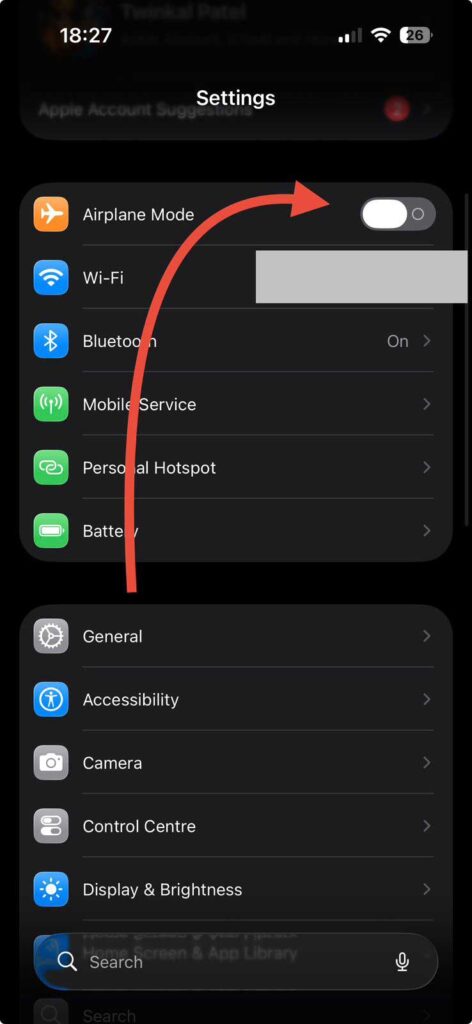
Fix 1: Toggle Airplane Mode On and Off
This is the fastest reset you can try. It forces your iPhone to drop all connections and re-scan for available networks.
Pro Tip: If you’re indoors, step outside or near a window before toggling Airplane Mode. Walls absorb signal and can delay the reconnection process.
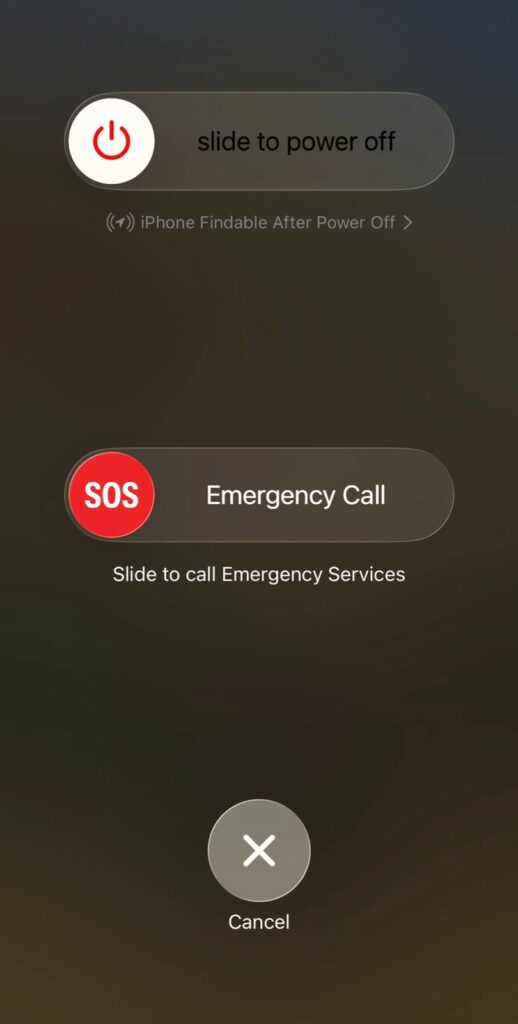
Fix 2: Restart Your iPhone Completely
A full restart clears temporary software glitches that can cause your iPhone to be stuck on SOS mode.
For iPhone X and later (including iPhone 16):
For iPhone SE (2nd or 3rd generation):
Fix 3: Move to a Better Coverage Area
iPhone SOS no connection is often a pure geography problem. Walk outside, move to higher ground, or drive a few blocks. Carrier towers have blind spots, and sometimes 200 feet makes all the difference.
Check your carrier’s official coverage map online (use Wi-Fi on your phone) to confirm whether you’re in a weak coverage zone.
Fix 4: Check Your Carrier Settings Update
Outdated carrier settings are a sneaky cause of the SOS in your iPhone bars problem that most guides skip over.
This takes under two minutes and resolves the issue for many users — especially after a recent iOS update.
Fix 5: Check and Re-seat Your SIM Card
A slightly dislodged SIM card can cause intermittent SOS issues that feel random.
If the SIM card looks cracked, bent, or corroded, contact your carrier for a free replacement.
For eSIM users: Go to Settings → Cellular and verify that your eSIM line is turned on. If it’s missing entirely, contact your carrier directly.
Fix 6: Check for an iOS Update
Apple regularly pushes iOS updates that fix connectivity bugs. If you’re running an older iOS version, this could be causing SOS only mode.
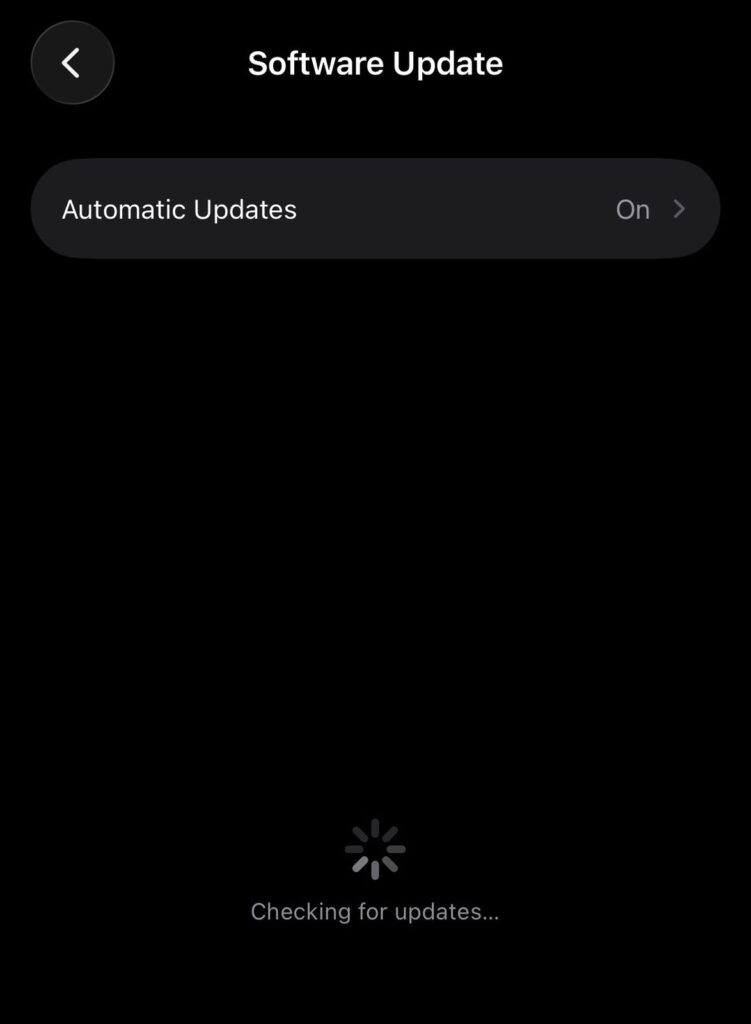
As of 2026, iPhones running iOS 18 and later can also run built-in cellular diagnostics. Go to the Apple Support app after updating and look for the Diagnostics option.
Fix 7: Contact Your Carrier Directly
If none of the above fixes work, the problem lives on your carrier’s end. Call your carrier using Wi-Fi Calling or from another phone and ask them to check:
SOS vs. “No Service” vs. “Searching” — What’s the Difference?
These three status bar messages confuse even experienced iPhone users.
Here’s a clear breakdown:
| Status Bar Message | What It Means | Can You Call 911? |
|---|---|---|
| SOS / SOS Only | No carrier signal, emergency calls only | ✅ Yes |
| No Service | Completely disconnected, no networks found | ⚠️ Sometimes |
| Searching… | Actively trying to find a network signal | ⚠️ In progress |
SOS is actually the safer state of the three. Your phone has found emergency networks. “No Service” and “Searching” can leave you more isolated.
Emergency SOS via Satellite: The 2026 iPhone Lifeline
If you own an iPhone 14 or later, Apple has a feature that changes everything about remote emergencies: Emergency SOS via Satellite.
When you’re completely out of cellular and Wi-Fi range — think hiking a national park or driving through Wyoming at midnight — your iPhone can connect directly to a satellite network to contact emergency services.
Here’s how it works:
This feature doesn’t solve everyday SOS only problems — it’s specifically for life-threatening situations where no signal exists at all. But knowing it exists could genuinely save a life.
What If None of These Fixes Work? Troubleshooting Deep-Dive
If you’ve tried all seven fixes and your iPhone is still stuck on SOS mode, here’s what to check next.
Is Your iPhone Carrier Locked?
A carrier locked iPhone will reject any SIM card that isn’t from its original carrier. You can check your lock status by:
Contact the original carrier to request an unlock — most carriers unlock devices that are fully paid off and in good standing.
Is Your iPhone Hardware Damaged?
Water damage, a dropped phone, or a cracked logic board can destroy the antenna components your iPhone uses for cellular. Signs this might be your problem:
In this case, book a Genius Bar appointment at your nearest Apple Store or visit an authorized repair center.
Reset Network Settings (Last Resort)
This wipes all saved Wi-Fi passwords, VPN configurations, and cellular settings — but it often resolves stubborn SOS issues.
Note: You’ll need to re-enter your Wi-Fi passwords after this step.
Frequently Asked Questions
If your iPhone suddenly shows SOS despite being in an area with good coverage, the most likely cause is a carrier account issue (billing, suspension) or a glitchy carrier settings file. Try toggling Airplane Mode, restarting, and checking for a carrier settings update in Settings → General → About.
Standard SMS and iMessage do not work in SOS mode. You may be able to send messages over Wi-Fi using iMessage or third-party apps like WhatsApp if you’re connected to a Wi-Fi network. Emergency text services (like texting 911 where available) may also work.
Random SOS drops on iPhone 16 are usually caused by a carrier settings mismatch after an iOS update, a loose eSIM configuration, or a regional network issue. Go to Settings → General → About to check for a carrier settings update. If the problem persists, contact Apple Support for a diagnostic review.
No. SOS only means your phone has lost connection to your specific carrier’s network. The hardware itself is working correctly. The phone is actively searching for emergency networks and will route 911 calls even without your normal carrier.
You cannot manually turn SOS mode off — it turns off automatically when your phone reconnects to your carrier’s network. Use the steps above (Airplane Mode toggle, restart, check SIM, update carrier settings) to restore the connection and exit SOS mode.
Ready to Fix Your iPhone? Start Here
Don’t wait for the problem to resolve itself. Work through the 7 fixes in order — most users restore their signal within five minutes. If you’re still stuck after trying everything, book an appointment at the Apple Genius Bar or call your carrier’s support line directly.
Have a fix that worked for you that we didn’t cover?
Share it in the comments — your experience could help thousands of other iPhone users.
Disclaimer: The information in this article is provided for general informational and educational purposes only. While every effort has been made to ensure accuracy as of April 2026, Apple’s software, features, and carrier agreements change frequently. Steps described may vary depending on your iPhone model, iOS version, and carrier. For account-specific issues, always contact your wireless carrier directly. AppleHeadlines.com is not affiliated with Apple Inc. Emergency SOS via Satellite availability varies by region and carrier agreement. Do not rely solely on any cellular feature for emergency preparedness.

Ruth writes in-depth guides about Apple products, focusing on practical solutions for everyday users. Her articles cover device setup, hidden features, troubleshooting, and the latest updates for iOS, watchOS, and other Apple platforms.
He regularly researches Apple updates and tests features on devices like the iPhone and Apple Watch to ensure readers receive accurate and helpful information.