



Your iPhone was at 80% when you left the house.
Two hours later — dead. If your iPhone battery drains too quickly, you’re not alone, and it’s not your imagination.
Whether you’re running iOS 26 on an iPhone 17 or still rocking an iPhone 13, this guide will walk you through every real fix — from a 10-second settings tweak to knowing exactly when it’s time for a new battery.
No fluff, no generic advice. Just what works.
Quick Story
Why Your iPhone Battery Is Dying So Fast (The Real Reason)
Before jumping into fixes, it helps to understand what’s actually happening.
Your iPhone battery is a lithium-ion cell.
Think of it like a sponge that loses its ability to hold water over time.
\Every full charge cycle — draining from 100% to 0% — slightly reduces how much “water” the sponge can hold.



Apple rates iPhone batteries to retain 80% of their original capacity after 500 charge cycles.
For most users, that’s roughly 18 months of typical daily charging. After that threshold, your battery degrades faster.
But battery age isn’t the only culprit. In 2026, several factors explain why is my iPhone battery draining so fast even on newer devices:
Understanding the “why” is step one. Now let’s fix it.
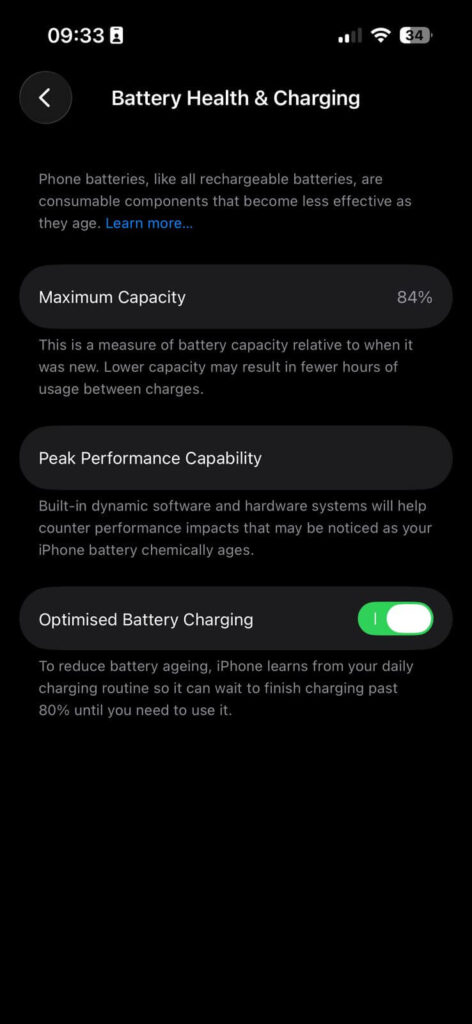
Step 1: Check Your Battery Health First
This is always the starting point. There’s no reason to adjust 15 settings if the battery simply needs replacing.
Here’s what the numbers mean:
Expert Insight: A battery at 79% capacity doesn’t just give you 21% less life — it can behave unpredictably. iPhones with heavily degraded batteries sometimes shut down at 20% or even 30% charge. If that sounds familiar, a battery replacement will fix this overnight. Apple charges $89–$99 for most models in 2026, and third-party repair shops often charge less.
If your battery health is above 85%, move on to the steps below. These changes genuinely improve maximum battery capacity iPhone users can access on a daily basis.
Step 2: Enable iOS 26’s New Adaptive Power Feature
This is the biggest battery news of 2026, and most users haven’t turned it on yet.
iOS 26 introduced Adaptive Power — an intelligent, background feature that monitors your daily usage patterns and quietly makes small adjustments to extend your battery when it matters most.
It’s available on iPhone 15 Pro, iPhone 16, iPhone 17, and iPhone Air models.
Unlike Low Power Mode (which noticeably limits your iPhone), Adaptive Power works subtly. It might slightly dim your screen or delay a background sync by a few seconds. You won’t feel it. You will notice your battery lasting longer.
How to enable Adaptive Power:
After enabling it, your iPhone needs about 7 days to learn your habits before it fully kicks in. Once it does, the system predicts high-usage periods — like your commute or a long meeting — and starts trimming power quietly ahead of time.
Pro Tip: Adaptive Power pauses itself during camera use and gaming with Game Mode on. Apple designed it so you never feel a performance hit during the tasks that matter most. Think of it as a smart co-pilot that steps back when you’re the one flying.
Step 3: Update to the Latest iOS Version
This sounds obvious, but it’s often skipped.
- Open Settings > General > Software Update.
- If an update is available, tap Download and Install.
Apple routinely patches battery drain bugs in iOS updates. Several iOS 26.4.2 point releases specifically targeted background energy use. Running outdated software is one of the top hidden reasons why iPhone battery drains too quickly for many users.

One important note: After any major iOS update, your battery may seem worse for 24–48 hours. This is normal. iOS re-indexes your photos, app data, and Spotlight search in the background. Give it two days before judging battery performance post-update.
Step 4: Find and Fix the Apps Draining Your Battery
This is where most people find their actual problem.
What to look for: If an app shows heavy background usage but you rarely open it, that’s a red flag. Social media apps, news apps, and email clients are the most frequent offenders when iPhone battery drains too quickly.
How to fix problem apps:
Step 5: Reduce Screen Brightness and Use Auto-Brightness
Your screen is by far the biggest single battery drain on your iPhone. This isn’t an opinion — it’s physics.
The analogy: Think of your screen brightness like a car engine running at full throttle. You wouldn’t drive at 100 mph everywhere just because your car can do it. Same idea here.
How to optimize screen settings:
For iPhone models with ProMotion displays (iPhone 13 Pro and later), the screen refresh rate automatically drops to 1Hz when you’re not actively using it. This feature is already saving you battery without any action needed.
Step 6: Switch to Wi-Fi — And Use 5G Smarter
Cellular radios are enormous battery consumers, especially in poor signal areas. When your iPhone is hunting for a signal, it burns through power fast.
Two quick fixes:
Switch to Wi-Fi whenever possible:
- Go to Settings > Wi-Fi.
- Connect to a strong, trusted network.
Wi-Fi uses significantly less power than cellular data for the same tasks.
Enable 5G Auto Mode (iPhone 12 and later):
- Go to Settings > Cellular > Cellular Data Options > Voice & Data.
- Select 5G Auto.
5G Auto is smarter than always-on 5G. Your iPhone uses 5G only when it meaningfully improves your experience and drops back to LTE otherwise. This one change can add 30–60 minutes of daily battery life on some networks.
In a weak signal area? Enable Airplane Mode from Control Center to stop your iPhone from constantly searching for signal. Then re-enable it when you’re back in range.
Step 7: Turn Off Always-On Features You Don’t Actually Need
These background features add up. Each one alone isn’t a huge drain — but together they explain why your old iPhone battery drains fast by noon.
Work through this checklist:
Background App Refresh:
- Settings > General > Background App Refresh → Set to Wi-Fi Only or Off
Push Email (the silent killer):
- Settings > Mail > Accounts > Fetch New Data
- Change Push to Fetch and set an interval like every 30 minutes
- Or switch to Manual if you check email on your own schedule
Location Services:
- Settings > Privacy & Security > Location Services
- Review each app — change unnecessary “Always” permissions to “While Using”
Widgets on Lock Screen and Home Screen:
- Widgets constantly pull fresh data in the background
- Long-press your Home Screen, tap Edit, and remove widgets you don’t actually check
Notifications:
- Settings > Notifications — turn off notifications for apps that don’t need your attention
- Every notification wakes your screen and radio, even for a second
Step 8: Enable Low Power Mode Strategically
Low Power Mode is your emergency brake. It works — but most people either use it too much (all the time) or too little (never).
The right strategy in 2026:
- Let Adaptive Power (Step 2) handle normal days automatically.
- Enable Low Power Mode only when you’re below 30% and far from a charger.
- Add Low Power Mode to your Control Center for instant access: Settings > Control Center → tap the + next to Low Power Mode.
Low Power Mode reduces background activity, lowers display brightness, limits mail fetch, and disables some visual effects. You’ll see a yellow battery icon when it’s active.
Short Story: The Case of the Mysterious Battery Drain
A reader in Chicago — let’s call him Marcus — messaged us after his iPhone 15 Pro started dying by 2 PM every day. He’d tried restarting, deleting apps, even a factory reset. Nothing worked.
The culprit? A fitness tracking app he’d downloaded eight months earlier. He hadn’t opened it in months, but it was still pulling GPS location data every 15 minutes in the background — 24/7. The battery usage chart in Settings showed it consuming 22% of his daily battery while he slept.
He changed its location permission to “Never” and turned off Background App Refresh for it. The next day, his phone made it to 9 PM with 35% remaining.
The lesson: The battery villain is almost always an app you’ve forgotten about.
Step 9: Manage Your Charging Habits to Protect Long-Term Health
How you charge your iPhone directly affects how to keep an iPhone battery healthy longer. This isn’t just about today’s battery life — it’s about the battery you’ll have in two years.
The golden rules:
- Keep your battery between 20% and 80% as much as possible. Full 0–100% cycles degrade the battery faster.
- Enable Optimized Battery Charging: Go to Settings > Battery > Battery Health & Charging and turn it on. Your iPhone learns your overnight routine and pauses charging at 80% until just before you wake up.
- Avoid extreme heat. Leaving your iPhone in a hot car or charging it under a pillow accelerates battery degradation more than almost anything else.
- Use Apple-certified chargers. Third-party chargers that don’t support proper power negotiation can stress your battery over time.
Step 10: Restart Your iPhone (Yes, Really)
A regular restart clears memory leaks, resets misbehaving background processes, and refreshes network connections. It takes 20 seconds and is surprisingly effective.
- iPhone without a Home Button: Press and hold either Volume button + Side button until the power slider appears. Drag to power off. Wait 30 seconds. Press Side button to turn on.
- iPhone with a Home Button: Press and hold the Side button until the slider appears. Slide to power off. Turn back on after 30 seconds.
Aim to restart your iPhone once a week as basic maintenance.
What If These Fixes Don’t Work? (Troubleshooting Section)
You’ve tried everything above and your iPhone battery drains too quickly — still. Here’s what to do next.
If Your Battery Health Is Above 85% but Drain Is Severe
Try a DFU Restore. A Deep Firmware Update (DFU) restore wipes and reinstalls iOS at the deepest level. This fixes software corruption that regular restores miss. Back up to iCloud first, then search Apple’s support site for the DFU process specific to your iPhone model. Many users report this alone adds 2–3 hours of daily life.
If One App Always Appears at the Top of Battery Usage
Delete and reinstall it. Corrupted app data sometimes causes runaway battery consumption. Delete the app, restart your iPhone, then reinstall fresh from the App Store.
If Your Battery Drains Overnight While Idle
You likely have a misbehaving background process or notification storm. Go to Settings > Battery, look at background activity for apps, and turn off Background App Refresh globally: Settings > General > Background App Refresh > Off. Then turn it back on only for apps that truly need it.
If None of the Above Helps
Your battery likely needs replacement. Check these options:
- Apple Support or Apple Store: $89–$99 for most iPhones (2026 pricing). Comes with a 90-day warranty.
- Apple Authorized Service Provider: Same quality, sometimes faster.
- iFixit DIY Repair: Detailed guides for every iPhone model. Battery kits available for significantly less than Apple’s price.
At below 80% maximum capacity, no software fix will meaningfully improve how to maintain battery health of iPhone — a physical replacement is the only real solution.
Frequently Asked Questions
Q: Why does my iPhone battery drain so quickly even when I’m not using it?
Background apps, push notifications, Location Services, and email fetch are silently consuming power. Open Settings > Battery, scroll to Battery Usage by App, and tap on each entry to see background vs. on-screen consumption. Background-heavy apps are your culprit. Disabling Background App Refresh for those apps (Settings > General > Background App Refresh) typically solves overnight drain immediately.
Q: How do I improve maximum battery capacity on an iPhone that’s already degraded?
You can’t reverse chemical battery degradation through software — that’s a physical reality of lithium-ion cells. If your Maximum Capacity is below 80%, the only true fix is battery replacement. Software optimizations (Low Power Mode, Adaptive Power, restricting background apps) can help you squeeze more from a degraded battery, but they won’t restore lost capacity.
Q: Is it bad to charge my iPhone overnight?
It was more of a concern in older iPhone models, but today it’s largely a non-issue if you use Apple’s Optimized Battery Charging feature (Settings > Battery > Battery Health & Charging). This feature learns your sleep schedule and pauses charging at 80% until just before your typical wake time, reducing the time your battery sits at 100% — which is the real source of overnight degradation.
Q: Will turning off 5G really make my battery last longer?
Yes, meaningfully so in some cases. 5G radios consume more power than LTE, especially when 5G signal quality is mediocre. Using 5G Auto (Settings > Cellular > Cellular Data Options > Voice & Data > 5G Auto) rather than always-on 5G lets your iPhone switch intelligently. In areas with weak 5G coverage, this can add 30–90 minutes of screen-on time per day.
Q: How do I keep my iPhone battery healthy longer?
The three most impactful habits: keep charge between 20%–80% whenever possible, enable Optimized Battery Charging, and avoid heat exposure. Never leave your iPhone in a car on a hot day, don’t charge it under bedding, and avoid draining it to zero regularly. Following these habits can meaningfully extend the time before you need a battery replacement.
Ready to Reclaim Your Battery Life?
Start with Step 1 — check your battery health right now. It takes 15 seconds and tells you exactly which path to take. If your battery is healthy, work through Steps 2–6 and you’ll likely see a dramatic improvement by tomorrow.
Got a specific iPhone model or situation not covered here? Drop your question in the comments below — our team reads every one.
Disclaimer: The information in this article is intended for general informational purposes. Battery health percentages, pricing, and iOS feature availability are accurate as of April 2026 and may change with future Apple updates. Battery replacement should be performed by trained technicians using genuine Apple or Apple-certified parts to avoid voiding your warranty. AppleHeadlines.com is not affiliated with Apple Inc. Always back up your device before any repair or major software change. Individual battery life results will vary based on device model, usage patterns, network conditions, and settings configuration.

Ruth writes in-depth guides about Apple products, focusing on practical solutions for everyday users. Her articles cover device setup, hidden features, troubleshooting, and the latest updates for iOS, watchOS, and other Apple platforms.
He regularly researches Apple updates and tests features on devices like the iPhone and Apple Watch to ensure readers receive accurate and helpful information.