
That jarring, ear-splitting alarm at 2 a.m. — you know the one.
AMBER alerts are designed to be impossible to ignore, and most of the time, that’s the point.
But if you’re a night-shift worker, a parent of a newborn, or someone with anxiety, that sudden blast of sound can feel genuinely alarming.
Quick Story
Now, You can absolutely turn it off. Here’s exactly how to do it on every major device in 2026.
What Is an AMBER Alert — And Why Is It So Loud?
AMBER stands for America’s Missing: Broadcast Emergency Response.
The program was named after Amber Hagerman, a 9-year-old girl abducted and murdered in Texas in 1996.
Since then, the system has helped recover thousands of missing children across the United States.
When law enforcement issues an AMBER alert, the message gets pushed directly to your phone through a system called Wireless Emergency Alerts (WEA) — a channel that bypasses your phone’s normal notification settings entirely.
That’s why it screams at full volume even when your iPhone is on silent or Do Not Disturb.
Here’s the important distinction that most guides skip over:
| Alert Type | Can You Turn It Off? | Sound Override |
|---|---|---|
| AMBER Alerts | ✅ Yes | Yes |
| Emergency Alerts (severe weather, etc.) | ✅ Yes | Yes |
| Public Safety Alerts | ✅ Yes | Varies |
| National Alerts (Presidential-level) | ❌ No | Yes |
National Alerts cannot be disabled on any device. These are reserved for the most catastrophic, nationwide emergencies and are mandated by federal law.
Everything else, is within your control.
How to Turn Off AMBER Alerts on iPhone (iOS 16 and Later — Including iOS 26)
This method works on every iPhone running iOS 16 through the current iOS 26. The location of the setting has not changed since iOS 16, so these steps are accurate for 2026.
Step-by-Step: Disable AMBER Alerts on iPhone
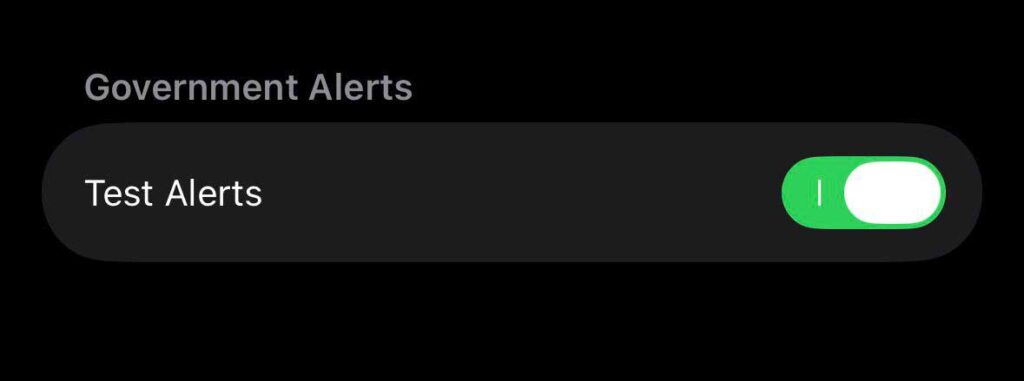
That’s it. The change takes effect immediately — no restart needed.
⚠️ Important: If you do not see a Government Alerts section at the bottom of Notifications, it likely means your carrier does not support this toggle in your region. This is common outside the United States. US users on any major carrier (AT&T, Verizon, T-Mobile, etc.) should see it.
How to Also Turn Off Emergency Alerts on iPhone
While you’re in the same menu, you can manage all other alert types:
Note on “Always Play Sound”: Even if you keep alerts enabled, you can silence their audio. Under Emergency Alerts, toggle off Always Play Sound. Alerts will still appear on your screen but won’t blast audio. This is the middle-ground option many people don’t know exists.
Pro Tip: The “Silent Alert” Method
There’s a third option Apple quietly added: you can keep alerts on while silencing the sound.
Here’s how:
Now your iPhone will display the alert on your lock screen and show a banner notification — but it won’t override your volume or silent mode.
You stay informed without the midnight heart attack.
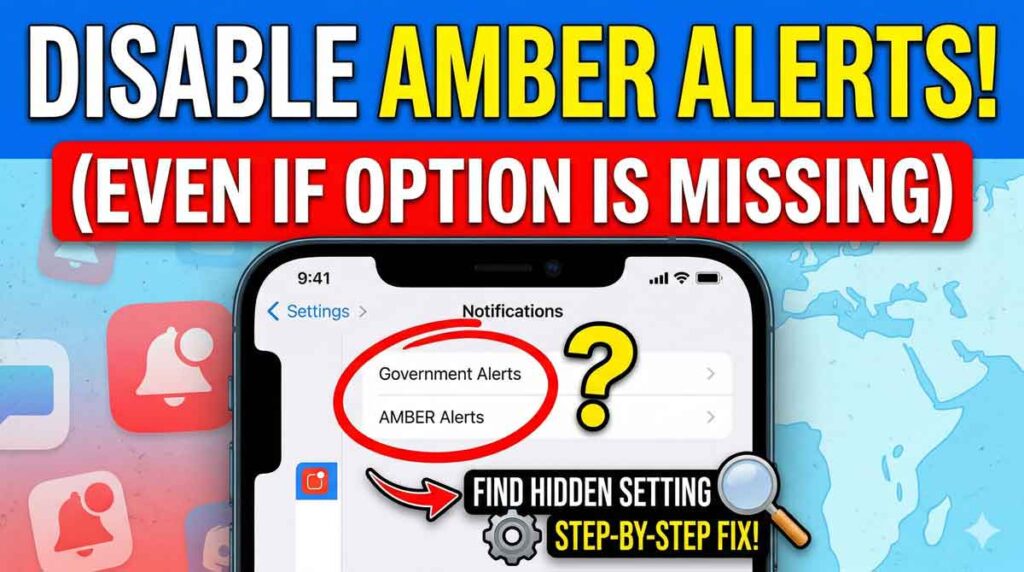
How to Turn Off AMBER Alerts on Samsung (Android, 2026)
If you have a Samsung Galaxy phone (S24, S25, or any Galaxy running One UI 6 or One UI 7), here’s exactly how to disable AMBER alerts:
Samsung Galaxy (One UI 6 / One UI 7)
You can also disable Extreme Threats, Severe Threats, and turn off the alert vibration from this same menu.
Other Android Phones (Google Pixel, Motorola, etc.)
How to Turn Off Silver Alerts on iPhone
Silver Alerts follow the same system as AMBER Alerts but are issued for missing elderly adults, often those with dementia or Alzheimer’s.
On iPhone, Silver Alerts are categorized under Public Safety Alerts — not AMBER Alerts — so they use a different toggle.
To turn off Silver Alerts on iPhone:
- Go to Settings → Notifications.
- Scroll to the bottom — Government Alerts section.
- Toggle off Public Safety Alerts.
This will disable Silver Alerts along with other public safety notifications in your area.
The Analogy That Explains Why These Alerts Override Silent Mode
Think of your iPhone’s silent switch like a “Do Not Disturb” sign on a hotel room door. Normal notifications — texts, emails, app alerts — respect that sign and wait outside. But an AMBER alert is more like a fire alarm hardwired into the building’s system. The hotel manager (the government, in this case) can trigger it regardless of your sign. That’s why your phone screams even when it’s face-down, silenced, and on the other side of the room.
Apple does give you the ability to disconnect the fire alarm for most alert types. The one exception is Presidential / National Alerts, where federal law requires the alarm to stay connected.
What If the Government Alerts Section Doesn’t Show Up?
This is one of the most commonly Googled follow-up questions, and the answer is almost never discussed clearly. Here are the main reasons the toggle might be missing:
Reason 1: You’re on a Non-US Carrier
The Government Alerts section only appears when your iPhone detects a SIM card or eSIM from a supported US carrier. If you’re using an international SIM, traveling abroad, or on a carrier that doesn’t participate in WEA, the toggle won’t appear.
Fix: Switch to a US carrier SIM, or confirm your eSIM is set to a US carrier in Settings → Cellular.
Reason 2: Your iOS Is Outdated
On iOS 15.3 and earlier, the toggle location was different. Update to iOS 15.4+ for the standard Notifications menu placement.
Fix: Go to Settings → General → Software Update and install the latest version.
Reason 3: Your Country Doesn’t Allow It
Canada, for example, does not permit users to disable government emergency alerts. This is a regulatory decision, not an Apple one. Users in these countries simply don’t see the toggle.
Reason 4: Carrier Restrictions
Some smaller MVNO (Mobile Virtual Network Operator) carriers don’t support the WEA toggles. Contact your carrier directly if you suspect this is the issue.
How to Re-Enable AMBER Alerts (If You Change Your Mind)
Turning AMBER alerts back on takes the same three taps:
- Settings → Notifications
- Scroll to Government Alerts at the bottom
- Toggle AMBER Alerts back to green (on)
No app reinstall, no reset. It’s instant.
New in 2026: Enhanced Safety Alerts (iOS 26)
Apple introduced a new category called Enhanced Safety Alerts in iOS 26.2, currently available in the United States and Taiwan.
These are separate from traditional Government Alerts and are delivered by Apple directly over Wi-Fi and cellular data — not just through carrier networks.
Enhanced Safety Alerts include:
- Earthquake Alerts — bi-level alerts with both an “Awareness” and “Action” tier based on severity and your proximity
- Imminent Threat Alerts — supplemental alerts for floods, fires, and similar emergencies
To manage Enhanced Safety Alerts:
- Go to Settings → Notifications.
- Scroll to the bottom — find Enhanced Alerts.
- Tap Enhanced Safety Alerts.
- Toggle Earthquake Alerts or Imminent Threat Alerts on or off individually.
You can also enable Improve Alert Delivery, which shares your approximate location with Apple to speed up alert delivery. Apple states this location data is not stored.
Frequently Asked Questions
No. It is completely legal to disable AMBER alerts in the United States. Apple provides the toggle because federal law permits users to opt out of all alert types except National Alerts. There are no penalties for doing so.
No. AMBER Alerts and Emergency Alerts (which include severe weather warnings) are separate toggles. Turning off AMBER Alerts leaves your weather and emergency notifications fully intact. You have individual control over each type.
Government alerts use the Wireless Emergency Alert (WEA) system, which is designed to override your phone’s volume settings. This is intentional — it ensures critical alerts reach you even if your device is silenced. You can disable “Always Play Sound” under Emergency Alerts to prevent this behavior while keeping alerts visible on your screen.
If your iPhone has no SIM card or eSIM active, you may not receive WEA-based alerts at all, and the Government Alerts toggle may not appear. This is a carrier-dependent feature. With an active US SIM or eSIM, the toggle will be visible.
Your Apple Watch mirrors your iPhone’s Government Alerts settings. If you disable AMBER Alerts on your iPhone (Settings → Notifications → Government Alerts), your Apple Watch will also stop receiving them. There is no separate toggle needed on the Watch itself.
Disclaimer
The information in this article is intended for general informational purposes and reflects Apple iOS settings as of April 2026 (iOS 26). Steps may vary slightly depending on your iOS version, iPhone model, and cellular carrier. Disabling emergency alerts, including AMBER Alerts, means you may miss time-sensitive public safety notifications. AppleHeadlines.com is not affiliated with Apple Inc. Always consult Apple’s official support documentation at support.apple.com for the most up-to-date guidance. This article does not constitute legal advice.
Was this guide helpful? Bookmark it for the next time someone asks you how to stop their iPhone from screaming at midnight — because now you know exactly what to tell them.
Hot Topics


Virginia J. Alfonso is a seasoned technology writer with a passion for all things digital. With over a decade of experience covering the latest in tech innovation, gadgets, and software, Virginia brings a unique blend of technical expertise and accessible writing to her work. Her articles focus on making complex tech topics easy to understand for readers of all levels.