


By using this site, you agree to the Privacy Policy and Terms of Use.
Accept
Apple Headlines Logo Image Apple Headline's White Logo
  • 🔥 Trending:
  • Apple Tech
  • How to Fix
  • Readers Space
  • iPhone
  • iOS
  • Mac
  • iWatch
  • iPadOS
  • AirPods
  • Contact Us
Reading: How to Change the Charging Sound on Your iPhone
Apple HeadlinesApple Headlines
Font ResizerAa
  • iPhone
  • iOS
  • Mac
  • iWatch
  • iPadOS
  • AirPods
  • Contact Us
Search
  • iPhone
  • iOS
  • Mac
  • iWatch
  • iPadOS
  • AirPods
  • Contact Us

Must Read

how to switch off voicemail on iphone using 3 easy methods step by step

How to Switch Off Voicemail on iPhone (2026) — Stop Calls Going to Voicemail Instantly

How to change the charging sound on your iPhone using custom sound settings step by step

How to Change the Charging Sound on Your iPhone

iPhone with cracked screen and display lines showing need for Apple Store screen repair

Apple Store Screen Repair: Costs, Options & Hidden Shortcuts

iOS 26.4.1 update what’s new screen with iCloud fix and features overview

iOS 26.4.1 Update: Hidden iCloud Fix + Security Upgrade You Shouldn’t Ignore (2026)

Illustration showing how to turn off Do Not Disturb on iPhone with a person pointing

How to Turn Off Do Not Disturb on iPhone: 2026 Guide (All Models)

Follow US
© Apple Headlines. All Rights Reserved.
Home » How to Change the Charging Sound on Your iPhone
Apple TechiPhone

How to Change the Charging Sound on Your iPhone

Ruth Harris By Ruth Harris April 13, 2026
14 Min Read
SHARE

That tiny ding your iPhone makes every time you plug it in?

Main Topics
Why This Trick Is Going Viral in 2026What You’ll Need Before You StartHow to Change the Charging Sound on Your iPhone (Step-by-Step)How to Turn Off the Default iPhone Charging SoundA Quick Real-World StoryTroubleshooting: What If the Charging Sound Isn’t Working?Comparison: iPhone vs. Android Charging Sound CustomizationFrequently Asked QuestionsStart Personalizing Your iPhone TodayDisclaimer

You’ve heard it thousands of times.

Maybe it wakes up your partner at night.

Maybe you just want something more you.

Whatever the reason, you’re not stuck with Apple’s default.

Here’s exactly how to change the charging sound on your iPhone – no jailbreak, no third-party apps, just a built-in tool you already have.

Short Story

  • Apple doesn’t have a native toggle for changing the charging sound — you use the Shortcuts app instead.
  • The most important step most people miss: disable “Ask Before Running” in the automation settings.
  • You can use any audio clip, song, TikTok sound (via screen recording), or Siri voice prompt.
  • Silent Mode silences the default chime but won’t block your custom Shortcuts automation.
  • The automation works on any iPhone running iOS 13+, including the iPhone 16 and iPhone 15 series.
  • To remove your custom sound, simply delete the automation in the Shortcuts app.

Why This Trick Is Going Viral in 2026

You may have seen it blow up on TikTok. People are setting their charging sound to Beyoncé clips, movie quotes, cartoon sound effects, and everything in between.

The trend picked up massive steam in early 2026 and sparked millions of views across short-form video platforms.

More Read

how to switch off voicemail on iphone using 3 easy methods step by step
How to Switch Off Voicemail on iPhone (2026) — Stop Calls Going to Voicemail Instantly
iPhone with cracked screen and display lines showing need for Apple Store screen repair
Apple Store Screen Repair: Costs, Options & Hidden Shortcuts
Illustration showing how to turn off Do Not Disturb on iPhone with a person pointing
How to Turn Off Do Not Disturb on iPhone: 2026 Guide (All Models)

But this isn’t just a fun party trick. Knowing how to change your charging sound on iPhone is genuinely useful:

  • Night owls and light sleepers want to silence or replace the default chime.
  • Accessibility users find a spoken Siri prompt more helpful than a sound.
  • Personalizers want their phone to reflect their personality — fully.
  • Parents sometimes need to know (audibly) when a kid’s phone starts charging.

Apple doesn’t advertise this feature because it’s not a built-in toggle in Settings.

It works through the Shortcuts app, which every iPhone running iOS 13 or later already has installed.
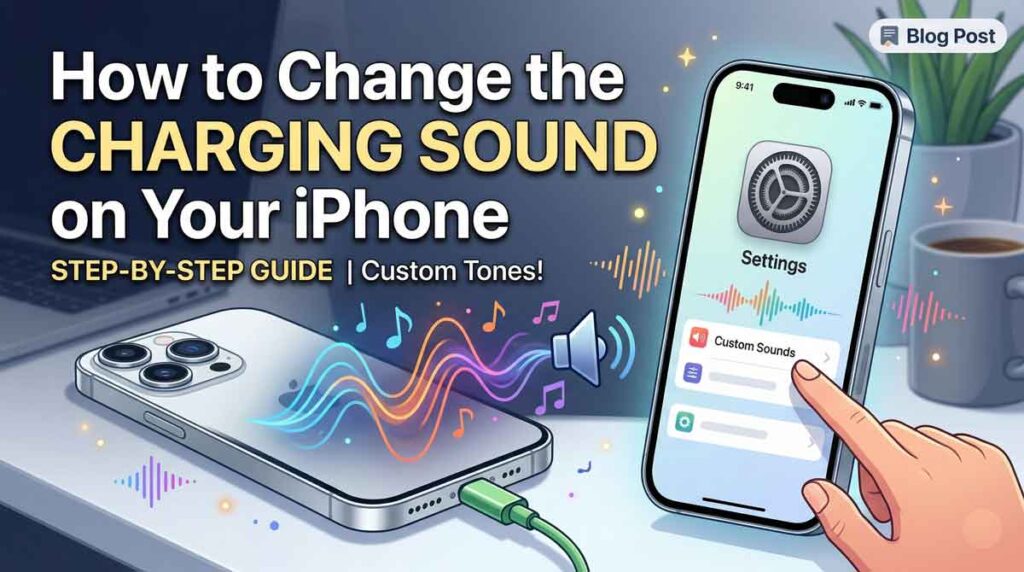
How to change the charging sound on your iPhone using custom sound settings step by step
Learn how to customize your iPhone charging sound with this easy step-by-step guide

What You’ll Need Before You Start

Before diving into the steps, make sure you have:

  • An iPhone running iOS 13 or later (iOS 18 or iOS26 recommended for best performance)
  • The Shortcuts app installed (free on the App Store if missing)
  • A sound file or video clip saved to your Files app or Music library
  • About 3–5 minutes of your time

Pro Tip: The best custom sounds are 5–10 seconds long. Anything longer gets cut off or becomes annoying fast. Short, punchy clips work best — think a movie quote, a song hook, or a quick sound effect.

How to Change the Charging Sound on Your iPhone (Step-by-Step)

This method uses the Shortcuts Automation feature.

Think of it like setting an alarm that triggers a sound — except the trigger is plugging in your charger instead of a clock.

Step 1: Prepare Your Custom Sound File

  • Find the audio clip or short video you want to use as your sound.
  • Save it to your iPhone’s Files app (iCloud Drive or On My iPhone).
  • If using a video, save it to Files — the Shortcuts app can extract audio from it.

Acceptable file types: MP3, M4A, WAV, MP4 (video with audio), MOV.

Step 2: Open the Shortcuts App

  • Locate the Shortcuts app on your iPhone. It has a colorful icon with interlocking squares.
  • If it’s not installed, search “Shortcuts” in the App Store and download it for free.
  • Tap the Automation tab at the bottom of the screen.

Step 3: Create a New Automation

  • Tap the + icon in the top-right corner.
  • Select New Automation (on older iOS versions, this may say “Create Personal Automation”).
  • Scroll through the trigger list and tap Charger.

Step 4: Set the Charger Trigger

  • You’ll see two options: Is Connected and Is Disconnected.
  • Check Is Connected to play a sound when you plug in.
  • Optionally, also check Is Disconnected to play a sound when you unplug.
  • Under “Time,” leave it set to Any Time unless you want the sound only at specific hours.
  • Tap Next.

Step 5: Add the Play Sound Action

  • Tap Add Action.
  • In the search bar, type “Play Sound” and select it from the results.
  • Tap the grayed-out Sound field that appears in the action block.
  • Navigate to Files and select the audio clip you saved in Step 1.

Alternative: If you want to use a song from your Apple Music library:

  • Search for “Play Music” instead of “Play Sound.”
  • Select any track from your library.
  • Adjust shuffle/repeat settings if needed.

Step 6: Disable “Ask Before Running”

This is the step most people miss — and it breaks the whole automation if skipped.

  • Tap Next after adding your action.
  • You’ll see a toggle labeled “Ask Before Running.” Turn it OFF.
  • A warning will appear — tap Don’t Ask to confirm.

Why this matters: If you leave “Ask Before Running” on, your iPhone will pop up a notification asking permission every time you plug in your charger. That defeats the whole purpose. Always disable it.

Step 7: Save and Test

  • Tap Done to save your automation.
  • Plug your iPhone into its charger.
  • Your custom charging sound should play within 1–2 seconds.

Optional: Use Siri’s Voice as Your Charging Sound

Want your iPhone to speak when it starts charging? This is a great accessibility option — and honestly, pretty fun too.

  1. Follow Steps 1–4 above to create a Charger-triggered automation.
  2. Tap Add Action and search for “Speak Text.”
  3. Type whatever you want Siri to say — for example: “Charging started. Battery level updating.”
  4. Use the sliders to customize voice, pitch, and speed.
  5. Tap Next, disable Ask Before Running, and tap Done.

You can combine “Speak Text” with “Play Sound” in the same automation for a layered effect.

How to Turn Off the Default iPhone Charging Sound

If your goal is simply to disable the iPhone charging sound rather than replace it, here’s the fastest method:

Method 1: Use Silent Mode

  • Flip the Ring/Silent switch on the left side of your iPhone to Silent mode (orange stripe showing).
  • The default charging chime will no longer play.
  • Your custom Shortcuts automation will still play even in Silent mode — this is intentional behavior.

Method 2: Disable System Haptics

  • Go to Settings → Sounds & Haptics.
  • Scroll down and toggle off System Haptics.
  • This removes vibration feedback on plug-in as well.

Method 3: Adjust the Charging Sound Settings via Shortcuts

  • Simply delete your automation in the Shortcuts app to return to default behavior.
  • Go to Shortcuts → Automation, swipe left on your automation, and tap Delete.

A Quick Real-World Story

Sarah, a night-shift nurse in Chicago, was exhausted by her phone’s charging chime waking her husband every morning when she got home from work.

She set up a Shortcuts automation with a 3-second clip of soft white noise instead. Now she plugs in silently, her husband sleeps through it, and she’s gotten more sleep than she has in two years. A five-minute setup changed her daily routine completely.

Small customization. Real-world impact.

Troubleshooting: What If the Charging Sound Isn’t Working?

Even if you followed every step correctly, sometimes things don’t fire the first time. Here’s how to fix the most common issues:

The sound doesn’t play at all

  • Check that “Ask Before Running” is OFF. Go to Shortcuts → Automation → tap your automation → scroll to the bottom and confirm the toggle is disabled.
  • Check your volume. Silent mode suppresses the default chime but NOT Shortcuts automations — however, if media volume is at zero, custom sounds won’t play either.
  • Re-save the automation. Delete it and rebuild it from scratch. Corruption occasionally happens on first saves.

The sound plays once, then stops working

  • This is a known iOS quirk. Delete the automation and rebuild it.
  • Make sure the audio file is still present in Files. If you deleted the original file, the action breaks.

The sound plays but there’s a long delay

  • This happens when your iPhone needs extra time to wake the Shortcuts engine. It’s normal to experience a 1–3 second delay.
  • There’s no reliable fix for this; it’s a system-level behavior.

The automation runs but plays the wrong sound

  • Tap into your automation, find the Play Sound action, and re-select your audio file. Sometimes file paths change after iOS updates.

The sound plays even in Do Not Focus mode

  • This is expected behavior. Shortcuts automations bypass Focus filters unless you specifically add a Focus condition to the automation’s trigger settings.

Comparison: iPhone vs. Android Charging Sound Customization

FeatureiPhone (iOS 17/18)Android
Built-in charging sound toggle❌ No✅ Yes (some OEMs)
Custom sound via native tool✅ Yes (Shortcuts)Varies by device
No third-party apps needed✅ YesSometimes
Works in Silent Mode✅ Yes (Shortcuts)❌ Usually not
Siri voice on plug-in✅ Yes❌ No native option

iPhone’s approach requires a few more steps, but the Shortcuts method is actually more powerful than most Android implementations because it isn’t limited to system sounds.

Frequently Asked Questions

Q: Does changing the iPhone charging sound require a jailbreak?

No. This method uses the native Shortcuts app that comes pre-installed on all iPhones running iOS 13 or later. No jailbreak, no third-party apps, no risk to your device.

Q: Will my custom charging sound play when my phone is on Silent Mode?

Yes. Shortcuts automations are treated as media playback, not system sounds. They play even when the Ring/Silent switch is set to Silent. Only the default Apple chime is suppressed by Silent Mode.

Q: Can I set different sounds for plugging in vs. unplugging?

Absolutely. In Step 4, check both Is Connected and Is Disconnected — or create two separate automations with different sounds for each event.

Q: Why does my charging sound sometimes not play?

The most common cause is leaving “Ask Before Running” enabled. Go back into your automation settings and make sure that toggle is turned off. The second most common cause is low media volume.

Q: Does this work on older iPhones like the iPhone 11 or 12?

Yes, as long as the device runs iOS 13 or later. The Shortcuts Automation feature is available across all compatible devices, not just the newest models.

Start Personalizing Your iPhone Today

Knowing how to change the charging sound on your iPhone is one of those small customizations that makes your phone feel genuinely yours. It takes five minutes, uses tools you already have, and opens the door to a whole world of automation.

Once you’ve nailed the charging sound, explore what else the Shortcuts app can do — good morning routines, focus modes, automatic texting on arrival. The same skill that sets your charging sound can automate your entire day.

Got a unique charging sound idea? Drop it in the comments — we’d love to hear what you’re using.

Bookmark this page and share it with anyone still stuck with Apple’s default chime.

Disclaimer

The information in this article is accurate as of April 2026 and applies to iPhones running iOS 13 through iOS 26. Apple may update its software at any time, which could change the behavior of the Shortcuts app or automation features described here. AppleHeadlines.com is not affiliated with Apple Inc. All product names and trademarks are the property of their respective owners.

This guide is intended for informational and educational purposes only.

ruth harris profile pic
Ruth Harris

Ruth writes in-depth guides about Apple products, focusing on practical solutions for everyday users. Her articles cover device setup, hidden features, troubleshooting, and the latest updates for iOS, watchOS, and other Apple platforms.

He regularly researches Apple updates and tests features on devices like the iPhone and Apple Watch to ensure readers receive accurate and helpful information.


TAGGED:How to FixiPhone Charging
Share This Article
Facebook Twitter Pinterest Whatsapp Whatsapp LinkedIn Reddit Threads Email Copy Link
Previous Article iPhone with cracked screen and display lines showing need for Apple Store screen repair Apple Store Screen Repair: Costs, Options & Hidden Shortcuts
Next Article how to switch off voicemail on iphone using 3 easy methods step by step How to Switch Off Voicemail on iPhone (2026) — Stop Calls Going to Voicemail Instantly
Leave a comment

Leave a Reply

Your email address will not be published. Required fields are marked *

Follow Us On Social

FacebookLike
InstagramFollow
YoutubeSubscribe

Must Read

how to switch off voicemail on iphone using 3 easy methods step by step

How to Switch Off Voicemail on iPhone (2026) — Stop Calls Going to Voicemail Instantly

How to change the charging sound on your iPhone using custom sound settings step by step

How to Change the Charging Sound on Your iPhone

iPhone with cracked screen and display lines showing need for Apple Store screen repair

Apple Store Screen Repair: Costs, Options & Hidden Shortcuts

iOS 26.4.1 update what’s new screen with iCloud fix and features overview

iOS 26.4.1 Update: Hidden iCloud Fix + Security Upgrade You Shouldn’t Ignore (2026)

Illustration showing how to turn off Do Not Disturb on iPhone with a person pointing

How to Turn Off Do Not Disturb on iPhone: 2026 Guide (All Models)

Forgot iPhone password screen showing factory reset without password solution

How to Factory Reset iPhone Without Password (Even If Locked Out)

Apple Headlines Logo Image

Apple Headlines delivers fresh, reliable Apple news, how-to guides, and tips for every Apple user.

Topics

  • iOS
  • iPhone
  • Mac
  • Apple Tech
  • iWatch
  • iPadOS
  • AirPods

Quick Links

  • Home
  • About Us
  • Privacy Policy
  • Terms of Service
  • Contact Us
Apple Headlines Logo Image

Designed By Apple Headlines

appleheadlines.com