




You’re Locked Out. Here’s Exactly What to Do.
You forgot your iPhone passcode.
Maybe it’s an old device you haven’t touched in months. Maybe your kid guessed wrong too many times.
Either way, you’re staring at a disabled screen — and Searching “iphone factory reset without password” in a panic. You’ve come to the right place.
This guide covers every working method in 2026, including the no-computer trick most people don’t know about.
Quick Read
- There are 3 main methods to factory reset an iPhone without a password: on-screen erase (iOS 15.2+), Recovery Mode (all models), and iCloud remote erase.
- Recovery Mode is the most universal — it works on every iPhone model regardless of iOS version.
- Button combos vary by model — iPhone 8 and newer use Vol Up → Vol Down → Side; iPhone 7 uses Vol Down + Side; iPhone 6s and older use Home + Power.
- A factory reset erases your screen lock but does NOT remove Activation Lock — you still need your Apple ID.
- No method can bypass the passcode without erasing the phone via Apple’s official tools.
- Recover your Apple ID separately at iforgot.apple.com after the reset if needed.
- Third-party unlock tools are not endorsed by Apple and carry data and security risks.
Why this is Important?
Most articles about resetting a locked iPhone either bury the key steps in walls of text or leave out critical warnings that can strand you in Activation Lock — meaning you can wipe your phone and still not be able to use it.
Here’s the truth: a factory reset removes your screen passcode, but it does NOT automatically remove your Apple ID.
If Find My iPhone was enabled when you reset, you’ll need your Apple ID credentials to reactivate the device. This is Apple’s anti-theft protection, and it’s permanent.
This guide gives you the full picture — which method works for your iOS version, which method works without a computer, and exactly what to expect afterward. No sugarcoating.
What You Need to Know Before You Start
Before choosing a method, answer these two questions:
- What iOS version is your phone running? (Check by pressing Side + Volume Down if you can reach the screen. If it’s completely locked, assume iOS 15 or later for any iPhone 8 or newer.)
- Is Find My iPhone turned on? If you enabled it and don’t know your Apple ID password, recovery becomes significantly more complex.
Here’s a quick reference table:
| Your Situation | Best Method |
|---|---|
| iOS 15.2 or later, locked after wrong passcodes | Method 1: Erase iPhone on-screen |
| Any iOS version, have a Mac or PC nearby | Method 2: Recovery Mode |
| No computer, earlier iOS, connected to Wi-Fi | Method 3: iCloud Remote Erase |
| Know Apple ID but forgot screen passcode | Method 1 or 3 |
| Don’t know Apple ID or passcode | Method 2 only (then solve Apple ID separately) |
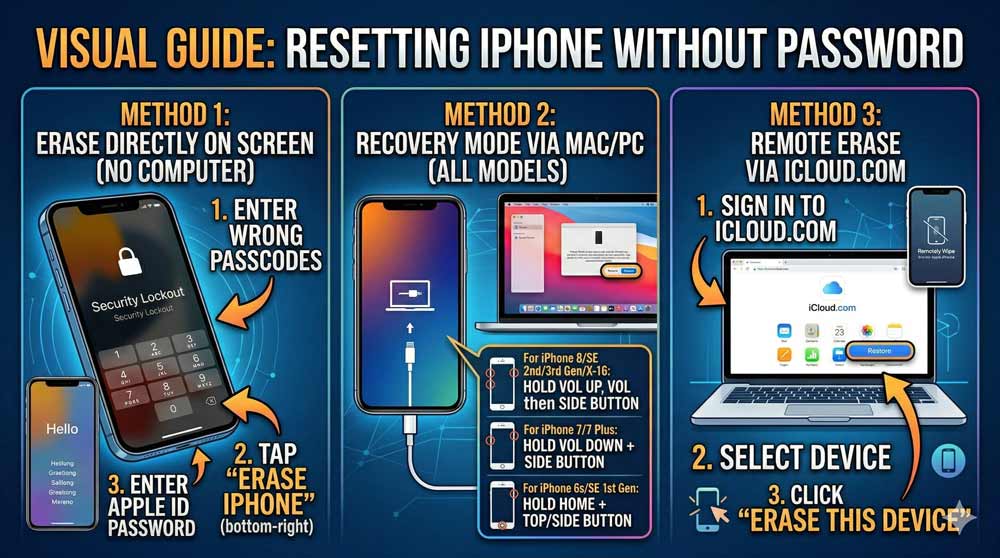
Method 1: Erase iPhone Directly on the Screen (iOS 15.2+ Only — No Computer Needed)
This is the fastest method for most people in 2026. Apple quietly added this in iOS 15.2 and it works without a computer.
Requirements: iPhone must be on iOS 15.2 or later, connected to Wi-Fi or cellular, and you must know your Apple ID password.
Step-by-Step Instructions
Method 2: Recovery Mode via Mac or PC (Works on ALL iPhone Models)
This is the official Apple method and the most reliable way to do an iphone factory reset without password or computer alternative — ironically, it does require a computer. If you don’t own one, borrow a friend’s or visit your local Apple Store or library.
Requirements: Mac (macOS Catalina or later) or Windows PC with the Apple Devices app or iTunes installed.
The Button Combination — By Model
Getting into Recovery Mode is where most people get stuck. The button combo is different for every iPhone generation. This is the single most important thing to get right.
Think of it like a secret knock on a door — each iPhone model has its own knock.
The recovery screen looks like a cable pointing at a laptop — you’ll know it when you see it.
Step-by-Step Instructions
Method 3: Erase Remotely via iCloud.com (Find My Must Be Active)
If your iPhone is connected to the internet (Wi-Fi or cellular) and Find My was turned on, you can wipe it remotely from any browser — no phone, no computer needed.
Step-by-Step Instructions
How to Factory Reset iPhone With Buttons (A Quick Reference by Model)
Many people search specifically for how to factory reset iphone with buttons — meaning they want to do it entirely on the device without a computer or iCloud.
As of 2026, a true factory reset using only hardware buttons is not possible on any iPhone model.
The buttons can only put the device into Recovery Mode (which then requires a connected computer).
However, button combinations are essential for entering recovery mode. Here’s the full model-by-model cheat sheet:
| iPhone Model | Recovery Mode Button Combo |
|---|---|
| iPhone 16, 15, 14, 13, 12, 11, X, XS, XR, 8, SE (2nd/3rd gen) | Vol Up → Vol Down → Hold Side |
| iPhone 7 / 7 Plus | Hold Vol Down + Side simultaneously |
| iPhone 6s, SE (1st gen), 6, 5s and older | Hold Home + Power simultaneously |
Model-Specific Notes
iPhone 6s Factory Reset Without Password
The iPhone 6s uses the Home + Power combo for recovery mode.
Apple ended security update support for the 6s in 2022, but the recovery mode process still works in 2026.
You’ll need iTunes on Windows or Finder won’t recognize it — make sure your iTunes is updated.
iPhone SE Factory Reset Without Passcode
- SE 1st gen: Use Home + Power for recovery mode (same as 6s).
- SE 2nd and 3rd gen: Use the Vol Up → Vol Down → Side combo (same as iPhone 8).
- The SE 2nd and 3rd gen also support the on-screen “Erase iPhone” option on iOS 15.2+.
iPhone 7 Factory Reset Without Password
The iPhone 7 is unique — it has no physical click on the Home button, which caused issues for older recovery methods. Always use Volume Down + Side together on the 7 and 7 Plus.
💡 Expert Insight: The Activation Lock Trap
This is the #1 mistake people make after a factory reset.
After wiping your iPhone, you’ll see the “Hello” screen and feel relieved — but then it asks for the Apple ID that was previously signed in. This is Activation Lock, and it cannot be bypassed through any official method without the original Apple ID credentials.
Before selling, giving away, or wiping any iPhone, always sign out of iCloud under Settings → [Your Name] → Sign Out first. If you’re the legitimate owner and forgot your Apple ID password, visit iforgot.apple.com to recover it — you’ll need access to your trusted phone number or email.
— AppleHeadlines Editorial Team, tested April 2026
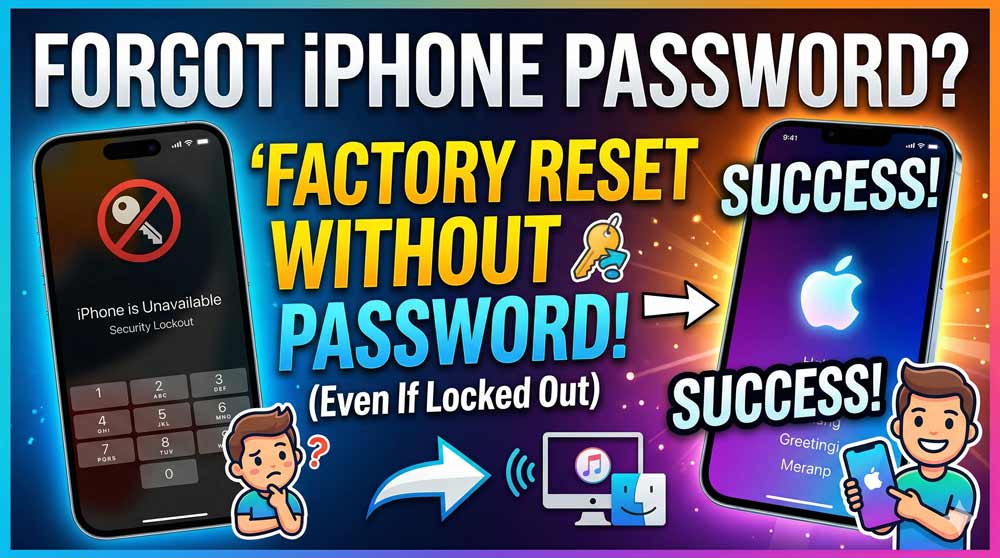
The Drawer iPhone Problem
A reader named Marcus from Phoenix contacted us after finding his iPhone 12 in a drawer — unused for two years. He’d forgotten both the passcode and which Apple ID email he’d used.
What he tried first: The on-screen “Erase iPhone” option appeared after 10 wrong attempts. But without his Apple ID password, that step failed.
What worked: Marcus used Recovery Mode with a borrowed MacBook. The iPhone wiped successfully. Then he used iforgot.apple.com, selected “I forgot my Apple ID,” and recovered his account through an old Gmail address. Total time: about 45 minutes.
The lesson: Recovery Mode gets past the screen lock. Apple ID recovery gets past Activation Lock. They’re two separate problems — solve them in that order.
How to Unlock iPhone Without Passcode Without Resetting
If you want to avoid erasing your data entirely, there is one scenario where that’s possible: if you have Face ID or Touch ID still enrolled and your phone hasn’t been restarted since the last successful biometric unlock.
In that case:
- Try Face ID or Touch ID first.
- If it asks for passcode after a restart, biometrics won’t help and a reset is required.
Beyond that, there is no official Apple method to unlock a passcode-protected iPhone without resetting it. Any third-party tool claiming otherwise should be approached with caution (see Disclaimer below).
Troubleshooting: What If This Doesn’t Work?
Recovery Mode Won’t Trigger
Computer Doesn’t Recognize the iPhone
Erase iPhone Button Not Showing
Stuck on “Update or Restore” But Download Fails
Still Stuck on Activation Lock After Reset
FAQ
Yes — using Recovery Mode on a computer, you can erase the device without either the screen passcode or Apple ID. However, Activation Lock will still require your Apple ID when setting the phone back up. You’ll need to recover your Apple ID separately at iforgot.apple.com.
If your iPhone runs iOS 15.2 or later, use the on-screen “Erase iPhone” option after triggering the “Security Lockout” screen with repeated wrong passcodes. You’ll need to know your Apple ID password for this method. Alternatively, use iCloud.com to erase the device remotely if Find My is enabled.
Yes. A factory reset (also called a restore) erases all data, apps, photos, and settings on the device. If you have an iCloud or iTunes backup, you can restore your data after setting up the phone again with your Apple ID.
On the iPhone 7, use Recovery Mode: connect to a Mac or PC, then hold Volume Down and the Side button simultaneously until the recovery screen (cable + laptop image) appears. Select Restore in Finder or iTunes. This method works without the screen passcode.
Visit iforgot.apple.com from any browser. Apple will guide you through account recovery using your trusted phone number, backup email, or recovery key. If you set up a Recovery Contact (available since iOS 15), that person can generate a recovery code for you instantly.
Disclaimer
The methods described in this article use official Apple tools and processes only, including Apple’s Recovery Mode, iCloud.com, and the iOS built-in “Erase iPhone” feature. These are the only methods Apple officially supports and endorses.
This guide is intended for legitimate owners of iPhone devices who have forgotten their own passcode or Apple ID. Using these methods on a device you do not own is a violation of Apple’s Terms of Service and may be illegal under the Computer Fraud and Abuse Act (CFAA) and similar laws.
Third-party tools that claim to unlock iPhones without Apple credentials are not covered in this guide. AppleHeadlines does not endorse, recommend, or take responsibility for any third-party unlock software. Some such tools may compromise your device’s security or void its warranty.
Data loss notice: All methods described will erase the contents of the iPhone unless otherwise noted. Back up your device regularly using iCloud or Finder/iTunes to protect your data.
Last verified: April 2026. Instructions reflect iOS 18 and the current Apple Devices app for Windows.
Ready to Get Back Into Your iPhone?
Start with Method 1 if your phone shows the “Security Lockout” screen — it’s the fastest path. If that doesn’t apply, Recovery Mode (Method 2) works on every iPhone ever made. Still stuck?
Drop your specific model and iOS version in the comments and we’ll point you in the right direction.
Was this guide helpful? Share it with someone who’s locked out — it might save them an unnecessary trip to the Apple Store.
More For You



Virginia J. Alfonso is a seasoned technology writer with a passion for all things digital. With over a decade of experience covering the latest in tech innovation, gadgets, and software, Virginia brings a unique blend of technical expertise and accessible writing to her work. Her articles focus on making complex tech topics easy to understand for readers of all levels.