



By using this site, you agree to the Privacy Policy and Terms of Use.
Accept
Apple Headlines Logo Image Apple Headline's White Logo
  • 🔥 Trending:
  • iOS
  • iPadOS
  • Apple Tech
  • iPhone
  • iOS
  • Reader’s Space
  • Mac
  • Contact Us
Reading: AirPods Dying? Here’s How to Check Battery Percentage on iPhone
Apple HeadlinesApple Headlines
Font ResizerAa
  • iPhone
  • iOS
  • Reader’s Space
  • Mac
  • Contact Us
Search
  • iPhone
  • iOS
  • Reader’s Space
  • Mac
  • Contact Us

Must Read

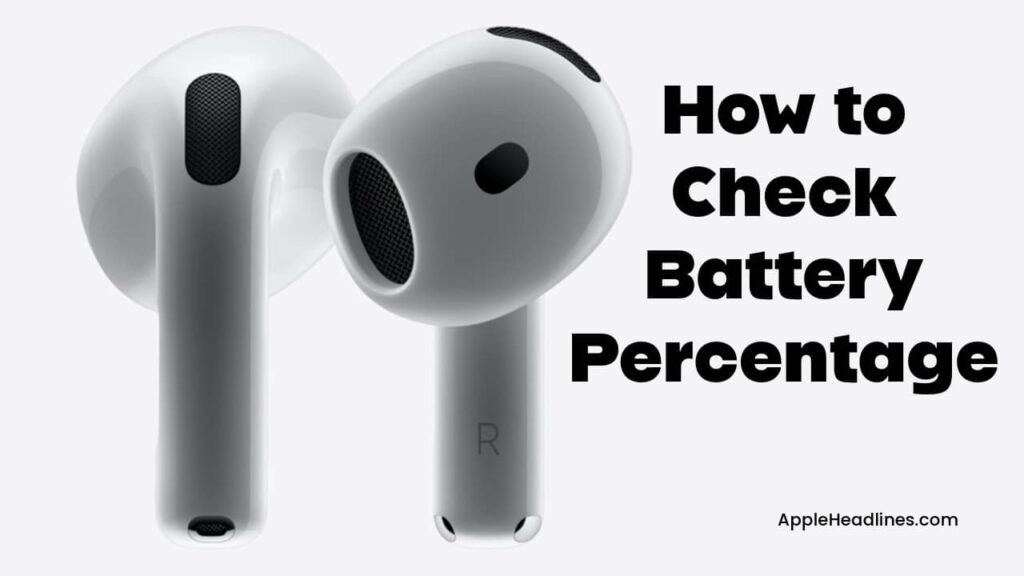
AirPods earbuds with text showing how to check AirPods battery on iPhone

AirPods Dying? Here’s How to Check Battery Percentage on iPhone

7 best insurance apps for iPhone users in USA displayed on App Store screen with bold text overlay

Save Thousands with the 7 Best Insurance Apps for iPhone (2026)

Smaller iPhone 18 Dynamic Island with sleek design and reduced notch size

iPhone 18 Dynamic Island: 35% Smaller and Packed with Upgrades

How to restart iPhone from Settings shown on tutorial banner with iPhone General menu screen

iPhone Frozen? How to Restart iPhone (iOS 26 Updated Guide)

iPhone 18 release date and features promotional banner image

Is the iPhone 18 Out Yet? – Release Date

Follow US
© Apple Headlines. All Rights Reserved.
Home » AirPods Dying? Here’s How to Check Battery Percentage on iPhone
AirPodsiPhone

AirPods Dying? Here’s How to Check Battery Percentage on iPhone

Virginia J. Alfonso By Virginia J. Alfonso February 23, 2026
9 Min Read
SHARE

You are out for a run. Your favorite song is pumping.

Main Topics
Short StoryWhy Monitoring Your AirPod Battery Matters1. The “Magic Pop-Up” Method2. Using the iOS Batteries Widget3. Ask Siri for a Status Update4. Checking via the Control Center5. Using Your Settings App6. How to Check AirPod Battery on iPhone Using the Charging CaseAirPods vs. Other Bluetooth Buds: A ComparisonTips for Better AirPod Battery LifeCommon Problems When Checking AirPod Battery on iPhoneFAQ: Frequently Asked QuestionsReady to Level Up Your Audio Experience?

Suddenly, the music cuts out.

Your AirPods are dead. We have all been there, and it is frustrating.

Knowing how to check your battery levels is essential for any Apple user.

Whether you use AirPods Pro, Max, or the classic buds, monitoring power keeps your day moving.

This guide covers every method to see your battery percentage.

We will use simple steps to ensure you are never left in silence again.

Let’s dive into the world of seamless power management.

More Read

Smaller iPhone 18 Dynamic Island with sleek design and reduced notch size
iPhone 18 Dynamic Island: 35% Smaller and Packed with Upgrades
How to restart iPhone from Settings shown on tutorial banner with iPhone General menu screen
iPhone Frozen? How to Restart iPhone (iOS 26 Updated Guide)
iPhone 18 release date and features promotional banner image
Is the iPhone 18 Out Yet? – Release Date
AirPods earbuds with text showing how to check AirPods battery on iPhone
Learn how to see the exact AirPods battery percentage on iPhone.

Short Story

  • The Pop-up Card is the fastest way to check power.
  • The Batteries Widget provides a permanent view on your Home Screen.
  • Siri offers a hands-free way to monitor levels.
  • Control Center is perfect for checking while using other apps.
  • Keep your case near your phone for the most accurate readings.

Why Monitoring Your AirPod Battery Matters

AirPods are marvels of engineering. However, their small size means smaller batteries.

Unlike a MacBook, you cannot see a constant battery icon on the buds themselves.

Checking your power levels helps you plan your day. It prevents mid-meeting disconnects.

It also helps maintain long-term battery health. By following these steps, you become a power-user in no time.

1. The “Magic Pop-Up” Method

The easiest way to check your battery is the classic “Open and See” move. This is the method most people use daily.

How to Trigger the Status Card

  • Ensure your iPhone Bluetooth is On.
  • Hold your AirPods case near your iPhone.
  • Open the lid of the charging case.
  • Wait two seconds.

A beautiful animation will slide up from the bottom. This card shows the battery for both the buds and the case.
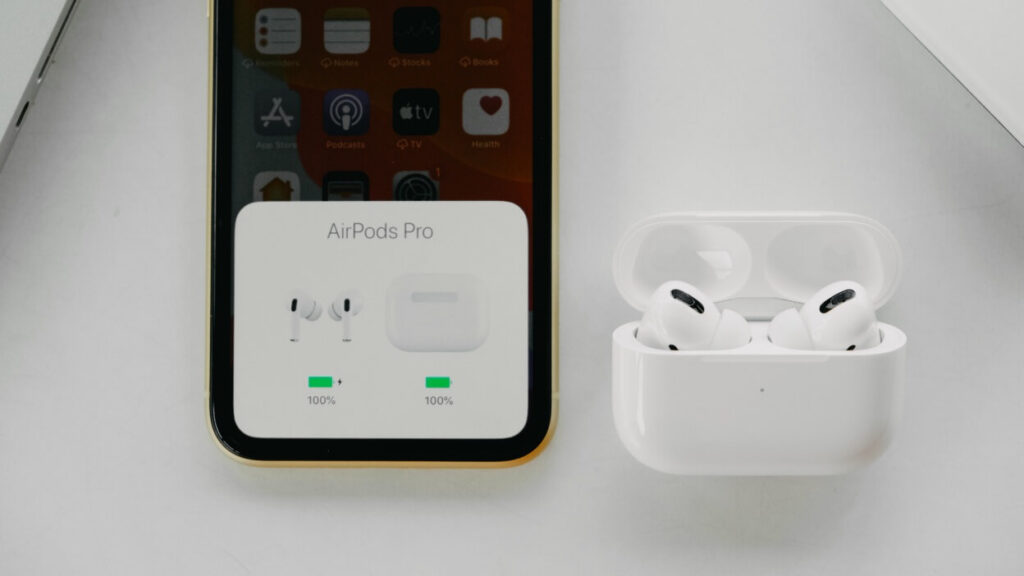
iPhone showing AirPods battery pop-up window when case is opened
Open your AirPods case near iPhone to instantly check battery status.

Pro Tip: If you have one AirPod in your ear, the card shows individual percentages for the Left and Right buds.

2. Using the iOS Batteries Widget

The pop-up card is great, but it is temporary. For a permanent view, use the Batteries Widget. This is the most professional way to track your devices.

How to Add the Battery Widget
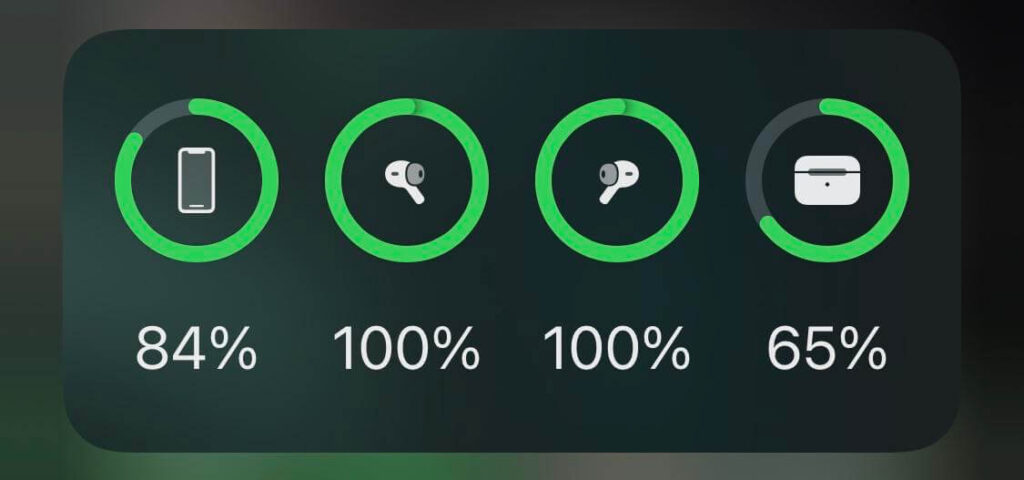
  • Long-press any empty area on your Home Screen.
  • Tap the + icon in the top-left corner.
  • Search for “Batteries.”
  • Choose from three different sizes.
  • Tap Add Widget.
iOS Batteries widget displaying AirPods and case battery level on iPhone
Add the Batteries widget to your iPhone to track AirPods battery easily.

The medium and large widgets are best. They show the exact percentage of your iPhone, Apple Watch, and AirPods simultaneously.

It is like a dashboard for your digital life.

3. Ask Siri for a Status Update

Are your hands full?
Maybe you are cooking or driving.
You can use your voice to get the info you need.

Voice Commands to Try

  • “Hey Siri, how is my AirPod battery?”
  • “Siri, what is the percentage on my AirPods?”
  • “Hey Siri, how much juice is left in my buds?”

Siri will respond with the exact percentage. This is a hands-free win for multitasking users.

4. Checking via the Control Center

If you are already using an app, you don’t need to go to the Home Screen.
You can check your battery from the Control Center.

Steps for Control Center Access

  • Swipe down from the top-right corner of your iPhone screen.
  • Tap the AirPlay icon (it looks like concentric circles with a triangle).
  • Look under the “Headphones” section.

You will see your AirPods listed with a small battery bar next to them. It is quick, subtle, and efficient.
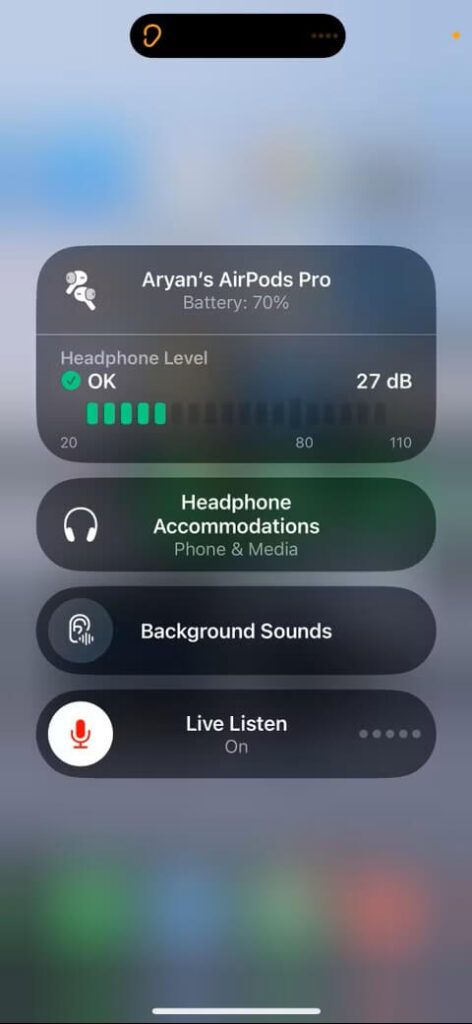
iPhone Control Center showing AirPods battery percentage
Use Control Center to quickly check AirPods battery on iPhone.

5. Using Your Settings App

For a more detailed look, the Settings app is your friend. This method works best when your AirPods are currently in your ears.

Navigating the Settings

  • Open the Settings app on your iPhone.
  • Tap on your AirPods’ name (usually near the top).
  • Scroll down to see the battery percentages.

This menu also allows you to change noise cancellation modes. It is a one-stop-shop for your audio experience.
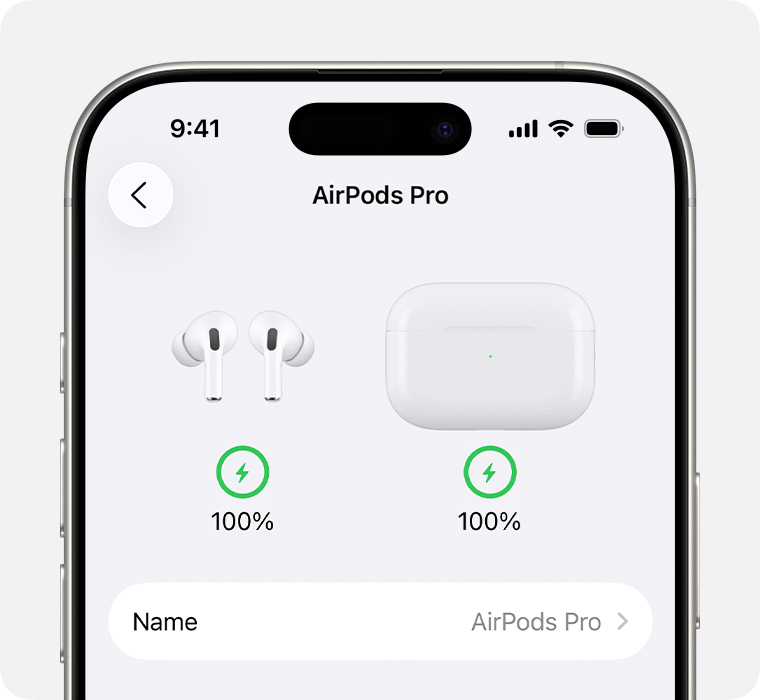
iPhone Settings app showing AirPods battery information
Find AirPods battery details inside iPhone Bluetooth settings.

6. How to Check AirPod Battery on iPhone Using the Charging Case

You can also use the charging case.

Understanding the Case Light

The LED light shows battery status.

Light ColorMeaning
GreenFully charged
AmberLow battery
No LightNeeds charging

How to Use It

  • Put AirPods inside the case
  • Open the lid near your iPhone
  • Wait for the pop-up screen
  • Check battery levels
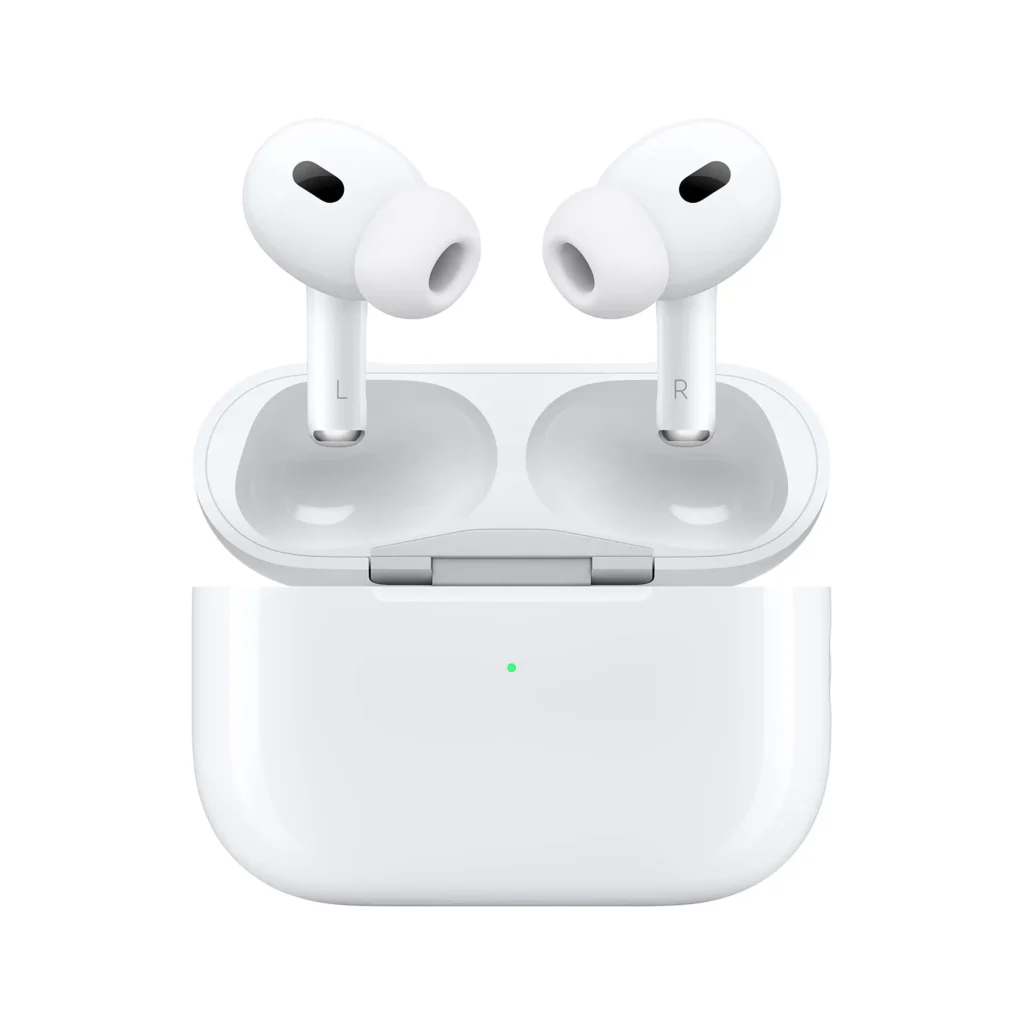
AirPods Pro in charging case showing status light to check AirPods battery on iPhone
View your AirPods battery on iPhone by opening the charging case near your device.

Best Use Case

This method works well when:

  • Your phone is locked
  • You need a quick check
  • Widgets are disabled

It is a fast way to learn how to check AirPod battery on iPhone.

AirPods vs. Other Bluetooth Buds: A Comparison

FeatureAirPods on iPhoneThird-Party Buds
Pop-up AnimationYes (Native)No
Siri IntegrationDeepLimited
Widget SupportDetailedBasic
Ease of Use10/106/10

Export to Sheets

As shown, the Apple ecosystem makes battery tracking much smoother than using competitors.

Tips for Better AirPod Battery Life

Think of your AirPods like a car.
If you redline the engine, it wears out.
Here is how to keep them healthy:

  • Avoid 0%: Try not to let them die completely.
  • Use One at a Time: If you are on a long call, use just the Left bud. Charge the Right one. Switch when needed.
  • Keep them Clean: Dirt on the charging contacts prevents a full charge.
  • Disable “Always On” Siri: This saves a small amount of power over time.
Close-up of AirPods earbuds used to check battery on iPhone
Keep your AirPods charged by checking battery regularly on iPhone.

Common Problems When Checking AirPod Battery on iPhone

Sometimes, battery levels do not appear.

Possible Reasons

  • Bluetooth is off
  • AirPods are disconnected
  • iOS is outdated
  • Battery widget removed

Quick Fixes

Try these steps:

  • Turn Bluetooth on
  • Reconnect AirPods
  • Restart iPhone
  • Update iOS
  • Re-add widget

In most cases, this solves the issue.

FAQ: Frequently Asked Questions

1. Why won’t my AirPods battery show up on my iPhone?

Make sure Bluetooth is on. Ensure your AirPods are paired correctly. Sometimes a quick “Forget Device” and re-pair fixes the glitch.

2. Can I check my AirPods battery from my Apple Watch?

Yes! Open the Control Center on your Watch. Tap the battery percentage icon. Your AirPods’ levels will appear there too.

3. How do I know if my AirPods case is charging?

When plugged in, the light on the front (or inside) will turn amber. If it is green, it is fully charged.

4. Why is one AirPod draining faster than the other?

One bud usually handles the microphone duties. You can change which bud is the “Lead” in the Settings menu.

5. Does the battery widget work on the Lock Screen?

Yes. You can add a small battery icon to your Lock Screen in iOS 16 and later.

Disclaimer: This article is for informational purposes only. Battery life varies based on usage and device age. Always refer to official Apple Support for technical hardware issues.

Ready to Level Up Your Audio Experience?

Knowing how to check your battery is just the start. If you want to master your iPhone, stay tuned for more tips.

Would you like me to create a guide on how to optimize your iPhone’s overall battery health next?

Virginia smiling face image
Virginia J. Alfonso

Virginia J. Alfonso is a seasoned technology writer with a passion for all things digital. With over a decade of experience covering the latest in tech innovation, gadgets, and software, Virginia brings a unique blend of technical expertise and accessible writing to her work. Her articles focus on making complex tech topics easy to understand for readers of all levels.


TAGGED:AirPods Battery
Share This Article
Facebook Twitter Pinterest Whatsapp Whatsapp
Previous Article 7 best insurance apps for iPhone users in USA displayed on App Store screen with bold text overlay Save Thousands with the 7 Best Insurance Apps for iPhone (2026)
Leave a comment Leave a comment

Leave a Reply Cancel reply

Your email address will not be published. Required fields are marked *

Follow Us On Social

FacebookLike
InstagramFollow
YoutubeSubscribe

Must Read

AirPods earbuds with text showing how to check AirPods battery on iPhone

AirPods Dying? Here’s How to Check Battery Percentage on iPhone

7 best insurance apps for iPhone users in USA displayed on App Store screen with bold text overlay

Save Thousands with the 7 Best Insurance Apps for iPhone (2026)

Smaller iPhone 18 Dynamic Island with sleek design and reduced notch size

iPhone 18 Dynamic Island: 35% Smaller and Packed with Upgrades

How to restart iPhone from Settings shown on tutorial banner with iPhone General menu screen

iPhone Frozen? How to Restart iPhone (iOS 26 Updated Guide)

iPhone 18 release date and features promotional banner image

Is the iPhone 18 Out Yet? – Release Date

iTunes iPhone recovery guide showing how to fix recovery mode on iPhone

iTunes iPhone Recovery: Fix Recovery Mode Now – Start Your Free Restore Today!

Apple Headlines Logo Image

Apple Headlines delivers fresh, reliable Apple news, how-to guides, and tips for every Apple user.

Topics

  • Apple Headlines
  • iOS
  • iPhone
  • Mac

Quick Links

  • Home
  • About Us
  • Privacy Policy
  • Terms of Service
  • Contact Us
Apple Headlines Logo Image

Designed By Apple Headlines

appleheadlines.com