
Imagine controlling your Apple Music library through simple conversations with ChatGPT.
The Apple Music + ChatGPT integration brings this possibility to life.
This powerful combination lets you discover songs, create playlists, and manage your music experience using natural language.
Whether you’re an iPhone, iPad, or Mac user, this guide walks you through everything you need to know.
Get ready to transform how you interact with your favorite streaming service.
Short Story on Apple & ChatGPT Integration
What Is Apple Music + ChatGPT Integration?
Understanding the Connection
Apple Music in ChatGPT represents a breakthrough in voice-controlled music management.
This integration allows ChatGPT to access and control your Apple Music account through conversation.
You can ask ChatGPT to:
Why This Integration Matters
Traditional music apps require multiple taps and swipes. The Apple Music + ChatGPT integration simplifies this process dramatically.
Here’s what makes it special:
Conversational Control: Simply tell ChatGPT what you want to hear.
Smart Recommendations: AI understands context better than traditional algorithms.
Time-Saving: No more endless scrolling through menus.
Natural Interaction: Talk to your music app like a personal DJ.
Prerequisites: What You Need
Required Accounts and Devices
Before diving into the Apple Music + ChatGPT integration, ensure you have:
System Requirements
Your device must meet these specifications:
Step-by-Step Setup Guide
Step 1: Update Your Apps
First, ensure both apps are current.
For Apple Music:
For ChatGPT:
Step 2: Enable ChatGPT Integrations
Launch the ChatGPT app on your device.
Navigate through these steps:
1. Tap the two-line menu icon (top-left corner)
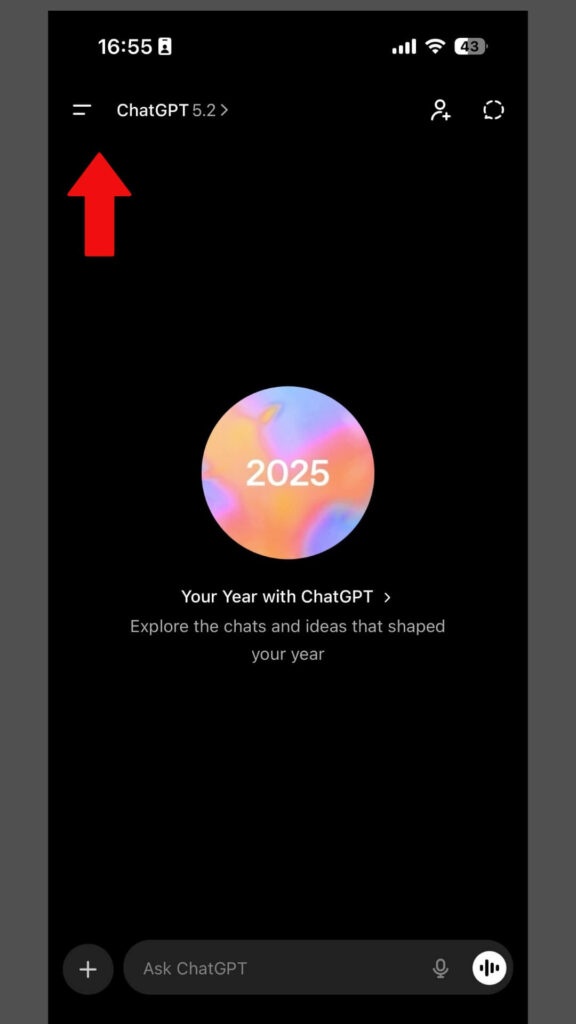
2. Tap on your profile name
“OR”
3. Select “Apps” from the menu
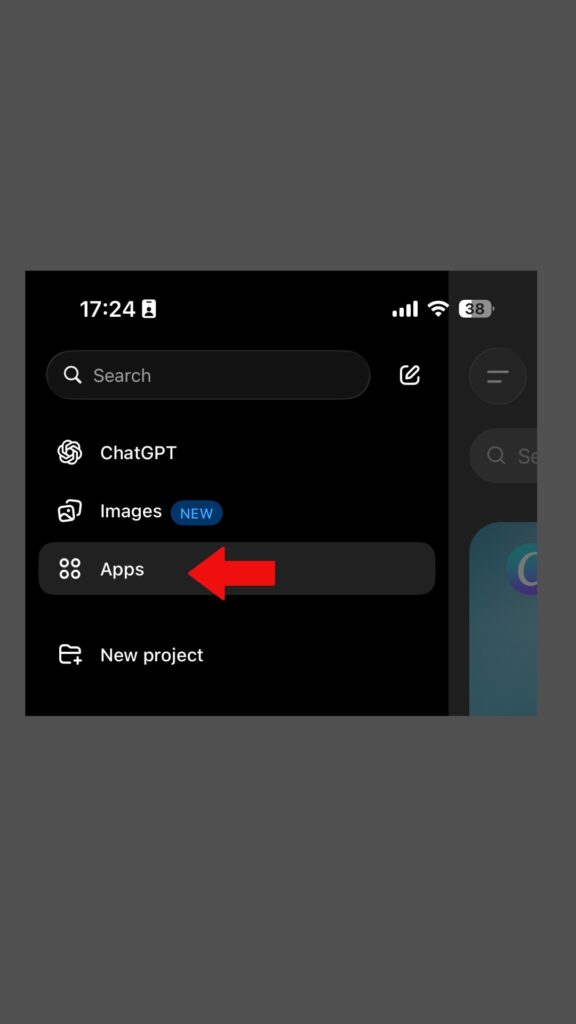
4. Choose “Browse App“
5. Look for “Apple Music” in the available services list

Step 3: Connect Your Apple Music Account
This is where the magic happens.
Authorization Process:
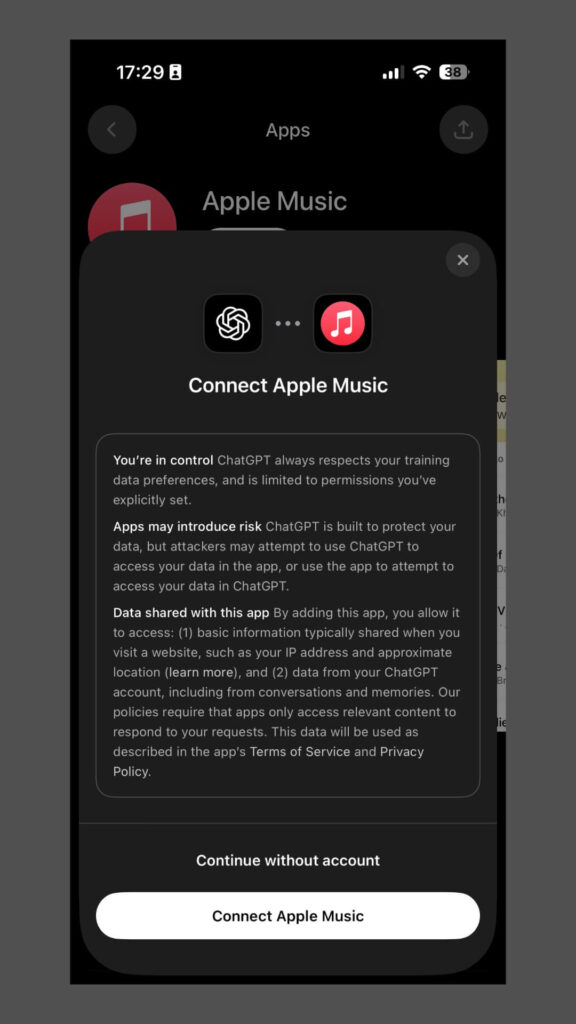
Important: ChatGPT needs permission to:
Step 4: Test the Connection
Verify everything works correctly.
Try these sample commands:
If ChatGPT responds with music-related actions, you’re all set.
How to Use Apple Music in ChatGPT
Basic Commands and Features
Once connected, your Apple Music in ChatGPT experience becomes incredibly intuitive.
Playback Control:
Discovery Commands:
Playlist Management:
Advanced ChatGPT Features
The Apple Music + ChatGPT integration offers sophisticated capabilities.
Mood-Based Playlists:
Tell ChatGPT how you feel. The AI creates perfect playlists instantly.
Example: “I’m feeling nostalgic and want something calming.”
ChatGPT analyzes your request and builds a custom playlist matching that mood.
Activity-Specific Music:
Describe your activity, not just your taste.
Try: “I need music for a dinner party with friends.”
The AI considers tempo, energy, and social context.
Smart Recommendations:
ChatGPT learns from your conversations.
Say: “I loved that last playlist. Give me something similar but with more energy.”
The AI adjusts based on your feedback.
Context-Aware Music Selection
Here’s where ChatGPT truly shines.
Time-Based Suggestions:
Morning: Energetic, uplifting tracks
Afternoon: Focus and productivity music
Evening: Relaxing, wind-down playlists
Weather Integration:
On rainy days, ChatGPT might suggest mellow acoustic songs.
Sunny weather brings upbeat, cheerful recommendations.
Personalized Discovery:
ChatGPT remembers your preferences across conversations. Each interaction makes future suggestions more accurate.
Practical Use Cases
For Fitness Enthusiasts
Transform your workout routine with Apple Music in ChatGPT.
Creating Exercise Playlists:
- “Make a 45-minute high-intensity workout playlist”
- “I need running music at 150 BPM”
- “Create a yoga session soundtrack”
ChatGPT considers tempo, energy levels, and duration automatically.
For Productivity
Boost focus with the right background music.
Work-Friendly Commands:
- “Play instrumental music for deep work”
- “I need 2 hours of concentration music”
- “Find lo-fi beats for studying”
For Social Gatherings
Become the perfect host with AI-curated playlists.
Party Planning:
- “Create a dinner party playlist with jazz and soul”
- “Make a road trip playlist for 4 hours”
- “I need kid-friendly music for a birthday party”
For Music Discovery
Expand your musical horizons effortlessly.
Exploration Commands:
- “Introduce me to French electronic music”
- “What should I listen to if I like [artist]?”
- “Find underground indie artists from 2024”



Troubleshooting Common Issues
Connection Problems
Issue: ChatGPT can’t access your Apple Music account.
Solutions:
Playback Errors
Issue: Songs won’t play or skip unexpectedly.
Quick Fixes:
- Verify your internet connection strength
- Clear ChatGPT app cache
- Sign out and back into Apple Music
- Check if songs are available in your region
Playlist Creation Failures
Issue: ChatGPT creates empty or incorrect playlists.
Troubleshooting Steps:
- Be more specific in your requests
- Check playlist privacy settings
- Verify library sync is enabled
- Allow up to 30 seconds for playlist generation
Privacy and Security Considerations
What Data Gets Shared?
Understanding the Apple Music + ChatGPT integration’s data practices is crucial.
Information ChatGPT Accesses:
- Your music library and playlists
- Listening history and preferences
- Recently played tracks
- Saved albums and artists
What Remains Private:
- Your Apple ID password
- Payment information
- Personal contacts
- Photos and documents
Managing Permissions
You control what ChatGPT can access.
To Adjust Permissions:
- Open iPhone Settings
- Scroll to Privacy & Security
- Select Apple Music
- Find ChatGPT in the app list
- Toggle permissions on or off
Best Practices:
- Review permissions quarterly
- Revoke access if unused for months
- Use strong passwords for both accounts
- Enable two-factor authentication
Tips for Optimal Experience
Be Specific with Requests
Vague commands yield random results. Specificity improves accuracy.
Instead of: “Play music” Try: “Play upbeat pop songs from 2023”
Instead of: “Make a playlist” Try: “Create a 30-minute playlist with acoustic singer-songwriter tracks”
Use Natural Language
Don’t overthink your commands. Talk naturally.
ChatGPT understands conversational requests like:
- “I’m in the mood for something chill”
- “What should I listen to while cooking dinner?”
- “Play that song that goes ‘la la la’ from the 80s”
Provide Feedback
Help ChatGPT learn your preferences faster.
After recommendations, say:
- “That was perfect, more like this”
- “Too mellow, something more energetic”
- “Not quite right, I prefer older songs”
Explore Voice Commands
If your device supports it, use voice with ChatGPT.
This hands-free approach works great while:
- Driving
- Exercising
- Cooking
- Working with your hands
Limitations to Know
Current Restrictions
The Apple Music in ChatGPT feature has some boundaries.
What You Can’t Do (Yet):
- Download songs for offline listening through ChatGPT
- Share playlists directly via chat
- Adjust audio quality settings
- Access Apple Music Radio stations
- View song lyrics within ChatGPT
Regional Availability
This integration may vary by location.
Check if your country supports:
- ChatGPT Plus subscriptions
- Apple Music streaming services
- Integration features
Most features work in the United States, Canada, UK, and Australia.
Subscription Requirements
Both services require active subscriptions.
Cost Breakdown:
- Apple Music: $10.99/month (Individual)
- ChatGPT Plus: $20/month
- Total: Approximately $31/month
Student and family plans offer savings.
Future Possibilities
Upcoming Features
The Apple Music + ChatGPT integration continues evolving.
Potential Additions:
- Collaborative playlist creation with multiple users
- Integration with Apple Music Classical
- Enhanced lyrics display and analysis
- Spatial Audio recommendations
- Concert ticket purchasing through ChatGPT
AI Music Evolution
Expect smarter recommendations as AI improves.
Future capabilities might include:
- Emotion detection from voice tone
- Real-time playlist adaptation
- Multi-service music integration
- Predictive queue building
Frequently Asked Questions
Q1: Does the Apple Music + ChatGPT integration work on Android devices?
No, this integration currently works only on Apple devices. You need an iPhone, iPad, or Mac running compatible operating systems. Android users cannot access this specific integration yet.
Q2: Will using ChatGPT with Apple Music drain my battery faster?
The integration uses minimal additional battery power. Background music streaming already consumes battery. Adding ChatGPT commands doesn’t significantly increase drainage. Close unused apps for optimal battery performance.
Q3: Can ChatGPT control Apple Music on my HomePod or other speakers?
Yes, but with limitations. ChatGPT can send playback commands to AirPlay-enabled devices. Your iPhone or iPad must remain nearby and connected. Direct HomePod control without an iOS device isn’t currently supported.
Q4: What happens if my Apple Music subscription expires?
ChatGPT loses access to streaming features immediately. You can still use ChatGPT for music recommendations. However, playback and playlist creation won’t work until you renew your subscription.
Q5: Is my listening history shared with OpenAI when using this integration?
OpenAI may access basic music data to improve ChatGPT’s recommendations. Detailed listening history remains primarily with Apple. Review both companies’ privacy policies for specifics. You can limit data sharing through privacy settings.
Disclaimer
This guide provides general information about Apple Music + ChatGPT integration. Features and availability may change without notice. Always verify compatibility with your specific devices and software versions. Subscription costs and requirements are subject to change by Apple and OpenAI. We are not affiliated with Apple Inc. or OpenAI. For technical support, contact official Apple or ChatGPT customer service channels. Results and user experiences may vary based on individual circumstances and preferences.
Ready to Transform Your Music Experience?
The Apple Music in ChatGPT integration represents the future of music interaction. Stop scrolling through endless menus and start talking to your music library.
Take action now:
What playlist will you create first?
Start exploring and share your experience with other Apple device owners!

Virginia J. Alfonso is a seasoned technology writer with a passion for all things digital. With over a decade of experience covering the latest in tech innovation, gadgets, and software, Virginia brings a unique blend of technical expertise and accessible writing to her work. Her articles focus on making complex tech topics easy to understand for readers of all levels.