



Wondering if your Apple device is still covered?
An AppleCare warranty check takes just minutes and can save you hundreds of dollars in repair costs.
Whether you bought your iPhone yesterday or years ago, knowing your warranty status helps you make smart decisions about repairs and upgrades.
This guide shows you exactly how to verify your AppleCare coverage using your device’s serial number.
Short Notes
What Is AppleCare and Why Check Your Warranty?
AppleCare is Apple’s extended warranty and support program. It goes beyond the standard one-year limited warranty that comes with every Apple product.
Types of AppleCare Coverage
- Standard Limited Warranty: Covers manufacturing defects for one year
- AppleCare+: Extends coverage to 2-3 years with accidental damage protection
- AppleCare+ with Theft and Loss: Adds protection if your device is stolen or lost
Checking your warranty status matters for several reasons.
First, it tells you if repairs will be free or costly.
Second, it helps you decide whether to buy AppleCare+ before the purchase window closes.


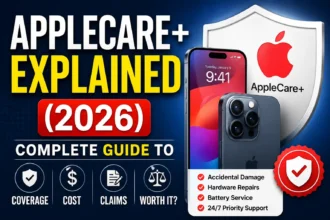
Third, it confirms coverage before selling or buying a used device.
Consider this scenario:
Your iPhone screen cracks.
With AppleCare+, you pay just $29 for repair.
Without it?
That’s $279 out of pocket.
See why checking matters?
How to Do an AppleCare Warranty Check by Serial Number
The fastest way to verify coverage is through Apple’s official warranty checker. Here’s your step-by-step process.
Method 1: Use Apple’s Coverage Check Website
This method works for all Apple devices. It takes less than 30 seconds. You don’t need to sign in or create an account.
Method 2: Check Through Your Apple Device Settings
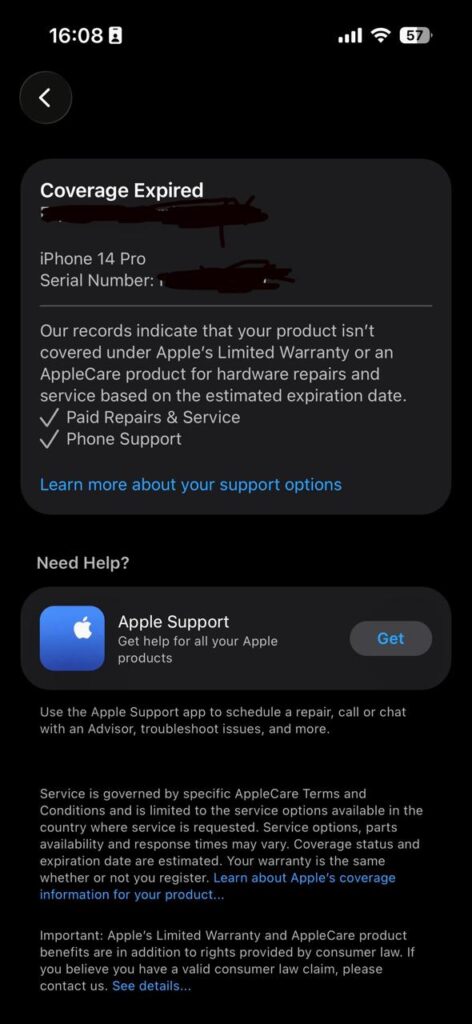
For iPhone or iPad:
For Mac:
This method shows coverage directly on your device. It’s perfect when you’re checking your own Apple product.
Method 3: Use the Apple Support App
The Apple Support app provides warranty information with extra features.
The app stores your device information. You can check warranty status anytime, even offline.
Finding Your Device Serial Number
You need your serial number for an applecare warranty check by serial. Here’s where to locate it.
iPhone and iPad Serial Numbers
- Check Settings > General > About
- Look on the original box near the barcode
- Find it on the SIM tray (older models)
- View it in iTunes when connected to a computer
Mac Serial Numbers
- Click Apple menu > About This Mac
- Check the bottom of your MacBook
- Look on the original packaging
- Find it in System Preferences
Apple Watch Serial Numbers
- Open the Watch app on your iPhone
- Tap My Watch > General > About
- Check the back of the watch casing
- Review the original box
Write down your serial number. You’ll use it for warranty checks and support requests.
Understanding Your AppleCare Warranty Check Status
When you complete an applecare warranty check status search, you’ll see several coverage types.
Active Coverage Indicators
“Your product is covered” means:
Limited or Expired Coverage
“Your coverage has expired” indicates:
Purchase Date Verification
Sometimes Apple shows “Purchase date not validated.” This happens with:
Contact Apple Support to verify and update your purchase date. Bring your receipt as proof.
Common AppleCare Warranty Check Questions
What Shows Up During a Warranty Check?
Your warranty status page displays important information:
This information helps you plan repairs and budget accordingly.
How Long Does Standard Apple Warranty Last?
Apple’s standard limited warranty covers your device for one year from purchase date. Technical support is complimentary for 90 days.
AppleCare+ extends this to:
- 2 years for most devices
- 3 years for Macs and displays
- Monthly or annual payment options available
Can I Check Warranty on a Used Apple Device?
Yes! An applecare warranty check by serial works on any Apple device. This is crucial when buying used products.
Before purchasing a secondhand device:
Never buy without checking first. Scammers often lie about warranty coverage.
Why Your AppleCare Warranty Check Matters
Understanding your coverage prevents expensive surprises. Here’s what warranty knowledge helps you do.
Make Informed Repair Decisions
Covered devices get free repairs for manufacturing defects. Out-of-warranty repairs cost significantly more. Knowing your status helps you budget correctly.
For example, a MacBook battery replacement costs $199 without coverage. With AppleCare+, it’s completely free when battery health drops below 80%.
Decide on AppleCare+ Purchase
You have a limited window to buy AppleCare+ after device purchase:
- 60 days for most products when purchased at an Apple Store
- 30 days for online purchases (may vary by country)
Checking warranty status shows if you’re still eligible. Don’t miss this window if you want extended protection.
Verify Coverage Before Travel
Traveling internationally with Apple devices? Check your warranty first. AppleCare provides worldwide coverage. Your device gets service at any authorized Apple location globally.
This matters for business travelers and digital nomads. Your warranty travels with you.
Troubleshooting AppleCare Warranty Check Issues
Sometimes warranty checks don’t work smoothly. Here are solutions to common problems.
Serial Number Not Recognized
If Apple’s system doesn’t recognize your serial number:
Coverage Date Doesn’t Match
Purchase dates sometimes appear incorrect. This happens when:
Provide proof of purchase to Apple Support. They’ll update records to reflect your actual purchase date.
Website Shows Error Message
Technical issues occasionally prevent warranty checks:
The system usually resolves itself quickly.
Maximizing Your AppleCare Coverage
Once you’ve completed your applecare warranty check status review, use your coverage wisely.
Schedule Repairs Before Expiration
Don’t wait until the last minute. If you notice issues:
Transfer Coverage When Selling
AppleCare+ transfers to new owners. This increases resale value significantly. When selling:
Buyers pay more for devices with remaining AppleCare coverage.
Keep Coverage Documents
Save important warranty information:
These documents help with warranty claims and resale.
Frequently Asked Questions
Q: How often should I check my AppleCare warranty status? A: Check before scheduling repairs, when considering AppleCare+ purchase, and before buying or selling devices. Most people check 2-3 times during device ownership.
Q: Can I check AppleCare warranty without the serial number? A: No, you need the serial number or IMEI to verify coverage. These numbers uniquely identify your specific device in Apple’s system.
Q: Does checking warranty status affect my coverage? A: No, checking warranty status doesn’t impact your coverage or support options. You can check as many times as needed.
Q: What if my device shows no coverage but I have AppleCare+? A: Contact Apple Support immediately with your AppleCare+ purchase confirmation. System errors occasionally prevent proper display, but your coverage remains valid.
Q: Can I extend my warranty after it expires? A: No, once standard warranty expires, you cannot add AppleCare+. You must purchase it within the initial eligibility window (typically 60 days).
Take Action Now
Don’t wait until you need a repair to check your warranty.
Visit checkcoverage.apple.com right now and verify your Apple device coverage.
It takes just 30 seconds and could save you hundreds of dollars. Know your warranty status before you need it!
Disclaimer
This article provides general information about AppleCare warranty checking for educational purposes only.
Warranty terms, coverage periods, and policies may vary by country, product, and purchase date.
Always verify current warranty details directly with Apple or authorized service providers.
We are not affiliated with Apple Inc. and do not provide official Apple support services.
For specific questions about your device coverage, contact Apple Support directly.

Virginia J. Alfonso is a seasoned technology writer with a passion for all things digital. With over a decade of experience covering the latest in tech innovation, gadgets, and software, Virginia brings a unique blend of technical expertise and accessible writing to her work. Her articles focus on making complex tech topics easy to understand for readers of all levels.