



Taking the perfect selfie or group photo just got easier.
The iPhone camera timer lets you snap photos without holding your device.
Whether you’re an Apple enthusiast or a casual iPhone user, mastering this feature transforms your photography game.
This guide walks you through every step, explores the latest iOS features, and answers your burning questions about iPhone camera timers.
Story in Short:
What Is the iPhone Camera Timer?
The iPhone camera timer is a built-in feature that delays photo capture.
Instead of pressing the shutter button immediately, you can set a 3-second, 5-second or 10-second countdown.
This gives you time to position yourself, adjust your pose, or include everyone in a group shot.
Think of it as your personal photographer.


You set up the shot, hit the timer, and rush into position. No more awkward arm stretches or half-cut faces in photos.
Why Use a Camera Timer?
- Better group photos: Everyone fits in the frame perfectly
- Stable shots: Eliminates camera shake from pressing the button
- Professional selfies: Time to pose naturally without holding your phone
- Creative angles: Set up your iPhone anywhere for unique perspectives
- Hands-free convenience: Multitask while capturing memories
How to Set Timer on iPhone Camera: Step-by-Step Guide
Setting up your iPhone camera timer takes less than 10 seconds. Follow these simple steps:
For Standard Photo Mode
1. Open the Camera app on your iPhone
2. Look at the top of the screen (or side in landscape mode)
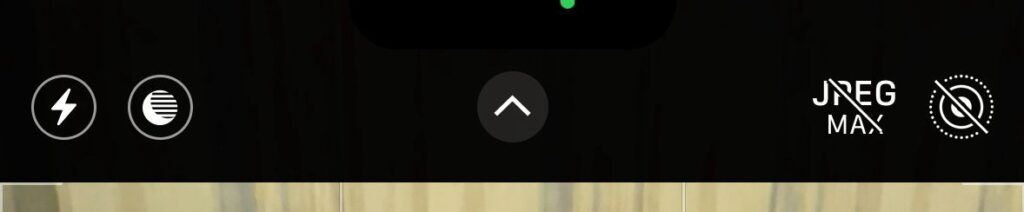
3. Tap the timer icon (looks like a clock or stopwatch)
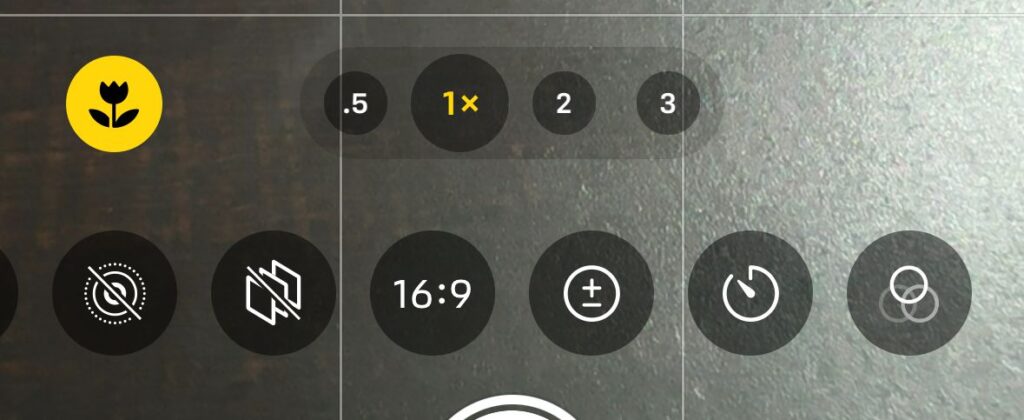
4. Choose your delay: Select either 3 seconds, 5 seconds or 10 seconds
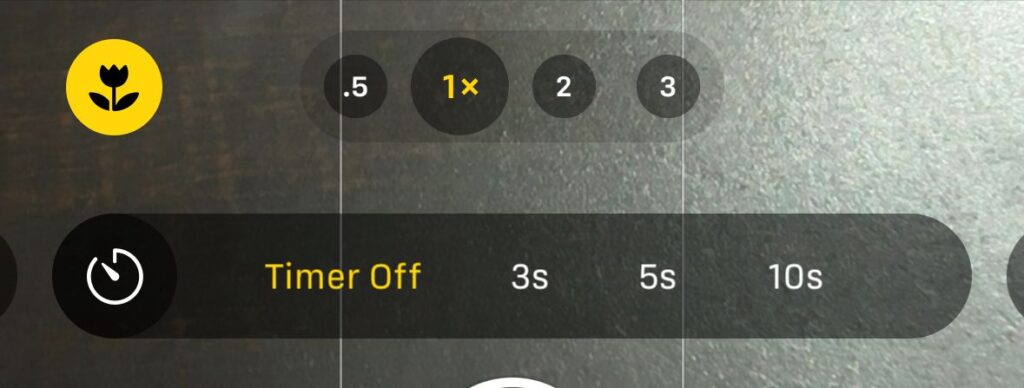
5. Frame your shot and position your iPhone
6. Press the shutter button (the white circle)
7. Get into position before the countdown ends
The camera will flash the countdown on your screen.
You’ll hear a beeping sound as the timer counts down.
When the timer reaches zero, your iPhone captures multiple burst shots automatically.
For Portrait Mode Timer
Portrait mode works identically to standard photo mode:
1. Swipe to Portrait mode in the Camera app
2. Tap the timer icon at the top
3. Select 3, 5 or 10 seconds
4. Frame your subject with proper depth effect
5. Press the shutter button and pose
The timer gives you time to perfect that blurred background look.
Professional portraits become effortless when you’re not rushing.
For Night Mode Timer
Night mode automatically extends exposure time for low-light photography.
The timer helps prevent camera shake during these longer exposures:
- Enter a low-light environment (Night mode activates automatically)
- Tap the timer icon
- Choose your delay time
- Place your iPhone on a stable surface
- Hit the shutter button and stay still
Night mode combined with a timer produces crystal-clear low-light photos.
No tripod?
Use a stack of books or lean your iPhone against a wall.
Understanding Your Timer Options
3-Second Timer: Quick Setup
The 3-second timer works perfectly for:
- Quick selfies when you’ve already posed
- Reducing camera shake on handheld shots
- Time-sensitive moments where you need to capture fast
This shorter delay minimizes waiting time. You get sharp images without the blur from pressing buttons.
10-Second Timer: Maximum Flexibility
The 10-second timer shines when you need:
- Time to run into a group photo
- Distance setup for full-body shots
- Creative positioning in challenging locations
- Multiple people to arrange themselves
Ten seconds feels like forever, but it’s necessary for complex setups. Running across a room takes time.
Youtube Video Demonstration of Camera Timer
For iOS 26;
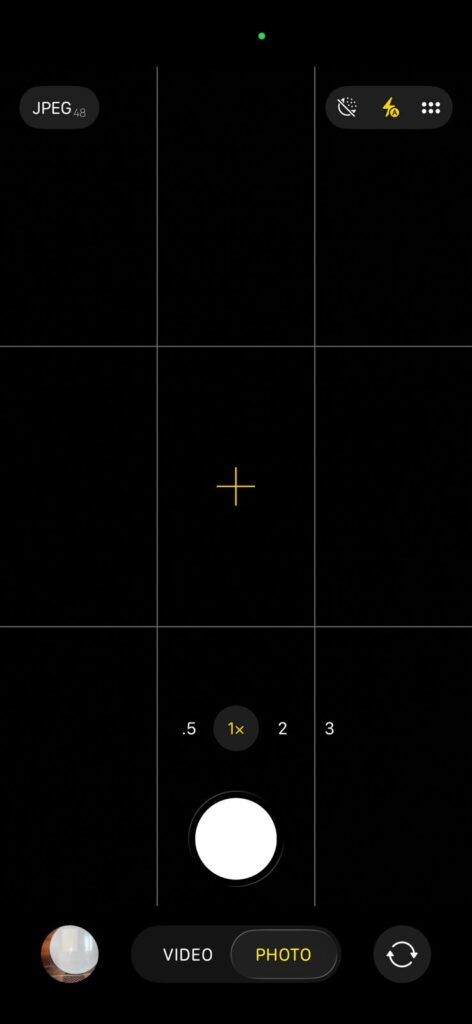
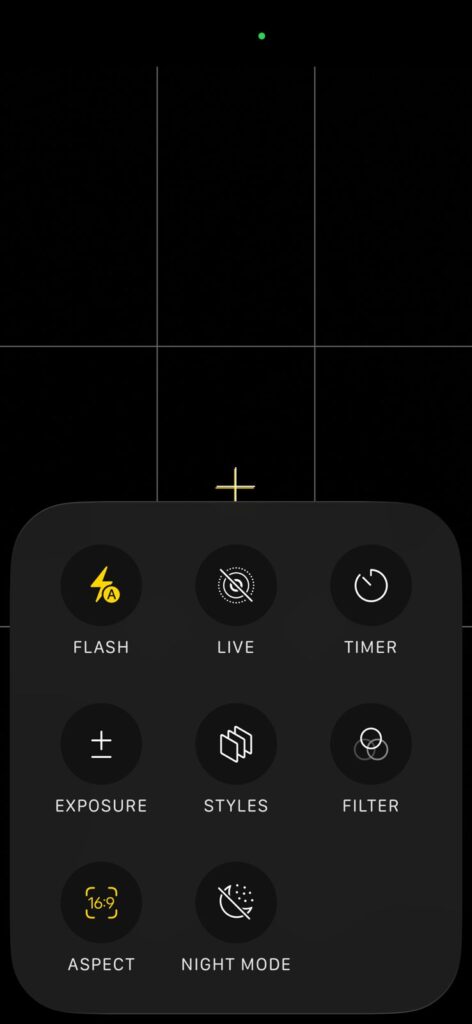
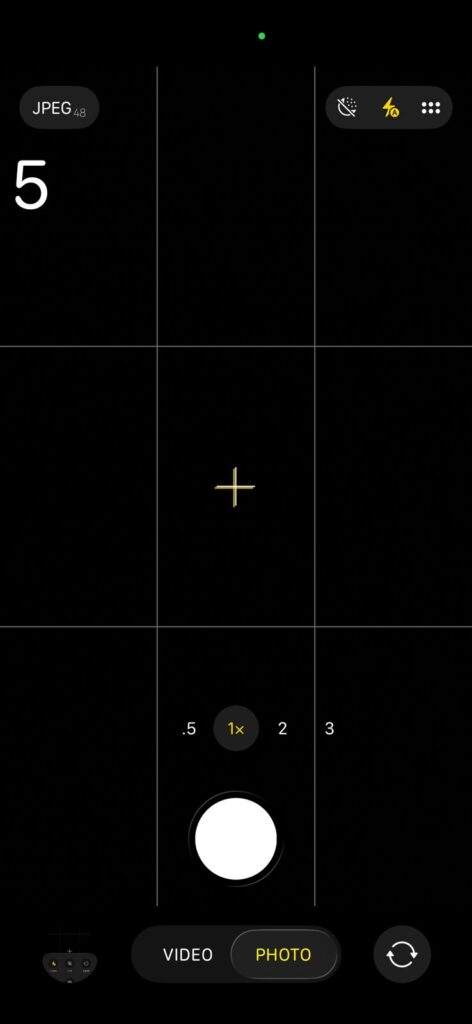
What’s New in iOS 26.3 Beta Features
Apple continuously improves the Camera app with each iOS update. Update ios 26
The iOS 26.3 beta introduces exciting enhancements:
iOS 26.3 Beta 1 Features
The iOS 26.3 beta 1 rolled out several camera improvements:
- Enhanced timer interface with larger icons
- Improved countdown visibility in bright sunlight
- Better burst shot selection after timer photos
- Smoother integration with all camera modes
26.3 Beta Features Worth Noting
Additional features in the 26.3 beta include:
- Refined timer animations for clearer countdowns
- Extended compatibility with third-party camera apps
- Battery optimization for timer-based photography
- Accessibility improvements for timer controls
iOS 26.3 Beta 1 Battery Life
Early adopters report mixed experiences with iOS 26.3 beta 1 battery life. Camera features, including the timer, show minimal battery impact. The overall system optimization continues improving with each beta release.
iOS 26.3 Beta Changes and Download
The iOS 26.3 beta changes focus on stability and user experience. To access the iOS 26.3 beta download, you’ll need enrollment in Apple’s Beta Software Program. Remember that beta software may contain bugs.
Note: Beta versions are for testing purposes. Install on secondary devices when possible.
Pro Tips for Using iPhone Camera Timer
Tip 1: Use Live Photo with Timer
Enable Live Photos while using the timer. You’ll capture moments before and after the shutter click. This gives you multiple options to choose from.
Tip 2: Stabilize Your iPhone Properly
Place your iPhone on a stable surface or invest in a small tripod. Kitchen counters, shelves, and car dashboards work in a pinch. Stability equals sharper photos.
Tip 3: Use the Volume Button Alternative
You can press either volume button instead of the on-screen shutter. This works great when your iPhone is positioned far away or at odd angles.
Tip 4: Set Up Remote Triggers
Pair your Apple Watch to trigger your iPhone camera remotely. This combines perfectly with the timer for ultimate flexibility.
Tip 5: Practice Your Timing
Run through a practice shot before the real thing. Ten seconds feels different than you’d expect. Know exactly how long it takes to get into position.
Troubleshooting Common Timer Issues
Timer Option Not Showing
If you can’t find the timer icon:
- Update to the latest iOS version
- Restart your iPhone completely
- Check if you’re in the correct camera mode
- Ensure you haven’t disabled camera features in Screen Time
Timer Not Working Properly
When your timer malfunctions:
- Close and reopen the Camera app
- Check your storage space (full storage affects camera functions)
- Reset camera settings in Settings > Camera > Preserve Settings
- Contact Apple Support for persistent hardware issues
Timer Countdown Too Fast or Slow
The timer countdown should be accurate. If it feels off:
- Check your iPhone’s system time settings
- Ensure iOS is fully updated
- Restart your device to reset system processes
Comparing iPhone Timer to Other Methods
Timer vs. Burst Mode
Burst mode captures multiple photos rapidly without delay. The timer includes an automatic burst after the countdown. You get the best of both worlds.
Timer vs. Apple Watch Remote
Apple Watch provides ultimate control over when photos are taken. The timer requires pre-planning but doesn’t need another device.
Timer vs. Bluetooth Remote
Third-party Bluetooth remotes offer precision control. They cost extra money but provide professional-level triggering options.
Frequently Asked Questions
Q1: Can I customize the timer duration beyond 3 or 10 seconds?
No, Apple currently limits timer options to 3 and 10 seconds. Third-party camera apps may offer custom durations if you need specific timing.
Q2: Does using the camera timer drain my iPhone battery faster?
The timer itself has negligible battery impact. The camera function consumes battery, but the timer adds no additional drain compared to immediate photo capture.
Q3: Will the timer work with all iPhone models?
Yes, the camera timer functions on all iPhone models running iOS 8 and later. Older devices may have slightly different interface layouts but maintain core functionality.
Q4: Can I use the timer for video recording?
No, the timer feature only works for still photos. Video recording starts immediately when you press record, regardless of timer settings.
Q5: How do I turn off the camera timer once activated?
Simply tap the timer icon again and select “Off” or wait until you take a photo. The timer resets between Camera app sessions.
Disclaimer
This article provides general guidance on using iPhone camera timer features. iOS versions and features may vary by device model and region. Beta software, including iOS 26.3 beta versions, may contain bugs and should be installed with caution. We recommend backing up your device before installing beta releases. Apple’s official support documentation provides the most current and device-specific information. Individual experiences with iOS 26.3 beta 1 battery life and performance may vary. Always download iOS updates from official Apple sources only.
Ready to Capture Perfect Photos?
Now that you know how to set timer on iPhone camera, it’s time to put your knowledge into action. Open your Camera app and experiment with different timer settings. Try both 3-second and 10-second options to see which works best for your photography style.
Share your best timer-captured photos with friends and family. Show them how easy it is to get everyone in the frame without leaving anyone out.
Want more iPhone photography tips?
Subscribe to our newsletter for weekly guides, iOS update breakdowns, and exclusive camera tricks that transform your iPhone into a professional photography tool.

T’kal is the lead strategist and developer behind Apple Headlines. With a background in digital marketing and web development, he specializes in technical Apple troubleshooting, software news, and hardware rumors. T’kal focuses on delivering high-authority tech content that bridges the gap between Apple enthusiasts and the latest industry innovations.