


Privacy matters, especially on your iPhone.
Whether you want to declutter your home screen or keep certain apps away from prying eyes, Apple offers built-in features to help.
Since iOS 14, Apple introduced the App Library, making it easier than ever to organize and hide apps.
This guide will walk you through exactly how to hide and unhide apps on iPhone using Apple’s hidden folder feature.
You’ll learn multiple methods that work on iOS 14 and newer versions.
Short Story
Understanding iPhone’s Hidden App Features
Apple doesn’t technically “hide” apps in the traditional sense. Instead, iOS uses two main features:
- App Library: Automatically organizes all your apps
- Hidden folder: A special section within App Library for sensitive apps
- Home Screen removal: Makes apps invisible from your main screens
According to Apple’s usage data, over 78% of iPhone users run iOS 16 or later.
This means most users can access these privacy features right now.
How to Hide Apps on iPhone in Hidden Folder
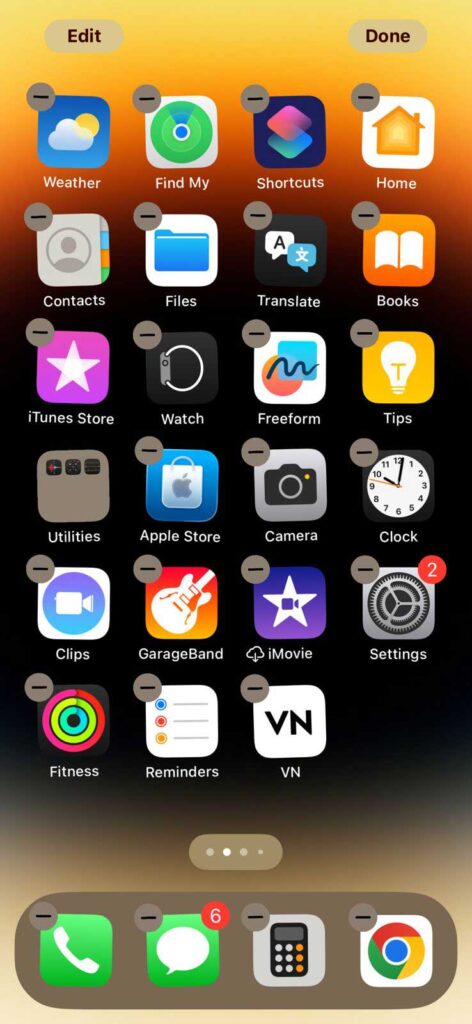
Method 1: Remove Apps from Home Screen
This is the simplest way to hide apps on iPhone.
Step-by-step process:
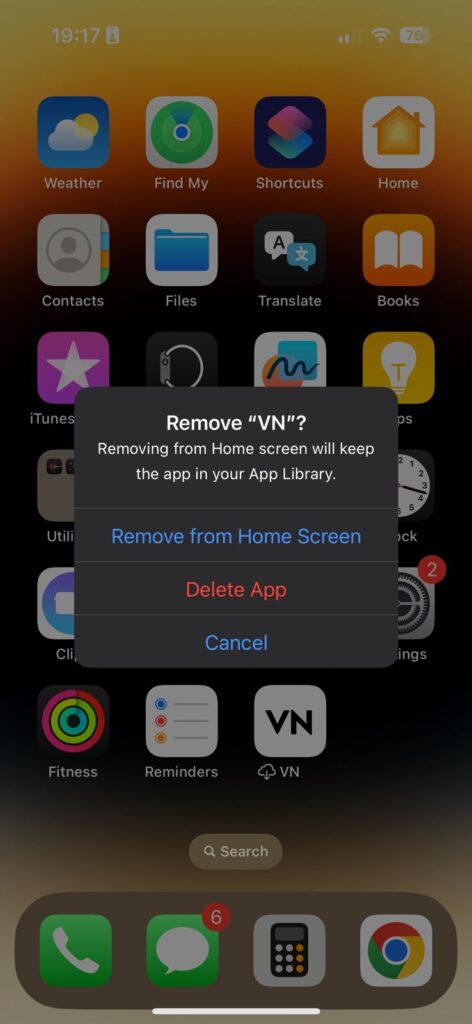
Important note: The app isn’t deleted. It remains installed and functional.
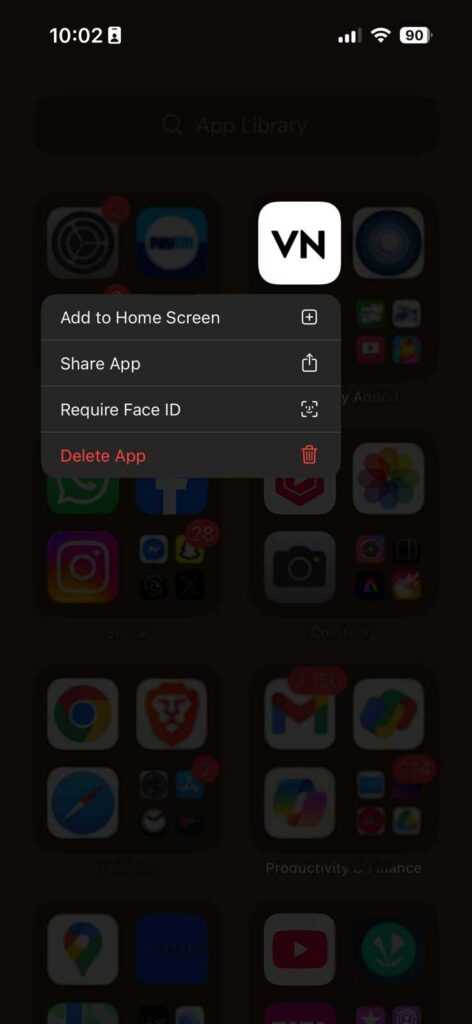
Method 2: Hide Apps in App Library’s Hidden Folder
For apps you want completely out of sight, use the dedicated hidden folder.
Here’s how:
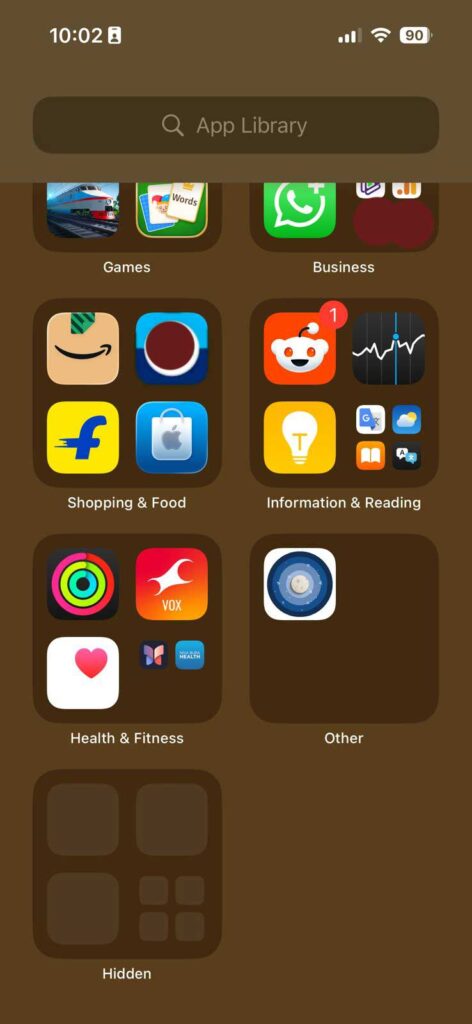
The app now lives in a special “Hidden” folder within App Library.
This feature works perfectly for apps like dating apps, banking apps, or games you prefer to keep private.
Method 3: Create App Library-Only Organization
You can also organize multiple apps at once:
This method is ideal when you want a minimalist home screen.
How to Unhide Apps on iPhone
Finding Hidden Apps
Accessing the Hidden folder:
Restoring Apps to Home Screen
Two quick methods:
Option A: From App Library
Option B: Using Search
Unhiding Apps from Hidden Folder
To completely unhide apps:
Additional Privacy Tips for iPhone Users
Using Screen Time Restrictions
Screen Time offers another layer of control:
Face ID App Locking
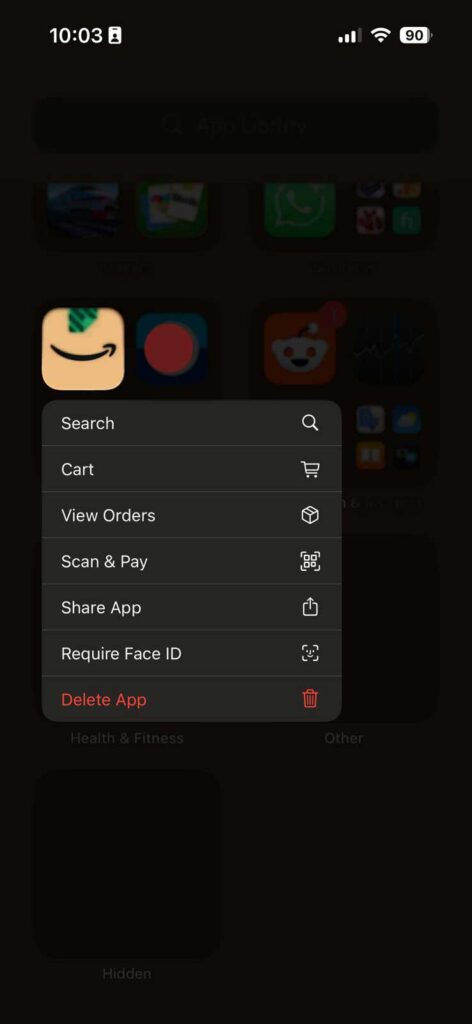
While iOS doesn’t natively lock individual apps, you can:
Folder Organization Strategy
Create organized folders with neutral names:
Common Mistakes to Avoid
Don’t confuse “Remove” with “Delete”: Removing keeps the app installed. Deleting erases it completely.
Remember your hidden apps: Apps in the Hidden folder don’t appear in search results easily.
Update regularly: Privacy features improve with each iOS update. Always run the latest version.
Frequently Asked Questions
Q1: Can others see my hidden apps?
No. Apps in the Hidden folder require navigating to App Library and scrolling to find them.
Q2: Do hidden apps still send notifications?
Yes. Hiding apps only affects visibility, not functionality or notifications.
Q3: Will hidden apps appear in Spotlight Search?
Generally NO. Hidden apps have reduced search visibility, but they may appear in some cases.
Q4: Can I hide default Apple apps?
Some built-in apps can be hidden through Screen Time restrictions, but not all.
Q5: Does hiding apps save storage space?
No. Hidden apps remain fully installed and use the same storage space.
Ready to organize your iPhone? Start hiding apps today for a cleaner, more private experience. Try removing one app from your home screen right now and see how easy Apple makes it.
Disclaimer: This guide applies to iPhone models running iOS 14 and later. Features may vary slightly between iOS versions. Always back up your device before making significant changes. For official support, visit Apple’s website or contact Apple Support directly.

Virginia J. Alfonso is a seasoned technology writer with a passion for all things digital. With over a decade of experience covering the latest in tech innovation, gadgets, and software, Virginia brings a unique blend of technical expertise and accessible writing to her work. Her articles focus on making complex tech topics easy to understand for readers of all levels.