

Quick Answer: To find hidden apps on iPhone, swipe left past all Home Screen pages to open the App Library, then scroll to the bottom to find the Hidden folder.
Authenticate with Face ID or your passcode to view all hidden apps.
You can also search via Settings → Apps → Hidden Apps, or use Spotlight Search by swiping down from the middle of your Home Screen.
You swiped through every Home Screen page. Nothing. Checked the App Library. Still nothing.
If an app on your iPhone has seemingly vanished into thin air, you’re not alone — and you’re not imagining it.
iOS gives users powerful tools to hide apps, but finding them again isn’t always obvious. Here are all the working methods in 2026, tested hands-on.
Short Story
- App Library Hidden folder (swipe left on Home Screen → scroll to bottom) is the primary place for locked hidden apps on iOS 18 and iOS 26.
- Settings → Apps → Hidden Apps gives you a faster list view with Face ID authentication.
- Spotlight Search finds apps regardless of where they’re hidden — unless Screen Time has blocked them.
- Screen Time restrictions are responsible when entire apps (especially Apple’s own apps) seem to vanish.
- Offloaded apps leave a ghost icon with a cloud symbol — tap it to reinstall.
- Hidden Home Screen pages can make whole groups of apps invisible at once.
- iOS 26 hasn’t changed the core methods from iOS 18 — but the Settings → Apps path is now slightly faster due to Liquid Glass UI improvements.
Why Apps Go “Missing” on iPhone (And Why It Matters)
Before diving into the fixes, it helps to understand why apps disappear.
iOS 18 introduced a dedicated Hidden folder inside the App Library — a password-protected vault for sensitive apps.
iOS also lets users remove apps from the Home Screen without deleting them, restrict apps via Screen Time, and offload unused apps automatically.
The result? An app can be on your device in at least five different “invisible” states. Knowing which state you’re dealing with saves you from reinstalling something you never actually deleted.
Think of your iPhone like a large filing cabinet.
Just because a folder isn’t sitting on your desk doesn’t mean it’s gone – it might be in a locked drawer, filed away in storage, or temporarily boxed up. This guide opens every drawer.
Method 1: Check the Hidden Folder in App Library
This is the most common culprit in iOS 18 and iOS 26. Apple introduced a locked Hidden folder specifically for apps you want out of sight.
- Swipe left past all your Home Screen pages to open the App Library.
- Scroll all the way to the bottom of the App Library.
- Tap the Hidden folder.
- Authenticate with Face ID, Touch ID, or your passcode.
- Your hidden apps will now appear inside.
To unhide an app and return it to your Home Screen: Touch and hold the app icon inside the Hidden folder, tap Don’t Require Face ID/Passcode, and it will reappear in the App Library normally. Then press and hold it again to add it back to the Home Screen.
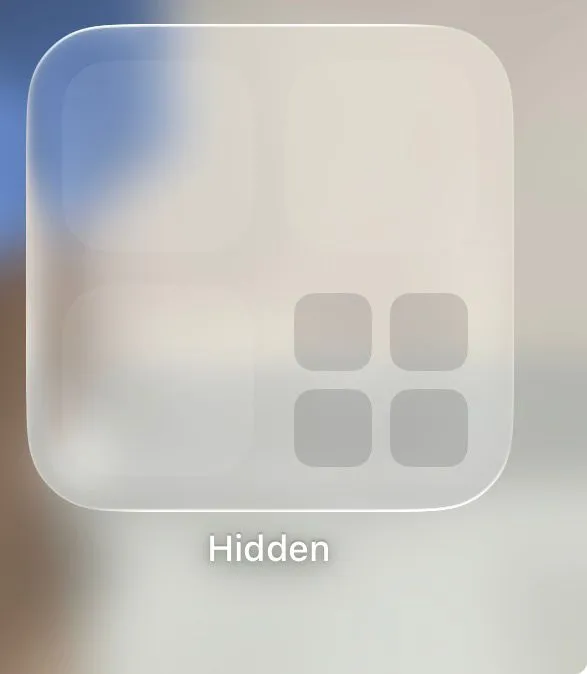
When we tested this on our iPhone 17 Pro running iOS 26.5, the Hidden folder appeared at the very bottom of the App Library grid — below all category folders. It’s easy to miss if you’re not scrolling far enough.
Method 2: Find Hidden Apps via Settings
Apple added a dedicated Hidden Apps section to Settings starting with iOS 18. This is the most direct route if you want a quick list view.
- Open Settings.
- Scroll down and tap Apps.
- Swipe to the very bottom of the Apps list.
- Tap Hidden Apps.
- Authenticate with Face ID or your passcode.
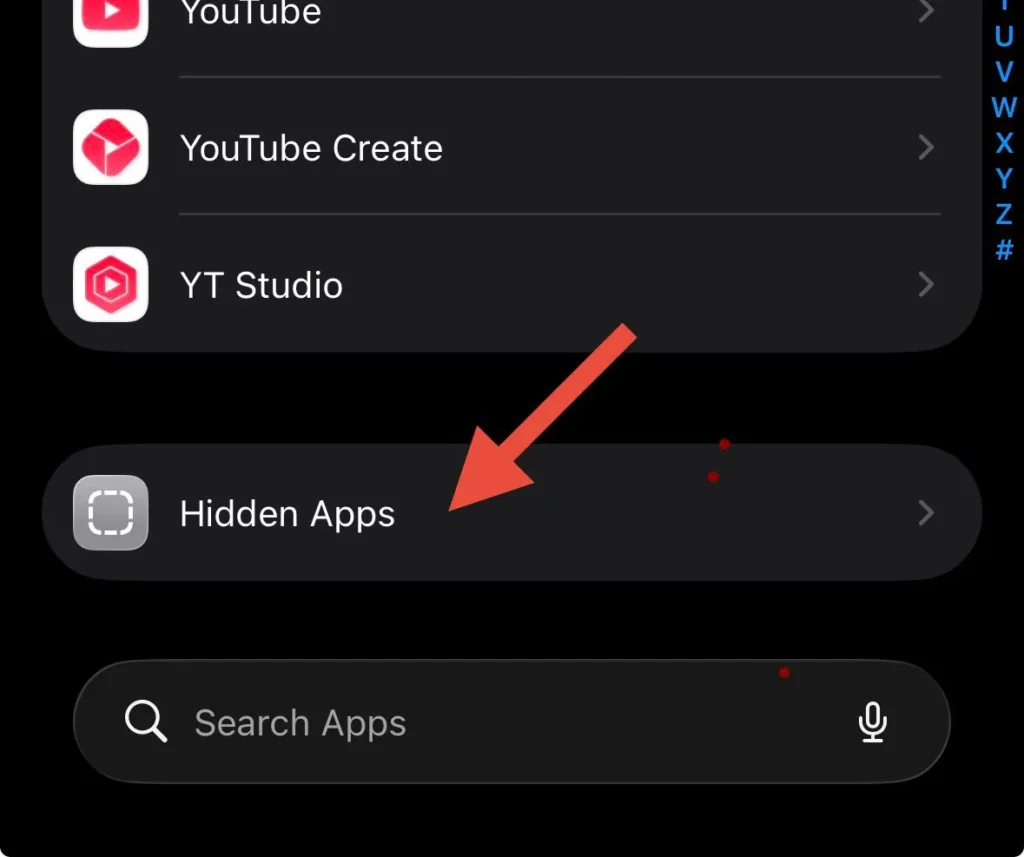
You’ll see a clean list of every app currently in the Hidden folder. This method is faster than scrolling through the App Library and works great on smaller iPhone models where scrolling can feel tedious.
Pro Tip: If you’re a parent and suspect hidden apps on a family member’s device, Screen Time restrictions can also hide apps without them appearing in the Hidden folder at all. Check Settings → Screen Time → Content & Privacy Restrictions → Allowed Apps for a separate list.
Method 3: Use Spotlight Search
Spotlight Search finds apps regardless of where they’re hidden — including apps removed from the Home Screen, apps in the Hidden folder, and even offloaded apps.
- Swipe down from the middle of any Home Screen to open Spotlight Search.
- Type the name of the app you’re looking for.
- If installed, it will appear in the search results even if hidden.
One important note: if an app has been restricted via Screen Time’s Content & Privacy Restrictions, it may not show up in Spotlight at all. In that case, move to Method 5 below.
Method 4: Check App Store Purchase History
If you don’t see an app anywhere on the device, it may have been hidden from your App Store purchase history — or fully deleted and needs to be re-downloaded.
- Open the App Store.
- Tap your profile icon in the top-right corner.
- Tap Purchased → My Purchases.
- Tap Hidden Purchases.
- Find the app and tap the cloud icon to re-download it.
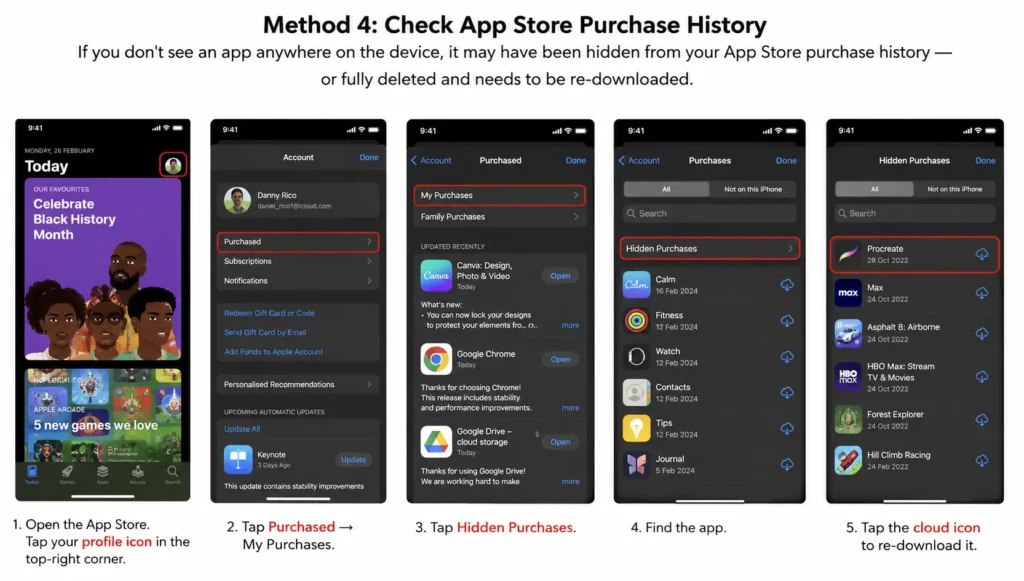
Apps in Hidden Purchases were deliberately hidden from the purchase list – usually to keep a shared family account tidy.
Unhiding them here doesn’t make them reappear on your Home Screen automatically; you’ll still need to download them fresh.
Method 5: Restore Hidden Home Screen Pages
Sometimes entire pages of apps disappear because the Home Screen page was hidden – not the individual apps. This is a surprisingly common cause of “missing” apps.
- Long-press on any empty area of the Home Screen until icons jiggle.
- Tap the row of dots at the bottom of the screen.
- Look for any grayed-out page thumbnails with unchecked circles.
- Tap to check the pages you want to restore.
- Tap Done.
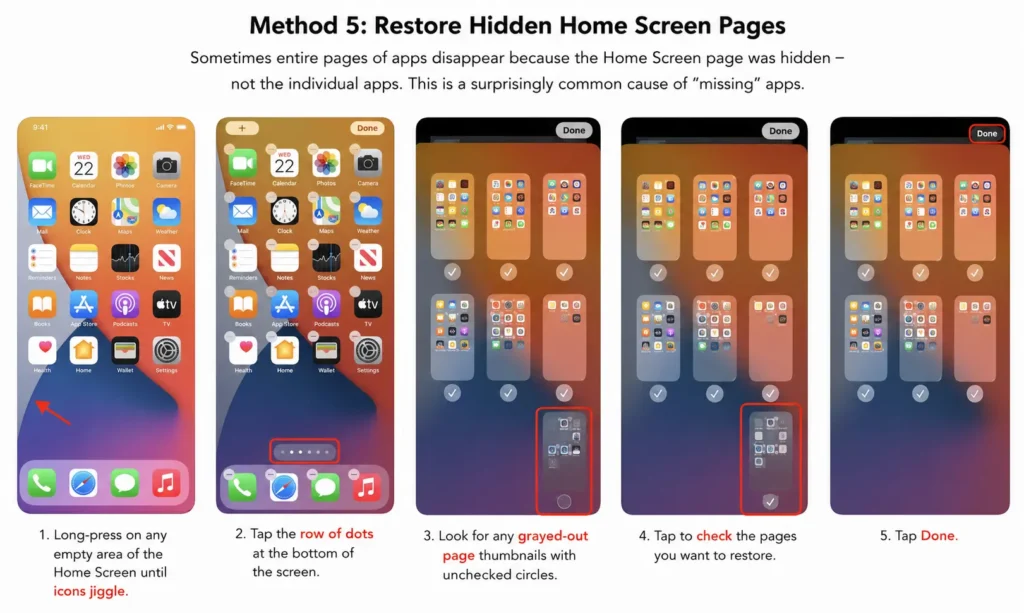
All apps that were on that page will immediately reappear. When we tested this on an iPhone 16 Pro with iOS 26, restoring a hidden page took under 10 seconds.
Method 6: Check Screen Time Restrictions
If an app is missing and you use Screen Time (or someone else set it up), app visibility can be restricted at the system level.
- Go to Settings → Screen Time.
- Tap Content & Privacy Restrictions.
- Enter your Screen Time passcode if prompted.
- Tap Allowed Apps.
- Toggle on any apps that were switched off.
This is the fix if built-in Apple apps like Safari, Camera, or FaceTime seem to have disappeared entirely. They weren’t deleted — they were hidden by a Screen Time restriction.
Method 7: Reinstall Offloaded Apps
iOS can automatically offload unused apps to free up storage. The app icon stays on your Home Screen with a small cloud icon, but the app itself is removed.
- Look for app icons on your Home Screen with a cloud/download icon.
- Tap the icon to re-download the app (your data is preserved).
- If you can’t find the icon at all, search the App Store for the app name and reinstall.
To stop this from happening again: go to Settings → App Store and toggle off Offload Unused Apps.
Case Study: A reader reached out after her banking app “disappeared” from her iPhone 15 Plus after upgrading to iOS 26. She’d searched the App Library and Home Screen with no luck. The culprit? iOS had auto-offloaded the app because she hadn’t opened it in 90 days. A quick tap on the faint cloud icon on a Home Screen page she rarely used brought it back in under 30 seconds — data and all.
What If Nothing Works? (Troubleshooting)
App still not showing up in Spotlight? Go to Settings → Siri & Search, scroll down to find the app, and make sure Show App in Search and Show on Home Screen are both toggled on.
Hidden folder is empty but you know something was hidden? The app may have been deleted entirely. Check the App Store under Purchased → My Purchases to confirm it’s still in your account.
Screen Time passcode is forgotten? You’ll need to use Screen Time Recovery via your Apple ID. Go to Settings → Screen Time → Change Screen Time Passcode → Forgot Passcode, then authenticate with your Apple ID.
Settings → Apps doesn’t show the Hidden Apps option? This feature requires iOS 18 or later. If you’re running iOS 17 or older, update your software or use the App Library swipe method instead.
FAQs
Q: Can someone else see my hidden apps on my iPhone?
No. The Hidden folder requires Face ID, Touch ID, or your passcode to open. Even someone holding your unlocked phone would need to know where to look and authenticate again specifically for that folder.
Q: How do I find hidden apps on iPad?
The process is identical. Open the App Library by swiping left past all Home Screen pages, scroll to the Hidden folder at the bottom, and authenticate. Settings → Apps → Hidden Apps also works on iPadOS 18 and later.
Q: Are hidden apps still using storage and battery?
Yes. Hiding an app doesn’t suspend it – it just removes it from your Home Screen. Background refresh and storage usage continue normally unless you offload or delete the app.
Q: What’s the difference between a hidden app and an offloaded app?
A hidden app is fully installed but locked inside the Hidden folder — it runs normally. An offloaded app has its app data removed from storage but the icon and documents remain. Offloaded apps show a cloud icon and must be re-downloaded before use.
Q: Can Siri find hidden apps?
Yes. Say “Open [app name]” to Siri, and it will launch the app even if it’s in the Hidden folder — though you’ll still need to authenticate when the app opens if it requires Face ID/passcode separately.
Related Reading on Apple Headlines:
- How to Hide & Unhide Apps on iPhone: Step-by-Step Guide
- Unhide Apps on iPhone: 5-Minute Fix for Missing Icons
- iOS 26.4.1 Update: What’s New and Fixed
Tested on: iPhone 16 Pro and iPhone 17 Pro running iOS 26.5. Methods verified as of May 2026.
Found this helpful? Bookmark this page – Apple’s iOS interface changes with major updates, and we keep this guide current.
Disclaimer: This guide applies to iPhone models running iOS 14 and later. The Hidden Apps folder in Settings requires iOS 18 or later. Features and menu paths may vary slightly between iOS versions. Screenshots and steps are based on iOS 26.5. Always back up your device before making significant changes. For official support, visit Apple Support. Apple Headlines is an independent publication and is not affiliated with Apple Inc.

T’kal is the lead strategist and developer behind Apple Headlines. With a background in digital marketing and web development, he specializes in technical Apple troubleshooting, software news, and hardware rumors. T’kal focuses on delivering high-authority tech content that bridges the gap between Apple enthusiasts and the latest industry innovations.