



Missed a job call. Slept through a family emergency.
Got stuck in Do Not Disturb mode and had no idea why.
If any of this sounds familiar, you’re not alone — and you’re in the right place.
This guide covers every method to turn off Do Not Disturb on iPhone, including the sneaky reasons it keeps turning itself back on, with steps tailored for every model from the iPhone 11 to the brand-new iPhone 17.
Short Story
What Is Do Not Disturb — and Why Does It Get Stuck On?
Do Not Disturb (DND) is part of Apple’s Focus system, introduced in iOS 15.
It silences calls, alerts, and notifications so you can concentrate or sleep without interruptions. When active, a crescent moon icon appears in your iPhone’s status bar and on the Lock Screen.
Here’s the thing most guides don’t tell you: DND doesn’t always turn on because you switched it on.
Apple has layered in multiple automation triggers — scheduled times, linked Lock Screen wallpapers, location-based rules, and even Apple Intelligence on newer models. That’s why simply tapping the moon icon once doesn’t always fix the problem.

Think of Do Not Disturb like a hotel “Do Not Disturb” door hanger. You can physically take it off the handle, but if housekeeping has a standing order to put it back every night at 10 PM, it’ll just keep reappearing.
This guide shows you how to remove the hanger and cancel the standing order.
How to Tell If Do Not Disturb Is Currently On
Before diving into the fixes, confirm DND is actually the issue:
- Look at the top of your Home Screen or Lock Screen for a crescent moon 🌙 icon.
- Open Control Center — if the Focus button shows a moon symbol or says “Do Not Disturb,” it’s active.
- Check your status bar — a moon icon in the upper-right corner confirms DND is on.
On iPhone 16 and iPhone 17, Apple Intelligence may show a smarter Focus indicator that adapts based on your activity. More on that below.
Method 1: Turn Off Do Not Disturb Using Control Center (Fastest Method)
This is the quickest way to disable Do Not Disturb on any iPhone.
It takes under five seconds.
iPhone X, 11, 12, 13, 14, 15, 16, and 17 (Face ID models):
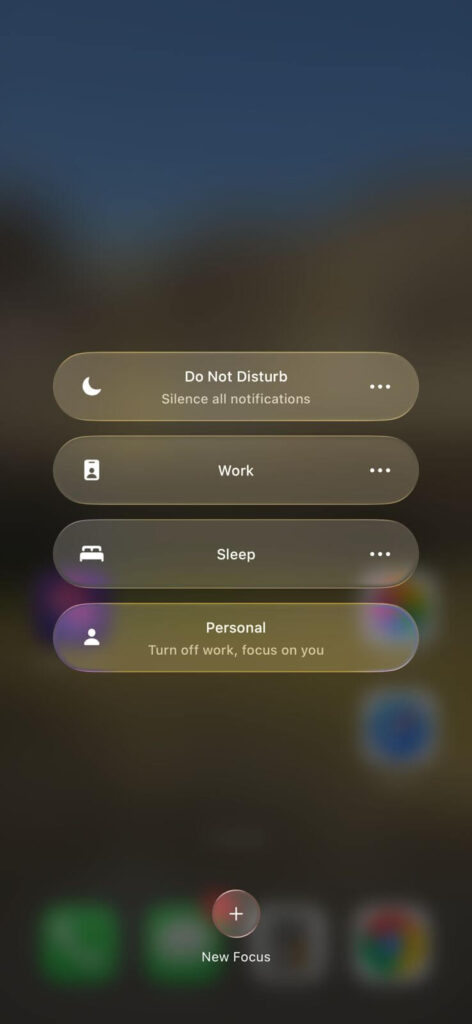
iPhone SE (all generations), iPhone 8, and earlier (Touch ID models):
Pro Tip: In iOS 18 and later (available on iPhone 11 and up), the Control Center has a dedicated Focus tile. Long-pressing it gives you a quick menu to switch between all your Focus modes — including Work, Personal, Sleep, and Do Not Disturb — without opening Settings at all.
Method 2: Turn Off Do Not Disturb From the Lock Screen
You don’t even need to unlock your iPhone.
This method works on iOS 16 and later.(if you have set it on camera or torch icon)
This is especially useful if your iPhone is sitting on a desk and you just want to quickly flip DND off without picking it up.
Method 3: Turn Off Do Not Disturb via Settings (Most Reliable Method)
If the Control Center toggle doesn’t stick or DND keeps coming back, go directly to Settings.
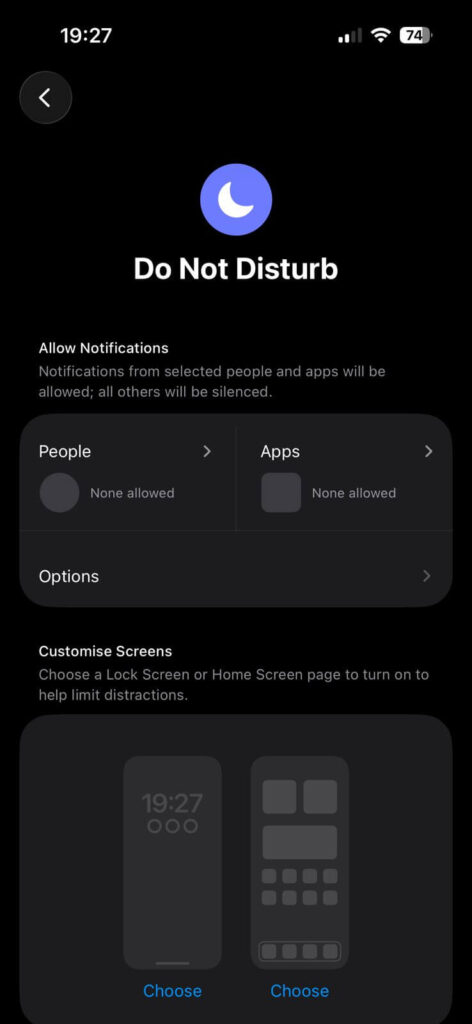
This method is the most reliable because it gives you full visibility into whether DND is truly disabled — and it’s the starting point for fixing the deeper problem of DND turning on automatically.
Method 4: Ask Siri to Turn Off Do Not Disturb
If your hands are full or you’re driving, Siri is your fastest friend.
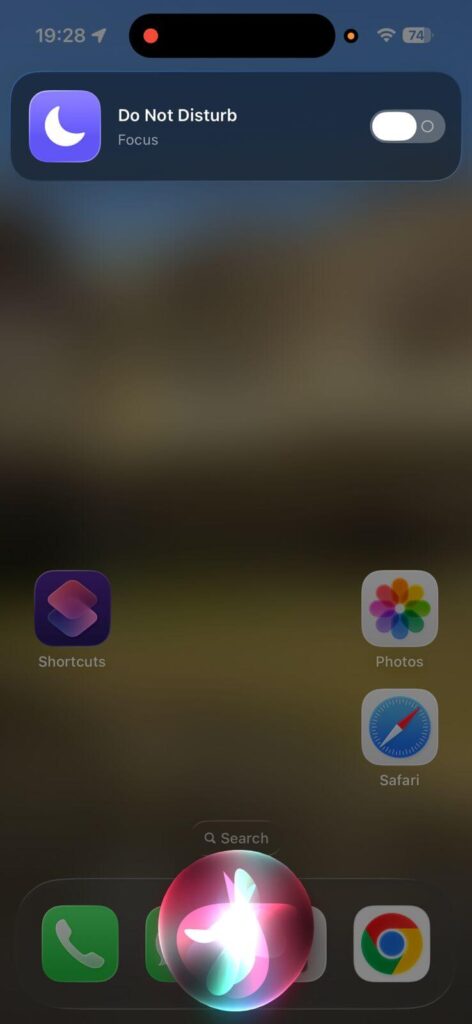
You can also say “Turn off Focus” and Siri will disable whatever active Focus mode is running. This works on all iPhones with Siri enabled, including iPhone 11, 12, 13, 14, 15, 16, and 17.
Model-Specific Quick Reference
Not sure which steps apply to your iPhone? Here’s a fast cheat sheet:
| iPhone Model | Open Control Center | Turn Off DND |
|---|---|---|
| iPhone 17 | Swipe down from top-right | Tap Focus → Do Not Disturb |
| iPhone 16 / 16 Pro | Swipe down from top-right | Tap Focus → Do Not Disturb |
| iPhone 15 / 15 Pro | Swipe down from top-right | Tap Focus → Do Not Disturb |
| iPhone 14 / 14 Pro | Swipe down from top-right | Tap Focus → Do Not Disturb |
| iPhone 13 / 13 Pro | Swipe down from top-right | Tap Focus → Do Not Disturb |
| iPhone 12 / 12 Pro | Swipe down from top-right | Tap Focus → Do Not Disturb |
| iPhone 11 / 11 Pro | Swipe down from top-right | Tap Focus → Do Not Disturb |
| iPhone SE (2nd/3rd gen) | Swipe up from bottom | Tap moon icon or Focus button |
| iPhone 8 and earlier | Swipe up from bottom | Tap moon icon |
Why Does Do Not Disturb Keep Turning Itself Back On?
This is the question most guides skip — and it’s the most important one. If you’ve already turned off DND and it keeps coming back, one of these three things is happening:
1. You Have an Automatic Schedule Set
Apple lets you schedule DND to activate at specific times — for example, every night from 10 PM to 7 AM.
To disable it:
2. Your Lock Screen Wallpaper Is Linked to DND
This is a sneaky one. In iOS 16 and later, you can link a Focus mode to a specific Lock Screen wallpaper. Every time you swipe to that wallpaper, DND turns on automatically.
To break the link:
3. Smart/Intelligent Activation Is On
On iPhone 15 Pro, 16, and 17, Apple Intelligence can activate Focus modes based on context — your location, calendar events, or usage patterns. This is called Intelligent Breakthrough & Silencing in iOS 18.1 and later.
To turn it off:
The Nurse Who Missed Three Calls
A reader from Chicago — a pediatric nurse — reached out after her iPhone 13 missed three calls from the hospital while she was off-duty and on call.
She had turned DND off manually before going to sleep, but it turned back on every night at 11 PM because she had set a bedtime schedule months earlier and completely forgotten about it.
The fix took 30 seconds: Settings → Focus → Do Not Disturb → Set A Schedule → toggle off the 11 PM schedule. No missed calls since.
This is exactly why understanding the why behind DND matters as much as the quick toggle.
What Happens to Other Apple Devices When You Turn Off DND?
If you have Share Across Devices enabled in your Focus settings, turning off Do Not Disturb on your iPhone will also turn it off on your:
- iPad (signed into the same Apple ID)
- Mac
- Apple Watch
This is a helpful feature — but it can also work against you. If you turned DND on your Apple Watch and then can’t figure out why your iPhone is silenced, this is likely why. Check that your Watch isn’t pushing a Focus state to your phone.
To manage this, go to Settings → Focus and tap “Share Across Devices” to toggle syncing on or off.
Can’t Turn Off Do Not Disturb on iPhone? Troubleshooting Guide
If none of the standard methods are working, here’s how to dig deeper.
Problem: The Moon Icon Won’t Go Away
Solution: This usually means a wallpaper is linked to DND (see Method above), or a schedule is reactivating it. Go to Settings → Focus → Do Not Disturb and check both the schedule and wallpaper settings. Also look under “Turn On Automatically” for any location-based triggers.
Problem: DND Turns On When I Open Certain Apps
Solution: Some apps, like Calendar or Maps, can trigger a Focus mode via Focus Filters. Go to Settings → Focus → Do Not Disturb → Focus Filters and remove any app filters that may be activating DND.
Problem: I See a Moon Icon But DND Shows as Off
Solution: This can happen when another Focus mode (like Sleep or Work) is active and displaying a moon-like icon. Go to Settings → Focus and check if any other Focus mode is currently on. Disable it.
Problem: Notifications Still Aren’t Coming Through After Turning Off DND
Solution: DND is off, but another setting is blocking your alerts. Check:
- Settings → Notifications — make sure notifications are enabled for the specific app.
- Settings → Screen Time — Downtime can silence notifications independently of DND.
- Per-app notification settings — Some apps have their own notification controls.
Problem: iPhone 16 / 17 with Apple Intelligence Keeps Silencing Notifications
Solution: Turn off “Intelligent Breakthrough & Silencing” under Settings → Focus → Do Not Disturb. Apple Intelligence learns your habits, and if it’s decided your notifications aren’t “important,” it may suppress them even with DND off.
Do Not Disturb vs. Silent Mode: What’s the Difference?
A lot of users confuse Do Not Disturb with the Ring/Silent switch on the side of their iPhone (or the Action Button on iPhone 15 Pro and newer).
Here’s the key difference, explained simply:
- Silent Mode (Ring/Silent switch flipped down): Your iPhone won’t ring or play alert sounds — but it will still show notifications on your screen and deliver them to apps.
- Do Not Disturb / Focus: Your iPhone blocks notifications entirely — no sounds, no banners, no lock screen alerts — except from contacts or apps you specifically allow.
If your phone is on Silent but you’re still seeing notifications pop up, that’s normal. If you want to stop all notification banners entirely, that’s what DND does.
Expert Insight: The Hidden Power of Allowed Contacts in DND
Most users flip DND on and off like a light switch. But the real power move is setting it up so you never have to turn it off for important people. In Settings → Focus → Do Not Disturb → Allow Notifications, you can add specific contacts whose calls and messages always break through — family members, your boss, emergency contacts. Once configured, you can leave DND on at night permanently and never miss a critical call again. This is how power users actually use Focus.
Frequently Asked Questions
A: A persistent moon icon usually means either a DND schedule is running, a Lock Screen wallpaper is linked to Do Not Disturb, or Smart/Intelligent Activation is on. Go to Settings → Focus → Do Not Disturb and check all three sections: the main toggle, “Customize Screens,” and “Turn On Automatically.”
A: Swipe down from the top-right corner to open Control Center, tap the Focus button (it may show a moon icon), then tap “Do Not Disturb” to toggle it off. On iPhone 16 and 17, also check Settings → Focus → Do Not Disturb → toggle off “Intelligent Breakthrough & Silencing” if DND keeps reactivating.
A: Go to Settings → Focus → Do Not Disturb → scroll to “Turn On Automatically.” Disable or delete any active schedules, Smart Activation triggers, or location-based rules listed there.
A: Yes — if “Share Across Devices” is enabled in your Focus settings, turning off DND on your iPhone will also turn it off on your Apple Watch, iPad, and Mac signed into the same Apple ID.
A: Yes. On iOS 16 and later, tap the “Do Not Disturb” label on your Lock Screen, then tap it again in the Focus menu that appears. No passcode needed.
Ready to Take Full Control of Your Notifications?
Now that you know exactly how to turn off Do Not Disturb on iPhone — and why it keeps coming back — take two minutes to audit your Focus settings. Go to Settings → Focus → Do Not Disturb and review your schedules, wallpaper links, and allowed contacts. A few smart tweaks now will save you from missed calls and silenced messages for years to come.
Bookmark this page for the next time your iPhone goes quiet when it shouldn’t.
Have a question about a specific iPhone model or iOS version not covered here? Drop it in the comments and we’ll update this guide.
Disclaimer: The steps and screenshots in this article are based on iOS 18.x and iOS 26 (beta) running on iPhone models 11 through 17 as of 2026. Apple’s interface and menu names may change in future iOS updates. AppleHeadlines.com is an independent publication and is not affiliated with, endorsed by, or sponsored by Apple Inc. Feature availability may vary by device model, iOS version, and region. Always refer to Apple’s official support documentation at support.apple.com for the most current instructions.

Virginia J. Alfonso is a seasoned technology writer with a passion for all things digital. With over a decade of experience covering the latest in tech innovation, gadgets, and software, Virginia brings a unique blend of technical expertise and accessible writing to her work. Her articles focus on making complex tech topics easy to understand for readers of all levels.