
By using this site, you agree to the Privacy Policy and Terms of Use.
Accept
Apple Headlines Logo Image Apple Headline's White Logo
  • 🔥 Trending:
  • iOS
  • iPadOS
  • Apple Tech
  • iPhone
  • iOS
  • Reader’s Space
  • Mac
  • Contact Us
Reading: Apple Shortcuts App Explained: How to Create, Customize, and Delete iPhone Automations
Apple HeadlinesApple Headlines
Font ResizerAa
  • iPhone
  • iOS
  • Reader’s Space
  • Mac
  • Contact Us
Search
  • iPhone
  • iOS
  • Reader’s Space
  • Mac
  • Contact Us

Must Read

Apple Shortcuts explained thumbnail with woman pointing at Shortcuts app icon and text about iPhone automations

Apple Shortcuts App Explained: How to Create, Customize, and Delete iPhone Automations

Dual camera setup on iPhone 17 showing wide and ultra-wide lenses

Dual Camera iPhone 17 Explained Simply: Specs, Features, and Why It Rocks

How to share location on iPhone using Apple Maps with pinned location and map preview

How to Share Location on iPhone

iPhone displaying iOS 18.7.5 update screen with features, fixes, and performance guide text.

iOS 18.7.5 Update: Features, Fixes, and Performance Guide

iOS 26.3 RC update graphic showing privacy, performance, and cross-platform features on a black background.

Apple Rolls Out iOS 26.3 RC: Privacy, Performance, and Cross-Platform Updates

Follow US
© Apple Headlines. All Rights Reserved.
Home » Apple Shortcuts App Explained: How to Create, Customize, and Delete iPhone Automations
Apple TechiOSiPhone

Apple Shortcuts App Explained: How to Create, Customize, and Delete iPhone Automations

T'kal By T'kal February 11, 2026
7 Min Read
SHARE

The Apple Shortcuts app turns your iPhone into a smart assistant, letting you automate everyday tasks with simple taps or Siri voice commands.

Main Topics
What is Apple Shortcuts App?How Shortcuts WorksKey FeaturesPros and ConsApple Shortcuts vs IFTTTHow to Create a Shortcut on iPhoneChange App Icons with ShortcutsDelete a Shortcut on iPhoneUse Shortcuts EffectivelyUse CasesFAQsConclusion

Whether you’re new to iOS or a daily user, this guide shows how to create shortcuts on iPhone, change app icons with Shortcuts, and more.

What is Apple Shortcuts App?

Shortcuts is a free Apple app that lets you build custom workflows combining actions from your apps.

Launched as Siri Shortcuts and evolved from the Workflow app, it now packs over 300 built-in actions for apps like Contacts, Maps, Music, and Photos.

Think of it as a Lego set for your iPhone – snap actions together to automate routines. It’s pre-installed on iOS 13 and later, or download from the App Store.

Beginners love the Gallery tab with ready-made examples to tweak.​

How Shortcuts Works

Shortcuts run sequences of actions from top to bottom, like a recipe.

Open the app, tap the “+” to start building, search actions like “Send Message” or “Open App,” and connect them.
More Read

Dual camera setup on iPhone 17 showing wide and ultra-wide lenses
Dual Camera iPhone 17 Explained Simply: Specs, Features, and Why It Rocks
How to share location on iPhone using Apple Maps with pinned location and map preview
How to Share Location on iPhone
iPhone displaying iOS 18.7.5 update screen with features, fixes, and performance guide text.
iOS 18.7.5 Update: Features, Fixes, and Performance Guide

Triggers launch them: Siri says your shortcut name, tap from Home Screen, or automate on events like time or location.

Variables pass data between steps, like using current weather in a text.​​

Recent iOS 26 updates add scrollable lists in “Show Content” and better drag-and-drop editing.

Apple Shortcuts app icon with colorful layered design on dark blue background
The official Apple Shortcuts app icon used to create custom automations on iPhone and iPad.

Key Features

  • Gallery: Hundreds of pre-built shortcuts for quick starts, like “Make GIF” or “Get Directions.”​​
  • Actions Library: Over 300 options, including new iOS 26 ones like “Use Model” for Apple Intelligence or “Get Upcoming Sports Events.”​
  • Siri Integration: Say “Hey Siri, [shortcut name]” to run anywhere.​
  • Home Screen Widgets: Add icons for one-tap access.​
  • Automations: Trigger on battery low, NFC tap, or Wi-Fi connect.​
  • Sharing: Export as iCloud links for easy sharing.​

Custom icons and colors make shortcuts visually fun.​

Pros and Cons

AspectProsCons 
Ease of UseDrag-and-drop simple for beginners; Gallery speeds setup. Advanced editing can glitch, like accidental changes while scrolling.
PowerDeep iOS integration; 300+ actions automate complex tasks. Limited outside Apple ecosystem; stability issues in iOS 26.
FreeNo cost, frequent updates. ​Fewer third-party integrations than rivals. ​
PrivacyRuns on-device mostly. ​Some actions need permissions.

Overall, pros outweigh cons for iPhone users.​

Apple Shortcuts vs IFTTT

FeatureApple Shortcuts ​IFTTT ​
EcosystemDeep Apple integration (Siri, apps).Broad third-party services.
EaseVisual builder, no code.Simple applets, web-focused.
CustomizationAdvanced logic (If/Repeat).Basic “If This Then That.”
CostFree.Free tier limited.
Best ForiPhone power users.Cross-platform automations.

Shortcuts wins for iOS beginners; IFTTT for multi-device setups.​

How to Create a Shortcut on iPhone

Follow these steps to create a shortcut on iPhone:

  • Open Shortcuts app > Tap “+” in top right.​
  • Search and add actions, e.g., “Get Current Weather” > “Send Message.”​
  • Customize: Tap blue text to edit details.​
  • Name it > Tap “Done.”​
  • Run via Siri, widget, or share sheet.

    Example: “Morning Report“—Get weather, calendar events, play playlist. Say “Good morning” to Siri.

    Change App Icons with Shortcuts

    Personalize your Home Screen without jailbreaking.
    • Save custom icon photo.​
    • Shortcuts > “+” > Add “Open App” action > Choose app.​
    • Tap shortcut settings > “Add to Home Screen.”​
    • Pick photo for icon > Rename > Add.
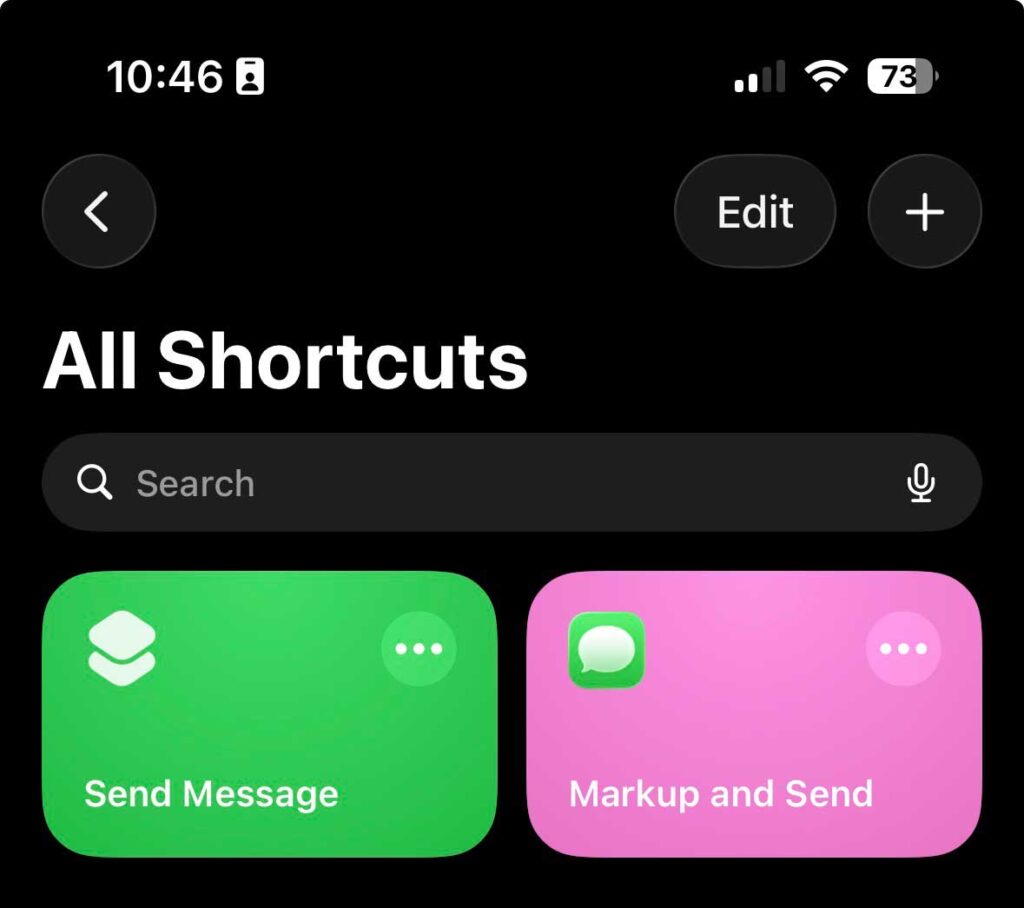
    Apple Shortcuts app library screen showing All Shortcuts with Send Message and Markup and Send options
    The Shortcuts app library on iPhone where you can manage, edit, or delete shortcuts.

    Drag to folder for clean look. Great for themed screens!​

    Delete a Shortcut on iPhone

    Quick cleanup:
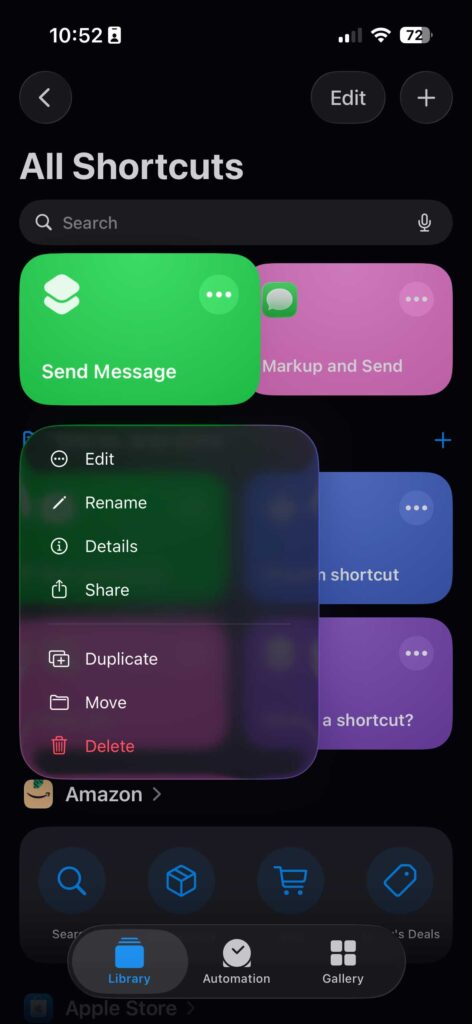
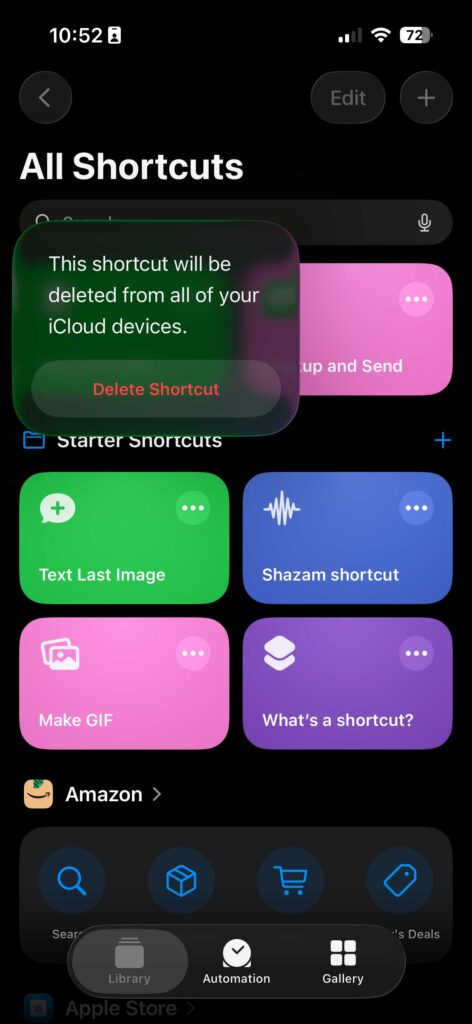
    • Swipe left on shortcut > Delete.​
    • Or long-press > “Delete Shortcut” > Confirm.​
    • iCloud sync removes from all devices.
    Apple Shortcuts options menu showing Edit, Rename, Details, Share, Duplicate, Move, and Delete
    Tap the three dots on a shortcut to open options and select Delete.
    Delete shortcut confirmation popup in Apple Shortcuts app on iPhone
    Confirm deletion to remove the shortcut from all your iCloud devices.

    Frees space without hassle.​

    Use Shortcuts Effectively

    Run via:

    • Siri: “Hey Siri, [name].”​
    • Home Screen icon.​
    • Back Tap (Settings > Accessibility).​
    • Control Center or Action Button.​
    • Automations tab for triggers.​

    Edit anytime: Long-press > Edit.​

    Use Cases

    • Commute Helper: Directions home + ETA text + news podcast.​
    • Low Battery Saver: Toggle Low Power Mode + dim screen.​
    • Social Timer: Limit scrolling after 30 mins.​
    • Grocery List: Location-based shopping add.​
    • Nap Mode: Set alarm + Do Not Disturb.​
    • ChatGPT Quick: Ask AI on-the-go.​

    A busy parent used “Don’t Be Late”—ETA to school + reminder nudge. Travel bloggers automate photo backups + Maps pins. [user interests implied]​

    FAQs

    How do I create shortcuts on iPhone?

    Open Shortcuts, tap “+”, add actions like “Text” or “Maps,” name, and save. Start with Gallery for ideas.

    Can I change app icons with Shortcuts?

    Yes! Create “Open App” shortcut, add to Home Screen, choose photo for custom icon.​

    How to delete a shortcut on iPhone?

    Swipe left or long-press in Shortcuts > Delete. Syncs across iCloud.​

    What are Siri Shortcuts?

    Voice-activated automations; say shortcut name after “Hey Siri.”

    Is Shortcuts app free?

    Yes, pre-installed on modern iPhones or free download.​

    Conclusion

    Apple Shortcuts app empowers beginners to automate iPhone life effortlessly—from creating shortcuts on iPhone to custom icons and Siri magic.

    With iOS 26 enhancements like new actions and AI integration, expect even smarter features ahead.

    Ready to automate?

    Download Shortcuts, try a Gallery one today, and share your creations in comments!

    T'kal
    T'kal
    TAGGED:Apple Shortcuts
    Share This Article
    Facebook Twitter Pinterest Whatsapp Whatsapp
    Previous Article Dual camera setup on iPhone 17 showing wide and ultra-wide lenses Dual Camera iPhone 17 Explained Simply: Specs, Features, and Why It Rocks
    Leave a comment Leave a comment

    Leave a Reply Cancel reply

    Your email address will not be published. Required fields are marked *

    Follow Us On Social

    FacebookLike
    InstagramFollow
    YoutubeSubscribe

    Must Read

    Apple Shortcuts explained thumbnail with woman pointing at Shortcuts app icon and text about iPhone automations

    Apple Shortcuts App Explained: How to Create, Customize, and Delete iPhone Automations

    Dual camera setup on iPhone 17 showing wide and ultra-wide lenses

    Dual Camera iPhone 17 Explained Simply: Specs, Features, and Why It Rocks

    How to share location on iPhone using Apple Maps with pinned location and map preview

    How to Share Location on iPhone

    iPhone displaying iOS 18.7.5 update screen with features, fixes, and performance guide text.

    iOS 18.7.5 Update: Features, Fixes, and Performance Guide

    iOS 26.3 RC update graphic showing privacy, performance, and cross-platform features on a black background.

    Apple Rolls Out iOS 26.3 RC: Privacy, Performance, and Cross-Platform Updates

    Close-up of iPhone 18 triple camera module with three 48MP lenses and advanced sensor design

    iPhone 18 Camera: 48MP Leaks, Variable Aperture & What to Expect

    Apple Headlines Logo Image

    Apple Headlines delivers fresh, reliable Apple news, how-to guides, and tips for every Apple user.

    Topics

    • Apple Headlines
    • iOS
    • iPhone
    • Mac

    Quick Links

    • Home
    • About Us
    • Privacy Policy
    • Terms of Service
    • Contact Us
    Apple Headlines Logo Image

    Designed By Apple Headlines

    appleheadlines.com