



Need to digitize papers quickly? Your iPhone can do that. No scanner needed.
Apple’s built-in tools let you scan documents in seconds. The process is simple and free.
This guide shows you exactly how to scan a document on iPhone. You’ll learn multiple methods, tips for perfect scans, and ways to organize your files.
Let’s turn your iPhone into a powerful scanning device.
Story in Short
Scanning documents on iPhone is simple and effective. Here’s what to remember:
- 1. Use the Notes app for quick, everyday scanning needs
- 2. Files app works better for organized document management
- 3. Lighting and positioning determine scan quality
- 4. Black & White filter makes text documents more readable
- 5. Organize immediately to find scans later
- 6. Protect sensitive documents with passwords and encryption
- 7. Third-party apps add features like OCR and advanced editing
Why Scan Documents with Your iPhone?
Your iPhone is more than a phone. It’s a portable scanner that fits in your pocket.
Here’s why millions of Americans use their iPhones to scan documents:
Think about it: When was the last time you had a physical scanner nearby?
More Read



Your iPhone solves that problem instantly.
Follow Apple Headlines on Social
The Built-In Way: Using the Notes App
Apple includes scanning features right in the Notes app. Most iPhone users don’t even know it exists.
This method works on iPhone 6s and newer models. It’s the easiest way to scan documents.
Step-by-Step Instructions
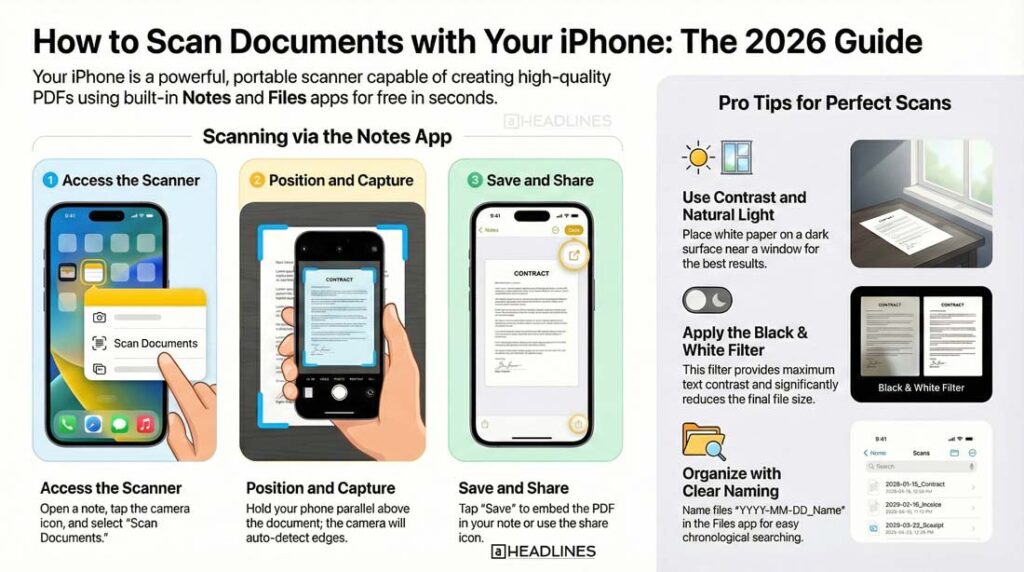
1. Open the Notes app
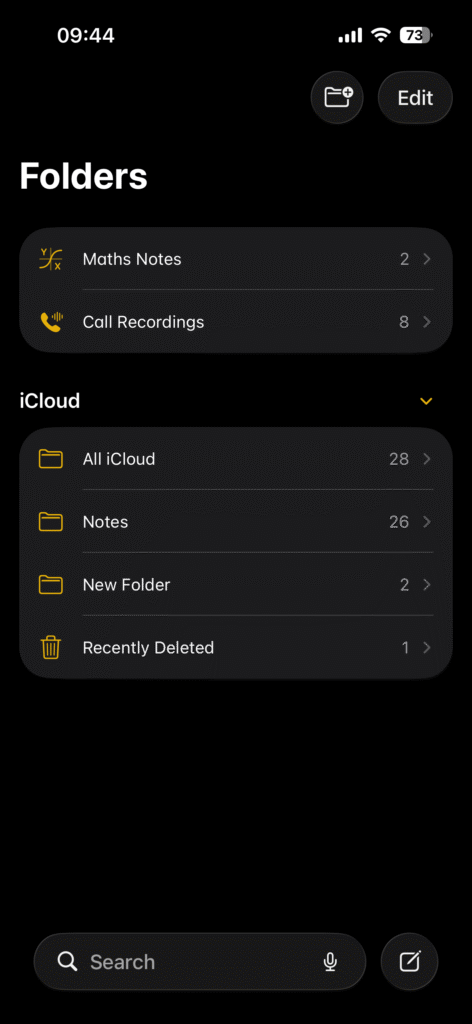
- > Tap the yellow Notes icon on your home screen
- > Create a new note or open an existing one
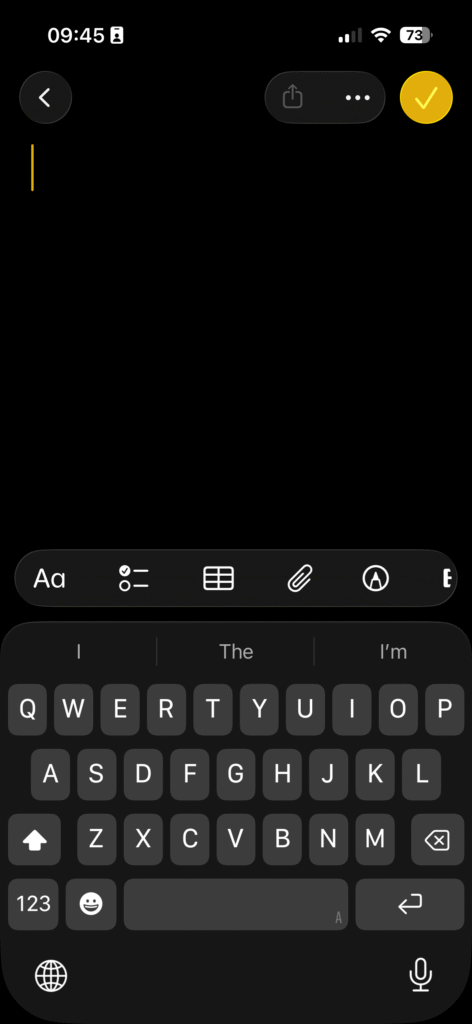
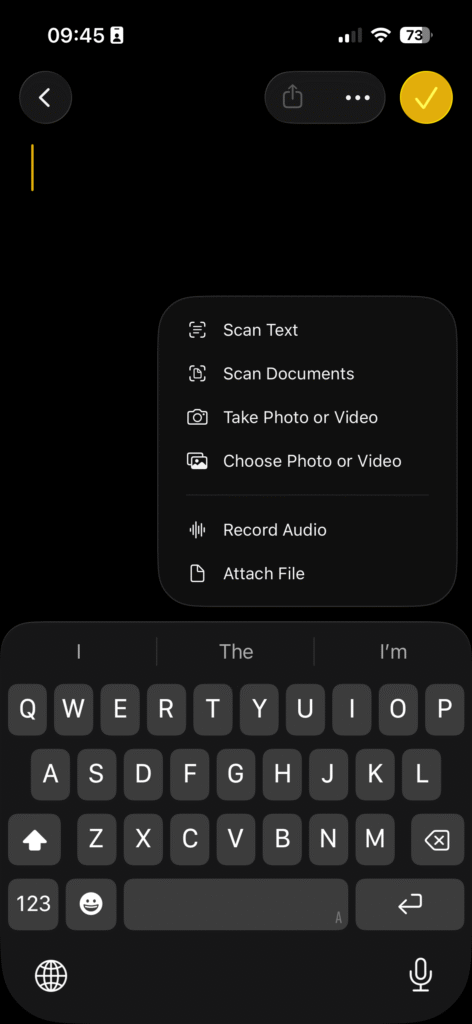
2. Access the camera scanner
- > Tap inside the note
- > Look for the camera icon above your keyboard
- > Tap it, then select “Scan Documents“.
3. Position your document
- > Place your document on a flat, well-lit surface
- > Hold your iPhone directly above it
- > The camera will automatically detect the document edges
4. Capture the scan
- > Your iPhone will auto-capture when it detects the document
- > Or manually tap the shutter button
- > Yellow corners indicate successful edge detection
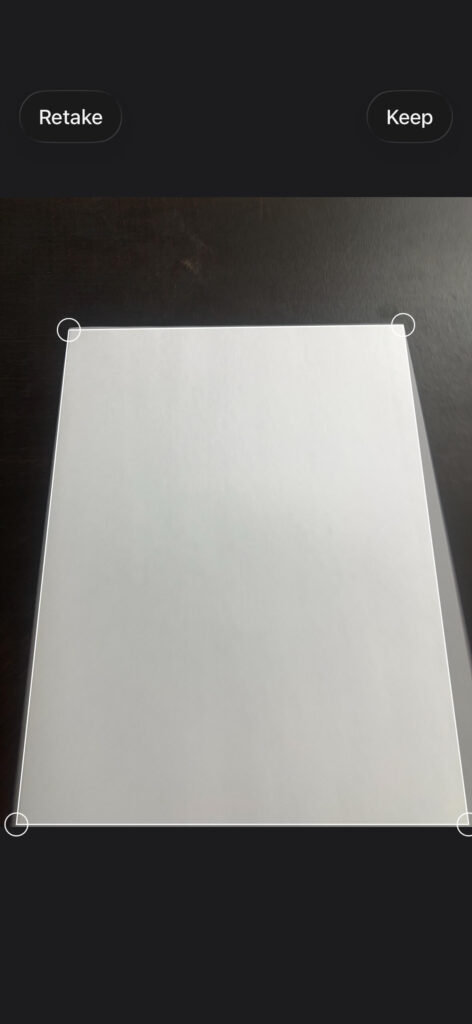
5. Adjust if needed
- > Drag the corner handles to adjust crop boundaries
- > Tap “Keep Scan” to save it
- > Add more pages by tapping the “+” button
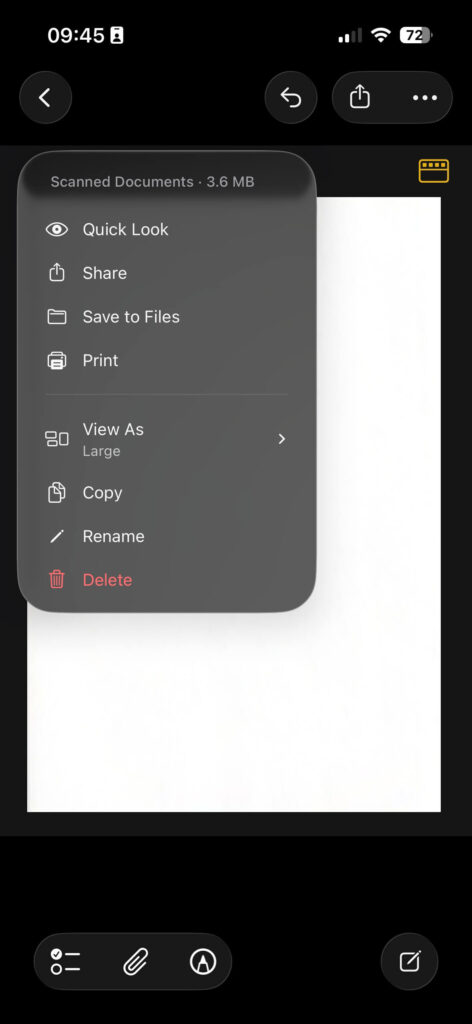
6. Save and share
- > Tap “Save” when you’re finished
- > Your scan appears in the note
- > Tap the share icon to send it anywhere
Pro Tips for Better Scans
Use these techniques to get professional-quality results:
The Files App Method
The Files app also includes document scanning. This method saves directly to your file system.
It’s perfect for organizing business documents or creating folder structures.
How to Scan Using Files App
1. Open Files app
- Tap the blue folder icon
- Navigate to your desired save location
2. Start scanning
- Tap the three-dot menu icon (•••)
- Select “Scan Documents“
- Follow the same scanning process as Notes
3. Save and organize
- Name your document
- Choose the folder location
- Tap “Save” to finish
The Files app gives you more control over where documents live.
This matters for work-related scanning or tax documents.
Third-Party Scanning Apps Worth Trying
While the built-in options work great, specialized apps offer extra features.
These apps are popular among iPhone users in 2026:
Adobe Scan
- Best for: PDF creation and OCR (text recognition)
- Key features: Automatic text recognition, cloud integration
- Price: Free with Adobe account
Microsoft Lens
- Best for: Office 365 users
- Key features: Converts scans to Word or PowerPoint
- Price: Free
Scanner Pro
- Best for: Power users who scan frequently
- Key features: Workflows, automatic uploads, advanced editing
- Price: One-time purchase
Genius Scan
- Best for: Multi-page documents
- Key features: Batch scanning, smart page detection
- Price: Free with premium upgrade option
Most users find the built-in iOS tools sufficient. Third-party apps shine when you need specialized features.
How to Improve Scan Quality
Getting perfect scans requires the right technique. Small adjustments make a huge difference.
Lighting Strategies
Good lighting transforms mediocre scans into professional documents.
Natural light wins:
Artificial light tips:
Document Preparation
Prepare your documents before scanning:
Camera Settings and Positioning
Your scanning position affects quality significantly.
Distance matters:
- Hold your iPhone 10-12 inches above the document
- Ensure the entire page fits in frame
- Leave small margins around edges
Angle is everything:
- Keep your phone parallel to the document
- Avoid tilting or angling
- Your iPhone’s level indicator helps with alignment
Focus control:
- Tap the screen to focus on the document
- Wait for the yellow focus box to appear
- Let auto-detection work its magic
Editing and Enhancing Your Scans
Raw scans often need minor adjustments. Your iPhone includes powerful editing tools.
Built-In Editing Features
After scanning in Notes or Files:
Color adjustments:
- Tap the scan to open it
- Select the filter icon
- Choose from: Color, Grayscale, Black & White, or Photo
Black & White works best for:
- Text documents
- Forms and applications
- Contracts and agreements
Color works best for:
- Receipts with colored logos
- Charts and graphs
- Photos embedded in documents
Cropping and rotation:
- Tap “Edit” on any scan
- Drag corner handles to adjust boundaries
- Use the rotation tool for alignment
- Tap “Done” to save changes
When to Use Each Filter
Understanding filters improves scan readability:
- Color – Preserves original appearance, larger file sizes
- Grayscale – Good middle ground, reduces file size
- Black & White – Maximum contrast, smallest files
- Photo – Minimal processing, keeps everything
Most text documents look better in Black & White mode.
Organizing and Managing Scanned Documents
Scanning is easy. Finding those scans later? That requires organization.
Folder Structure Best Practices
Create a logical system in the Files app:
Scanned Documents/
├── Personal/
│   ├── Medical Records
│   ├── Tax Documents
│   └── Home & Property
├── Work/
│   ├── Contracts
│   ├── Invoices
│   └── Reports
└── Education/
    ├── Certificates
    └── Transcripts
Naming Conventions
Use consistent, searchable file names:
Good examples:
- 2026-01-15_Electric-Bill.pdf
- Contract_Smith-Property_2026.pdf
- Medical_Insurance-Card_Front.pdf
Avoid:
- Scan 1.pdf
- Document.pdf
- IMG_2024.pdf
Date-first naming helps with chronological sorting.
Cloud Storage Integration
Your scans can sync across devices automatically.
iCloud Drive:
- Files stored in iCloud appear on all Apple devices
- Access from iPhone, iPad, and Mac
- 5GB free, paid plans available
Third-party options:
- Dropbox – Cross-platform compatibility
- Google Drive – 15GB free storage
- OneDrive – Microsoft ecosystem integration
Set up automatic uploads to never lose important documents.
Common Scanning Problems and Solutions
Even experienced users encounter issues. Here are quick fixes.
Problem: Blurry or Unfocused Scans
Solutions:
- Clean your iPhone camera lens
- Improve lighting conditions
- Hold your phone steadier
- Move closer or farther from the document
- Tap to focus before capturing
Problem: Shadows in Scans
Solutions:
- Reposition your light source
- Use multiple lights from different angles
- Scan near a window with indirect light
- Hold your phone directly above (not at an angle)
Problem: Document Edges Not Detected
Solutions:
- Place document on contrasting background
- Ensure entire page is visible in frame
- Straighten any curved or bent pages
- Use manual crop instead of auto-detection
Problem: Text Not Readable
Solutions:
- Use Black & White filter for maximum contrast
- Rescan with better lighting
- Ensure document is completely flat
- Move to higher resolution settings in third-party apps
Problem: Large File Sizes
Solutions:
- Use Black & White filter instead of Color
- Compress PDFs using Files app
- Delete unnecessary pages from multi-page scans
- Use third-party apps with compression features
Advanced Scanning Techniques
Ready to level up your scanning skills? These techniques separate amateurs from pros.
Scanning Multiple Documents Quickly
When you have a stack of papers:
- Prepare all documents in advance
- Use continuous scanning mode
- Keep your phone position consistent
- Work in batches of 5-10 pages
- Review and edit after completing the batch
This workflow is faster than scanning one-at-a-time.
Creating Searchable PDFs
Some apps create PDFs with searchable text (OCR).
Benefits:
- Find documents by searching content
- Copy text directly from scans
- Edit scanned text in some apps
Apps with OCR:
- Adobe Scan (free)
- Microsoft Lens (free)
- Scanner Pro (paid)
The built-in Notes and Files apps don’t include OCR functionality.
Batch Scanning Receipts
Receipt management becomes simple with the right system:
- Create a “Receipts” folder in Files
- Scan receipts immediately after purchases
- Name files: Date_Store_Amount
- Set monthly reminders to organize
- Back up to cloud storage
This system works perfectly for expense tracking and tax preparation.
Security and Privacy Considerations
Scanned documents often contain sensitive information. Protect them properly.
Password-Protecting Scans
Using Notes app:
- Tap the three-dot menu on any note
- Select “Lock“
- Create a password or use Face ID
- All scans in that note are now protected
Using Files app:
- Third-party apps offer PDF password protection
- Consider Adobe Scan for encrypted PDFs
Secure Sharing Methods
When sharing sensitive documents:
Best practices:
- Use encrypted messaging apps
- Enable password protection before sharing
- Delete shared links after recipient downloads
- Avoid public Wi-Fi when uploading to cloud
Avoid:
- Unencrypted email for sensitive docs
- Public cloud links without passwords
- Sharing via social media
Automatic Deletion
Set up automatic deletion for temporary scans:
- Create a “Temporary Scans” folder
- Review and delete monthly
- Use Shortcuts app to automate cleanup
- Keep only essential documents long-term
Your iPhone is a powerful scanning tool. Use it whenever you need to digitize documents.
Frequently Asked Questions
Can I scan multiple pages into one PDF on iPhone?
Yes. When scanning in Notes or Files, tap the “+” button after each scan. All pages combine into a single PDF automatically. You can add as many pages as needed before saving.
Do scanned documents on iPhone have good enough quality for legal purposes?
Absolutely. iPhone cameras capture high-resolution images suitable for most legal documents. Use Black & White filter for maximum text clarity. Many law firms and businesses accept iPhone scans regularly.
Can I scan documents on iPhone without internet?
Yes. The built-in scanning features work completely offline. You don’t need internet or cellular data to scan. Internet is only required for cloud uploads or using third-party apps with online features.
How do I convert an iPhone scan to PDF?
Scans save as PDF automatically in both Notes and Files apps. To share, tap the scan, select the share icon, and choose your destination. The file shares as a PDF by default.
Is there a limit to how many documents I can scan on iPhone?
No scanning limit exists. Your only limitation is available storage space on your device or iCloud. Delete old scans or upload to other cloud services if storage runs low.
Ready to Start Scanning?
You now know everything about how to scan documents with your iPhone.
Stop searching for scanners or making trips to copy shops. Your iPhone handles it all.
Try scanning your first document today. Open Notes, tap the camera icon, and start digitizing.
Your paperless life begins now.
Have scanning tips to share? Drop a comment below and help other iPhone users master this essential skill.
Disclaimer
This article provides general guidance on scanning documents using iPhone devices. Features and app interfaces may vary depending on your iOS version and device model. Always verify that scanned documents meet specific requirements for legal, financial, or official purposes before submission. While iPhone scans are suitable for most uses, some organizations may require certified or notarized copies. The author and publisher are not responsible for any consequences resulting from the use of information in this article.

T’kal is the lead strategist and developer behind Apple Headlines. With a background in digital marketing and web development, he specializes in technical Apple troubleshooting, software news, and hardware rumors. T’kal focuses on delivering high-authority tech content that bridges the gap between Apple enthusiasts and the latest industry innovations.