


Need to send a fax from your iPhone but don’t know where to start?
You’re not alone. Many iPhone users face this challenge daily.
The good news?
Your iPhone can send faxes without needing a traditional fax machine.
This guide shows you exactly how to fax from iPhone using multiple methods.
Whether you prefer using apps or built-in features, we’ve got you covered.
Let’s dive into the simplest ways to turn your iPhone into a portable fax machine.
Story in Short
Why Fax from an iPhone?
Faxing might seem outdated, but it’s still essential in many industries.
More Read
Healthcare, legal, and financial sectors require faxes for secure document transmission.
Here’s why iPhone faxing makes sense:
- Convenience: Send faxes anywhere, anytime
- No equipment needed: No bulky fax machines required
- Cost-effective: Avoid purchasing dedicated hardware
- Eco-friendly: Reduces paper waste
- Professional: Maintains business communication standards
Medical offices need faxes for patient records.
Law firms use faxes for confidential documents.
Real estate agents send contracts via fax daily. Your iPhone handles all these tasks effortlessly.
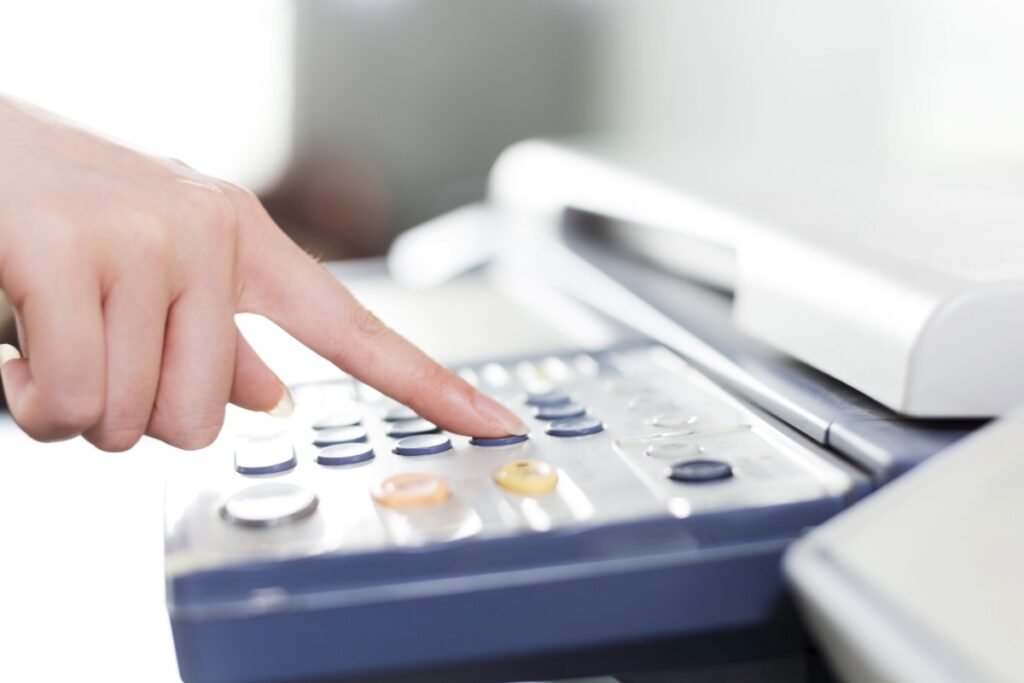
Method 1: Using Dedicated Fax Apps (Most Reliable)
Fax apps are the most straightforward way to send faxes from your iPhone. These apps turn your device into a complete faxing solution.
Top Fax Apps for iPhone
1. eFax
- Send faxes to over 200 countries
- Receive faxes directly to email
- Free trial available
- Secure encryption
2. FAX from iPhone
- User-friendly interface
- Pay-per-fax option
- No subscription required
- Quick document scanning
3. Fax.Plus
- Free credits for new users
- Multiple file format support
- Cloud storage integration
- Group faxing feature
4. MyFax
- 200+ pages per month
- Mobile and desktop access
- Email-to-fax capability
- Document management tools
Step-by-Step: Sending Fax Using Apps
Step 1: Download Your Chosen App
- Open App Store on your iPhone
- Search for your preferred fax app
- Tap “Get” and install the app
- Create your account
Step 2: Prepare Your Document
- Take a clear photo of your document
- Or import files from Files app
- Ensure text is readable
- Remove any shadows or glare
Step 3: Enter Recipient Details
- Input the recipient’s fax number
- Include country code if international
- Add a cover page if needed
- Write any special instructions
Step 4: Review and Send
- Preview your document
- Check fax number accuracy
- Confirm all pages are included
- Tap “Send Fax”
Step 5: Track Confirmation
- Wait for delivery confirmation
- Check transmission status
- Save confirmation for records
- Resend if delivery fails
Method 2: How to Fax from iPhone Without App
You can send faxes without downloading apps. This method uses email-to-fax services. It’s perfect for occasional faxing needs.
Using Email-to-Fax Services
Several online services let you fax via email. Here’s how it works:
Popular Email-to-Fax Services:
- FaxZero (free for limited pages)
- HelloFax (now part of Dropbox)
- Fax.Plus web version
- MyFax online portal
Steps to Fax via Email:
- Find a Service: Visit an email-to-fax website
- Enter Information: Type recipient’s fax number
- Attach Document: Upload your file (PDF works best)
- Add Cover Page: Include sender information
- Send Email: Hit send from your iPhone’s Mail app
Email Format Example:
- To: [recipient_fax_number]@service.com
- Subject: Your cover page message
- Attachment: Document to fax
This method works great for quick, one-time faxes. No app installation required.
Method 3: How to Fax from iPhone Using Notes
Many users ask about faxing directly from iPhone Notes. While Notes doesn’t have built-in fax capability, you can use it as part of your workflow.
Using Notes with Fax Services
Step 1: Create Your Document in Notes
- Open Notes app
- Type your message or information
- Scan physical documents using Notes scanner
- Organize your content clearly
Step 2: Export from Notes
- Tap the share icon
- Select “Create PDF“
- Save to Files app
- This creates a fax-ready document
Step 3: Send via Fax Service
- Open your fax app
- Import the PDF from Files
- Add recipient details
- Send your fax
Document Scanning in Notes:
Notes app has a powerful scanning feature:
- Open a note
- Tap camera icon
- Select “Scan Documents“
- Capture multiple pages
- Auto-enhances for clarity
- Exports as PDF
This creates professional-looking documents. The scan quality rivals dedicated scanner apps. Perfect for contracts, forms, and written agreements.
Method 4: How to Fax from iPhone Notes Alternative
If you want to avoid apps entirely, combine Notes with email services.
Complete Workflow:
- Scan in Notes: Use document scanner
- Save as PDF: Export your note
- Email to Fax Service: Use online fax gateway
- Confirm Delivery: Check email for confirmation
Benefits of This Method:
- No app downloads needed
- Uses native iPhone features
- Free for occasional use
- Quick and simple process

Comparing Faxing Methods in iPhone
| Method | Cost | Convenience | Best For |
|---|---|---|---|
| Fax Apps | $5-15/month | High | Regular users |
| Email-to-Fax | Free-$10/fax | Medium | Occasional needs |
| Notes + Service | Free-$10/fax | Medium | Document scanning |
| Online Portals | Pay-per-use | Low | One-time faxing |
Tips for Successful iPhone Faxing
Document Quality:
- Use good lighting when scanning
- Hold iPhone steady
- Ensure text is sharp
- Remove backgrounds if possible
- Check page orientation
Fax Number Formatting:
- Include area code always
- Add country code for international
- Remove spaces and dashes
- Example: 15551234567 (not 1-555-123-4567)
- Verify number before sending
File Format Considerations:
- PDF is most reliable
- JPEG works for images
- TIFF for high-quality needs
- Avoid Word documents
- Keep file size under 10MB
Privacy and Security:
- Use encrypted fax services
- Verify recipient number
- Don’t fax sensitive data on public Wi-Fi
- Delete faxes from cloud storage
- Check service privacy policies
Troubleshooting Common Issues
Fax Won’t Send:
- Check internet connection
- Verify fax number format
- Ensure document isn’t too large
- Try different file format
- Contact service support
Poor Quality Faxes:
- Increase scan resolution
- Better lighting conditions
- Clean camera lens
- Use document scanner feature
- Reduce file compression
Delivery Failures:
- Confirm recipient’s fax machine works
- Check if number accepts digital faxes
- Verify country code
- Try during business hours
- Request transmission report
Cost Breakdown
Free Options:
- FaxZero (5 pages, ad-supported)
- Trial versions of paid apps
- Email-to-fax limited use
- One-time promotions
Paid Services:
- Monthly subscriptions: $5-20
- Pay-per-fax: $1-3 per transmission
- International faxes: $5-10 each
- Premium features: $20-50/month
Best Value:
- Occasional users: Pay-per-fax
- Regular users: Monthly subscription
- Business users: Enterprise plans
- Heavy users: Unlimited plans
Security Considerations
Digital faxing raises security questions. Here’s what you need to know:
Encryption Standards:
- Look for 256-bit SSL encryption
- HIPAA-compliant for medical documents
- PCI-DSS for financial information
- End-to-end encryption preferred
Data Storage:
- Check retention policies
- Delete after transmission option
- Secure cloud storage
- Regular security audits
Compliance:
- Healthcare: HIPAA requirements
- Legal: Attorney-client privilege
- Financial: SOX compliance
- Government: NIST standards
Advanced Features to Look For
Modern fax apps offer more than basic sending:
Document Management:
- Cloud storage integration
- Archive and search functions
- Folder organization
- Tag and categorize faxes
Collaboration Tools:
- Share fax access with team
- Multiple user accounts
- Permission controls
- Activity logs
Automation:
- Schedule faxes
- Recurring transmissions
- Template creation
- Batch sending
Integration:
- Dropbox connection
- Google Drive sync
- iCloud compatibility
- Email client integration
FAQ Section
Q1: Can I really fax from my iPhone without any app?
Yes, you can use email-to-fax services through your iPhone’s Mail app. Services like FaxZero allow sending faxes by email. Simply compose an email with the fax number in the recipient field and attach your document. This works for occasional faxing without app installation.
Q2: Is faxing from iPhone secure for confidential documents?
Yes, when using reputable services with proper encryption. Look for apps with 256-bit SSL encryption and HIPAA compliance. Avoid public Wi-Fi when sending sensitive faxes. Always verify the service’s security certifications before transmitting confidential information.
Q3: How much does it cost to fax from an iPhone?
Costs vary by method. Free options exist for limited use through services like FaxZero. Dedicated apps typically charge $5-20 monthly for subscriptions. Pay-per-fax services cost $1-3 per transmission. International faxes cost more, usually $5-10 each.
Q4: Can I receive faxes on my iPhone too?
Yes, most fax apps provide incoming fax numbers. You receive faxes as digital files or email notifications. Subscription services include both sending and receiving capabilities. Some apps offer local or toll-free incoming numbers.
Q5: What file formats can I fax from my iPhone?
PDF is the most universally accepted format. JPEG and PNG work for image-based documents. Most apps accept Word documents and convert them automatically. TIFF files work for high-quality requirements. Avoid proprietary formats for best compatibility.
Disclaimer
This article provides general information about faxing from iPhone devices. Technology and app features change frequently. Always verify current capabilities with your chosen service provider. Pricing and availability may vary by region. For legal or medical document transmission, consult your organization’s compliance requirements. We are not affiliated with any mentioned apps or services. Results may vary based on your specific iPhone model and iOS version.
Ready to Start Faxing?
Don’t let outdated technology slow you down. Your iPhone already has everything you need to send professional faxes. Download a fax app today or try the email-to-fax method right now. Start with a free trial to test which method works best for your needs. Transform your iPhone into a powerful faxing tool in minutes!
Have questions about iPhone faxing?
Drop them in the comments below.
Share this guide with colleagues who still visit fax machines. Subscribe for more iPhone productivity tips and tricks!

Virginia J. Alfonso is a seasoned technology writer with a passion for all things digital. With over a decade of experience covering the latest in tech innovation, gadgets, and software, Virginia brings a unique blend of technical expertise and accessible writing to her work. Her articles focus on making complex tech topics easy to understand for readers of all levels.