


Your Safari browser stores every website you visit.
This history helps you find pages you viewed before.
Learning how to see history on Safari iOS 26 is essential for every Apple device owner.
Whether you need to revisit a recipe or find a research article, your browsing history is a powerful tool.
This guide shows you exactly how to access and manage Safari history on your iPhone or iPad running iOS 26.
Short Story on Safari History
What Is Safari History?
Safari history is a record of websites you visit on your device. iOS 26 automatically saves this information.
The browser tracks dates, times, and page titles.
This feature makes it easy to return to websites without bookmarking them. Your history syncs across all Apple devices using iCloud.
Understanding how to see history on Safari iOS 26 gives you control over your browsing data.
Where is Safari History on iOS 26?
Finding your Safari history on iOS 26 is quick once you know where to look. Apple moved and redesigned parts of the Safari interface in iOS 26, so here’s exactly where to go:
Method 1 — Directly Inside Safari (Fastest Way):
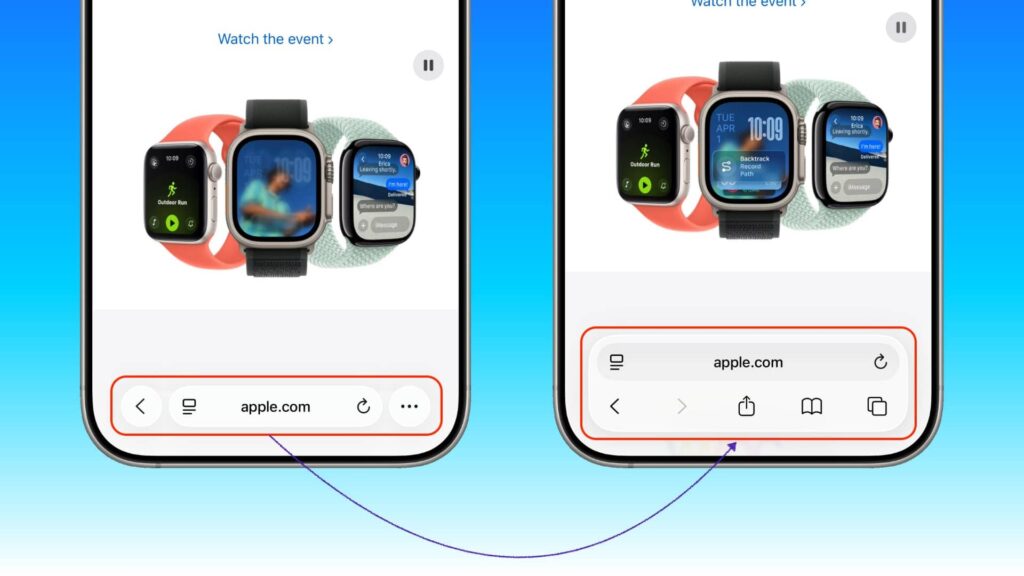
Method 2 — From the Address Bar:
Method 3 — From Settings:
Safari history itself isn’t viewable in Settings, but you can manage and clear it from Settings → Safari → Clear History and Website Data. This is useful if you can’t access Safari directly.
Pro Tip: On iOS 26, if you use iCloud sync, your history from your Mac, iPad, and other Apple devices is also visible under the same clock icon — all in one place. This is a huge time-saver when you’re looking for something you browsed on a different device.
How to View Your Safari History on iOS 26
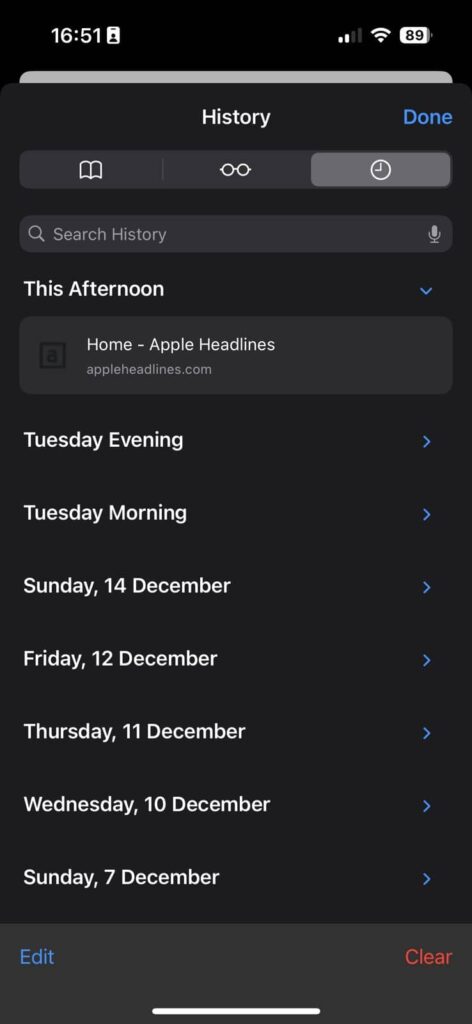
Method 1: Using the History Button
The fastest way to see history on Safari iOS 26 is through the built-in button. Follow these simple steps:
This method works on all iOS 26 devices. The history displays websites from today, yesterday, and earlier dates. You can scroll back weeks or even months.
Method 2: Using the Search Bar
iOS 26 offers a quick search feature for your Safari history:
This method saves time when you know what you’re looking for. The search function scans your entire browsing history. It finds matches even if you visited the site weeks ago.
How to Delete Your Safari History on iOS 26
Delete Individual Items
Sometimes you need to remove specific websites from your history. iOS 26 makes this simple:
This removes only that specific page from your history. Other entries remain intact. You maintain control over what stays in your browsing record.
Clear All History at Once
To completely clear your Safari history on iOS 26:
This action removes all browsing history, cookies, and cached data. The process cannot be undone. Your Safari will start fresh with no stored history.
Detailed Post on Clear History

Safari History Not Showing on iPhone? (7 Fixes)
If your Safari history has disappeared or is not showing up correctly on iOS 26, don’t panic. This is a common issue with several easy fixes. Work through these in order:
Fix 1 — Check If You’re in Private Browsing Mode
Private Browsing doesn’t save history. If your Safari toolbar has a dark or black background, you’re in Private mode. Tap the tabs icon and switch back to a regular tab. Your history will reappear.
Fix 2 — Check iCloud Safari Sync
Go to Settings → [Your Name] → iCloud → Show All and make sure the Safari toggle is turned ON. If it was off, your history wasn’t syncing or saving properly across devices.
Fix 3 — Restart Safari
Swipe Safari away from the App Switcher completely. Reopen it. This clears minor display glitches that can cause history not to load.
Fix 4 — Restart Your iPhone
A full restart (power off, then power on) resolves most temporary software bugs on iOS 26 that affect Safari behavior.
Fix 5 — Check Screen Time Restrictions
If Screen Time is enabled, it may be restricting Safari history access. Go to Settings → Screen Time → Content & Privacy Restrictions → Safari and review what’s being restricted.
Fix 6 — Update to the Latest iOS 26 Version
Apple regularly patches Safari bugs in point releases. Go to Settings → General → Software Update and install any available updates. Many history display bugs were fixed in iOS 26.1 and later.
Fix 7 — Sign Out and Back Into iCloud
As a last resort, go to Settings → [Your Name] → Sign Out, sign back in, and re-enable Safari sync. This forces a full iCloud history re-sync to your device.
If none of these fixes work, contact Apple Support directly, as there may be a device-specific issue at play.
Detailed Guide on History Not Showing

How to Recover Deleted Safari History on iPhone?
This is one of the most searched questions about Safari — and the answer requires some nuance.
The short answer: In most cases, once you delete Safari history on iOS 26, it is gone permanently from your device. Apple does not provide a native “undo” for history deletion.
However, there are a few scenarios where recovery may be possible:
1. Check Your iCloud Backup
If you have iCloud Backup enabled and you haven’t cleared your history too long ago, restoring your iPhone from an iCloud backup may bring your history back. Go to Settings → General → Transfer or Reset iPhone → Erase All Content and Settings, then restore from a backup made before the deletion.
⚠️ Warning: This restores your entire phone to an earlier state, not just your Safari history. Use this only if recovering that history is worth the trade-off.
2. Check iCloud.com
Visit iCloud.com on a computer and check if any Safari data is stored there. While iCloud doesn’t offer a direct history viewer on the web, this can sometimes surface synced data.
3. Use a Third-Party Recovery Tool (Limited)
Tools like iPhone Backup Extractor or iMazing can scan an iTunes/Finder backup (not iCloud) and extract Safari history if one exists. This only works if you made a local backup via a Mac or PC before clearing your history.
4. Ask Someone on Your Shared iCloud Plan
If your family shares iCloud and Safari sync was active across devices, another device on your plan may still have the history cached locally — check iPhones, iPads, or Macs connected to the same Apple ID.
Bottom line: Prevention is better than cure. If you regularly need to reference past browsing, consider using Safari’s Bookmarks or the Reading List feature to save important pages before they disappear.
Can You See Private Browsing History on iPhone?
Private Browsing on iOS 26 is designed specifically to leave no trace — but there are important limits to what “private” actually means.
What Private Browsing Does:
What Private Browsing Does NOT Do:
Can You See Your Own Private Browsing History?
No — once you close a Private Browsing tab in iOS 26, that session’s history is deleted immediately and permanently. There is no built-in way to retrieve it.
Can a Parent or Admin See Private Browsing History?
Not on the device itself. However, network-level tools (like a router’s traffic log or parental control software such as Circle or Screen Time’s network monitoring) can still log which websites were visited, even during Private Browsing.
iOS 26 Private Browsing Upgrade — Face ID Lock: iOS 26 continues to support the Face ID/Touch ID lock for Private Browsing tabs, introduced in iOS 17.
This means if you switch away from Private Browsing and return, Safari will ask for Face ID before revealing your open private tabs — adding an extra layer of physical privacy.
The Verdict: Private Browsing is excellent for local on-device privacy, but it is not a full privacy solution. For stronger anonymity, consider using a trusted VPN alongside Private Browsing.
Advanced Tips for Safari History on iOS 26
Use Private Browsing Mode
Private browsing prevents Safari from saving your history.
To activate this feature, tap the tabs icon in Safari. Select Private from the menu.
All websites you visit in this mode won’t appear in your history.
This protects your privacy when browsing sensitive content. Remember that private mode doesn’t make you invisible online.
Sync History Across Devices
iOS 26 syncs your Safari history through iCloud automatically.
This means you can see history on Safari iOS 26 from any Apple device.
Open Settings and tap your name at the top. Select iCloud and ensure Safari is enabled.
Your browsing history will sync across your iPhone, iPad, and Mac.
This creates a seamless experience across all your devices.
How Long Does Safari Keep History?
iOS 26 stores your Safari history for one year by default.
After 12 months, old entries automatically delete.
You can manually clear history anytime using the methods above.
Regular clearing helps maintain device performance. It also protects your privacy by removing outdated browsing data.
Safari History Settings Explained (iOS 26)
iOS 26 gives you more control over Safari history than most users realize. Here’s a breakdown of every relevant setting and what it actually does:
1. Clear History and Website Data
Location: Settings → Safari → Clear History and Website Data This deletes your entire browsing history, cached files, and cookies in one action. It’s the nuclear option. Use it when you want a full reset of Safari’s stored data.
2. Close Tabs and Clear History Automatically
Location: Settings → Safari → Close Tabs iOS 26 lets you set Safari to automatically close open tabs after 1 Day, 1 Week, or 1 Month of inactivity. Pairing this with “Clear History automatically” keeps your browser clean without manual effort.
3. Prevent Cross-Site Tracking
Location: Settings → Safari → Prevent Cross-Site Tracking (Toggle ON) While this doesn’t affect your visible Safari history, it stops third-party trackers from building a shadow profile of your browsing across different websites. Recommended: always keep this ON.
4. Block All Cookies
Location: Settings → Safari → Block All Cookies Blocking cookies prevents sites from remembering your sessions. This impacts login persistence (you’ll need to log in every visit) but significantly reduces cross-site tracking tied to your browsing history.
5. iCloud Safari Sync
Location: Settings → [Your Name] → iCloud → Safari When ON, your history, bookmarks, open tabs, and Reading List sync across all your Apple devices. When OFF, each device keeps its own separate history. Great to disable if you share an Apple ID with family members and want separate histories.
6. Safari History Duration iOS 26 stores browsing history for up to 1 year by default. There is currently no user-facing setting to extend or shorten this window — Apple controls it automatically. Entries older than 12 months are purged silently.
7. Private Browsing Lock
Location: Settings → Safari → Require Face ID to Unlock Private Browsing This iOS 26 setting requires Face ID or Touch ID authentication before someone can view or access your open Private Browsing tabs. Ideal if you share your unlocked iPhone with others.
8. Search Engine History Suggestions
Location: Settings → Safari → Search Engine Suggestions This controls whether Safari shows suggestions from your search engine (like Google or DuckDuckGo) in addition to your local history when you type in the address bar. Turn it OFF if you prefer results sourced only from your own browsing history.
Troubleshooting Safari History Issues
History Not Showing Up
If you cannot see history on Safari iOS 26, try these solutions:
These steps resolve most common history display problems. Contact Apple Support if issues persist after trying all solutions.
Privacy and Security Considerations
Understanding how to see history on Safari iOS 26 includes knowing privacy implications.
Your browsing history contains personal information about your interests and activities.
Anyone with access to your device can view this data.
Consider clearing history regularly if you share your device. Use Screen Time restrictions to prevent others from accessing Safari settings.
Enable Face ID or Touch ID to protect your device.
These measures keep your browsing history secure and private.
Frequently Asked Questions
- Can I recover deleted Safari history on iOS 26?
No, once you clear Safari history on iOS 26, it cannot be recovered. The deletion is permanent.
This applies to both individual entries and complete history clearing. Always review your history before deleting it.
- Does Private Browsing mode hide my history completely?
Private mode prevents Safari from saving history on your device.
It doesn’t make you anonymous online. Your internet provider, employer, or websites can still track your activity. Use Private Browsing for local privacy only.
- How do I stop Safari from syncing history to other devices?
Open Settings and tap your Apple ID name. Select iCloud and turn off Safari toggle.
This stops history syncing across your devices. Each device will maintain its own separate browsing history.
- Can other people see my Safari history on shared devices?
Yes, anyone who accesses your device can see your Safari history. Protect your privacy by clearing history regularly.
Enable device passcode protection. Consider creating separate user profiles for shared family devices.
- Why can’t I find older websites in my history?
iOS 26 automatically removes history older than one year. If you cleared your history recently, older entries are gone permanently. Check if iCloud sync is enabled to access history from other devices.
Take Control of Your Safari History Today
Now you know exactly how to see history on Safari iOS 26. These skills help you navigate efficiently and protect your privacy.
Practice accessing your history using both the book icon and search bar methods. Decide which approach works best for your daily browsing habits.
Remember to clear sensitive history when needed.
Take advantage of Private Browsing for confidential web activities. Your Safari history is a valuable tool when used wisely.
Ready to explore more iOS 26 features? Check your Safari history right now and see what websites you can rediscover. Share this guide with other Apple users who need help managing their browsing data.
Disclaimer
This article provides general information about Safari features on iOS 26. While we strive for accuracy, Apple may update features and settings. Screen layouts and menu options might vary slightly based on your specific device model. Always back up your data before making significant changes. The methods described work on standard iOS 26 installations. Customized or jailbroken devices may experience different results. For device-specific issues, contact Apple Support directly. This guide does not constitute professional technical advice.

Virginia J. Alfonso is a seasoned technology writer with a passion for all things digital. With over a decade of experience covering the latest in tech innovation, gadgets, and software, Virginia brings a unique blend of technical expertise and accessible writing to her work. Her articles focus on making complex tech topics easy to understand for readers of all levels.