




You just woke up, strapped on your Apple Watch, and now it’s demanding a passcode — again.
If you’re tired of tapping that tiny screen every single morning, you’re not alone.
The good news?
Apple built a seamless feature that lets you unlock Apple Watch from iPhone automatically.
This guide covers every method, every fix, and a few pro tips the other sites skip entirely.
Short Stories
- Unlock with iPhone is a built-in Apple feature found in Watch app → My Watch → Passcode
- Both devices must be within 33 feet (10 meters) with Bluetooth enabled
- Wrist Detection must be on for automatic re-locking and unlocking to work
- You can also set up Unlock iPhone with Apple Watch for Face ID assist while masked
- Forgotten passcode = factory reset required, but backup restore saves your data
- After any iPhone restart, you must use your passcode once before auto-unlock activates
- Corporate-managed devices may have these features restricted by IT policy
Why “Unlock with iPhone” Is One of Apple’s Most Underused Features
Most Apple Watch owners don’t know this setting exists.
That’s a problem, because manually entering a passcode on a 45mm screen multiple times a day is genuinely frustrating.
The Unlock with iPhone feature is Apple’s answer — it silently unlocks your watch the moment you unlock your phone, as long as both devices are within Bluetooth range (about 33 feet).
Beyond pure convenience, there’s a security angle worth understanding.
Apple Watch requires a passcode to protect sensitive features: Apple Pay, Health data, and Mac auto-unlock.
Disabling the passcode entirely kills those features. The Unlock with iPhone workaround gives you the best of both worlds — strong security and zero friction.
This matters even more in 2025, as Apple Watch has become a health hub storing ECG readings, sleep data, medication reminders, and crash detection logs.
Keeping it properly secured while staying frustration-free is the smart play.
Before You Start: Requirements Checklist
Make sure you have these in place before changing any settings. Missing even one will cause the feature to silently fail.
- ✅ Apple Watch Series 1 or later running watchOS 6 or later
- ✅ iPhone running iOS 14 or later (iOS 16+ recommended)
- ✅ Both devices signed into the same Apple ID
- ✅ Bluetooth enabled on both devices
- ✅ Apple Watch paired with your iPhone
- ✅ A passcode set on your Apple Watch (required — no passcode, no auto-unlock)
- ✅ Wrist Detection turned on in Watch settings
Expert Insight 💡 Many users find this feature stops working after a watchOS update. The culprit is almost always Wrist Detection getting toggled off during the update process. Always check this setting first before diving into deeper troubleshooting.
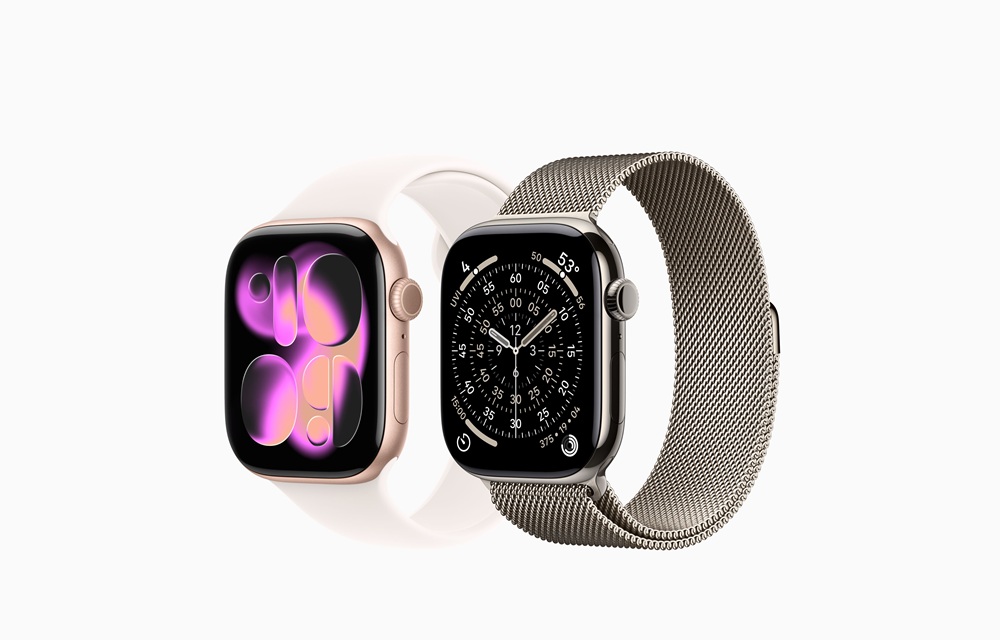
How to Unlock Apple Watch from iPhone: Step-by-Step Setup
This is the primary method. It takes under two minutes to configure and works reliably across all modern Apple Watch and iPhone combinations.
Method 1: Enable “Unlock with iPhone” (Recommended)
That’s it. The next time you wake your iPhone with Face ID, Touch ID, or your passcode, your Apple Watch will unlock in the background — no tapping required.
How It Actually Works (The Bluetooth Handshake Explained)
Think of it like a hotel key card system. When you check in (unlock your iPhone), the front desk (your iPhone) sends a wireless signal to your room door (Apple Watch) telling it to unlock.
You never need to touch the door — it just opens. The “signal” here is a low-energy Bluetooth handshake that happens automatically when both devices are within range.
The moment you take your watch off your wrist, Wrist Detection re-locks it.
The lock isn’t punishing — it’s protective. Your watch knows it’s no longer on your wrist.
Method 2: Unlock Apple Watch with Face ID on iPhone
This is the reverse of the above — using your Apple Watch to help unlock your iPhone when Face ID is blocked (like when wearing a mask or sunglasses).
Many users confuse these two features, so here’s a clear breakdown:
| Feature | What It Does |
|---|---|
| Unlock Watch with iPhone | Your iPhone unlocks your Apple Watch automatically |
| Unlock iPhone with Apple Watch | Your Apple Watch helps unlock your iPhone when Face ID fails |
Both are useful. Here’s how to set up the second one:
Steps to Unlock iPhone with Apple Watch (Face ID Assist)
Once this is active, wearing your Apple Watch and glancing at your iPhone will unlock it — even with a mask on. Your watch will give you a gentle haptic tap to confirm the unlock happened.
The Scenario That Changes Everything: A Real-World Case Study
Meet Jordan, an ER nurse in Chicago.
Jordan switches between patient rooms constantly. Her iPhone is password-locked per hospital policy, and she wears a medical mask for 10-hour shifts.
Before discovering the Apple Watch unlock features, she was entering her 6-digit passcode dozens of times per shift — risky with gloves on, slow under pressure.
After enabling both Unlock with iPhone and Unlock iPhone with Apple Watch, her workflow changed completely.
Her watch unlocks when she badges into the hospital and grabs her iPhone off the charger. Her iPhone unlocks just by her glancing at it, even masked.
Two minutes of setup. Hours of saved friction.
This isn’t a niche feature. It’s a daily quality-of-life upgrade hiding inside a toggle most people never find.
How to Unlock an Apple Watch Without Passcode (Forgotten Code)
Forgot your Apple Watch passcode entirely?
You can’t “unlock an Apple Watch without passcode” without going through a reset — but the reset process is clean, and you can restore from backup. Here are your two options.
Option A: Reset via the iPhone App (Easiest)
Use this if your Apple Watch is still paired with your iPhone.
Important: Erasing does NOT remove Activation Lock. You’ll still need your Apple ID credentials to set it up again. This is by design — it protects you if the watch is stolen.
Option B: Reset Directly on the Watch (No iPhone Needed)
Use this if your watch is not paired or your iPhone isn’t available.
Detailed Post on Reset watch

Troubleshooting: What If “Unlock with iPhone” Stops Working?
This is the section competing articles don’t go deep enough on. Here are the real fixes, ranked from quickest to most involved.
Fix 1: Check Bluetooth Range (30 Seconds)
Your iPhone and Apple Watch must be within roughly 33 feet of each other. Walls and interference reduce this. If you unlock your phone from another room while the watch is in the bedroom, it won’t unlock.
Fix 2: Verify Wrist Detection Is On (1 Minute)
- Open Settings on your Apple Watch.
- Tap Passcode.
- Confirm Wrist Detection is toggled on.
Without this, the watch can’t tell if it’s on your wrist — and won’t auto-unlock.
Fix 3: Re-Toggle the Setting (2 Minutes)
- Open Watch app → My Watch → Passcode.
- Turn Unlock with iPhone off.
- Wait 10 seconds.
- Turn it back on.
- Enter your watch passcode to re-authenticate.
Fix 4: Restart Both Devices (3 Minutes)
A standard restart clears Bluetooth handshake errors. Restart your iPhone normally, then restart your Apple Watch by holding the Side button and sliding to power off.
Fix 5: Check for Software Updates
Mismatched software versions between iOS and watchOS cause the most persistent failures. Go to Settings → General → Software Update on your iPhone, and check the Watch app for a watchOS update under General → Software Update.
Fix 6: Forget and Re-Pair Bluetooth (5 Minutes)
On iPhone: Settings → Bluetooth → tap the ⓘ next to your watch → Forget This Device. Then re-enable Bluetooth and let the watch reconnect automatically.
Fix 7: Unpair and Re-Pair the Apple Watch (Last Resort, 20 Minutes)
This solves deep software conflicts. Your data is backed up automatically during unpairing.
- Open Watch app → My Watch → tap your watch name at the top.
- Tap the ⓘ info button, then tap Unpair Apple Watch.
- Confirm with your Apple ID password.
- Wait for the backup and unpairing to complete.
- Re-pair your watch from scratch and restore the backup.
Pro Tips Most Guides Don’t Tell You
🔐 Use a different passcode for your Watch than your iPhone. Apple’s own support page recommends this. If someone sees you enter your iPhone passcode, they still can’t access your watch.
⌚ After any iPhone restart, you must unlock your iPhone with the passcode once before the auto-unlock feature kicks in. Face ID alone won’t trigger it on the first unlock post-restart. This is intentional security behavior — not a bug.
🔔 Watch the haptic feedback. Every time your Apple Watch unlocks your iPhone (or vice versa), you get a wrist tap. If you’re NOT feeling that tap, the feature isn’t working — and you’ll know immediately instead of wondering.
🏥 Corporate/school-managed iPhones may block these features. MDM (Mobile Device Management) profiles can restrict passcode settings. If the toggles are grayed out, check with your IT department.
Frequently Asked Questions
Q1: Can I unlock Apple Watch from iPhone without resetting if I forgot my passcode?
No. Apple does not offer a passcode bypass without a reset — this is intentional for security. However, you can reset via the Watch app on your iPhone (if still paired) and restore from backup, recovering most of your data.
Q2: Why is “Unlock with iPhone” grayed out on my Apple Watch settings?
This usually means your iPhone is managed by an organization (school, employer) using an MDM profile that restricts passcode settings. You’ll need to contact your IT administrator to check whether this policy can be adjusted.
Q3: Does unlocking Apple Watch from iPhone work with Touch ID iPhones?
Yes. The feature works with any iPhone running iOS 14 or later — including older models with Touch ID (like iPhone SE 2nd/3rd generation). Unlocking with your fingerprint will trigger the watch unlock just like Face ID does.
Q4: Will this feature drain my Apple Watch battery faster?
Minimal impact. The Bluetooth connection between your iPhone and Apple Watch is always active during normal use. The unlock handshake uses low-energy Bluetooth and adds negligible drain — typically less than 1% additional battery use per day.
Q5: Can I unlock an Apple Watch without a paired iPhone at all?
If you’ve forgotten the passcode and have no paired iPhone, you must use the on-device reset: place the watch on its charger, hold the Side button until the power menu appears, then hold the Digital Crown until the erase option appears. This erases the watch completely but allows you to set it up fresh.
Ready to Take Control of Your Apple Watch?
Set aside two minutes tonight to enable Unlock with iPhone in your Watch app. It’s one of those settings that sounds small but genuinely changes how you interact with your devices every single day.
If you hit any snags, bookmark this guide and work through the troubleshooting steps in order — most issues resolve at Fix 1 or Fix 2. And if your organization’s IT policy is the culprit, you now have the vocabulary to have that conversation confidently.
→ Have a fix that worked for you that isn’t on this list? Drop it in the comments below. AppleHeadlines readers help each other — that’s what this community is for.
Disclaimer
The information in this article is provided for educational and informational purposes only. AppleHeadlines.com is not affiliated with, endorsed by, or in any way officially connected with Apple Inc. Feature availability may vary depending on your device model, software version, carrier, and regional settings. Third-party unlocking tools referenced in other online sources may void your warranty, violate Apple’s Terms of Service, or compromise device security — always use Apple’s official methods first. If your device is managed by an organization, consult your IT department before changing security settings.

Ruth writes in-depth guides about Apple products, focusing on practical solutions for everyday users. Her articles cover device setup, hidden features, troubleshooting, and the latest updates for iOS, watchOS, and other Apple platforms.
He regularly researches Apple updates and tests features on devices like the iPhone and Apple Watch to ensure readers receive accurate and helpful information.