


Have you ever blocked a spam caller in a rush?
Maybe you accidentally blocked a friend.
Now, you need to check your block list.
Apple makes it very easy to block people.
Finding that list later can be tricky. You are not alone in this struggle.
Millions of iPhone users deal with spam calls daily. Knowing how to see blocked numbers on iPhone is an essential skill.
It helps you manage your contacts better. It also ensures you never miss important calls from mistakenly blocked numbers.
In this guide, we will show you exactly how to do it.
Let’s dive right into the steps!
Short Story
Let’s review what we have learned today. Managing your phone is crucial for peace of mind.
Why You Might Need to Find Blocked Numbers on iPhone
Blocking numbers is a great way to keep your peace.
Think of it like a digital bouncer. It keeps the bad guys out of your club. But sometimes, the bouncer makes a mistake. You might need to review your list for a few reasons.
Whatever your reason, you need to know the steps. You need to learn how to see blocked numbers on iPhone. Luckily, it takes less than a minute.
Step-by-Step: How to See Blocked Numbers on iPhone via Settings
Apple provides a few ways to view your list.
The block list is shared across your main communication apps.
If you block someone in Phone, they are blocked in Messages too. Let’s look at the primary ways to check your list.
Method 1: Checking the Phone App Settings
This is the most common method. Most people block spam callers directly from their recent calls list. Here is how to see blocked numbers on iPhone using phone settings.
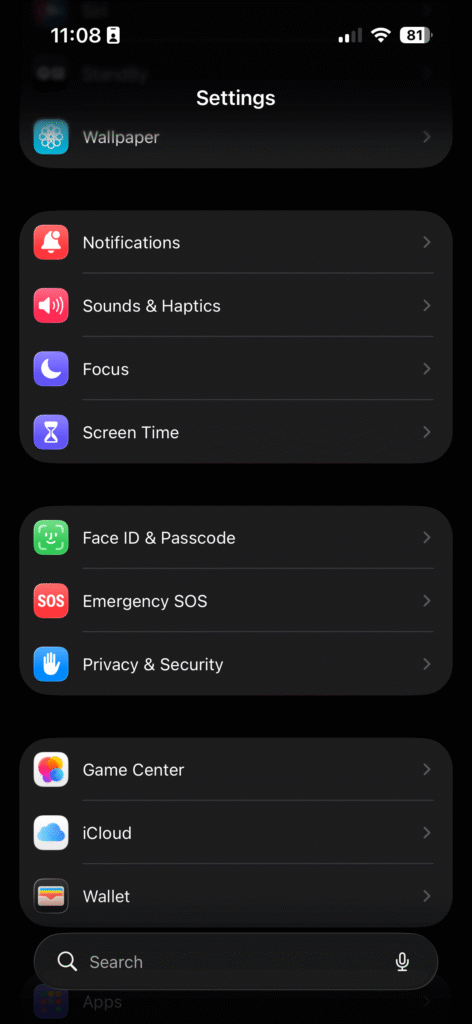
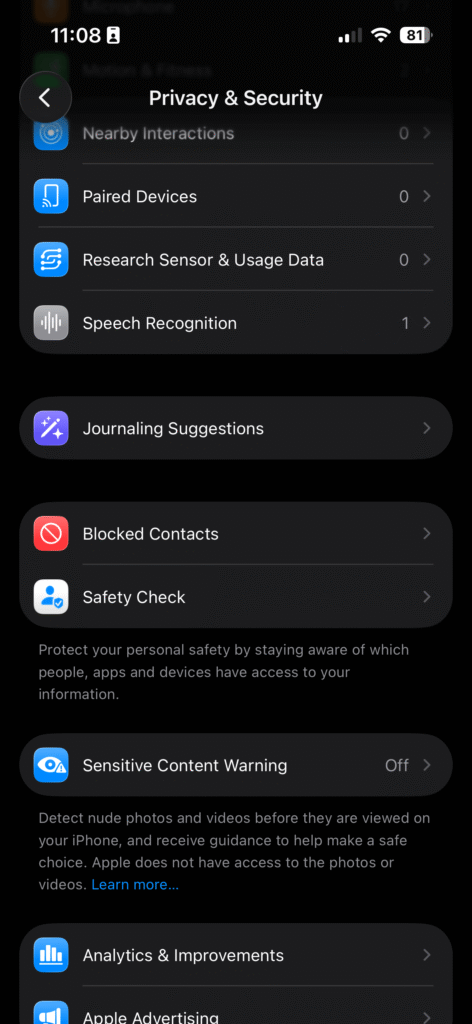
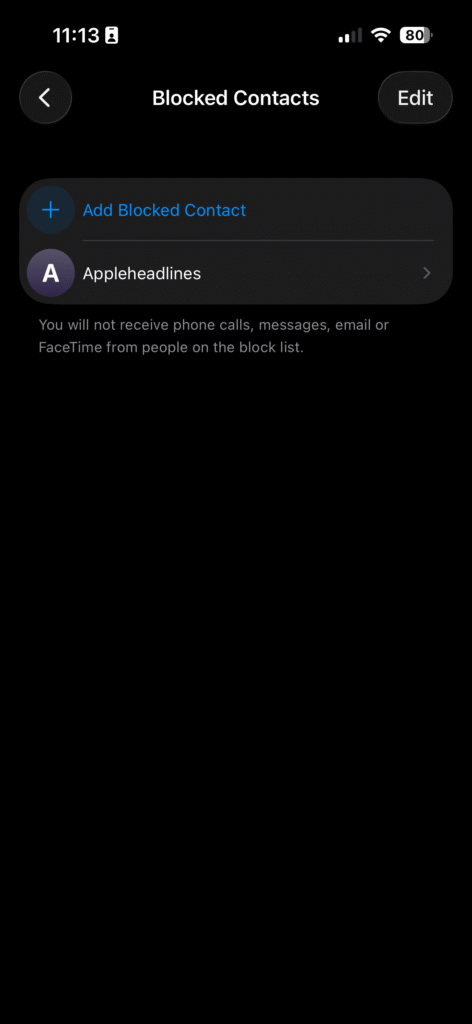
This list shows everyone you have restricted. It is the absolute easiest way to find blocked numbers on iPhone.
Method 2: Looking Through Messages Settings
Do you get a lot of spam text messages? You might block people straight from your Messages app. You can also view your list from here.
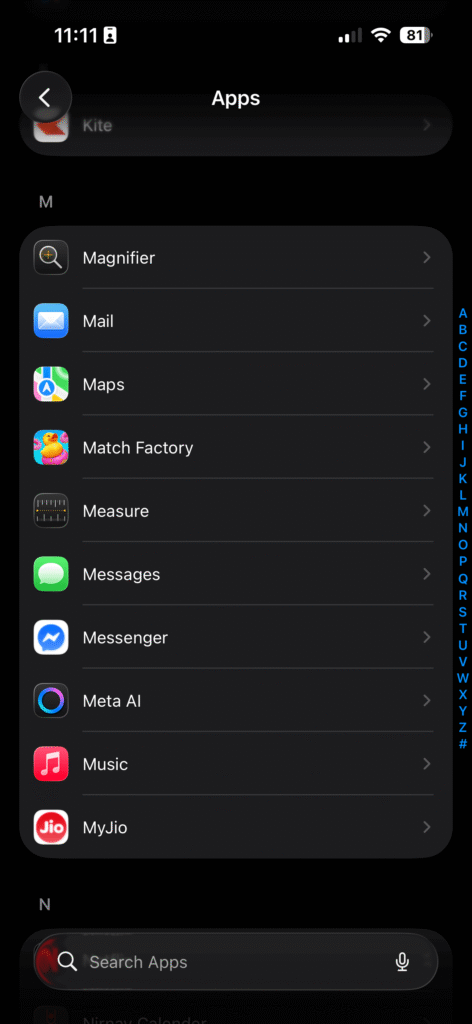
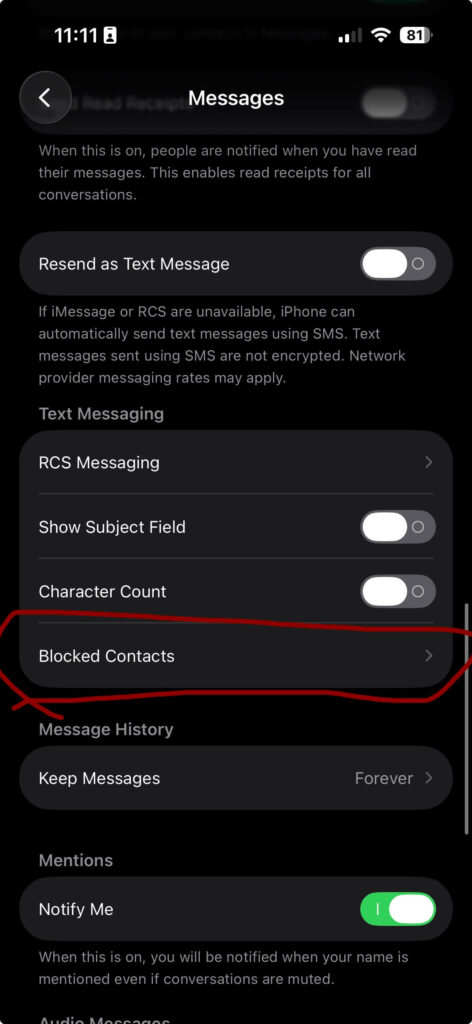
This is another quick way to learn how to see blocked numbers on iPhone. Apple links these lists together for your convenience.
Method 3: Finding Blocked Contacts in FaceTime
FaceTime is another avenue for potential spam. Sometimes strangers try to video call you. If you blocked them here, you can find the list easily.
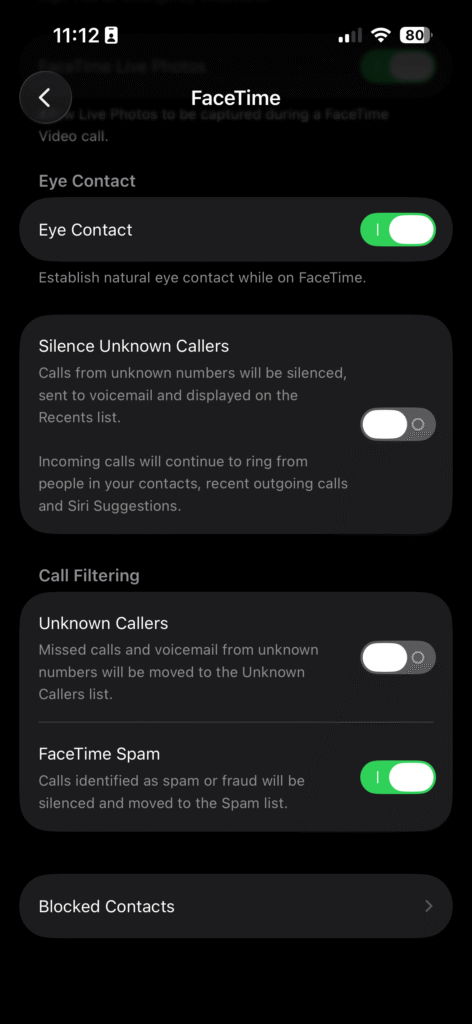
What Happens When You Block Someone?
Have you ever wondered what the blocked person experiences? It helps to know how the system works. Think of blocking like a soundproof wall. The person can still yell, but you hear nothing.
Here is exactly what happens.
- Phone Calls: The blocked caller hears one ring. Then, they are sent straight to voicemail. They can leave a message. However, you will not get a notification. The voicemail goes to a hidden folder.
- Text Messages: The blocked person can send a text message. It will look like it went through successfully. But it will never arrive on your iPhone. You will not see it anywhere.
- FaceTime: Their FaceTime calls will ring endlessly on their end. Your phone will not light up or ring at all.
Knowing this brings peace of mind. It also explains why you might want to find blocked numbers on iPhone. You might want to check those hidden voicemails.
How to Unblock a Number on Your iPhone
Now you know how to see blocked numbers on iPhone. But what if you want to remove someone?
Unblocking is just as simple as blocking. You can restore communication in seconds.
Follow these easy steps to unblock someone.
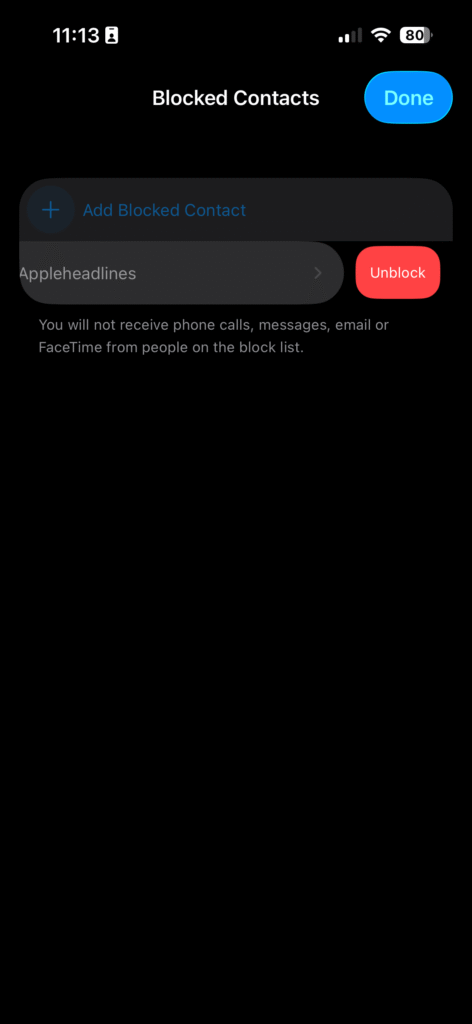
Alternatively, you can just swipe left on any number. The unblock button will appear instantly. Tap it, and they are free to call you again.
Can You See Blocked Emails Too?
Yes, you certainly can. Apple’s Mail app allows you to block specific email senders. This is vital for stopping phishing attempts and junk mail.
When you view your Blocked Contacts list, emails are included. They appear right alongside phone numbers.
If you want to view blocked emails specifically through Mail:
This list operates the same way. Unblocking an email uses the exact same swipe-left motion.
The Difference Between Device Blocking and Carrier Blocking
Many people confuse device blocks with carrier blocks. It is a common misunderstanding. Let me explain the difference clearly. It is like locking your front door versus closing the community gate.
When you block a number on your iPhone, it is a device block. You locked your front door. The call reaches your phone, but the phone rejects it silently.
Carrier blocking is different. This happens before the call even reaches your phone. The community gate is closed. Carriers like AT&T, Verizon, and T-Mobile offer these services.
If you block someone through your carrier app, they won’t appear on your iPhone list. Therefore, if you cannot find blocked numbers on iPhone settings, check your carrier.
- AT&T ActiveArmor: Check this app for blocked spam.
- Verizon Call Filter: This app manages carrier-level blocks.
- T-Mobile Scam Shield: Look here for numbers blocked by T-Mobile.
Remembering this distinction is crucial for total call control.
Managing Spam: Beyond Basic Blocking
Learning how to see blocked numbers on iPhone is great. But manually blocking every spammer is exhausting. Spammers change their numbers constantly. It feels like a game of whack-a-mole. You hit one, and another pops up.
You need a better strategy. Here are advanced ways to handle spam.
Silence Unknown Callers Feature
Apple introduced a brilliant feature a few years ago. It is called Silence Unknown Callers. This feature is a massive game-changer for your sanity.
It sends calls from unknown numbers straight to voicemail. Your phone will not even ring. It only rings for people saved in your contacts. It also rings for recent outgoing calls or Siri suggestions.
Here is how to turn it on:
This stops spam in its tracks. You will not have to constantly figure out how to see blocked numbers on iPhone. Your list will stay much cleaner.
Third-Party Call Filtering Apps
Sometimes, built-in features are simply not enough. You might need heavy-duty help. Third-party apps act as advanced digital bouncers. They maintain massive databases of known spam numbers.
They identify and block these numbers automatically. Popular apps include:
- RoboKiller: Famous for answering spam calls with funny bots.
- Truecaller: Great for identifying unknown callers instantly.
- Nomorobo: A solid, award-winning choice for blocking robocalls.
If you use these apps, they manage their own lists. You will need to check the specific app to find blocked numbers on iPhone. They will not show up in your regular Apple settings.
A Short Story: The Accidental Block
Let me share a quick story. My friend Sarah was waiting for a job interview call. She was very nervous. A random number called her twice. Annoyed, she blocked it instantly.
An hour later, she realized her massive mistake. She did not know the recruiter’s direct line. Panic set in. She had no idea how to see blocked numbers on iPhone.
She frantically searched online. She followed the exact steps outlined in this guide. She went to Settings, then Phone, then Blocked Contacts.
She found the number and unblocked it immediately. She called back and apologized. Luckily, she still got the job! This shows why knowing these settings is so vital. It can save you from a major communication disaster.
How iOS Updates Change Blocking Features
Apple updates iOS every year. Sometimes, settings move around slightly. However, the core method remains the same. The steps to learn how to see blocked numbers on iPhone are consistent.
With iOS 17, Apple introduced Live Voicemail. This changed the game slightly. Now, if a blocked caller leaves a voicemail, you might not see a live transcript.
Always keep your iPhone updated. It ensures you have the latest security features. It also updates Apple’s internal list of potential spam numbers.
If you ever get lost after an update, just use the search bar. Open Settings and type “Blocked Contacts” at the top. It will take you right there.
Retrieving Voicemails from Blocked Numbers
We mentioned earlier that blocked callers can leave voicemails. But where do they go? They do not appear in your normal list. Apple hides them to protect your peace.
However, you might want to check them occasionally. Maybe you are expecting evidence from a harassing caller. Or maybe you suspect an accidental block.
Here is how you can find these hidden voicemails.
If this folder is missing, it means you have no blocked voicemails. If it is there, you can listen to them. You can also delete them permanently.
This goes hand-in-hand with knowing how to see blocked numbers on iPhone. It gives you total control over your inbound communications.
Why You Should Audit Your Block List
Digital spring cleaning is very important. You should audit your block list every few months.
Why? Because phone numbers get reassigned.
A spammer might abandon a number today. Next year, a legitimate person might get that exact number. If that number is on your block list, you will miss their calls.
Take five minutes today. Go through your list. Ask yourself: “Do I really need to block this number?” If not, swipe left and unblock them.
Knowing how to see blocked numbers on iPhone makes this audit easy. It keeps your device running smoothly. It keeps your communication open for the right people.
Frequently Asked Questions (FAQs)
1. Will someone know if I check my blocked numbers list?
No, absolutely not. Viewing your list is entirely private. It happens locally on your device. The blocked person receives no alerts or notifications about your actions.
2. How many numbers can I block on my iPhone?
There is no official limit published by Apple. You can theoretically block thousands of numbers. Your phone’s storage capacity is the only real limit.
3. Do blocked contacts sync across all my Apple devices?
Yes, they do. If you use iCloud, your list syncs everywhere. Blocking someone on your iPhone blocks them on your iPad and Mac too.
4. Why is a number still calling me if I blocked it?
Spammers often use “spoofed” numbers. They fake the caller ID. You blocked the fake number, but they are using a new one today. Consider using third-party spam filters.
5. Can I block a number that has hidden its Caller ID?
You cannot block a specific “No Caller ID” number directly.
You can use “Silence Unknown Callers.” This sends all hidden numbers straight to voicemail automatically.
Disclaimer: The information provided in this article is for educational and informational purposes only. iOS interfaces may change slightly with new software updates. Always refer to official Apple Support documentation for the most current troubleshooting steps. We are not responsible for any missed communications resulting from blocking features.

Virginia J. Alfonso is a seasoned technology writer with a passion for all things digital. With over a decade of experience covering the latest in tech innovation, gadgets, and software, Virginia brings a unique blend of technical expertise and accessible writing to her work. Her articles focus on making complex tech topics easy to understand for readers of all levels.