



Your iPhone screen is on.
You can see the notifications.
But nothing responds to your touch — it’s like the glass has forgotten you exist.
You’re not alone. Touch screen in iPhone not working is one of the most common — and most stressful — iPhone problems reported in 2026.
80% of cases are fixable at home in under five minutes. This guide walks you through every fix, in order, so you don’t waste a single second.
Short Story
Why Your iPhone Touchscreen Matters More Than Ever
The touchscreen is the only way most people interact with their iPhone.
Unlike older phones with physical keyboards or buttons, a dead touch panel makes your device completely unusable – you can’t answer calls, unlock the phone, or even dial 911.
That’s not a minor inconvenience. That’s a genuine problem.



Apple designs its touch panels to be incredibly sensitive and precise.
But that same sensitivity makes them vulnerable to a surprisingly wide range of issues — software bugs, moisture, cheap screen protectors, rogue iOS updates, and hardware failures.
Knowing which category your problem falls into is the key to fixing it fast.
Before You Do Anything
If your iPhone was recently dropped or exposed to liquid, do not attempt software fixes first. Physical damage needs a different approach. Jump to the hardware section below before you accidentally make the problem worse.
Why Is Your iPhone Touchscreen Unresponsive? The Real Reasons
Most articles give you a list of fixes without explaining the “why.”
Here’s the truth: your iPhone’s touchscreen works using capacitive touch technology. Think of the glass as a tiny, invisible electrical grid.
When your finger touches it, it disrupts the electrical field at that exact point, and the phone registers it as a tap.
Here’s the analogy that makes it click:
Imagine a swimming pool covered in a thin layer of still water. Drop a pebble in, and the ripple instantly tells you exactly where it landed. Now imagine that same pool covered with a thick rubber mat — or filled with sludge. No ripple. No signal.
That’s exactly what happens when oil, water, a thick screen protector, or a low-quality case blocks the electrical connection between your fingertip and the glass.
The five main causes of an iPhone touchscreen completely unresponsive are:
Step-by-Step Fixes: Touch Screen in iPhone Not Working
Work through these in order. Most users solve their problem by step 3.
STEP 1: Force Restart Your iPhone (Most Effective First Step)
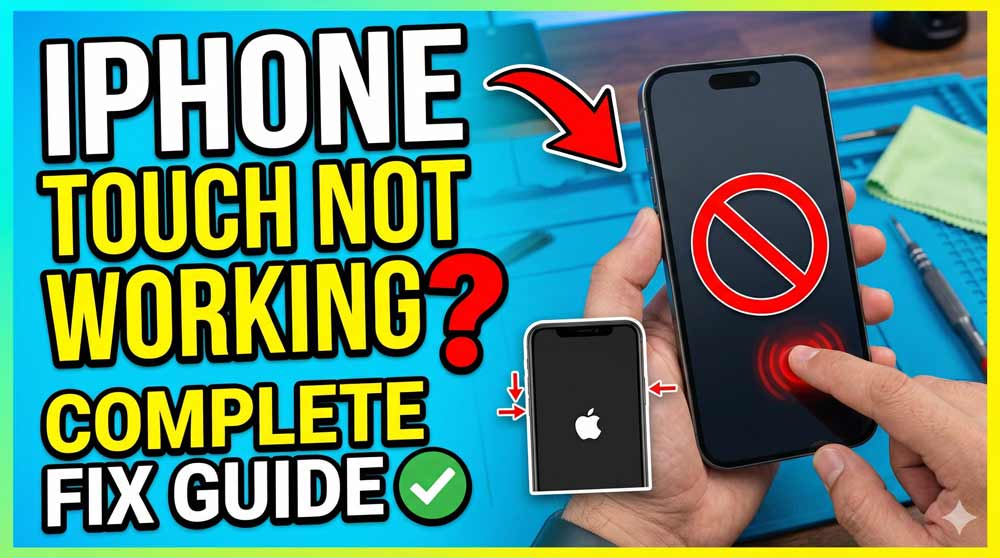
This clears memory, kills frozen processes, and reloads the touch driver — all without touching the screen. It fixes the majority of iPhone screen not responding to touch cases instantly. See the model-specific steps in the section below.
STEP 2: Clean and Dry the Screen
Use a soft, dry microfiber cloth. Wipe in one direction. If your hands are wet or sweaty, dry them first. Don’t spray liquid directly on the phone. Even a thin film of hand lotion can make the screen think nothing is touching it.
STEP 3: Remove Your Case and Screen Protector
A cheap or bubbled screen protector is a surprisingly common culprit. Remove it completely and test the bare screen. If the touch works, the screen protector is the problem — replace it with an Apple-certified option.
STEP 4: Unplug All Cables and Accessories
Disconnect your charger, headphones, and any USB-C or Lightning accessories. Third-party chargers in particular can inject electrical noise into the system and cause touch screen unresponsive iPhone symptoms. Test the screen unplugged.
STEP 5: Update iOS via Wi-Fi (If Screen Partially Works)
Go to Settings → General → Software Update. iOS updates often patch known touch driver bugs. Many cases of iPhone touch screen not working after update are fixed by the very next point release from Apple.
STEP 6: Reset All Settings
Go to Settings → General → Transfer or Reset iPhone → Reset → Reset All Settings. This resets display calibration, accessibility settings, and system preferences — without deleting your data. It often resolves persistent touch issues caused by a corrupted settings file.
STEP 7: Restore iPhone via a Computer (Last Software Option)
Back up first if possible. Connect to a Mac (Finder) or PC (iTunes). Choose “Restore iPhone.” This is the nuclear software option. It resolves cases where touch screen in iPhone not working after reset from the phone itself still failed.
How to Force Restart Your iPhone — Every Model
The force restart is the single most effective fix for an unresponsive touchscreen. It works without needing the screen at all. Here are the exact steps for every iPhone model:
FOR: iPhone 8 / SE2 / X / 11–16
- Press and quickly release the Volume Up button.
- Press and quickly release the Volume Down button.
- Press and hold the Side (Power) button until the Apple logo appears.
- Release the button. Your iPhone will restart normally.
This works for iPhone 8, SE 2nd & 3rd gen, iPhone X, XS, XR, 11, 12, 13, 14, 15, and 16 series.
FOR: iPhone 7 / 7 Plus
- Press and hold both the Volume Down button and the Sleep/Wake button simultaneously.
- Keep holding until the Apple logo appears.
- Release both buttons.
FOR: iPhone 6s / SE (1st gen)
- Press and hold both the Home button and the Sleep/Wake (Top) button simultaneously.
- Keep holding until the Apple logo appears.
- Release both buttons.
📋 Real-World Case
Marcus, a 34-year-old teacher in Austin, Texas, woke up to find his iPhone 13 completely unresponsive after charging overnight with a $9 cable from a gas station. The screen was on, showed notifications, but registered zero touches. After reading this guide, he unplugged the cable, wiped the screen, and did a force restart. The phone was back to normal in 90 seconds. The culprit? The cheap cable was dumping electrical interference directly into the iPhone’s touch controller — a well-documented problem with non-MFi-certified accessories.
— Composite case based on common Apple Discussions forum reports, 2024–2025
Expert Insight: Use Siri as a Backup Touchpad
If your screen is frozen but still lit, Siri can be your lifeline. Hold the Side button (or say “Hey Siri”) and ask it to “Turn on AssistiveTouch.” This enables an on-screen virtual button that lets you navigate, restart, or go to Settings — entirely without needing the touchscreen to respond. It’s an underused trick that can save you a trip to the Apple Store.
Touch Screen in iPhone Not Working After Update — What’s Different
If your iPhone touchscreen suddenly became unresponsive after an iOS update, the cause is almost certainly a software conflict — not hardware damage. Apple’s iOS updates occasionally introduce bugs in the touch driver, especially in the first point release (e.g., iOS 17.0 vs. 17.0.1).
What to Do After an Update Breaks Your Touch
DFU Mode vs. Recovery Mode — Know the Difference
Recovery Mode reinstalls iOS while keeping your data. DFU Mode goes deeper — it reflashes the firmware entirely. For post-update touch issues, try Recovery Mode first. Use DFU only if Recovery Mode fails. Both require a computer with iTunes (Windows) or Finder (Mac).
Model-Specific Problems: iPhone 11 and iPhone 13
iPhone 11 Screen Not Responding to Touch
The iPhone 11 has a known Apple Service Program for display module issues.
If your iPhone 11 screen is not responding to touch — even after a hard reset — visit support.apple.com and check your serial number for eligibility.
Apple will replace the display free of charge if it qualifies. This applies even if your iPhone 11 is out of standard warranty.
iPhone 13 Touch Screen Not Working — Can’t Unlock
The iPhone 13 Touch ID lives in the Side button, so a dead screen doesn’t mean you can’t authenticate — but you still can’t swipe to unlock.
If your iPhone 13 touch screen is not working and you can’t unlock, use Face ID by pressing the Side button and glancing at the camera — this works even with an unresponsive display in many cases.
Then immediately back up via iCloud (if Face ID unlocks successfully) and proceed with a force restart.
Quick-Reference: All Fixes by Difficulty
| Fix | Time Required | Difficulty | Solves |
|---|---|---|---|
| Force Restart | 30 seconds | Easy | Software freeze, crashed app |
| Clean Screen | 2 minutes | Easy | Oil, water, dirt on glass |
| Remove Case/Screen Protector | 1 minute | Easy | Accessory interference |
| Unplug All Cables | 10 seconds | Easy | Third-party charger noise |
| Update iOS | 10–20 minutes | Easy | Post-update touch bug |
| Reset All Settings | 5 minutes | Medium | Corrupted settings, calibration |
| Restore via Computer | 30–60 minutes | Medium | Deep software corruption |
| Apple Store / Genius Bar | Varies | Hardware | Digitizer failure, physical damage |
What If Nothing Works? Advanced Troubleshooting
You’ve tried every software fix. The screen is still unresponsive.
Here’s what to do next — and what it means.
“My iPhone Screen Is Unresponsive Even After Hard Reset“
If the iPhone touchscreen is still completely unresponsive after a hard reset and a full restore, the problem is almost certainly hardware. The two most likely culprits are:
- Digitizer failure — The digitizer is the thin transparent layer behind the glass that converts touch input into electrical signals. It can fail from drops, liquid damage, or manufacturing defects, even with no visible screen cracks.
- Logic board damage — In rare cases, especially after drops or water exposure, the touch controller chip on the logic board can fail. This is a more expensive repair.
Check for These Physical Signs
When to Go to the Apple Store
Contact Apple Support or visit a Genius Bar when all software fixes have failed.
Be upfront about any drops or liquid exposure — it affects the repair pathway.
Bring your Apple ID credentials because technicians may need to verify ownership.
If your iPhone is under AppleCare+, screen replacement starts at $29.
Without AppleCare+, screen repair ranges from $129 to $329 depending on model.
Apple Service Programs Worth Knowing
Apple has quietly offered free repair programs for touch issues on iPhone X, iPhone 11, and iPhone 6 Plus. Check support.apple.com for current service programs and enter your serial number to check eligibility before paying for any repair.
How to Prevent iPhone Touch Screen Problems in the Future
The best fix is the one you never need. These four habits will dramatically reduce your risk of a touch screen in iPhone not working situation:
Still Stuck? We’re Here to Help.
Drop your iPhone model and the exact issue in the comments below. Our team responds to every question — usually within 24 hours.
Frequently Asked Questions
This is the most common scenario and almost always a software issue.
The display hardware (backlight, LCD/OLED) is working fine, but the touch driver or a frozen app has stopped responding.
Do a force restart first. If that doesn’t fix it, try unplugging all accessories — a bad cable is a surprisingly common cause. If neither helps, connect to a computer and restore iOS.
Sudden, unexplained touch failure with no physical damage is almost always software-related.
It can be caused by a crashed system process, a rogue app running in the background, or a corrupted iOS file. Force restart first. If the issue recurs regularly, a full restore via computer is the cleanest solution.
Persistent hardware-style symptoms without physical damage can also indicate a digitizer beginning to fail — worth having Apple diagnose it.
Use a force restart — it requires no touch input at all.
On iPhone 8 and later: quickly press Volume Up, then Volume Down, then hold the Side button until the Apple logo appears.
On iPhone 7: hold both Volume Down and Sleep/Wake simultaneously.
On iPhone 6s/SE (1st gen): hold both Home and Sleep/Wake simultaneously. This works regardless of whether the screen is responsive.
Yes — if the issue was caused by a bug introduced in a previous iOS update, the next Apple update will often contain a fix.
This is especially common with .0 releases (e.g., iOS 18.0).
Go to Settings → General → Software Update. If the screen is too unresponsive to navigate, use Siri to “Open Software Update” and then navigate using AssistiveTouch.
With AppleCare+, screen replacement starts at $29.
Without AppleCare+, costs vary by model: iPhone SE starts around $129, iPhone 15 Pro Max can reach $379.
Always check for Apple Service Programs first — some models (iPhone X, 11, 6 Plus) have had free touch repair programs.
Third-party repair shops are cheaper but may affect Face ID functionality — use Apple-authorized service providers when possible.
Disclaimer: The information in this article is provided for general informational and educational purposes only. AppleHeadlines.com is an independent publication and is not affiliated with, endorsed by, or in any way officially connected to Apple Inc. Repair costs, iOS versions, and service program eligibility change frequently — always verify current information at support.apple.com. Attempting hardware repairs yourself may void your warranty. If your device is under warranty or AppleCare+, contact Apple before attempting any self-repair.

Ruth writes in-depth guides about Apple products, focusing on practical solutions for everyday users. Her articles cover device setup, hidden features, troubleshooting, and the latest updates for iOS, watchOS, and other Apple platforms.
He regularly researches Apple updates and tests features on devices like the iPhone and Apple Watch to ensure readers receive accurate and helpful information.