




Why iPhone Parental Control Apps Matter More Than Ever?
If you’re a parent with tech-savvy kids, you’ve probably wondered what they’re doing on their iPhones at 11 PM on a school night.
iPhone apps for parental control have evolved dramatically, offering sophisticated tools that help you protect your children without invading their privacy.
In 2025, the average child receives their first smartphone at age 10, spending over 7 hours daily on screens.
This digital immersion brings real risks: cyberbullying, inappropriate content, online predators, and excessive screen time affecting sleep and mental health.
This comprehensive guide breaks down everything you need to know about parental monitoring app for iphone options, from Apple’s built-in Screen Time to third-party solutions.
Whether you’re a tech beginner or simply exploring your options, you’ll know how to set up effective parental controls iPhone that balance safety with independence.
What Are iPhone Apps for Parental Control?
Parental control apps are software tools designed to help parents monitor, manage, and restrict their children’s smartphone usage.
These applications provide visibility into what kids are doing online while giving parents the ability to set boundaries.


Think of them as digital guardrails rather than surveillance systems.
The best parental app control iPhone solutions focus on protection and healthy habits, not constant monitoring.
Core Functions of Parental Control Apps
Most parental control applications offer several key capabilities:
Monitoring Features:
Control Features:
Communication Features:
How Parental Controls iPhone Actually Work
Understanding the technology behind parental controls helps you choose the right solution for your family.
Apple’s Built-In Screen Time
Apple includes Screen Time as a native feature in iOS, requiring no additional app download.
It works by integrating directly with the operating system, giving it deep access to device functionality.
Setup Process:
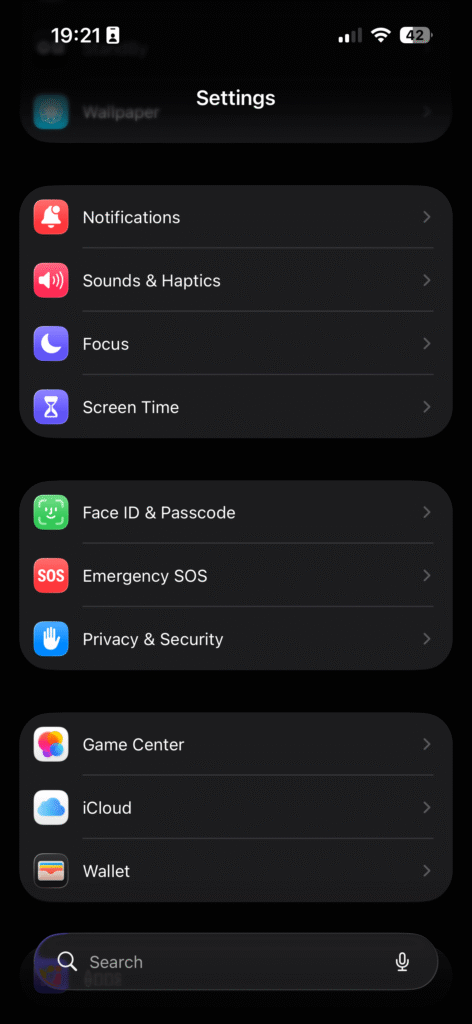
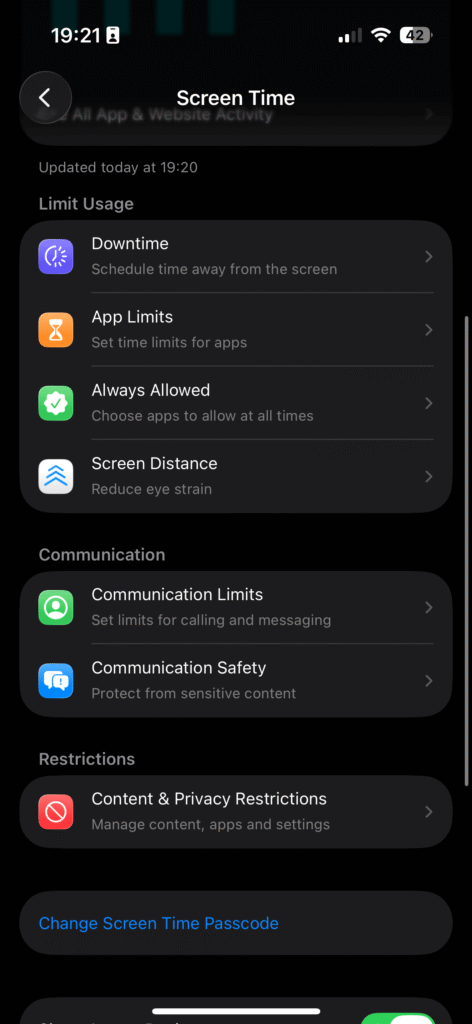
Screen Time syncs across all devices connected to your child’s Apple ID, providing consistent rules whether they’re using an iPhone, iPad, or Mac.
Third-Party Parental Monitoring Apps
Third-party apps typically use one of two methods:
VPN-Based Filtering: Apps like Net Nanny create a VPN connection to filter web content in real-time, blocking inappropriate sites before they load.
Device Management Profiles: Enterprise-grade solutions install configuration profiles that give the app deeper system access, similar to how schools manage student devices.
Most comprehensive solutions combine both approaches with cloud-based dashboards accessible from any device.
Top Features to Look for in Parental Control Apps
Not all parental controls are created equal. Here’s what separates excellent apps from mediocre ones.
Essential Features
| Feature | Why It Matters | Best For |
|---|---|---|
| Content Filtering | Blocks age-inappropriate websites automatically | Kids under 13 |
| Screen Time Management | Prevents device addiction and ensures balance | All ages |
| App Blocking | Controls access to social media and games | Tweens and teens |
| Location Tracking | Provides peace of mind about physical safety | All ages |
| Activity Reports | Gives insight without constant monitoring | Teens seeking independence |
Advanced Features Worth Considering
YouTube Monitoring: Since YouTube is the most-used app for kids, the ability to see watch history and block channels is invaluable.
Social Media Oversight: For teens with Instagram, TikTok, or Snapchat, some apps can monitor direct messages and flag concerning conversations without reading everything.
Geofencing: Receive automatic notifications when your child arrives at or leaves designated locations like school, home, or a friend’s house.
Panic Button: Gives kids a quick way to alert you in emergencies, sending their exact location instantly.
The Best iPhone Apps for Parental Control: Detailed Comparison
Let’s examine the most popular options available in 2026, starting with Apple’s native solution.
Apple Screen Time (Built-In)
Cost: Free with iOS
Strengths:
Limitations:
Best For: Parents who want basic controls without monthly fees and primarily need screen time management.
Bark (Monitoring-Focused)
Cost: $5-14 per month
Bark takes a different approach, focusing on monitoring communication rather than restricting access.
It uses AI to analyze texts, emails, and social media for signs of cyberbullying, depression, or predatory behavior.
Key Features:
Best For: Parents of teens who want safety without micromanaging every interaction.
Qustodio (Comprehensive Control)
Cost: $55-138 annually
Qustodio offers one of the most complete feature sets available, combining monitoring, filtering, and time management.
Standout Features:
Best For: Parents who want detailed oversight across multiple children and devices.
Net Nanny (Content Filtering Champion)
Cost: $40-90 annually
Net Nanny has spent decades perfecting web filtering, making it the gold standard for blocking inappropriate content.
Notable Features:
Best For: Parents primarily concerned about exposure to inappropriate online content.
Life360 (Location-First Approach)
Cost: Free basic version; $8-50 monthly for premium
While technically a family tracking app, Life360’s parental controls have expanded significantly.
Unique Offerings:
Best For: Families prioritizing physical safety and location awareness over digital monitoring.
Setting Up Parental Controls iPhone: Step-by-Step Guide

Let’s walk through setting up comprehensive protections using Apple’s built-in tools, which most families should configure as a baseline.
Phase 1: Configure Screen Time
Step 1: Enable Screen Time on Child’s Device
- Settings → Screen Time → Turn On Screen Time
- Choose “This is My Child’s iPhone“
Step 2: Set Communication Limits
- Tap “Communication Limits“
- Configure “During Screen Time” to allow only contacts
- Set “During Downtime” to allow specific essential contacts
Step 3: Configure App Limits
- Choose “App Limits“
- Select categories like Social, Games, or Entertainment
- Set daily time allowances (e.g., 1 hour for games)
Step 4: Establish Downtime
- Schedule Downtime for bedtime (e.g., 9 PM – 7 AM)
- Only allowed apps will be accessible during this window
Phase 2: Content & Privacy Restrictions
iTunes & App Store Purchases:
- Content & Privacy Restrictions → iTunes & App Store Purchases
- Set “Installing Apps” to “Don’t Allow“
- Require password for all purchases
Content Restrictions:
- Tap “Content Restrictions“
- Set age ratings for apps, movies, TV shows, and books
- Enable “Limit Adult Websites” under Web Content
Privacy Settings:
- Review Location Services permissions
- Restrict changes to accounts and cellular data
Step 5: Set Screen Time Passcode
- Create a unique passcode your child doesn’t know
- Store it securely (not on the device)
- Consider using Face ID or Touch ID for easier parent access
Phase 3: Family Sharing Setup
Family Sharing connects your Apple ID to your child’s, enabling purchase sharing and enhanced parental controls.
Benefits:
- Approve or deny app download requests remotely
- Share subscriptions (Apple Music, iCloud storage)
- Share location automatically
- Receive weekly Screen Time reports
Real Examples: Applying Parental Controls Effectively
Theory matters less than practical application. Here’s how different families use these tools successfully.
Case Study 1: The Elementary School Child (Ages 6-10)
Scenario: Emma, age 8, just got her first iPhone for emergencies and educational apps.
Strategy:
Result: Emma can use her phone for its intended purpose while parents maintain complete control over content exposure.
Case Study 2: The Middle Schooler (Ages 11-13)
Scenario: Marcus, age 12, wants social media to connect with friends but parents worry about online risks.
Strategy:
Result: Marcus has age-appropriate freedom while parents can intervene if issues arise.
Case Study 3: The High Schooler (Ages 14-18)
Scenario: Zoe, age 16, needs independence but parents want safety guardrails, especially while driving.
Strategy:
Result: Zoe feels trusted and respects boundaries. Parents catch concerning situations (cyberbullying attempt) early and intervene appropriately.
Pros and Cons of iPhone Parental Control Apps
Like any parenting tool, parental controls come with advantages and potential drawbacks.
Advantages
Enhanced Safety: Protect children from online predators, inappropriate content, and cyberbullying before harm occurs.
Healthy Habits: Screen time limits encourage balanced lifestyles with time for homework, sleep, and physical activity.
Peace of Mind: Location tracking and activity monitoring reduce parental anxiety about children’s whereabouts and online behavior.
Teachable Moments: Activity reports create opportunities for conversations about digital citizenship and online safety.
Customizable: Adjust restrictions as children mature, gradually increasing independence.
Disadvantages
Privacy Concerns: Excessive monitoring can damage trust and prevent children from developing autonomy.
Technical Limitations: Tech-savvy teens may find workarounds, creating a false sense of security.
Cost: Comprehensive third-party apps range from $40-200 annually per family.
Over-Reliance: Parents might depend on apps rather than having direct conversations about online safety.
Compatibility Issues: Some apps have limited functionality on iOS due to Apple’s privacy restrictions.
Parental Controls iPhone vs. Android: Key Differences
If you’re considering which platform offers better parental controls, here’s what you need to know.
Apple’s Advantages:
- Screen Time is free, robust, and built-in
- Harder for kids to circumvent due to closed ecosystem
- Better privacy protection (data stays on device)
- Seamless integration across iPhone, iPad, and Mac
Android’s Advantages:
- Google Family Link offers more granular controls
- Greater compatibility with third-party apps
- More affordable device options
- Can approve screen time extension requests remotely
Bottom Line: iOS offers tighter security and seamless built-in controls, while Android provides more flexibility and remote management features.
Common Mistakes Parents Make (And How to Avoid Them)
Mistake 1: Installing Controls Secretly
Why It’s Problematic: Discovering surveillance damages trust and may encourage deceptive behavior.
Better Approach: Have an open conversation about why you’re implementing controls. Frame it as safety rather than punishment.
Mistake 2: Setting Overly Restrictive Rules
Why It Backfires: Extremely strict controls can cause rebellion or motivate kids to find workarounds.
Better Approach: Start with reasonable boundaries and adjust based on your child’s behavior and maturity.
Mistake 3: Never Adjusting Settings
Why It’s Limiting: Controls appropriate for a 10-year-old shouldn’t remain unchanged when they’re 15.
Better Approach: Schedule quarterly reviews to discuss and adjust rules as your child demonstrates responsibility.
Mistake 4: Forgetting to Secure the Parent Passcode
Why It’s Dangerous: If kids discover the Screen Time passcode, all restrictions become meaningless.
Better Approach: Use a unique passcode they couldn’t guess, and never share it or save it where they can find it.
Mistake 5: Monitoring Without Context
Why It Fails: Reacting to alerts without understanding context can lead to unfair consequences.
Better Approach: Use monitoring as a conversation starter, not a gotcha moment. Ask questions before jumping to conclusions.
FAQs About iPhone Parental Control Apps
1. Can my child bypass iPhone parental controls?
Yes, determined kids may find workarounds like factory resetting the device, changing the date/time to exceed app limits, or using VPNs to bypass filters.
Proper setup (especially using Family Sharing and a secure passcode) makes circumvention very difficult. Regular check-ins and monitoring prevent most attempts.
2. Do parental control apps drain iPhone battery?
Built-in Screen Time has minimal battery impact.
Third-party apps with real-time location tracking or VPN-based filtering may reduce battery life by 5-15%.
Most modern apps are optimized for efficiency, but expect some battery impact with constant monitoring.
3. What’s the best age to start using parental controls iPhone?
Implement parental controls from day one when giving a child their first device.
It’s much easier to gradually remove restrictions than to suddenly impose them on a teen who’s had unrestricted access.
Start strict and progressively grant freedom as they demonstrate responsibility.
4. Can I monitor my teen’s text messages on iPhone legally?
Legally, parents generally have the right to monitor minor children’s communications until age 18.
Ethics and effectiveness matter too.
For young children, monitoring makes sense.
For older teens, consider communication-based monitoring (like Bark) that alerts you to problems without reading every message, preserving some privacy.
5. Are free parental control apps as good as paid options?
Apple’s free Screen Time offers excellent basic controls suitable for many families. Free third-party apps typically have significant limitations (fewer devices, basic features only, ads).
Paid apps provide comprehensive monitoring, better filtering, and customer support. Assess your family’s specific needs before deciding.
The Future of Parental Controls iPhone: What’s Coming Next
Parental control technology continues evolving rapidly. Here’s what experts predict for the next few years.
AI-Powered Threat Detection: Machine learning will identify concerning patterns in behavior, like sudden changes in communication that might indicate depression or bullying.
Enhanced Social Media Integration: As platforms face regulatory pressure, expect better native parental controls within apps like TikTok, Instagram, and Snapchat rather than relying on third-party monitoring.
Mental Health Monitoring: Apps will analyze screen time patterns, app usage, and communication tone to flag potential mental health concerns.
Cross-Platform Synchronization: Seamless controls that work identically across smartphones, tablets, computers, and gaming consoles.
Privacy-Preserving Monitoring: Technology that protects children without storing their data in the cloud or exposing it to third parties.
Conclusion: Balancing Protection with Trust
iPhone apps for parental control provide powerful tools for keeping children safe in an increasingly digital world. From Apple’s built-in Screen Time to comprehensive solutions like Qustodio and Bark, parents have more options than ever.
The most successful approach combines technology with open communication. Use parental controls iPhone as guardrails, not walls. Gradually increase your child’s digital independence as they demonstrate responsibility and good judgment.
Remember that parental monitoring app for iphone solutions are tools to support your parenting, not replace it. No app can substitute for involved parenting, regular conversations about online safety, and building a trusting relationship where your child feels comfortable coming to you with problems.
Start with Apple’s free Screen Time for basic protection, then evaluate whether your family needs additional features from third-party apps. Adjust settings regularly as your child matures, and always prioritize trust and communication alongside technological safeguards.
Take Action Today
Ready to implement parental controls? Start with these immediate steps:
- Set up Screen Time on your child’s iPhone today using the guide above
- Have a family meeting to discuss digital rules and explain why controls exist
- Schedule quarterly reviews to adjust settings as your child grows
- Research third-party apps if you need features beyond Screen Time
- Join the conversation by sharing your experiences and questions in parenting forums
Your child’s digital safety starts with informed, proactive parents. Take the first step today.

Virginia J. Alfonso is a seasoned technology writer with a passion for all things digital. With over a decade of experience covering the latest in tech innovation, gadgets, and software, Virginia brings a unique blend of technical expertise and accessible writing to her work. Her articles focus on making complex tech topics easy to understand for readers of all levels.