




Portrait mode transforms ordinary photos into professional-looking shots with beautiful background blur.
With iOS 26, Apple has refined this feature to make it easier and more powerful than ever.
Whether you’re new to iPhone photography or upgrading to the latest iOS version, this guide will show you everything about portrait mode.
You’ll learn how to activate it, use advanced features, and fix common problems. Let’s dive into mastering portrait mode on your iPhone.
Short Story in Portrait Mode iPhone
What Is Portrait Mode in iOS 26?
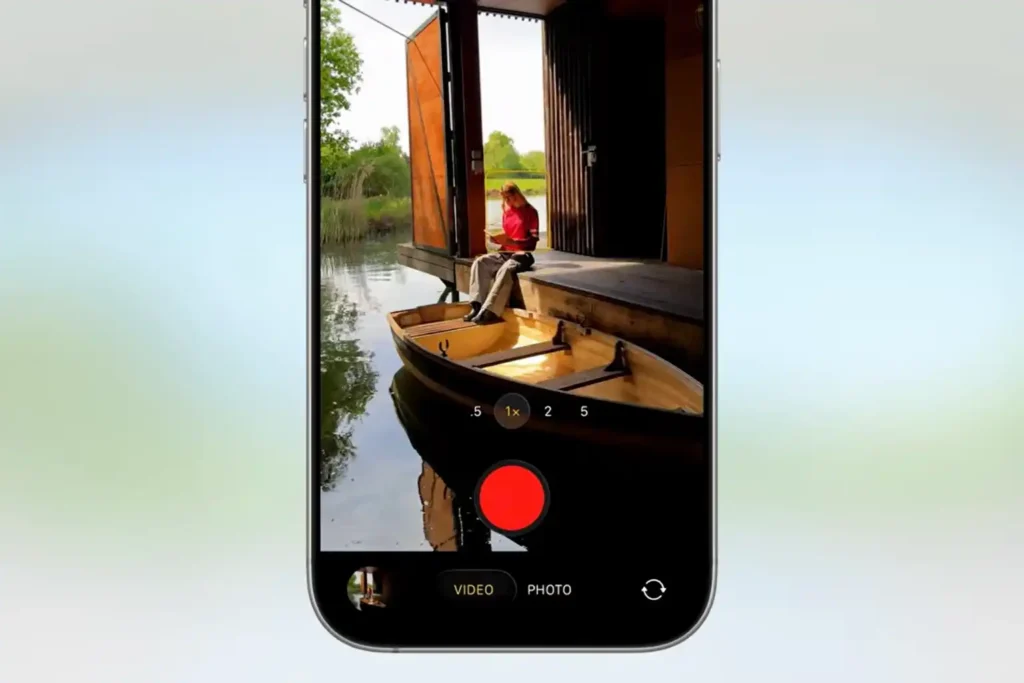
Portrait mode is a camera feature that creates depth-of-field effects in photos.
It blurs the background while keeping your subject sharp and focused.
This mimics the effect you’d get from professional DSLR cameras.
How It Works:
iOS 26 brings improved edge detection and better low-light performance. The feature now works faster and produces more realistic results than previous versions.


Which iPhone Has Portrait Mode?
Not all iPhones support portrait mode. Here’s what you need to know:
Compatible iPhone Models:
Camera Requirements:
If you have an older iPhone model without portrait mode, consider upgrading. The feature requires specific hardware or advanced computational capabilities.
How to Get Portrait Mode on iOS 26
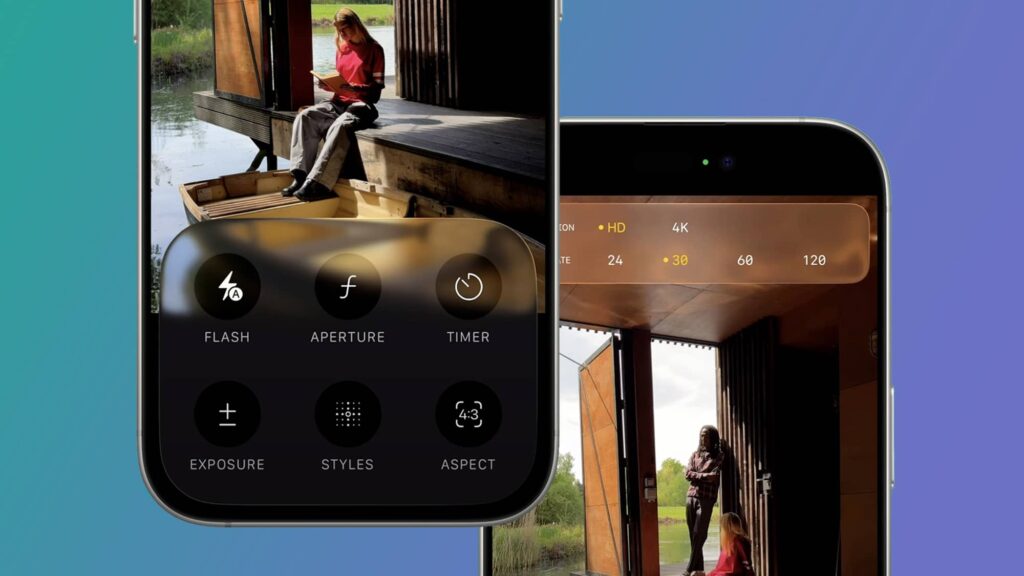
Setting up portrait mode on iOS 26 is straightforward. Follow these simple steps to start capturing stunning portraits.
Update to iOS 26
Open the Camera App
Select Portrait Mode
Position Your Subject
Step-by-Step Activation:
Pro Tip: iOS 26 now remembers your last portrait mode settings. This saves time when taking multiple portraits.
Where Is Portrait Mode in iOS 26 Camera?
Finding portrait mode is easy once you know where to look. The layout remains intuitive in iOS 26.
Camera Interface Navigation:
Quick Access Tips:
Can’t find it?
Make sure your iPhone supports portrait mode.
Check the compatibility list above.
iOS All Features Explainer Video
How to Turn On Portrait Mode on iPhone
Activating portrait mode requires proper technique for best results. Here’s how to use it effectively.
Using Rear Camera Portrait Mode:
Using Front Camera (Selfie) Portrait:
iOS 26 Enhancements:
Portrait Mode on iOS 26 Camera: New Features
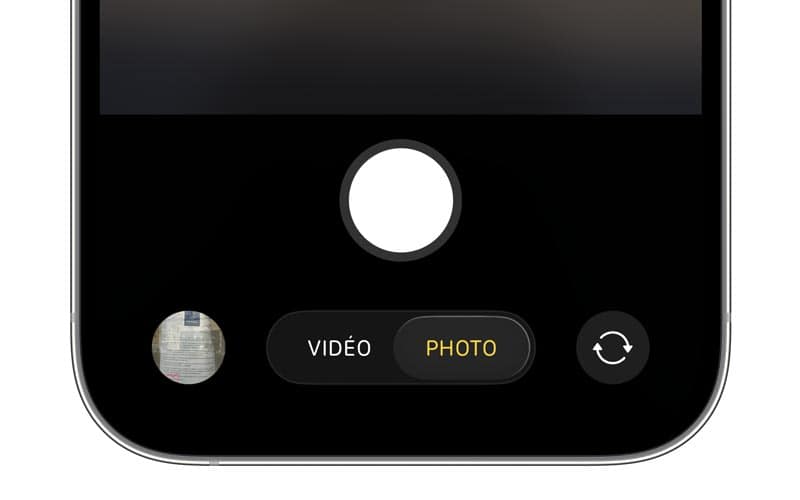
iOS 26 introduces several improvements to portrait mode. These features make your photos look more professional.
What’s New:
Enhanced Lighting Effects:
Depth Control:
Smart Subject Detection:
Advanced Editing Options:
How to Video in Portrait Mode on iPhone
Video portrait mode adds cinematic depth to your recordings. iOS 26 makes this feature more accessible and powerful.
Cinematic Mode (Portrait Video):
Key Features:
Best Practices:
Note: True portrait mode video is called “Cinematic mode” in iOS 26. It’s separate from photo portrait mode but works similarly.
Portrait Mode Not Working on iPhone: Troubleshooting
Sometimes portrait mode doesn’t work as expected. Here are common issues and solutions.
Common Problems and Fixes:
“Move Farther Away” Warning:
- Problem: You’re too close to the subject
- Solution: Step back 2-8 feet from subject
- Optimal distance: 3-5 feet for best results
No Yellow Box Appears:
- Problem: Subject not detected
- Solution: Ensure adequate lighting
- Try different angles or backgrounds
- Clean camera lenses with soft cloth
Depth Effect Not Available:
- Problem: Scene too dark or complex
- Solution: Increase lighting in the area
- Simplify background when possible
- Update to latest iOS 26 version
Blurry or Soft Images:
- Problem: Camera shake or focus issues
- Solution: Hold phone steady
- Tap screen to focus on subject
- Use timer or burst mode for stability
Feature Missing Entirely:
- Problem: iPhone model doesn’t support portrait mode
- Solution: Check compatibility list
- Ensure iOS 26 is properly installed
- Contact Apple Support if needed
Advanced Troubleshooting:
- Restart Camera app
- Restart your iPhone
- Check for iOS 26 updates
- Reset camera settings (Settings > Camera > Preserve Settings)
Tips for Perfect Portrait Photos in iOS 26
Master these techniques to capture professional-quality portraits every time.
Composition Tips:
Lighting Recommendations:
Subject Positioning:
Post-Processing:
FAQ
Q1: Can I use portrait mode on any iPhone?
No, portrait mode requires iPhone 7 Plus or newer with dual cameras. iPhone XR and later single-camera models also support it through software processing. Check your iPhone model for compatibility.
Q2: Can I edit portrait mode photos after taking them?
Yes, iOS 26 lets you adjust depth, change lighting effects, and modify focus points. Open the photo in the Photos app and tap Edit to access these controls.
Q3: Why does portrait mode work better in good lighting?
Portrait mode uses depth mapping and computational photography. These features need clear visual information to separate subject from background. Better lighting provides more accurate depth data.
Q4: Can portrait mode work with objects, not just people?
Yes, portrait mode works with pets, food, objects, and scenery. iOS 26 has improved object detection. Results vary based on subject size and background complexity.
Q5: How is Cinematic mode different from portrait mode?
Cinematic mode is portrait mode for video. It adds depth-of-field effects while recording. Both use similar depth mapping but cinematic mode also includes automatic focus transitions.
Disclaimer
This guide is based on iOS 26 features available at the time of publication. Apple may update features or change functionality in future iOS versions. Portrait mode availability depends on your iPhone model and hardware capabilities. Always update to the latest iOS version for optimal performance. Results may vary based on lighting conditions and shooting scenarios.
This article provides general guidance and doesn’t replace Apple’s official documentation.
Ready to Capture Stunning Portraits?
Start experimenting with portrait mode today and transform your iPhone photography.
Practice these techniques and watch your photos go from ordinary to extraordinary.
Share your best portrait mode shots with friends and family!
Have questions about iOS 26 portrait mode?
Drop a comment below or explore more iPhone photography tips on our blog.

Virginia J. Alfonso is a seasoned technology writer with a passion for all things digital. With over a decade of experience covering the latest in tech innovation, gadgets, and software, Virginia brings a unique blend of technical expertise and accessible writing to her work. Her articles focus on making complex tech topics easy to understand for readers of all levels.