




Voicemail sounded great in 2005. In 2026, it’s mostly spam, robocalls, and anxiety-inducing red notification badges.
If you’re done with it – you’re not alone.
This guide shows you every working method to switch off voicemail on your iPhone, from a 10-second Settings toggle to carrier-specific dial codes, with no fluff and no dead ends.
Quick Info
Why Turning Off Voicemail Is Harder Than It Should Be (And Why It Matters)
Here’s the frustrating truth Apple doesn’t advertise: voicemail is not an iPhone feature — it’s a carrier service. Your iPhone is just the screen you use to check it.
That’s why there’s no single “Off” switch buried in Settings like Airplane Mode or Do Not Disturb.
Think of it like your apartment’s physical mailbox. Even if you stop checking it, the post office (your carrier) keeps stuffing mail in.
To stop new mail entirely, you have to call the post office and cancel the service — not just stop walking to the box.
This distinction matters because it explains why so many guides online give you half the answer.


Turning off Live Voicemail (Apple’s transcription layer) is not the same as disabling voicemail on your iPhone entirely. We’ll cover both — and everything in between.
Understanding this also protects you. If you dial the wrong code on certain carriers, you can accidentally redirect unanswered calls in ways that rack up charges. This guide uses only verified, carrier-safe methods.
Method 1: Disable Live Voicemail in iOS Settings (Fastest — 10 Seconds)
Works on: iPhone running iOS 17 or later (iPhone XS and newer)
What it does: Stops voicemail transcription and the Live Voicemail banner from appearing on your screen. Does not delete your voicemail box or prevent callers from leaving messages.
This is the quickest option if your main frustration is the turn off voicemail notifications iPhone badge or the pop-up transcription card during calls.
Steps to Turn Off Live Voicemail on iPhone:
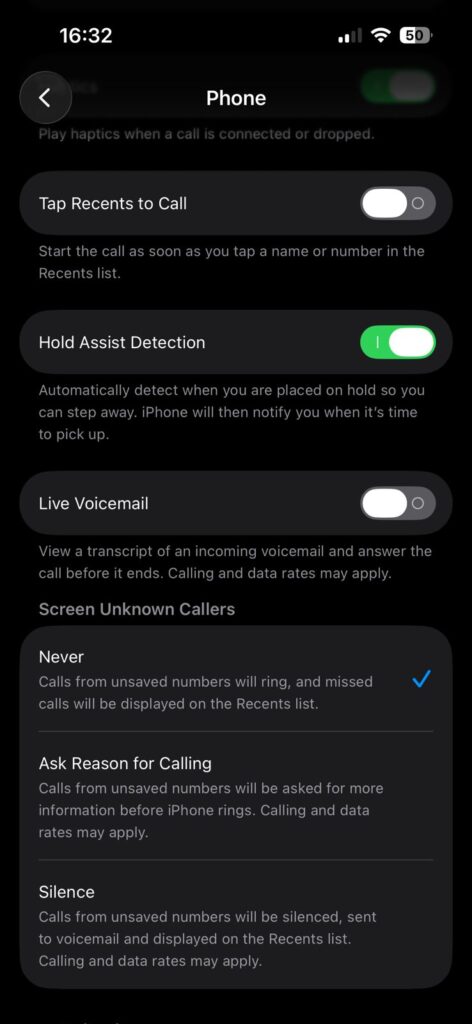
The toggle turns gray. That’s it. Live Voicemail is now disabled.
Note for iOS 16 and earlier users: Live Voicemail was introduced with iOS 17. On older software, head to Settings > Phone > Voicemail — options will vary by carrier.
Method 2: Use a Dial Code to Deactivate Voicemail (Works on Most US Carriers)
Works on: AT&T, T-Mobile, Verizon (with variations), and most MVNOs
What it does: Cancels the call forwarding rules that route your unanswered calls to voicemail. This is the closest thing to truly disabling voicemail on iPhone without calling your carrier.
This is the method most guides skim past — but it’s the one that actually works for turn off voicemail iPhone 15, iPhone 16, and beyond when you want calls to simply ring out instead of going to voicemail.
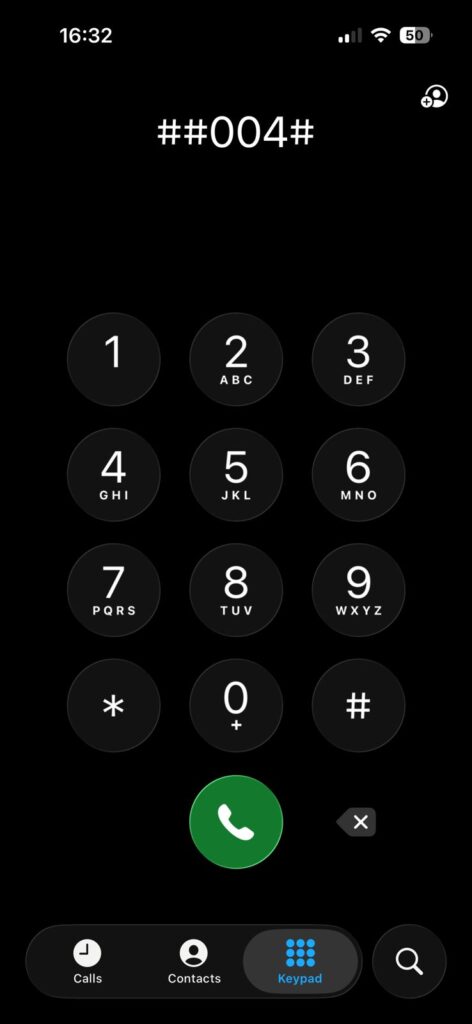
Steps to Disable Voicemail via Keypad Code:
- Open the Phone app on your iPhone.
- Tap the Keypad tab at the bottom.
- Carefully dial one of the following codes based on your carrier:
| Carrier | Recommended Code |
|---|---|
| AT&T | ##004# |
| T-Mobile | ##004# |
| Verizon | *73 (disables “no answer” forwarding) |
| Mint Mobile / Cricket / Metro | ##004# |
| Straight Talk | ##004# |
- Tap the green Call button.
- Wait for a confirmation message (usually a text or an on-screen code response).
- End the call.
What ##004# actually does: This code cancels all conditional call forwarding — meaning calls that go to voicemail when you’re busy, don’t answer, or are unreachable. On most GSM networks (AT&T, T-Mobile), this effectively deactivates voicemail on iPhone by removing the forwarding rules.
Verizon note: Verizon uses a CDMA-based voicemail system, so
##004#may not work. Use*73to cancel “no answer” forwarding, then call Verizon support at 1-800-922-0204 to fully disable the service.
Pro Tip: Combine Both Methods for Best Results
Expert Insight: For a clean break from voicemail, use both Method 1 and Method 2 together. Method 1 turns off the iOS interface layer, and Method 2 removes the carrier forwarding rule.
This means callers will hear ringing (or a busy signal) instead of being routed to a voicemail box — and you won’t see any voicemail badge or notification on your iPhone. Most users only do one or the other and wonder why voicemail still appears.
Method 3: Contact Your Carrier Directly (The Nuclear Option)
Works on: All carriers
What it does: Completely removes the voicemail feature from your account. No box, no recording, no badge — ever.
This is the only method guaranteed to deactivate voicemail on iPhone at the account level. Some carriers will do this on the spot; others charge a small fee or require you to confirm the change.
Steps to Cancel Voicemail Through Your Carrier:
Heads up: Some budget carriers (especially MVNOs) may not offer complete voicemail removal. In that case, the dial code method (Method 2) is your best bet for disabling voicemail on iPhone without carrier cooperation.
How Marcus Finally Killed His Voicemail
Marcus, a 34-year-old project manager in Austin, TX, had been ignoring his voicemail for two years. He’d tried toggling Live Voicemail off in Settings and assumed that was enough. But he kept getting the notification badge, and clients kept complaining their calls “went to voicemail” even when he declined them.
When he finally dialed ##004# on his AT&T line, he got a confirmation text within seconds. The voicemail badge disappeared. His unanswered calls now go straight to a busy tone. He receives a missed call notification — which he actually prefers — and texts people back on his own timeline.
The lesson: Live Voicemail and carrier voicemail are two different systems. Turning one off doesn’t affect the other.

How to Turn Off Voicemail Notifications on iPhone (Without Disabling Service)
Maybe you want to keep voicemail active for certain contacts but stop the constant notification badge. Here’s how to silence voicemail notifications on iPhone without touching the service itself:
Steps to Mute Voicemail Notifications:
- Go to Settings > Notifications.
- Scroll down and tap Phone.
- Under Voicemail, toggle off Allow Notifications.
- Alternatively, toggle off Badges to remove the red number badge while keeping alerts.
This works well for people who want to check voicemail on their own schedule without being nagged.
How to Turn Off Live Voicemail on iPhone (iOS 17 and iOS 18)
Live Voicemail is Apple’s AI-powered feature that transcribes voicemails in real time, showing you who’s calling and what they’re saying before you pick up. It was introduced in iOS 17 and refined in iOS 18.
To completely turn off live voicemail on iPhone:
- Open Settings.
- Tap Apps (iOS 18) or scroll down to Phone (iOS 17).
- Tap Phone.
- Find Live Voicemail and tap the toggle to disable it.
Once off, the real-time transcription card will no longer appear during incoming calls. Your voicemail box at the carrier level is unaffected.
What to Do After Disabling Voicemail: Smart Alternatives
Removing voicemail doesn’t mean missing important messages. Here are practical replacements:
- Enable missed call texts: Some carriers let you auto-send a text when you miss a call. Ask your carrier to enable this.
- Use Google Voice: Set up a Google Voice number as your voicemail handler. Callers leave messages there, and you get email transcriptions.
- Turn on Focus modes: Use iPhone’s Focus feature to silence unknown callers during work hours without routing them to voicemail.
- Enable Silence Unknown Callers: Go to Settings > Phone > Silence Unknown Callers. Spam callers won’t even ring your phone.
Troubleshooting: What If This Doesn’t Work?
The voicemail badge keeps appearing after I disabled Live Voicemail.
Live Voicemail and your carrier voicemail badge are separate. Disabling Live Voicemail doesn’t clear the carrier badge. Dial ##004# to remove the forwarding rule, then call your carrier to clear any existing messages from the system.
##004# gave me an error message.
This happens most often on Verizon (CDMA) and some regional carriers. Try *73 instead. If that also fails, your carrier may use a proprietary voicemail system — call customer support directly.
My calls still go to voicemail even after dialing the code.
Confirm you dialed the code exactly and tapped the Call button (not just held the hash key). If the problem persists, your carrier may have automatically re-enabled forwarding. This happens on T-Mobile after certain network updates — a quick call to support fixes it permanently.
I turned off voicemail but now callers get a “number not in service” message.
This can happen if ##002# was used instead of ##004#. The ##002# code cancels all forwarding including unconditional, which can sometimes produce this result. Dial **004*[your carrier voicemail number]# to restore default forwarding, then call your carrier to sort out permanent deactivation.
I’m on a family plan and voicemail got disabled for everyone.
This shouldn’t happen — voicemail settings are per-line on all major US carriers. If it did, your plan may have a shared voicemail feature enabled. Call carrier support to confirm line-specific settings.
Carrier-by-Carrier Quick Reference (2026)
| Carrier | Dial Code | App Option | Call Support |
|---|---|---|---|
| AT&T | ##004# | myAT&T app | 611 |
| T-Mobile | ##004# | T-Mobile app | 611 |
| Verizon | *73 | My Verizon app | 611 |
| Mint Mobile | ##004# | Mint app | 1-800-683-7392 |
| Cricket Wireless | ##004# | Cricket app | 611 |
| Metro by T-Mobile | ##004# | Metro app | 611 |
| Straight Talk | ##004# | STCS app | 1-877-430-2355 |
| US Cellular | Contact support | MyAccount app | 611 |
Frequently Asked Questions
Q: Will people know my voicemail is turned off?
A: Yes. Callers will either hear an extended ring tone followed by a busy tone, or a carrier message like “The person you are calling is not available.” They won’t be able to leave a message. Some callers may assume your phone is off.
Q: Can I turn off voicemail for specific contacts only?
A: Not natively on iPhone. Voicemail is an all-or-nothing service at the carrier level. However, you can use Focus modes or Silence Unknown Callers to prevent specific groups from even reaching your phone.
Q: Does turning off voicemail affect my iPhone’s other features?
A: No. Call waiting, FaceTime, iMessage, and all other phone functions work normally. The only change is that unanswered calls won’t be routed to a voicemail box.
Q: How do I turn voicemail back on?
A: To re-enable Live Voicemail: go to Settings > Apps > Phone > Live Voicemail and toggle it back on. To restore carrier voicemail forwarding, dial **61*[voicemail number]*11*20# (for AT&T/T-Mobile) or call your carrier and request reactivation.
Q: Is this method the same for iPhone 15 and iPhone 16?
A: Yes. The steps for turn off voicemail on iPhone 15 and iPhone 16 are identical, as both run iOS 17/18. The carrier dial codes also remain the same regardless of iPhone model — they operate at the SIM/network level, not the device level.
Ready to Silence Voicemail for Good?
Start with Method 2 — dial ##004# right now from your Phone keypad. Takes 15 seconds. If you’re on Verizon, dial *73. Then head to Settings > Apps > Phone and switch off Live Voicemail. Those two steps together cover 90% of iPhone users completely.
If calls still reach a voicemail box after that, one quick call to your carrier’s 611 line will finish the job permanently.
Have a carrier not listed here, or running into a specific error? Drop the details below — we update this guide regularly with reader-submitted fixes.
Disclaimer: Voicemail management features and dial codes vary by carrier, region, and account type. The information in this article reflects verified methods for major US carriers as of 2026, but carrier policies can change without notice. AppleHeadlines.com is not responsible for any service changes, call forwarding errors, or charges that may result from dialing carrier codes. When in doubt, contact your carrier directly before making changes. This article is for informational purposes only and does not constitute technical or legal advice.

Virginia J. Alfonso is a seasoned technology writer with a passion for all things digital. With over a decade of experience covering the latest in tech innovation, gadgets, and software, Virginia brings a unique blend of technical expertise and accessible writing to her work. Her articles focus on making complex tech topics easy to understand for readers of all levels.