




By using this site, you agree to the Privacy Policy and Terms of Use.
Accept
Apple Headlines Logo Image Apple Headline's White Logo
  • 🔥 Trending:
  • iOS
  • iPadOS
  • Apple Tech
  • iPhone
  • iOS
  • Reader’s Space
  • Mac
  • Contact Us
Reading: How to Reset Apple Watch: The Complete Guide to Every Method (Fast & Safe)
Apple HeadlinesApple Headlines
Font ResizerAa
  • iPhone
  • iOS
  • Reader’s Space
  • Mac
  • Contact Us
Search
  • iPhone
  • iOS
  • Reader’s Space
  • Mac
  • Contact Us

Must Read

Apple Watch screen interface showing apps and information before performing a reset

How to Reset Apple Watch: The Complete Guide to Every Method (Fast & Safe)

How to unpair Apple Watch from iPhone using the Apple Watch app step by step guide

Unpair Apple Watch: All Series 2026 Guide

How to restart iPhone from Settings shown on tutorial banner with iPhone General menu screen

How to Restart iPhone (iOS 26 Updated Guide)

Hidden image search techniques on Apple devices showing Bing search interface with guide for iPhone, iPad, and Mac users

Unlock Hidden Image Search Techniques on Your Apple Devices (2026 Guide)

iphone storage full but empty fix

iPhone Storage Full But Empty? 9 Proven Fixes That Actually Work

Follow US
© Apple Headlines. All Rights Reserved.
Home » How to Reset Apple Watch: The Complete Guide to Every Method (Fast & Safe)
Apple Watch

How to Reset Apple Watch: The Complete Guide to Every Method (Fast & Safe)

Ruth Harris By Ruth Harris March 10, 2026
16 Min Read
SHARE

Your Apple Watch is frozen, glitching, or you’re handing it off to someone new — and you need to reset it right now.

Main Topics
Short StoriesWhat’s the Difference? Restart vs. Force Restart vs. Factory ResetHow to Restart Apple Watch (The Soft Reset)How to Force Restart Apple Watch (When It Won’t Respond)How to Factory Reset Apple Watch from the Watch ItselfHow to Reset Apple Watch via iPhone (The Safest Method)Expert Insight: Why Unpairing via iPhone Is Almost Always the Right MoveHow to Unpair Apple Watch Without iPhoneA Real-World Case Study: The Frozen Series 7 at 6AMHow to Reset Apple Watch Series 3 SpecificallyHow to Reset Apple Watch Series 7 and NewerTroubleshooting: What If the Reset Doesn’t Work?FAQ: How to Reset Apple Watch — Your Top Questions AnsweredReady to Take Back Control of Your Apple Watch?

You’ve landed in the right place. Whether you have a Series 3, Series 7, or the latest Ultra 2, this guide covers every reset method Apple offers, plus the ones they don’t tell you about.

No fluff, no dead ends — just step-by-step instructions that actually work.

Short Stories

  • Soft restart (hold side button → drag slider) fixes most minor glitches with zero data loss.
  • Force restart (hold Crown + side button for 10 seconds) revives a frozen or unresponsive watch.
  • Factory reset from the watch (Settings → General → Reset) fully wipes the device — no backup created.
  • Unpair via iPhone is the safest reset method — it creates an automatic encrypted backup first.
  • Reset without iPhone is possible but skips the backup step.
  • Activation Lock will block anyone from using a reset watch without the original Apple ID credentials — always check for this before buying used.
  • Series 3 resets take longer; Series 7 and newer complete faster.
  • If your watch is stuck post-reset, a charger + force restart combo usually resolves it.

What’s the Difference? Restart vs. Force Restart vs. Factory Reset

Before you dive in, it helps to know what you’re actually doing. Think of your Apple Watch like a snow globe:

  • Restart = gently shaking it to settle things down
  • Force Restart = flipping it upside down when it won’t move on its own
  • Factory Reset = smashing the globe and starting fresh with new snow

Each method serves a different purpose. Using the wrong one wastes time — or worse, wipes data you didn’t mean to lose.

MethodWhen to UseErases Data?
Soft RestartWatch is slow or acting odd❌ No
Force RestartWatch is frozen or unresponsive❌ No
Factory Reset (from watch)Selling, gifting, or fixing deep software issues✅ Yes
Unpair via iPhoneClean slate with backup✅ Yes (with backup option)
Reset without iPhoneLost phone, or phone is unavailable✅ Yes

How to Restart Apple Watch (The Soft Reset)

This is your first line of defense. If your watch is sluggish, an app froze, or notifications stopped working — start here.

Steps to Restart Apple Watch

  • Press and hold the side button (the long button below the Digital Crown).
  • Wait until the Power Off slider appears on screen.
  • Drag the slider to the right to power off.
  • Wait 10 seconds after the screen goes dark.
  • Press and hold the side button again until the Apple logo appears.

Your watch will be back up in about 30 seconds. No data is lost.
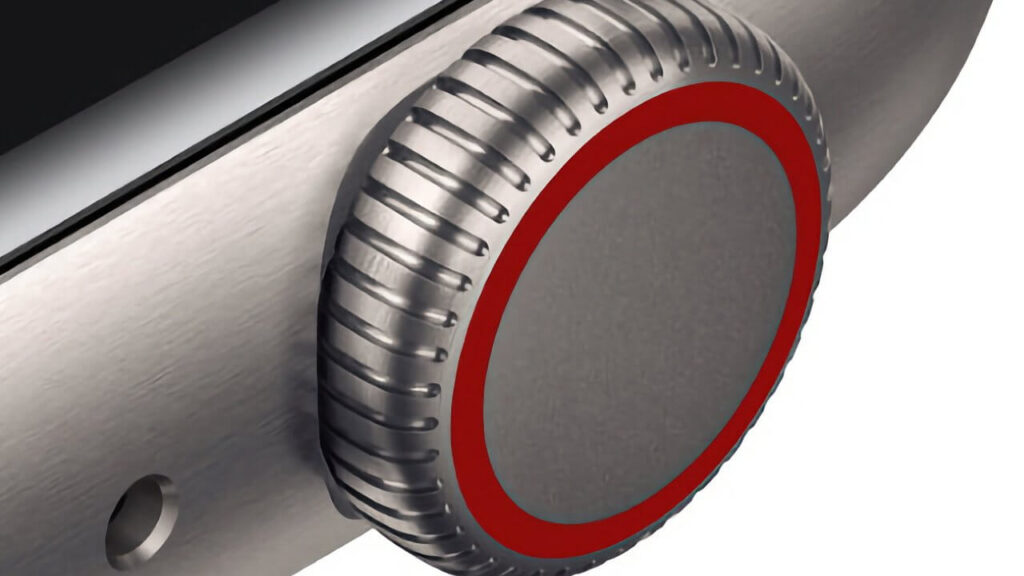
Close-up of Apple Watch Digital Crown button used during Apple Watch reset and navigation
The Digital Crown on Apple Watch is used to navigate menus and can assist during the reset process.

How to Force Restart Apple Watch (When It Won’t Respond)

Your watch screen is black, frozen, or completely unresponsive.

The soft restart isn’t an option because you can’t even get to the slider.

More Read

How to unpair Apple Watch from iPhone using the Apple Watch app step by step guide
Unpair Apple Watch: All Series 2026 Guide
Hero image of how to find apple watch if lost
How to Find Your Apple Watch: Complete Guide for Lost or Missing Devices
Apple Watch SE Series 3 all features overview with calling display
Apple Watch SE Series 3 – All Features & Info

This is where the force restart comes in.

Steps to Force Restart Apple Watch

  • Press and hold both the Digital Crown and the side button at the same time.
  • Keep holding for at least 10 seconds — don’t let go early.
  • Release both buttons the moment you see the Apple logo.
  • Wait for the watch to fully boot back up (~30 seconds).

⚠️ Do not use a force restart while your watch is actively updating. This can corrupt the watchOS software and cause a bigger headache.

Apple Watch on a wrist showing the display while preparing to reset Apple Watch from settings
Resetting an Apple Watch can be done directly from the watch settings when troubleshooting issues or preparing to sell the device.

How to Factory Reset Apple Watch from the Watch Itself

This method wipes everything and returns your watch to out-of-box condition.

Use this when you’re selling your watch, giving it to a family member, or troubleshooting a serious bug that a restart can’t fix.

Steps to Factory Reset Apple Watch (On-Device)

  • Press the Digital Crown to go to the Home Screen.
  • Tap the Settings app (the grey gear icon).
  • Scroll down and tap General.
  • Scroll to the bottom and tap Reset.
  • Tap Erase All Content and Settings.
  • If prompted, enter your passcode.
  • Confirm by tapping Erase All — there will be a second confirmation.
  • Wait. The reset takes 2–5 minutes depending on your model.

🔴 Heads up: If Activation Lock is enabled (meaning the watch is linked to an Apple ID), you’ll need to enter the Apple ID password after the reset. Make sure you know it before you wipe.

How to Reset Apple Watch via iPhone (The Safest Method)

This is the recommended method for most people. Unpairing via your iPhone automatically creates a full backup of your watch first — so you can restore everything to a new watch if needed.

Steps to Unpair and Reset Apple Watch Using iPhone

  • Open the Watch app on your paired iPhone.
  • Tap the My Watch tab at the bottom.
  • Tap your watch’s name at the top of the screen.
  • Tap the info icon (ⓘ) next to your watch.
  • Tap Unpair Apple Watch.
  • Tap Unpair [Your Watch Name] to confirm.
  • Enter your Apple ID password when prompted. This disables Activation Lock.
  • Tap Unpair one final time.

The process takes 1–3 minutes. A backup is created automatically before everything is wiped. You’re covered.

Apple Watch screen interface showing apps and information before performing a reset
Before resetting your Apple Watch, make sure your data is backed up through the paired iPhone.

Expert Insight: Why Unpairing via iPhone Is Almost Always the Right Move

Here’s something the Apple support page buries in fine print: every time you unpair your Apple Watch via the iPhone app, it creates a timestamped encrypted backup. That backup captures your activity data, health trends, app layout, notification settings, and even your workout history. If you reset directly from the watch, you skip that safety net entirely. Unless you’re in a situation where your iPhone isn’t available, always go through the Watch app. — AppleHeadlines Senior Editor

How to Unpair Apple Watch Without iPhone

Lost your iPhone? Switched carriers and it’s not working?

No problem. You can still perform a full reset directly from the watch — but there’s a catch.

Steps to Reset Apple Watch Without iPhone

  • On your Apple Watch, press the Digital Crown to open apps.
  • Open Settings (grey gear icon).
  • Tap General → Reset → Erase All Content and Settings.
  • Enter your passcode if prompted.
  • Tap Erase All and confirm.

⚠️ Activation Lock Warning: If the previous owner’s Apple ID is still linked, the watch will prompt for a password after the reset. Without that credential, the watch becomes a very expensive paperweight. This is Apple’s anti-theft protection — it works.

A Real-World Case Study: The Frozen Series 7 at 6AM

Marcus, a triathlete from Austin, Texas, woke up race morning to find his Apple Watch Series 7 stuck on a black screen with a spinning wheel. He’d updated watchOS the night before. Panicking, he tried pressing every button. Nothing.

He pulled up this guide on his phone. Within 60 seconds of doing a force restart (holding both buttons for 10 seconds), the Apple logo appeared. His watch booted normally with all his health data intact. He finished the race — and his Apple Watch tracked every mile of it.

The lesson? A force restart fixes 80% of software-related freezing issues. Always try it before jumping to a factory reset.

How to Reset Apple Watch Series 3 Specifically

The Apple Watch Series 3 is still widely used — especially in schools and by kids. The reset process is identical to newer models, but there’s one thing to watch out for:

  • Series 3 runs older versions of watchOS and may take longer to reboot after a reset (up to 8 minutes).
  • If you’re resetting a Series 3 with cellular, you’ll also need to contact your carrier to remove the line from your plan separately.
  • The force restart gesture (Digital Crown + side button held for 10 seconds) works the same as on Series 7 and newer.

How to Reset Apple Watch Series 7 and Newer

The Apple Watch Series 7, Series 8, Series 9, and Ultra all follow the same steps listed above. However, these models have one extra consideration:

  • Series 7 and later support faster data wipe due to upgraded storage chips. The factory reset typically completes in under 2 minutes.
  • If you’re on watchOS 10 or later, you’ll see a clearer confirmation prompt during the reset process — Apple redesigned the UI to reduce accidental wipes.

Troubleshooting: What If the Reset Doesn’t Work?

Sometimes things don’t go as planned. Here’s how to handle the most common problems.

Problem 1: The Force Restart Isn’t Working

  • Make sure you’re holding both buttons simultaneously — not one after the other.
  • Hold for a full 10–15 seconds without letting go early.
  • If the screen is completely unresponsive, try placing the watch on its charger first, then attempt the force restart.

Problem 2: Stuck on Apple Logo After Reset

This usually means the watchOS software is corrupted. Try this:

  • Place the watch on its charger.
  • Perform the force restart (Digital Crown + side button, 10 seconds).
  • If it still freezes on the logo, you’ll need to restore it via iPhone. Open the Watch app → tap your watch → tap (i) → Unpair Apple Watch → follow the prompts.

Problem 3: “Activation Lock” Screen After Reset

You — or the previous owner — need to enter the Apple ID and password used to set up the watch. There is no bypass. Options:

  • Sign in with the linked Apple ID.
  • Contact the previous owner to enter their credentials.
  • Provide proof of purchase to Apple Support for an Activation Lock removal request.

Problem 4: Watch Won’t Reset — Asks for Passcode You Forgot

If you’ve forgotten your passcode, the only path forward is to reset via your paired iPhone (Watch app → Unpair). The iPhone method bypasses the watch passcode requirement.

FAQ: How to Reset Apple Watch — Your Top Questions Answered

Q1: Will resetting my Apple Watch delete my health data forever?

Only if you reset directly from the watch without backing up. If you unpair via the iPhone’s Watch app first, all health and fitness data is backed up to iCloud. You can restore it when setting up a new watch.

Q2: How do I unpair Apple Watch without iPhone if I don’t have access to it?

Go to Settings → General → Reset → Erase All Content and Settings directly on the watch. This will wipe it without needing the iPhone. Just know that no backup will be created, and Activation Lock must be disabled manually if it was enabled.


Q3: Can I reset Apple Watch Series 3 the same way as Series 7?

Yes. The button combination and menu path are identical across all Apple Watch series. The main difference is that Series 3 may take longer to complete the reset due to older hardware.

Q4: What happens to my Apple Watch cellular plan when I factory reset?

Resetting the watch removes it from your iPhone, but it does not automatically cancel your carrier plan. You need to contact your carrier separately to remove the Apple Watch line from your account.

Q5: How do I know if a used Apple Watch has Activation Lock before I buy it?

Ask the seller to navigate to Settings → General → About on the watch. Check that Paired shows “No” or that the watch shows a setup screen. You can also ask them to remove the watch from their Apple ID at appleid.apple.com before the sale.

Ready to Take Back Control of Your Apple Watch?

Whether you just needed a quick restart or a full factory reset, you now have everything you need. Bookmark this page — you never know when a frozen watch or a device handoff will send you back here.

Have a question this guide didn’t answer? Drop it in the comments below, and our team will respond within 24 hours.

Disclaimer: The instructions in this article are based on watchOS 10 and iOS 17/18, ios 26 as of March 2026. Apple may change menu locations or reset procedures in future software updates. Always back up your data before performing any reset. AppleHeadlines.com is not affiliated with Apple Inc. Activation Lock removal requests must be submitted directly to Apple Support with valid proof of purchase. We are not responsible for data loss resulting from following these instructions on unsupported or modified devices.

ruth harris profile pic
Ruth Harris

Ruth writes in-depth guides about Apple products, focusing on practical solutions for everyday users. Her articles cover device setup, hidden features, troubleshooting, and the latest updates for iOS, watchOS, and other Apple platforms.

He regularly researches Apple updates and tests features on devices like the iPhone and Apple Watch to ensure readers receive accurate and helpful information.

Share This Article
Facebook Twitter Pinterest Whatsapp Whatsapp
Previous Article How to unpair Apple Watch from iPhone using the Apple Watch app step by step guide Unpair Apple Watch: All Series 2026 Guide
Leave a comment Leave a comment

Leave a Reply Cancel reply

Your email address will not be published. Required fields are marked *

Follow Us On Social

FacebookLike
InstagramFollow
YoutubeSubscribe

Must Read

Apple Watch screen interface showing apps and information before performing a reset

How to Reset Apple Watch: The Complete Guide to Every Method (Fast & Safe)

How to unpair Apple Watch from iPhone using the Apple Watch app step by step guide

Unpair Apple Watch: All Series 2026 Guide

How to restart iPhone from Settings shown on tutorial banner with iPhone General menu screen

How to Restart iPhone (iOS 26 Updated Guide)

Hidden image search techniques on Apple devices showing Bing search interface with guide for iPhone, iPad, and Mac users

Unlock Hidden Image Search Techniques on Your Apple Devices (2026 Guide)

iphone storage full but empty fix

iPhone Storage Full But Empty? 9 Proven Fixes That Actually Work

Clear cache iPhone – illustration of multiple ways to clear cache with arrows showing different directions

6 (Fixed) Ways to Clear Cache on iPhone Quickly

Apple Headlines Logo Image

Apple Headlines delivers fresh, reliable Apple news, how-to guides, and tips for every Apple user.

Topics

  • Apple Headlines
  • iOS
  • iPhone
  • Mac

Quick Links

  • Home
  • About Us
  • Privacy Policy
  • Terms of Service
  • Contact Us
Apple Headlines Logo Image

Designed By Apple Headlines

appleheadlines.com