




Losing your iPhone can feel like losing a part of yourself.
Your photos, messages, banking apps, and personal data are all at risk. Fortunately,
Apple’s Find My iPhone feature gives you powerful tools to locate your device.
Whether your phone slipped between couch cushions or was left at a coffee shop, this guide shows you exactly how to Track lost iPhone,.
You’ll learn how to use iCloud Find My iPhone, enable location services, and protect your data remotely.
Let’s dive into everything you need to know about finding your Apple device quickly and safely.
Quick Story on Find iPhone
Finding your iPhone doesn’t have to be stressful when you know the right steps. Here’s what to remember:
The combination of preparation and quick action gives you the best chance of recovering your iPhone safely. Take two minutes today to verify your Find My settings are enabled.
What Is Find My iPhone?
Find My iPhone is Apple’s built-in tracking service that helps you locate lost or stolen devices.
It works across iPhones, iPads, Macs, AirPods, and Apple Watches.
The service uses GPS, Wi-Fi, and cellular data to pinpoint your device’s location on a map.
Key Features Include:
Apple rebranded this service to “Find My” in iOS 13, combining Find My iPhone and Find My Friends into one app. The functionality remains the same, but the name changed. Most people still call it Find My iPhone, and Apple’s iCloud website uses this terminology too.
Find My & Location Improvements in iOS 26
Better location sharing & tracking
iOS 26 continues to support flexible location sharing with family and friends through the Find My app, letting you share for a set time or indefinitely — now more polished and reliable than before.
Integration with other Apple service
Location features in Find My work more closely with apps like Messages for quick sharing and Apple Wallet for tracking items like luggage or boarding passes, especially with supported airlines.
Easier location sharing via Messages
You can share your current location directly through Messages in a few taps, and choose options like share for an hour, share until end of day, or indefinitely, making coordination easier.
Continued device tracking improvements
Find My still lets users view precise device locations, trigger sound on missing devices, or enter Lost Mode to help recover lost hardware.
iOS 26 doesn’t completely overhaul Find My, but it polishes and extends how you share and use location data, making it easier to track devices and share locations with contacts — especially through Messages and enhanced integrations like Apple Wallet tracking.
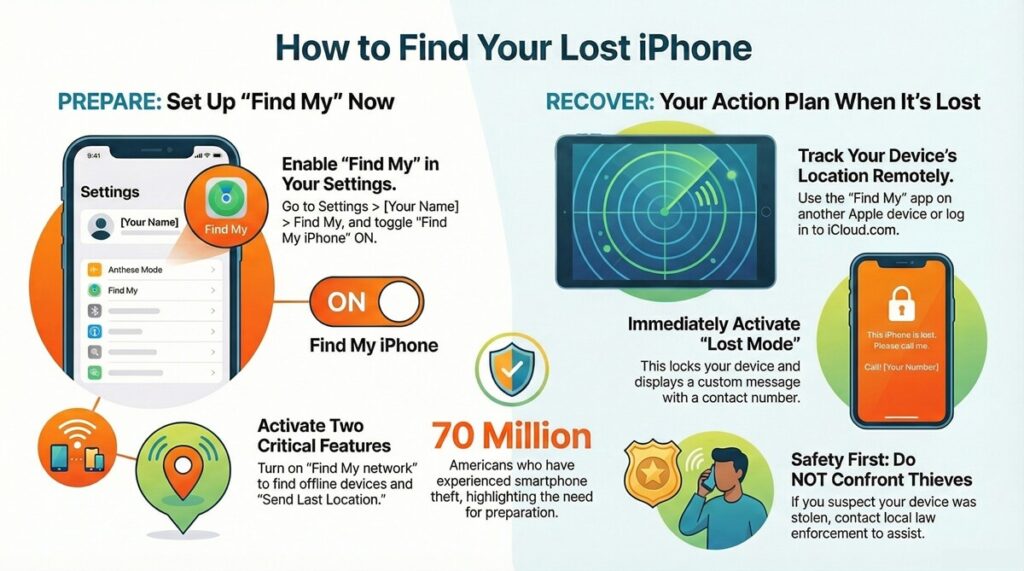
How to Set Up Find My iPhone Before You Lose Your Device
Prevention is always better than cure.
Setting up Find My iPhone takes less than two minutes and could save you hours of stress later.
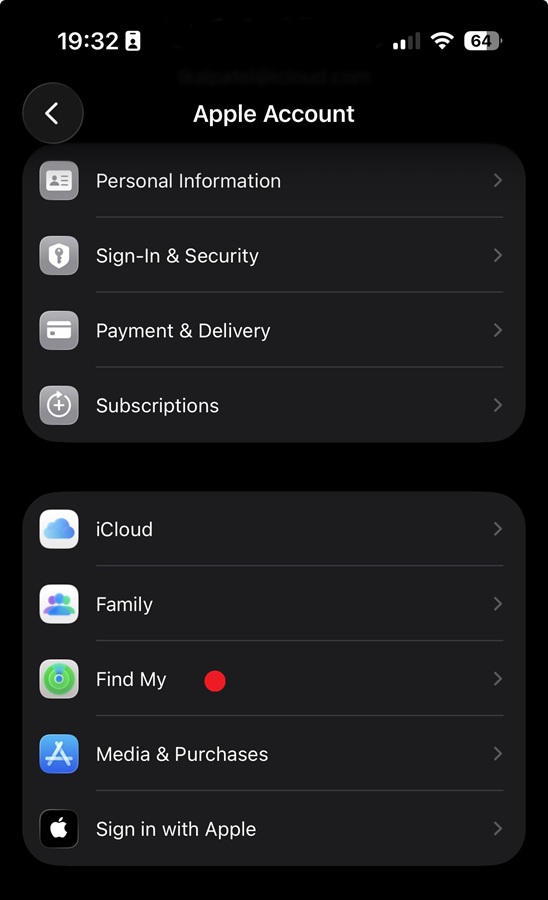
Step-by-Step Setup Process:
You should also enable Location Services for this to work properly.
Go to Settings > Privacy & Security > Location Services and make sure it’s turned on.
Why This Matters:
According to a 2023 survey by Security.org, 70 million Americans have experienced smartphone theft.
Only 30% of those who had tracking enabled successfully recovered their devices.
Without Find My iPhone turned on, your chances of recovery drop to nearly zero.
How to Track an iPhone Using iCloud on a Computer
When you can’t find your iPhone, the fastest way to locate it is through iCloud’s website on any computer or tablet.
Follow These Steps:
1. Open a web browser and go to iCloud.com
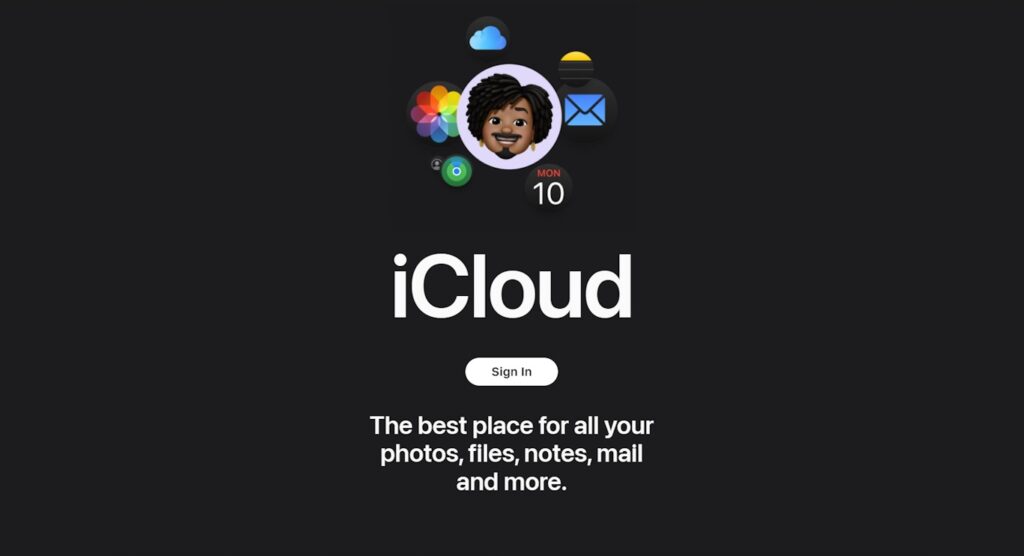
2. Sign in with your Apple ID and password
3. Click on “Find iPhone” (or “Find Devices” on newer accounts)
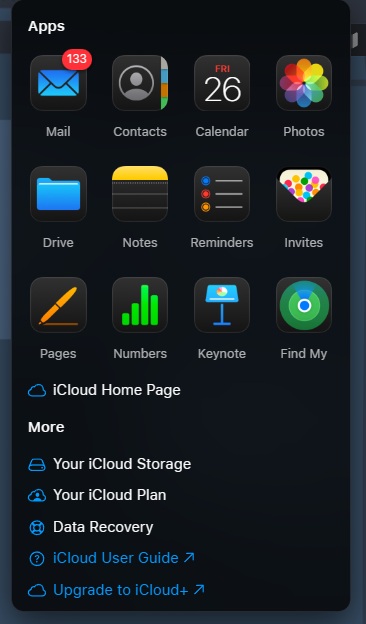
4. View all your devices in the menu at the top
5. Select your missing iPhone from the list
6. Check the map for your device’s current or last known location
The map shows a green dot for your device’s location. If the device is online, you’ll see real-time updates. If it’s offline, you’ll see the last known location with a timestamp.
What You Can Do From Here:
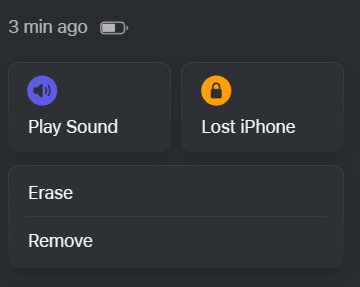
- Play Sound: Makes your iPhone ring at full volume for two minutes, even if it’s on silent mode
- Lost Mode: Locks your device with a passcode and displays a custom message with a contact number
- Erase iPhone: Permanently deletes all data from your device (use this as a last resort)
Real-life example: Sarah from Austin lost her iPhone at a music festival. She used iCloud to track it and saw it was still at the venue. She activated Play Sound and heard it ringing under a vendor’s table. The whole recovery took 10 minutes.
How to Locate My Apple Phone Using Another Apple Device
If you have an iPad, Mac, or another iPhone, you can use the Find My app to track your missing device.
Using the Find My App:
Getting Directions to Your Device:
If your iPhone is somewhere nearby but you can’t remember exactly where, use the Directions feature.
This opens Apple Maps with turn-by-turn navigation to your device’s location.
Perfect for when you left your phone at a friend’s house or in your car at a parking garage.
Using Someone Else’s Device:
Don’t have another Apple device? Borrow a friend’s iPhone or iPad. Just open the Find My app and tap “Help a Friend” at the bottom of the screen. This opens a secure browser session where you can sign in to iCloud without saving your credentials on their device.
How to Track an iPhone That’s Turned Off or Offline
Apple introduced a game-changing feature with iOS 15: the ability to locate devices even when they’re powered off.
How the Find My Network Works:
Your iPhone emits a secure Bluetooth signal that nearby Apple devices can detect. These devices anonymously relay your iPhone’s location to iCloud. Everything is encrypted, so your privacy stays protected.
This means your iPhone can be found even if:
Important Limitations:
The Find My network only works if you enabled “Find My network” in your settings before losing your device. You can’t turn this on remotely. The feature also requires iOS 15 or later.
According to Apple, over a billion active devices worldwide participate in the Find My network. This creates a massive, anonymous mesh network that makes finding lost devices easier than ever before.
What to Do When You Find Your iPhone’s Location
Finding your iPhone on a map is just the first step. Here’s what to do next based on different scenarios.
If Your iPhone Is at Home or a Familiar Location:
- Use Play Sound to help locate it
- Check common spots like between couch cushions, in jacket pockets, or under car seats
- Ask family members if they’ve seen it
If Your iPhone Is at a Public Place:
- Call the location (restaurant, store, gym) and ask if they have a lost and found
- Visit in person to retrieve it if possible
- Use Lost Mode to display your contact information so honest finders can reach you
If Your iPhone Is Moving or in an Unknown Location:
- Activate Lost Mode immediately to lock your device
- Contact local police and provide them with your device’s location
- Do NOT attempt to retrieve it yourself if you believe it was stolen
- Monitor the location for patterns that might help police
Safety note: Never confront someone you suspect stole your phone. Law enforcement should handle potential theft situations.
If Your iPhone Shows No Location:
Your device might be:
In this case, enable “Notify When Found” so you’ll get an email alert if the device comes back online.
How to Use Lost Mode to Protect Your Data
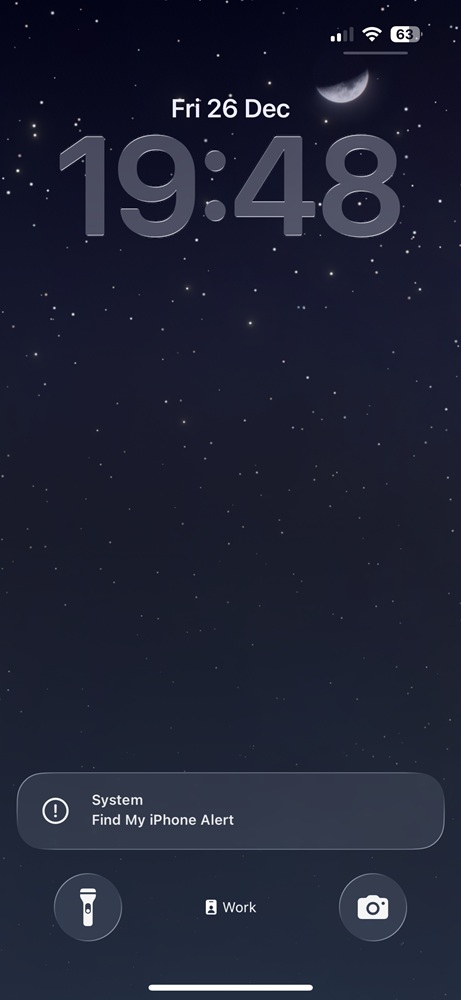
Lost Mode is your best defense when your iPhone is missing. It locks your device and protects your personal information.
What Lost Mode Does:
How to Activate Lost Mode:
Your iPhone will display this message immediately when it connects to the internet. Many honest people will call the number to return your device.
Real-world success: Michael from Seattle left his iPhone in an Uber. He activated Lost Mode within 10 minutes. The driver saw the message, called the number displayed, and returned the phone the same day.
When and How to Erase Your iPhone Remotely
Remote erase should be your absolute last resort. Once you erase your device, you can’t track it anymore.
When to Consider Erasing:
How to Erase Your iPhone:
What Happens After Erasing:
All your data disappears permanently. This includes photos, messages, apps, and settings. Your device reverts to factory settings. However, Activation Lock remains enabled, making the device useless to thieves.
Important: Make sure you have a recent iCloud backup before erasing. You can restore your data to a new device using this backup.
Common Problems and Solutions
Problem 1: Find My iPhone Is Grayed Out
This usually means your device has restrictions enabled.
Go to Settings > Screen Time > Content & Privacy Restrictions > Location Services
and ensure Find My iPhone is allowed.
Problem 2: Location Shows But Isn’t Updating
Your device might be in an area with poor connectivity. Wait 10-15 minutes and refresh. The location updates when the device connects to Wi-Fi or cellular data.
Problem 3: Can’t Remember Apple ID Password
Visit iforgot.apple.com to reset your password. You’ll need access to your recovery email or phone number.
Problem 4: Device Shows “Offline” Constantly
Check if the battery died or if someone turned off the device. Enable “Notify When Found” to get alerts when it comes back online.
Problem 5: Location Is Incorrect
GPS accuracy depends on available signals. Indoor locations or areas with tall buildings may show less accurate positions. The accuracy improves as your device gets better signal.
Tips to Prevent Losing Your iPhone in the Future
Prevention beats recovery every time. These simple habits keep your iPhone safer.
Smart Prevention Strategies:
- Use a brightly colored case that’s easy to spot
- Enable Find My network and Send Last Location in settings
- Add an AirTag to your bag if you carry your phone there
- Set a distinctive ringtone so you recognize it immediately
- Check your pockets and bags before leaving any location
- Create a designated spot at home where you always place your phone
- Use widgets on your Apple Watch to quickly locate your iPhone
- Enable two-factor authentication for extra security
Consider adding your contact information to your lock screen wallpaper using a note or design app. This gives finders an easy way to return your device without unlocking it.
FAQ Section
1. Can I track my iPhone if Location Services are turned off?
No, you cannot track your iPhone in real-time if Location Services are completely disabled. However, if you enabled “Send Last Location” before losing it, you’ll see the last known location before the battery died or Location Services were turned off.
2. How accurate is Find My iPhone’s location?
Find My iPhone is typically accurate within 20 meters (about 65 feet) when using GPS. Accuracy decreases indoors or in areas with tall buildings. Wi-Fi-based location is less accurate but still helpful for narrowing down the general area.
3. Can someone turn off Find My iPhone without my password?
No, turning off Find My iPhone requires your Apple ID password. This prevents thieves from disabling tracking. However, they can turn off the entire device or enable Airplane Mode, which temporarily stops location updates until the device reconnects.
4. Will Find My iPhone work internationally?
Yes, Find My iPhone works anywhere in the world as long as your device has an internet connection. The service uses Apple’s global iCloud infrastructure. Just make sure your iPhone has cellular data or Wi-Fi access in the country you’re visiting.
5. What happens to Find My iPhone if I cancel my iCloud subscription?
Find My iPhone is a free service that doesn’t require an iCloud+ subscription. It continues working even if you use only the free 5GB iCloud storage plan. Canceling iCloud+ won’t affect your ability to locate devices.
Disclaimer
This article provides general information about using Apple’s Find My iPhone service. Location accuracy varies based on device settings, environmental factors, and network availability. Always prioritize personal safety when attempting to recover lost or stolen devices. Contact local law enforcement for suspected theft situations rather than attempting recovery yourself. Information about Apple’s features and settings is accurate as of December 2024 but may change as Apple releases software updates. For the most current information, visit Apple’s official support website. This content is for informational purposes only and does not constitute professional security or legal advice.
Take Action Now
Don’t wait until your iPhone goes missing. Take these steps today:
Check your Find My settings right now. Open your Settings app, tap your name, select Find My, and verify everything is enabled. Add trusted contacts to your Family Sharing so they can help locate your devices in emergencies.
Bookmark iCloud.com on all your devices for quick access during emergencies. Better yet, download the Find My app on your iPad or Mac if you haven’t already.
Share this guide with family and friends who own Apple devices. The more people who enable Find My iPhone, the stronger the Find My network becomes for everyone.
Your iPhone contains irreplaceable memories and important information. Protecting it takes just minutes but could save you hours of stress and potential data loss. Set up your security now, breathe easier later.
What’s your experience with Find My iPhone?
Have you successfully recovered a lost device using these features? Your story could help others in similar situations.

Virginia J. Alfonso is a seasoned technology writer with a passion for all things digital. With over a decade of experience covering the latest in tech innovation, gadgets, and software, Virginia brings a unique blend of technical expertise and accessible writing to her work. Her articles focus on making complex tech topics easy to understand for readers of all levels.