


Why You Need an Apple TV Remote App
Lost your Apple TV remote again?
It’s wedged between couch cushions or mysteriously vanished, a missing remote doesn’t have to stop your binge-watching session.
The good news?
Your smartphone can become a powerful replacement for the physical Apple TV 4K remote.
Apps to control Apple TV have evolved beyond simple button replacements, they now offer features that surpass the original Siri Remote, including full keyboards, voice commands, and even gesture controls.
In this comprehensive guide, we’ll explore the best apps for iPhone TV remote functionality, alternative solutions for Android users, and everything you need to know about turning your phone into the ultimate Apple TV controller.
What Are Apple TV Remote Apps?
Apple TV remote apps are software applications that transform your smartphone or tablet into a functional remote control for your Apple TV device.
These apps communicate with your Apple TV over your home Wi-Fi network, allowing you to navigate menus, control playback, enter text, and access Siri without needing the physical remote.
How Do They Work?
The technology behind these remote apps is surprisingly straightforward.
Your Apple TV and smartphone must be connected to the same Wi-Fi network.
The apps use Apple’s proprietary Remote Control protocol or third-party APIs to send commands to your streaming device.
Most apps automatically detect Apple TV devices on your network, making setup a breeze.
Once paired, the connection remains stable as long as both devices stay on the same network.

Top Apps to Control Apple TV
1. Apple TV Remote (Built into iOS Control Center)
Platform: iPhone, iPad
Price: Free (built-in)
Rating: Native iOS feature
Apple’s official solution doesn’t require downloading anything—it’s already on your iPhone.
Since iOS 12, the Apple TV Remote has been integrated directly into the Control Center, making it the most convenient option for iPhone users.
Key Features:
Pros:
Cons:
Best For: iPhone and iPad users who want the simplest, most reliable solution without installing additional apps.
2. Apple TV Remote App (Standalone)
Platform: iPhone, iPad
Price: Free
Rating: Official Apple app
While Apple phased out the standalone Remote app in favor of Control Center integration, users running older iOS versions can still access the dedicated app, which offers similar functionality.
Key Features:
Best For: Users who prefer a dedicated app interface or need compatibility with older iOS versions.
3. CiderTV – Remote for Apple TV
Platform: iPhone, iPad
Price: Free with in-app purchases
Rating: Highly rated third-party option
CiderTV offers an enhanced remote experience with additional features not found in Apple’s native solution. The app focuses on providing a superior user interface and extra functionality.
Key Features:
Pros:
Cons:
Best For: Power users who want more control and customization than the stock remote offers.
4. Remote for Apple TV – CNA
Platform: iPhone, iPad, Android
Price: Free with ads, premium version available
Rating: Popular cross-platform option
This third-party app bridges the gap for users who need cross-platform support or want additional features beyond Apple’s offerings.
Key Features:
Pros:
Cons:
Best For: Android users or households with mixed device ecosystems.
5. TV Remote Control for Apple TV
Platform: Android
Price: Free with ads
Rating: Top Android alternative
For Android users, this app provides comprehensive Apple TV control without needing an iPhone.
Key Features:
Pros:
Cons:
Best For: Android users who need to control an Apple TV without an iPhone or iPad.
Apple TV 4K Remote: Physical vs. App Comparison
| Feature | Physical Apple TV 4K Remote | Remote App |
|---|---|---|
| Touch Navigation | Yes (clickpad) | Yes (touchpad) |
| Siri Voice Control | Yes (button) | Yes (built-in) |
| Keyboard Input | On-screen only | Full phone keyboard |
| Battery Life | Months (rechargeable) | Depends on phone |
| Portability | Easy to lose | Always with you |
| Power/Volume | Yes (IR/HDMI-CEC) | Yes (via CEC) |
| Game Controller | Basic | Limited |
| Price | $59 (replacement) | Free |
| Setup Required | Minimal | One-time pairing |
How to Set Up Apple TV Remote Apps
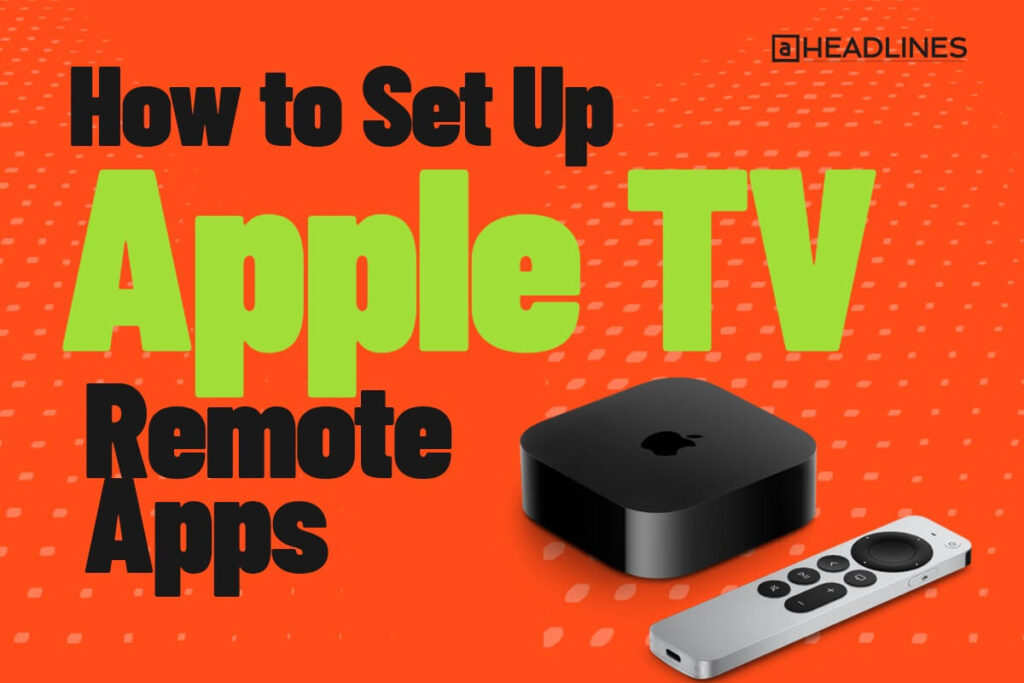
For iPhone/iPad (Control Center Remote):
For Third-Party Apps:
Pro Tip: Add the Control Center remote widget to your iPhone home screen for even faster access.
Key Features to Look For in Remote Apps
Essential Features:
- Touchpad Navigation: Smooth swiping for menu navigation
- Playback Controls: Play, pause, skip, and rewind
- Siri/Voice Search: Quick content discovery
- Keyboard Input: Fast text entry for searches and passwords
- Volume Control: Adjust TV volume without a separate remote
Advanced Features:
- App Shortcuts: Quick launch favorite streaming apps
- Multiple Device Support: Control several Apple TVs
- Gesture Customization: Personalize swipe actions
- Widget Support: Control from home screen
- Screenshot Capability: Capture what’s on screen
Nice-to-Have Features:
- Haptic Feedback: Physical response to touches
- Dark Mode: Easier on eyes in dark rooms
- Offline Mode: Basic controls without internet
- Family Sharing: Multiple user profiles
- Quick Settings Access: Fast access to Apple TV settings
Real-World Use Cases
The Missing Remote Situation
You’re settling in for movie night, and the remote is nowhere to be found. Instead of tearing apart the living room, you simply pull out your iPhone, swipe to Control Center, and start your movie in seconds.
Password Entry Made Easy
Setting up a new streaming service requires entering your email and password. Rather than painfully navigating an on-screen keyboard with directional buttons, you use your phone’s keyboard to type everything instantly.
Late-Night Viewing
It’s 11 PM, and you don’t want to disturb your sleeping partner. You use the remote app to adjust volume precisely, navigate menus silently, and even use Siri with headphones on your phone.
Multi-Room Control
You have Apple TVs in your bedroom and living room. Your phone app lets you switch between devices seamlessly, controlling whichever TV you’re near without carrying multiple remotes.
Accessibility Enhancement
For users with limited mobility or dexterity issues, a smartphone’s larger screen and assistive features make it easier to control Apple TV than fumbling with a small physical remote.
Pros and Cons of Using Remote Apps
Advantages:
Convenience:
Enhanced Functionality:
Cost Savings:
Multi-Device Management:
Disadvantages:
Connectivity Requirements:
Battery Considerations:
Setup Requirements:
Limited Gaming:
Troubleshooting Common Issues
App Can’t Find Apple TV:
Connection Keeps Dropping:
Buttons Not Responding:
Siri Not Working:
Best Apps for iPhone TV Remote: Quick Comparison
For Simplicity: Apple’s Control Center Remote wins with zero setup and native integration.
For Features: CiderTV offers the most customization and advanced options.
For Android Users: “Remote for Apple TV – CNA” provides the best cross-platform experience.
For Free Options: Apple’s native solution can’t be beaten for cost and reliability.
For Multiple Devices: Third-party apps with device management features excel here.
Frequently Asked Questions (FAQs)
1. Can I control Apple TV without the original remote?
Yes, absolutely. The Control Center remote on iPhone or iPad works immediately without the physical remote. During initial Apple TV setup, you can also use a USB-C or Lightning cable to connect a keyboard for configuration.
2. Do Apple TV remote apps work without Wi-Fi?
No, these apps require a Wi-Fi connection since they communicate with Apple TV over your local network. Without Wi-Fi, neither the Apple TV nor the remote apps will function properly for streaming or control purposes.
3. Which is better: physical Apple TV 4K remote or phone app?
Each has advantages. The physical remote is better for gaming, doesn’t drain phone battery, and works without Wi-Fi concerns. Phone apps excel at text entry, offer more features, and you’re less likely to lose your phone. Many users keep both options available.
4. Can Android phones control Apple TV?
Yes, through third-party apps available on Google Play Store. While not as seamless as iOS integration, apps like “Remote for Apple TV” and similar options provide full control functionality for Android users.
5. How do I add Apple TV Remote to my iPhone Control Center?
Go to Settings > Control Center > Customize Controls, then tap the green plus icon next to “Apple TV Remote.” It will appear in your Control Center for quick access anytime.
Conclusion: Choose Your Perfect Remote Solution
Apps to control Apple TV have transformed how we interact with our entertainment systems. Whether you prefer Apple’s seamless native integration, feature-rich third-party alternatives, or cross-platform solutions for Android, there’s an option that fits your needs.
For most iPhone users, the built-in Control Center remote offers the perfect balance of convenience, functionality, and reliability. It’s free, always available, and works flawlessly with your Apple ecosystem. Third-party apps shine when you need extra features like customization, widgets, or advanced shortcuts.
As smart home integration deepens and voice control improves, expect these apps to become even more powerful. Future updates will likely bring enhanced Siri capabilities, better multi-room audio control, and tighter integration with HomeKit devices.
Ready to ditch the remote hunt?
Grab your iPhone, add the Apple TV Remote to your Control Center, and experience the convenience of controlling your entertainment from the device that’s always in your pocket.

Virginia J. Alfonso is a seasoned technology writer with a passion for all things digital. With over a decade of experience covering the latest in tech innovation, gadgets, and software, Virginia brings a unique blend of technical expertise and accessible writing to her work. Her articles focus on making complex tech topics easy to understand for readers of all levels.