


Your iPhone is Now Your Apple TV Remote
Lost your Apple TV remote again?
You’re not alone.
Thousands of users search for their physical remotes daily, but there’s a better solution already in your pocket.
The Apple TV remote app transforms your iPhone or iPad into a powerful Apple TV remote control app that’s always accessible.
Whether you’ve misplaced your Siri Remote or simply prefer using your phone, this built-in feature offers a seamless way to control your entertainment hub.
In this comprehensive guide, we’ll explore everything about the Apple TV remote application—from basic setup to advanced features that most users don’t even know exist.
By the end, you’ll wonder why you ever used the physical remote at all.
What is the Apple TV Remote App?
The Apple TV remote app is a built-in feature within the iOS Control Center and the Apple TV Remote app that allows you to control your Apple TV using your iPhone, iPad, or even Apple Watch.

Unlike third-party alternatives, this Apple TV controller app is developed by Apple and integrates seamlessly with your ecosystem.
Key Characteristics
The remote application offers several advantages over physical remotes:
Always Available: Your phone is typically within arm’s reach, eliminating the frustration of searching between couch cushions.
Enhanced Input: Typing searches and passwords using your phone’s keyboard is infinitely faster than navigating on-screen letters.
Gesture Control: Swipe navigation on your iPhone’s touchscreen often feels more intuitive than button pressing.
No Batteries Required: Unlike the Siri Remote, your phone remote never runs out of battery at the worst possible moment (as long as your phone is charged).
How the Apple TV Remote Control App Works
Understanding the technology behind this Apple TV remote application helps you troubleshoot issues and maximize its potential.
Connection Technology
The app uses your home Wi-Fi network to communicate with Apple TV.
Both devices must be connected to the same network for the connection to work.
The communication happens through Apple’s HomeKit protocol, ensuring secure and responsive control.
Two Ways to Access
Apple provides two methods to access remote functionality:
- Control Center Widget (iOS 15 and later): The quickest access method, available with a simple swipe.
- Dedicated Apple TV Remote App: Offers additional features and a full-screen interface.
Setting Up Your Apple TV Remote Application
Getting started takes less than two minutes. Follow these steps for a smooth setup experience.
Prerequisites
Before you begin, ensure you have:
Step-by-Step Setup Process
For Control Center Access:
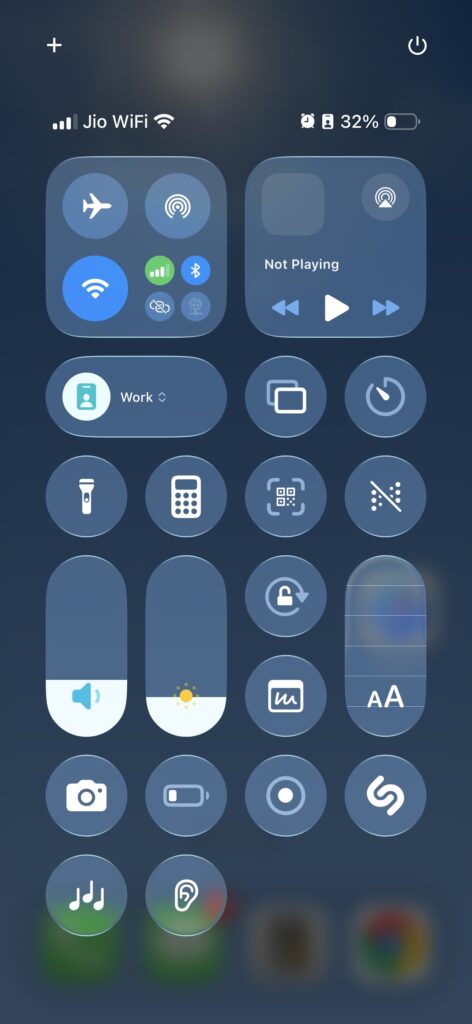
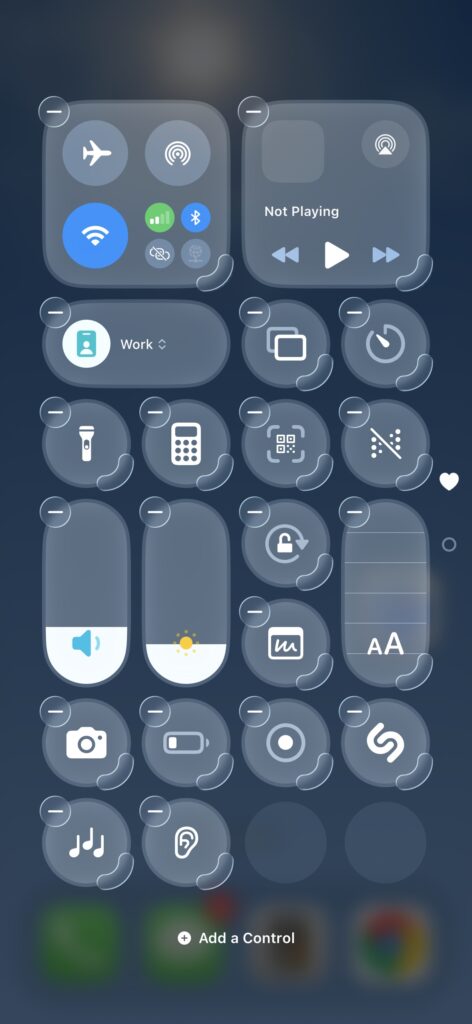
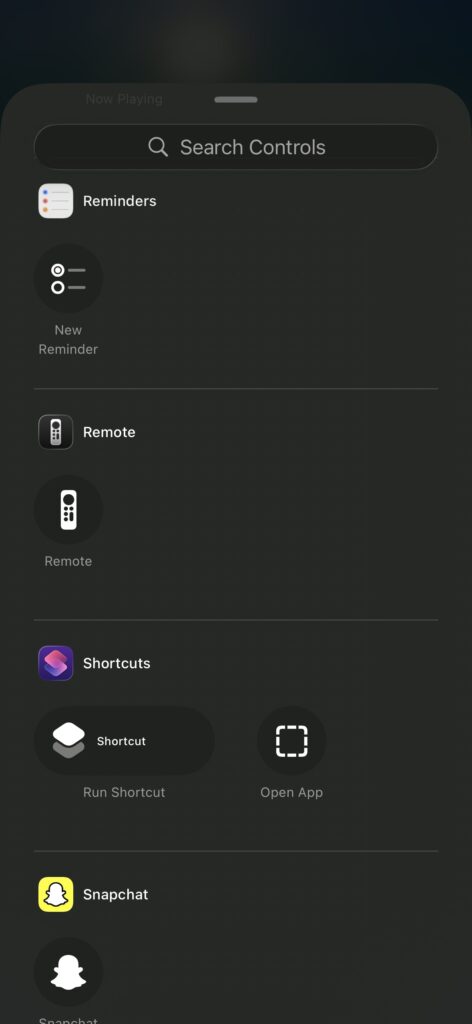
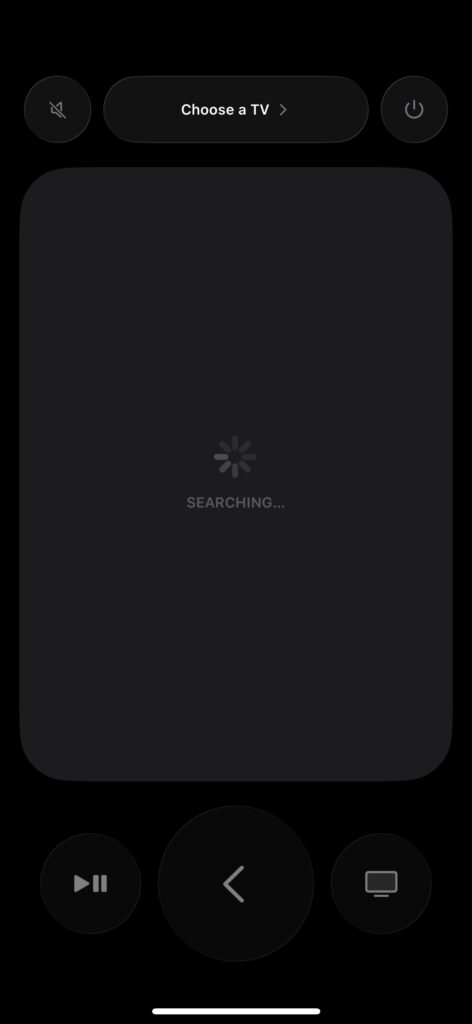
For Dedicated App Access:
Your devices are now paired and ready to use.
Essential Features of the Apple TV Controller App
The Apple TV remote control app packs impressive functionality into a compact interface. Let’s explore the features that make it indispensable.
Core Navigation Controls
| Feature | Function | Gesture |
|---|---|---|
| Touchpad | Navigate menus | Swipe in any direction |
| Select | Choose items | Single tap on touchpad |
| Menu/Back | Return to previous screen | Menu button |
| Home | Return to home screen | TV/Home button |
| Play/Pause | Control playback | Dedicated button |
Advanced Capabilities
Siri Integration: Press and hold the Siri button to voice search for content, control playback, or adjust settings. Ask questions like “Show me action movies” or “Turn on subtitles.”
Keyboard Input: When a text field appears on Apple TV, your iPhone automatically displays a full keyboard. This makes entering passwords, searching for shows, and logging into apps dramatically faster.
Game Controller: Many Apple Arcade games support the remote app as a controller. The accelerometer and gyroscope in your iPhone enable motion-based gameplay.
Volume Control: Adjust TV volume directly from the app if your Apple TV is configured to control your television or soundbar via HDMI-CEC.
Multi-Device Switching: If you have multiple Apple TVs, quickly switch between them without re-pairing.
Pros and Cons: Is the Apple TV Remote App Right for You?
Every tool has strengths and limitations. Here’s an honest assessment to help you decide.
Advantages
Convenience Factor: Your phone is already in your hand while browsing social media or checking messages. No need to search for another device.
Superior Text Entry: Anyone who’s tried typing a complex password using a remote knows this pain point. The phone keyboard solves it instantly.
Always Charged: As long as your phone has battery, your remote works. No scrambling for AAA batteries or Lightning cables.
Multiple Control Options: Access through Control Center or dedicated app based on your preference.
Free and Native: No subscription fees or third-party app downloads required.
Limitations
Wi-Fi Dependency: If your network goes down, so does your remote functionality. The physical Siri Remote uses Bluetooth as a backup.
Phone Distraction: Using your phone as a remote can lead to notification distractions during movie time.
Battery Drain: While minimal, continuous use does consume phone battery faster than normal.
Learning Curve: First-time users need a few minutes to adapt to touchscreen navigation versus physical buttons.
Same Network Requirement: Both devices must be on the same Wi-Fi network, which can be problematic in some network configurations.
Apple TV Remote App vs. Physical Siri Remote
Understanding the differences helps you choose the right tool for each situation.
When to Use the Remote App
When to Use the Siri Remote
Many users find a hybrid approach works best, using whichever device is most convenient at the moment.
Real-World Use Cases
The Apple TV remote application shines in specific scenarios. Here are practical examples from everyday users.
Scenario 1: Late-Night Streaming
You’re settling in for a movie marathon after everyone’s asleep. Your phone is on the nightstand, but the Siri Remote is somewhere in the living room. Instead of stumbling around in the dark, you grab your iPhone, swipe to Control Center, and start streaming in seconds.
Scenario 2: App Login Marathon
You’ve just reset your Apple TV and need to log into Netflix, Hulu, Disney+, HBO Max, and six other services. Each requires an email and complex password. Using the Apple TV controller app, you complete in 10 minutes what would take 30 minutes with the physical remote.
Scenario 3: Kids’ Gaming Session
Your children want to play Crossy Road on Apple TV. You hand them your old iPhone (not your primary device) as a controller. The motion controls work perfectly, and you don’t worry about them losing or damaging the expensive Siri Remote.
Scenario 4: Multi-Room Control
You have Apple TVs in the bedroom and living room. From your bedroom, you can queue up content on the living room Apple TV before heading downstairs, ensuring everything is ready when you arrive.
Troubleshooting Common Issues
Even the best technology occasionally hiccups. Here’s how to resolve frequent problems.
Remote Not Connecting
Solution Steps:
Laggy or Unresponsive Controls
Solution Steps:
Keyboard Not Appearing
Solution Steps:
Advanced Tips and Tricks
Maximize your Apple TV remote application experience with these lesser-known features.
Create Custom Shortcuts
Use the Shortcuts app on iPhone to create automation.
For example, create a “Movie Night” shortcut that dims your lights, opens the Apple TV remote app, and launches Netflix—all with a single tap.
Use Apple Watch as Backup
Your Apple Watch also includes Apple TV remote functionality. Navigate to the Remote app on your watch for another control option.
Enable Automatic Pairing
In Settings on Apple TV, enable “Allow Control” under Remotes and Devices. This lets new iPhones on your network connect without entering a code each time.
Customize Control Center Order
In iPhone settings, arrange your Control Center so the Apple TV Remote appears in your preferred position for fastest access.
Switch Audio Output
Long-press the TV/Home button in the remote app to quickly switch audio between TV speakers, AirPods, or HomePod speakers.
Privacy and Security Considerations
Using your iPhone as an Apple TV remote control app involves data transmission. Here’s what you should know.
Data Protection
Apple uses end-to-end encryption for communication between your iPhone and Apple TV. Your viewing habits, searches, and app usage remain private.
Network Security
Ensure your Wi-Fi network uses WPA2 or WPA3 encryption. Avoid using the remote app on public or unsecured networks, as this could potentially expose your Apple TV to unauthorized access.
Family Sharing
Any iPhone on your home network can potentially control your Apple TV if you’ve enabled automatic pairing. Disable this in Apple TV settings if you prefer manual authorization.
Frequently Asked Questions
1. Can I use the Apple TV remote app without Wi-Fi?
No, the Apple TV remote application requires both devices to be connected to the same Wi-Fi network. Unlike the physical Siri Remote which uses Bluetooth, the app relies entirely on Wi-Fi connectivity. If you frequently experience network issues, keeping the physical remote as a backup is advisable.
2. Does the Apple TV controller app work with older Apple TV models?
The remote app supports Apple TV 4th generation and later (Apple TV HD and all Apple TV 4K models). The 2nd and 3rd generation Apple TVs used a different remote app that is no longer supported on modern iOS versions. If you have an older Apple TV, you’ll need to use the physical remote.
3. Can multiple iPhones control the same Apple TV simultaneously?
Yes, multiple iPhones can pair with and control the same Apple TV. However, only one can send commands at a time. This is useful for families, though it can create conflicts if two people try to navigate simultaneously. The most recent command takes priority.
4. Will using the Apple TV remote app drain my iPhone battery quickly?
Battery impact is minimal during normal use. The app uses standard Wi-Fi communication, which is already active on your phone. Extended gaming sessions or continuous navigation for hours may have a noticeable impact, but casual usage throughout an evening typically consumes less than 5% of battery life.
5. Is there an Android version of the Apple TV remote application?
No, Apple does not offer an official Apple TV remote app for Android devices. The remote functionality is exclusive to iOS devices (iPhone, iPad) and Apple Watch. Android users must rely on the physical Siri Remote or third-party universal remote solutions that support Apple TV.
The Future of Apple TV Remote Control
As we move through 2026, the Apple TV remote application continues to evolve. Recent updates have introduced haptic feedback for more tactile navigation and improved Siri integration.
Emerging Trends
Matter Protocol Integration: With Apple’s commitment to the Matter smart home standard, future updates may enable control from even more devices.
Enhanced Gaming Features: As Apple Arcade grows, expect improved game controller functionality built into the remote app.
AI-Powered Suggestions: Future versions may leverage Apple Intelligence to suggest content and shortcuts based on viewing patterns.
Cross-Platform Improvements: Tighter integration with Mac and iPad could create a truly unified control experience across all Apple devices.
Conclusion: Your Entertainment, Simplified
The Apple TV remote app represents Apple’s vision of seamless device integration. What started as a convenience feature has become an essential tool for millions of users worldwide.
Whether you’re struggling with login credentials, seeking faster navigation, or simply tired of losing remotes, the Apple TV remote control app delivers a solution that’s free, powerful, and always accessible. The slight learning curve is quickly offset by improved convenience and functionality.
Start by adding the remote to your Control Center today. Within a week, you’ll wonder how you ever managed without it. Your physical Siri Remote will still have its place, but your iPhone will become your primary control method for most situations.
The future of home entertainment isn’t just about what we watch—it’s about how effortlessly we access it. The Apple TV remote application is a perfect example of technology getting out of the way, letting you focus on what matters: enjoying great content with the people you love.
Ready to take control?
Swipe down to your Control Center and add the Apple TV Remote now.
Your couch-cushion searching days are officially over.

Virginia J. Alfonso is a seasoned technology writer with a passion for all things digital. With over a decade of experience covering the latest in tech innovation, gadgets, and software, Virginia brings a unique blend of technical expertise and accessible writing to her work. Her articles focus on making complex tech topics easy to understand for readers of all levels.