


Apple iPhones are reliable.
But glitches happen. A frozen screen or forgotten passcode can lock you out.
That’s where restoring with iTunes saves the day.
This guide covers restore iPhone using iTunes from start to finish.
You’ll learn to restore from backups, fix stuck restores, handle disabled devices, and solve common errors.
No tech skills needed. Follow these steps to get your iPhone back fast.
Think of iTunes as your iPhone’s reset button.
It wipes issues and revives your device. Ready to dive in?


Let’s fix your iPhone today.
Short Story

Why Restore iPhone Using iTunes?
Restores fix many problems. Your iPhone might lag or crash often.
Software bugs cause this. iTunes reinstalls iOS fresh.
Use it when updates fail.
Or when apps misbehave. It’s like a factory reset for your phone.
Restoring erases data. Always back up first. iTunes stores backups on your PC or Mac.
For US users, iTunes works on Windows or macOS. Download the latest version from Apple. This ensures compatibility with iPhone 16 or older models.
Pros beat iCloud sometimes. Local backups are faster. No internet needed.
Preparations Before Restore
Prep saves headaches. Update iTunes first.
On Windows, grab it from apple.com. Macs use Finder now, but iTunes lingers for restores.
Check your cable. Use original USB. Faulty ones cause errors.
Disable Find My iPhone. Go to Settings > [Your Name] > Find My.
Turn it off. This avoids activation locks.
Back up data. Connect to iTunes. Click “Back Up Now.”
Example: Sarah lost photos after skipping this. Don’t be her.
Free computer space. Backups eat 10-50GB. Charge your iPhone to 50%+.
How to Restore iPhone Using iTunes (Step-by-Step)
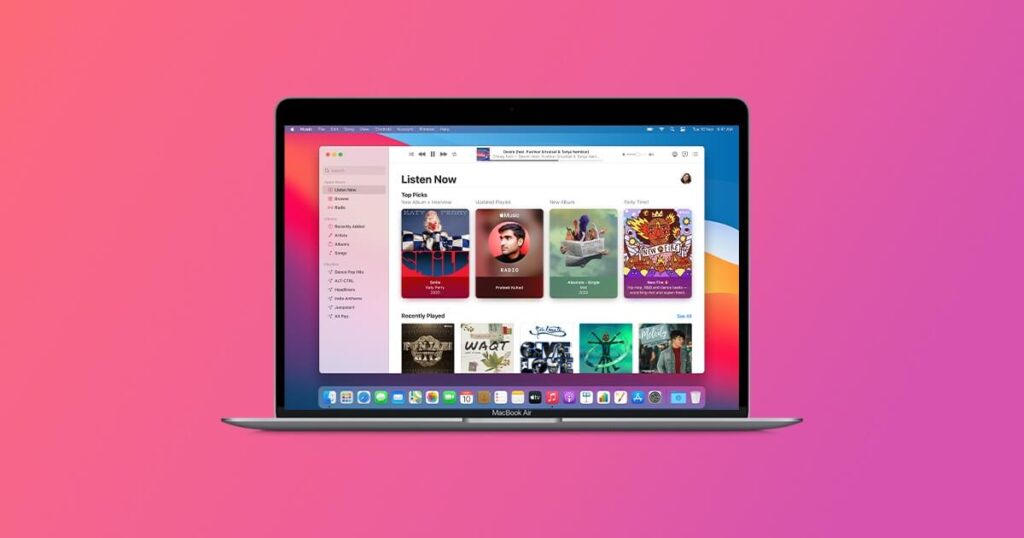
Follow these numbered steps. Works for iPhone 15 to 6 series.
Your iPhone restarts fresh. Set it up as new or from backup.
For Macs post-Catalina, use Finder. Same steps apply.
How to Restore iPhone from Backup
Lost data? Restore iPhone from backup brings it back.
After factory restore, iTunes prompts setup.
Example: John backed up before upgrading. He got texts, photos, and apps back in 20 minutes.
Local backups include health data. iCloud skips some. Pick recent backups. Delete old ones to save space.
Entering Recovery Mode for Restore
Stuck iPhone? Force recovery mode.
Steps vary by model:
Screen shows iTunes logo. Connect to computer. iTunes detects and offers “Restore.”
Analogy: Recovery mode is like safe mode on PC. It bypasses software glitches.
Restore Disabled iPhone with iTunes
Forgot passcode? iPhone disables after tries.
No worry. Restore erases the lock.
Post-restore, set new passcode. Restore backup if needed. Data loss happens without backup.
Real story: Mike entered wrong code 10 times. 5-minute restore fixed it. He’s more careful now.

Fix iPhone Stuck on Restore Screen
iPhone freezes on “Restore in Progress”? Common issue.
Causes: Bad cable, old iTunes, low space.
Quick fixes:
If over 15 minutes, iPhone exits recovery. Repeat mode entry. Patience key. Most resolve in 5 tries.
iTunes Restore Error Solutions
Errors pop up. Like 4013 or 9. Here’s how to fix.
Error 4013: Faulty USB. Swap ports. Use original cable.
Error 9: Corrupt download. In iTunes, hold Option (Mac) or Shift (PC), click Restore, pick IPSW file from ipsw.me.
Error 14: Antivirus blocks. Disable temporarily.
Error 4005: Date wrong on PC. Fix system clock.
General tips:
Example table of common errors:
| Error Code | Cause | Fix |
|---|---|---|
| 4013 | USB issue | New port/cable |
| 9 | Bad firmware | Manual IPSW |
| 14 | Security software | Disable antivirus |
| 4005 | Date mismatch | Set correct time |
90% fix with cable swap. Apple’s site lists more.
Advanced Tips for Smooth Restores
Encrypt backups. Adds password protection.
Compare methods:
| Method | Speed | Data Included | Needs Internet |
|---|---|---|---|
| iTunes Local | Fast | Full (Health) | No |
| iCloud | Slow | Partial | Yes |
Use third-party like iMazing for selective restore. But stick to iTunes for safety.
Keep iTunes updated. 2026 versions support iOS 20.
FAQ
Q1: Does restore iPhone using iTunes delete everything?
Yes. It wipes data. Restore from backup after.
Q2: Why iTunes over iCloud?
Faster, no Wi-Fi, full data like health.
Q3: iPhone stuck on restore—now what?
Restart PC, new cable, re-enter recovery.
Q4: Fix disabled iPhone without computer?
No. iTunes or Finder required.
Q5: Error 4013 on Windows?
Update drivers, disable antivirus.
Disclaimer
This guide uses public Apple info. Results vary by device. Not official advice. Back up data. Apple not liable. Consult support.apple.com for issues.
Fixed your iPhone?
Share in comments! Subscribe for iOS tips.
Try these steps now.

Virginia J. Alfonso is a seasoned technology writer with a passion for all things digital. With over a decade of experience covering the latest in tech innovation, gadgets, and software, Virginia brings a unique blend of technical expertise and accessible writing to her work. Her articles focus on making complex tech topics easy to understand for readers of all levels.