




Apple’s iOS 26 update brought a game-changing feature to iPhones: the Preview app.
Mac users have enjoyed this powerful tool for years.
Now it’s finally available on iPhone and iPad.
This comprehensive guide covers everything you need to know about the Preview app in iOS 26.
You’ll learn what it does, how to use it, and whether you can remove it.
Let’s dive in and explore this exciting new addition to your iPhone.
Short Story on Preview App
What is the Preview App in iOS 26?
The Preview app is Apple’s native document and image management tool. It’s been a Mac staple for decades.
With iOS 26, it finally arrived on iPhone and iPad. The app lets you view, edit, annotate, and share PDFs and images.



You don’t need third-party apps for most document tasks anymore.
Preview combines features from Files, Markup tools, and the Camera’s document scanner.
Everything sits in one streamlined app. It’s designed to boost productivity on the go.
Whether you’re signing contracts, editing photos, or scanning receipts, Preview handles it all.
The app works with two main file types: PDFs and images.
It supports formats like HEIC, JPEG, PNG, TIFF, and PDF.
The interface feels familiar if you’ve used Apple’s screenshot editor. Everything is simple and intuitive.
Key Features of iOS 26 Preview App
Smooth PDF and Image Rendering
Preview opens large PDFs and images quickly. No more waiting for files to load. The app renders documents smoothly, even with hundreds of pages. You can zoom in without losing quality. Navigation is fast and responsive.
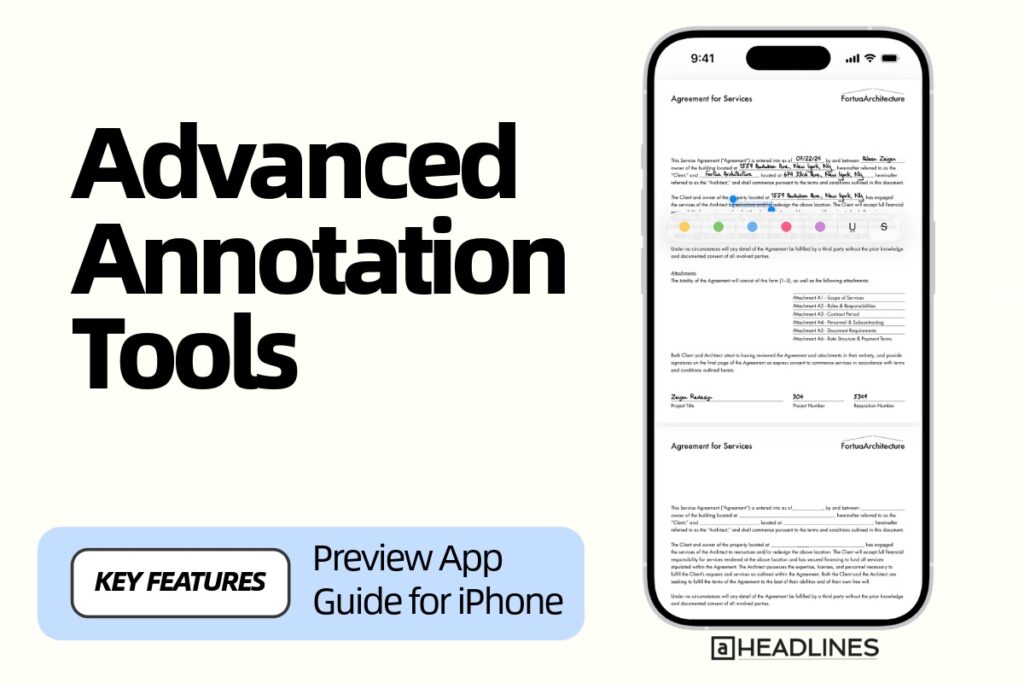
Advanced Annotation Tools
The markup tools are powerful and easy to use. You can highlight text, add comments, and draw shapes. Digital signatures work with your finger or Apple Pencil. The app saves your signature for future use. Text boxes let you fill out forms efficiently.
Document Scanning
The built-in scanner is one of Preview’s best features. It’s fast, accurate, and perfect for receipts or contracts. Point your camera at a document, and Preview captures it. The app automatically detects edges and adjusts the angle. Scans are saved as high-quality PDFs.
Background Removal
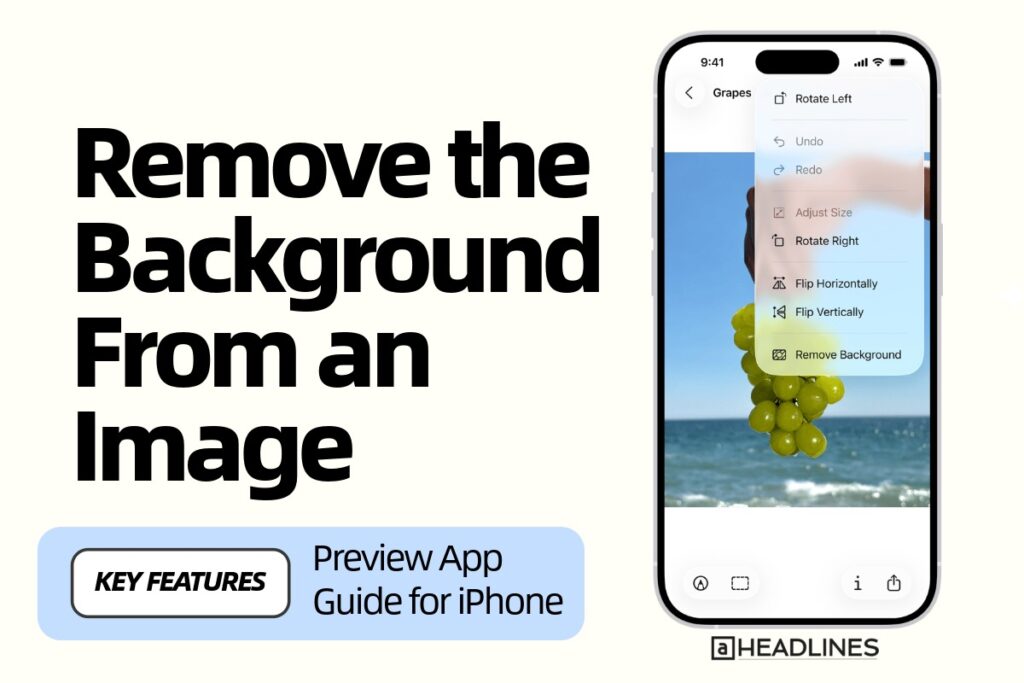
Need to isolate a subject in a photo? Preview’s background removal tool works like magic. Tap the button, and the app removes the background instantly. The subject stays crisp against a white backdrop. This feature is great for product photos or presentations.
Form Autofill
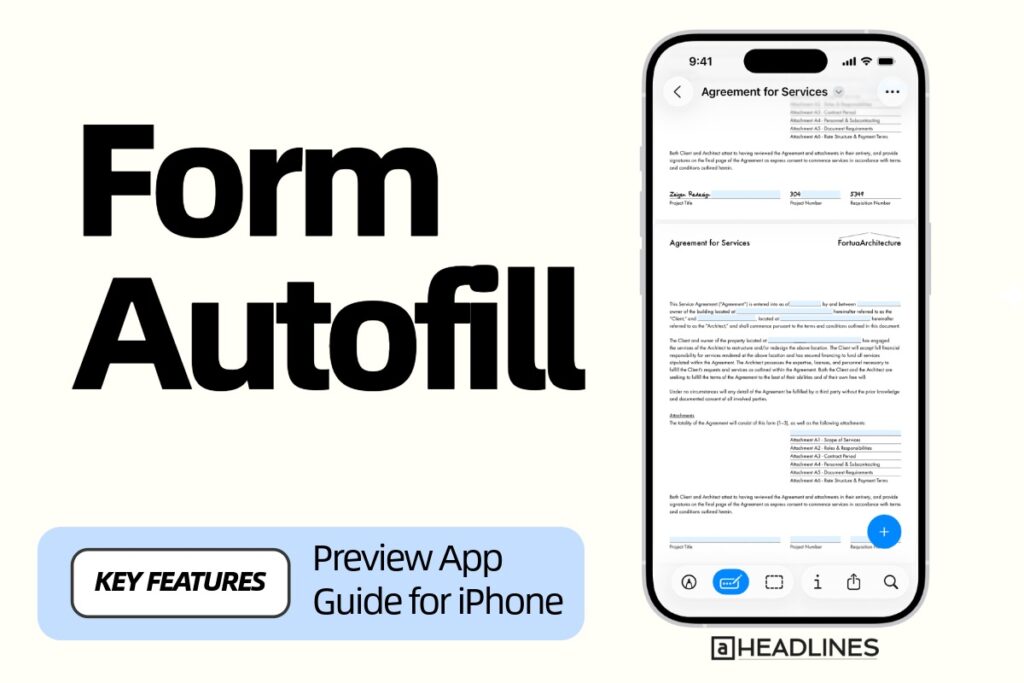
Preview detects fillable text boxes in PDFs automatically. It uses your saved information to fill forms quickly. This saves time when dealing with repeated entries. The app handles interactive forms with ease.
Export Options
You can export files in multiple formats and sizes. Preview supports HEIC, JPEG, PNG, TIFF, and PDF. Adjust the resolution before saving. Change file size to meet specific requirements. Sharing is simple with the built-in share sheet.
Side-by-Side Viewing (iPad)
On iPad, you can view documents side by side. This is perfect for comparing PDFs or referencing materials. Drag and drop content between windows. The multitasking features enhance productivity significantly.
iOS 26 Preview App Download: How to Get It
You don’t need to download the Preview app separately. It comes pre-installed with iOS 26. When you update to iOS 26, Preview appears automatically on your iPhone or iPad. Look for the icon in your App Library.
Here’s how to find it:
If you deleted Preview and want it back, visit the App Store. Search for “Preview by Apple” and tap Get. The app downloads quickly and restores full functionality.
Compatible devices include iPhone 11 and newer models. iPad users need iPadOS 26 to access the app. Older devices won’t support Preview even after updating.
How to Use Preview App on iPhone: Step-by-Step Guide
Opening Files in Preview
There are several ways to open files in Preview:
Method 1: Direct Launch
• Tap the Preview app icon
• Select “New Document” or “Scan Document”
• Browse files in the Files section at the bottom
Method 2: From Files App
• Open the Files app
• Tap any PDF or image
• The file opens automatically in Preview
Method 3: From Other Apps
• Tap “Share” on a PDF or image
• Select “Open in Preview”
• The file appears in the app
Scanning Documents
Preview’s scanning feature is incredibly useful:
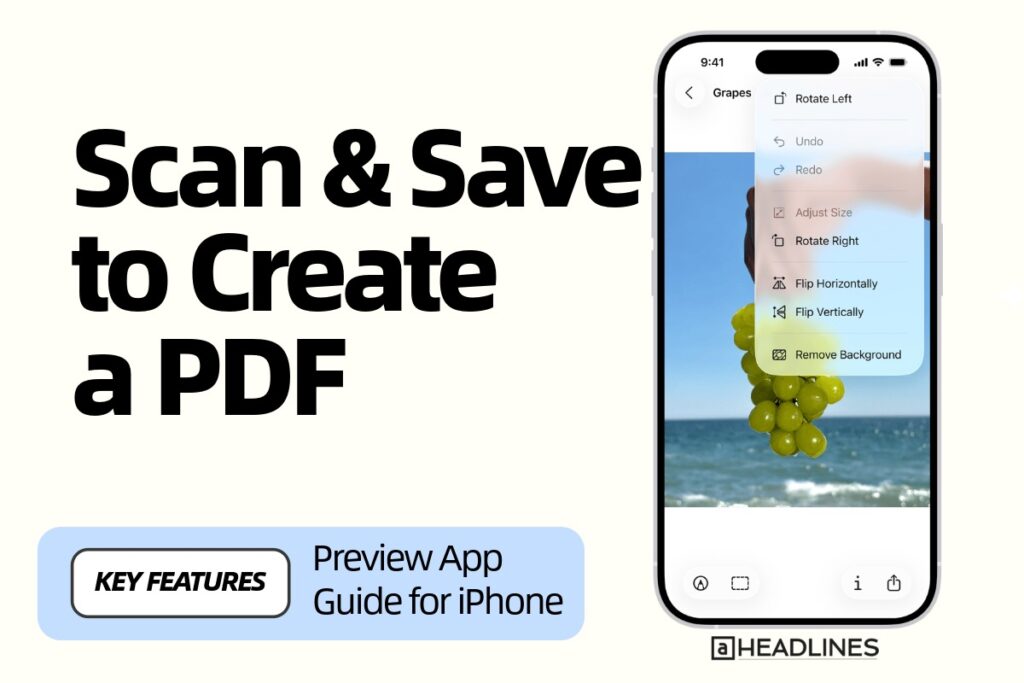
The scanner works great for receipts, contracts, notes, and handwritten documents. It handles multiple pages easily. The quality rivals dedicated scanning apps.
Editing and Annotating PDFs
Working with PDFs in Preview is straightforward:
You can rotate pages, jump to specific pages, or adjust the view. Dark mode makes reading easier on the eyes. All changes save automatically.
Adding Signatures
Signing documents takes seconds:
Preview remembers your signature for future use. You can create multiple signatures if needed. The quality looks professional on documents.
Editing Images
Image editing in Preview is simple yet powerful:
The background removal feature is surprisingly accurate. It works well with most subjects and backgrounds. You can use cropped images in presentations or documents.
Exporting and Sharing Files
Sharing files from Preview is easy:
You can send files via Mail, Messages, or AirDrop. Save to Files or iCloud Drive for later access. The export options cover most common needs.
Can I Delete the Preview App on iPhone?
Yes, you can delete the Preview app from your iPhone. Like other built-in Apple apps, Preview can be removed if you don’t need it. Deleting it doesn’t affect your files or other apps.
Here’s how to delete Preview:
Method 1: From Home Screen
1. Touch and hold the Preview app icon
2. Tap “Remove App” from the menu
3. Select “Delete App” (not just “Remove from Home Screen”)
4. Confirm by tapping “Delete”
Method 2: From App Library
1. Open the App Library
2. Find the Preview app
3. Touch and hold the icon
4. Tap “Delete App”
5. Confirm the deletion
Method 3: Through Settings
1. Go to Settings > General
2. Tap “iPhone Storage”
3. Scroll to find Preview
4. Tap “Delete App”
5. Confirm the removal
What Happens After Deleting?
When you delete Preview, files open differently. PDFs and images in the Files app open within Files itself. They don’t bounce to a separate app anymore. This returns functionality to how iOS 18 worked.
Some users find this preferable for quick viewing. Others miss Preview’s advanced features. You can reinstall anytime from the App Store. Your preferences and settings don’t carry over though.
iOS 26 Disable Preview App: Alternatives to Deletion
If you don’t want to delete Preview completely, there are alternatives. You can change how files open without removing the app.
Option 1: Use Quick Look Instead
This method keeps Preview installed but bypasses it:
You need to do this each time though. It’s not a permanent setting. Quick Look offers basic viewing and markup tools.
Option 2: Change Default App Behavior
Make Files the default viewer again:
This sets a preference for future files. New PDFs and images open in Files by default. The change applies across your iPhone.
Option 3: Hide Preview from Home Screen
Keep the app but remove visual clutter:
This approach gives you flexibility. Preview remains available but out of sight. You can launch it from App Library when necessary.
Option 4: Use Screen Time Restrictions
Limit Preview access through parental controls:
This doesn’t delete the app but prevents opening it. It’s useful for managed devices or family sharing. The app remains installed but inaccessible.
Why Some Users Want to Disable Preview
Several reasons explain why users disable Preview:
Redundancy with Files App
Files already handled PDFs and images before iOS 26. Preview feels like an extra step to many users. Opening files in a separate app disrupts workflow.
Slower Navigation
Preview adds a bounce between apps. This creates delays when viewing multiple files. Users who browse folders quickly find this frustrating.
Learning Curve
Some people prefer familiar tools over new ones. The Files app’s interface was well-known. Preview introduces different menus and workflows.
Storage Concerns
Every app takes up space, even system apps. Users with limited storage might remove Preview. The space savings are minimal but noticeable.
Personal Preference
Some users simply don’t need advanced features. Basic viewing and sharing work fine in Files. Preview’s tools feel like overkill for simple tasks.
Tips and Tricks for iOS 26 Preview App
Master Keyboard Shortcuts (iPad)
If you use Preview on iPad with a keyboard:
Use Dark Mode for PDFs
Preview supports dark backgrounds for PDFs. This reduces eye strain during nighttime reading. Toggle it from the three-dot menu. Text inverts to white on black backgrounds.
Lock PDFs with Passwords
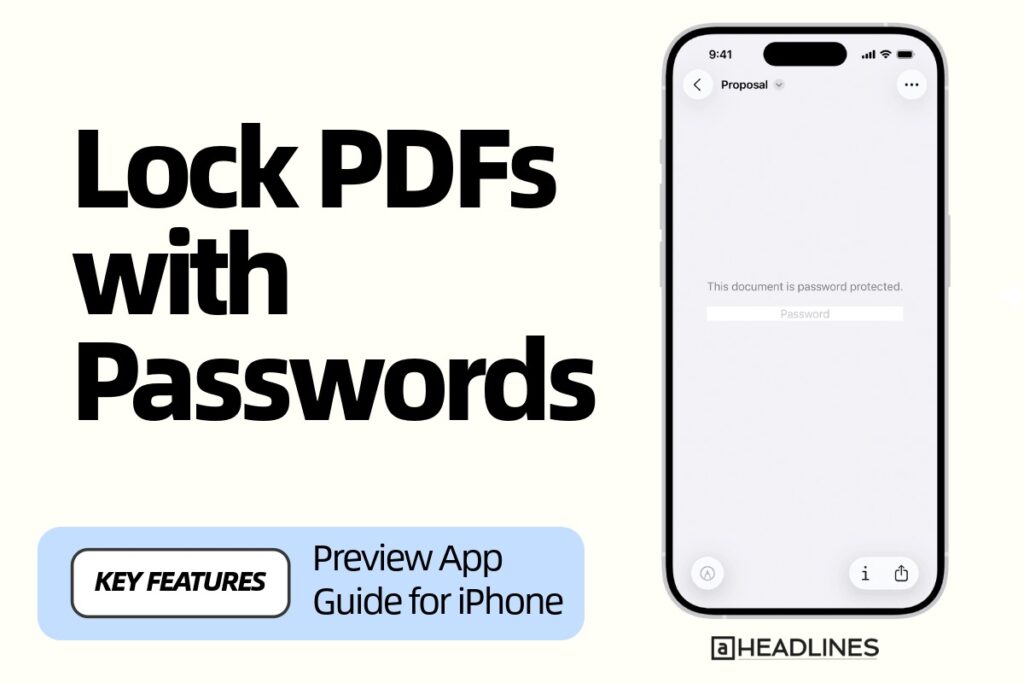
Protect sensitive documents easily:
Create Blank Documents
Start fresh without existing files:
Paste Clipboard Content
Create documents from copied content:
Adjust Scan Quality
Get better scans with these settings:
Batch Process Multiple Files
Work on several documents at once:
Preview App vs. Other iOS Apps
Preview vs. Files App
Files is a file manager first. It organizes documents and folders. Preview focuses on viewing and editing. Files offers basic markup tools. Preview provides professional-grade annotation features.
Winner for organization: Files App
Winner for editing: Preview App
Preview vs. Notes App
Notes works best for quick text notes. It handles sketches and handwriting well. Preview excels at PDF management and image editing. Notes integrates with other Apple apps better. Preview offers more export options.
Winner for note-taking: Notes App
Winner for document work: Preview App
Preview vs. Adobe Acrobat
Acrobat has more advanced PDF features. It offers form creation and OCR. Preview is free and built-in. Acrobat requires a subscription for premium features. Preview works offline without accounts.
Winner for professionals: Adobe Acrobat
Winner for casual users: Preview App
Preview vs. Third-Party Scanner Apps
Dedicated scanner apps offer more filters. They include cloud integration and OCR. Preview’s scanner is simpler but effective. It doesn’t require separate downloads. Preview integrates with iOS features seamlessly.
Winner for advanced scanning: Third-Party Apps
Winner for convenience: Preview App
Troubleshooting Common Preview App Issues
Files Not Opening in Preview
If PDFs or images don’t open in Preview:
Preview App Crashing
When Preview crashes frequently:
Signatures Not Saving
If signatures disappear:
Scans Looking Blurry
Improve scan quality with these tips:
Can’t Delete Preview App
If deletion doesn’t work:
Benefits of Using Preview on iPhone
Professional Document Handling
Preview brings Mac-level features to iPhone. You can handle business documents professionally on the go. No need to wait until you’re at a computer.
Saves Money on Apps
You don’t need expensive PDF or image editors. Preview does most tasks for free. This saves money on app subscriptions.
Seamless Apple Ecosystem Integration
Preview works with other Apple apps naturally. Files, Mail, and Messages all connect smoothly. The ecosystem experience is cohesive.
Privacy and Security
Your documents stay on your device. Preview doesn’t require cloud accounts. Sensitive files remain private and secure.
Regular Updates from Apple
As a system app, Preview receives regular updates. New features arrive with iOS updates. Bug fixes happen through system improvements.
Frequently Asked Questions (FAQ)
Q1: Is the iOS 26 Preview app free?
Yes, Preview is completely free. It comes pre-installed with iOS 26. There are no in-app purchases or subscriptions required. All features are available immediately after updating.
Q2: Can I use Preview app without internet?
Absolutely. Preview works entirely offline. You don’t need internet to view, edit, or scan documents. Files save locally on your device. Internet is only needed for sharing via email or cloud services.
Q3: Does Preview work with Apple Pencil on iPad?
Yes, Preview supports Apple Pencil on compatible iPads. You can draw, annotate, and sign with precision. The pencil offers pressure sensitivity for natural writing. It’s perfect for detailed markups and artistic annotations.
Q4: What’s the difference between Preview and Quick Look?
Quick Look is a viewing feature within the Files app. It offers basic file preview and simple markup. Preview is a standalone app with advanced editing tools. Preview provides more professional features for document work.
Q5: Can I recover files deleted in Preview?
If you delete a file within Preview, check Recently Deleted in Files app. Files stay there for 30 days before permanent deletion. You can restore them easily during this period. After 30 days, recovery requires backup restoration.
Disclaimer
This article provides information based on iOS 26 features available at the time of writing. Apple regularly updates its software and features may change. Always refer to official Apple documentation for the most current information. The methods described work on standard iOS configurations. Managed devices or parental controls may limit some functions. We’re not responsible for any issues arising from following this guide. Always backup your data before making system changes. For official support, contact Apple directly through their support channels.
Ready to use Preview App
Ready to master the iOS 26 Preview app? Update your iPhone today and explore these powerful features. The app transforms how you handle documents on mobile. Try scanning your next receipt or signing a contract with Preview. You’ll wonder how you managed without it.
Have questions about iOS 26 Preview? Drop them in the comments below. Share this guide with iPhone users who need help. Subscribe to our newsletter for more iOS tips and tricks. Stay updated with the latest Apple features and updates.
For more iOS 26 guides and tutorials, check out our comprehensive resource library. Learn about other new features in Apple’s latest update. Maximize your iPhone’s potential with our expert advice.

Virginia J. Alfonso is a seasoned technology writer with a passion for all things digital. With over a decade of experience covering the latest in tech innovation, gadgets, and software, Virginia brings a unique blend of technical expertise and accessible writing to her work. Her articles focus on making complex tech topics easy to understand for readers of all levels.