



By using this site, you agree to the Privacy Policy and Terms of Use.
Accept
Apple Headlines Logo Image Apple Headline's White Logo
  • 🔥 Trending:
  • iOS
  • iPadOS
  • Apple Tech
  • iPhone
  • iOS
  • Reader’s Space
  • Mac
  • Contact Us
Reading: How to Share Location on iPhone
Apple HeadlinesApple Headlines
Font ResizerAa
  • iPhone
  • iOS
  • Reader’s Space
  • Mac
  • Contact Us
Search
  • iPhone
  • iOS
  • Reader’s Space
  • Mac
  • Contact Us

Must Read

Dual camera setup on iPhone 17 showing wide and ultra-wide lenses

Dual Camera iPhone 17 Explained Simply: Specs, Features, and Why It Rocks

How to share location on iPhone using Apple Maps with pinned location and map preview

How to Share Location on iPhone

iPhone displaying iOS 18.7.5 update screen with features, fixes, and performance guide text.

iOS 18.7.5 Update: Features, Fixes, and Performance Guide

iOS 26.3 RC update graphic showing privacy, performance, and cross-platform features on a black background.

Apple Rolls Out iOS 26.3 RC: Privacy, Performance, and Cross-Platform Updates

Close-up of iPhone 18 triple camera module with three 48MP lenses and advanced sensor design

iPhone 18 Camera: 48MP Leaks, Variable Aperture & What to Expect

Follow US
© Apple Headlines. All Rights Reserved.
Home » How to Share Location on iPhone
Apple TechiPhone

How to Share Location on iPhone

Virginia J. Alfonso By Virginia J. Alfonso February 6, 2026
4 Min Read
SHARE

In today’s connected world, knowing how to share location on iPhone is more than just a convenience—it’s a safety feature, a productivity tool, and a way to stay close to the people who matter.

Main Topics
How to Share Location?Other Ways to Share iPhone LocationWhat is iPhone Location Sharing?FAQsConclusion

Whether you’re coordinating with friends, keeping family updated, or managing work travel, iPhone location sharing makes it simple.

This tutorial will walk you through everything: what it is, how it works, its features, pros and cons, and practical use cases.
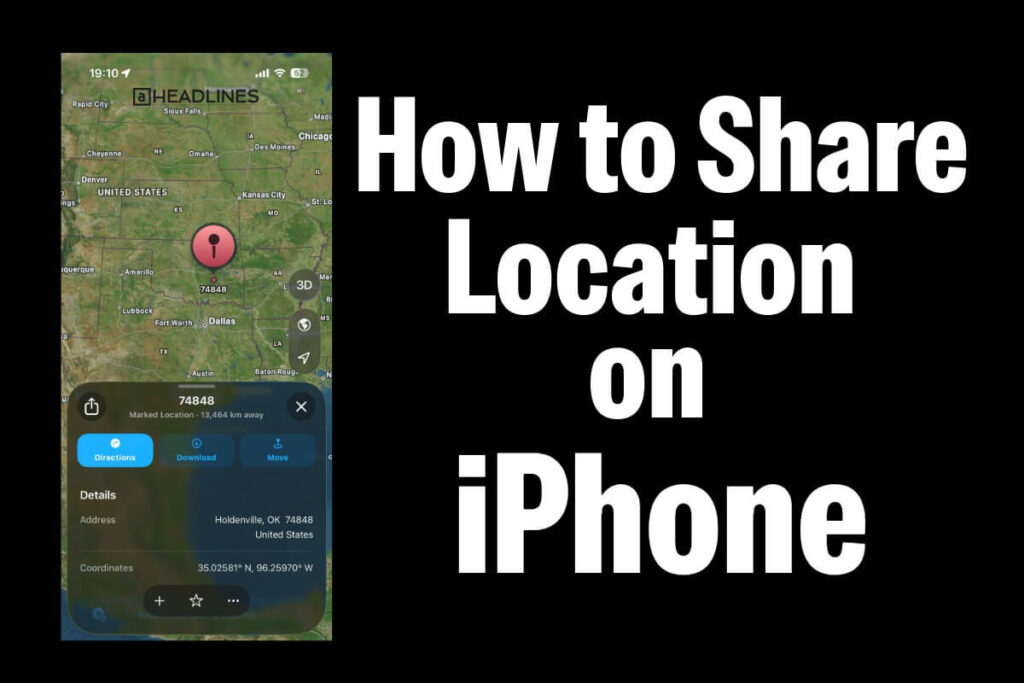
How to share location on iPhone using Apple Maps with pinned location and map preview
How to share location on iPhone using Apple Maps, showing a pinned location and sharing options.

How to Share Location?

Sharing your location on iPhone relies on GPS, Wi-Fi, and cellular data. Apple combines these signals to pinpoint your position.

Steps to Share Location via Message

  • Open the Messages app.
  • Select the conversation with the person you want to share with.
  • Tap the “i” (info) button at the top.
  • Choose “Share My Location”.
  • Select duration:
    One Hour
    Until End of Day
    Indefinitely

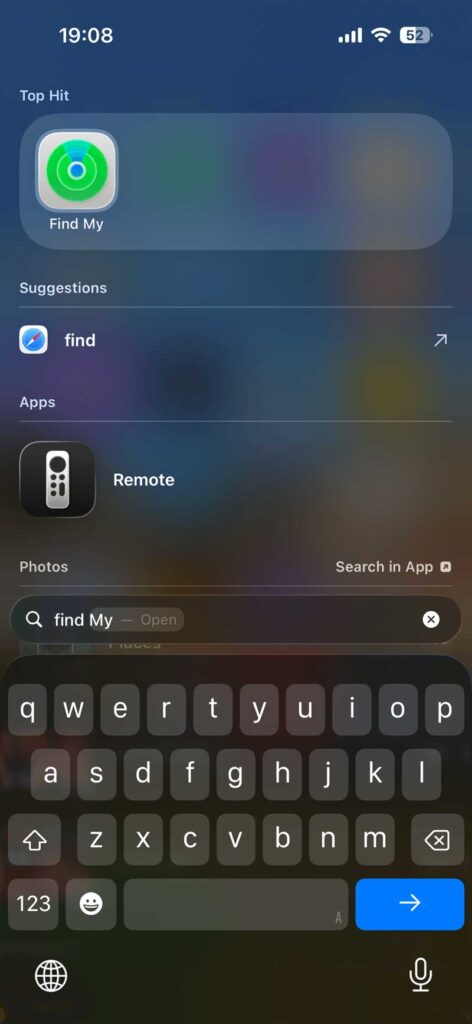
Steps to Share Location via Find My

  • Open the Find My app.
  • Tap People at the bottom.
  • Select Share My Location.
  • Enter the contact’s name or number.
  • Choose how long to share.
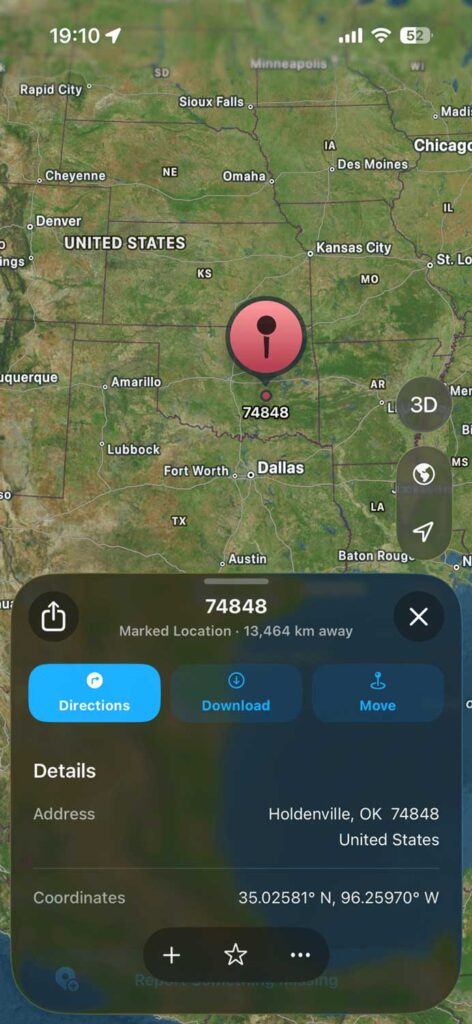
How to share location on iPhone using Find My app showing pinned location and address on Apple Maps
Pinned location displayed in the Find My app on iPhone, showing how to share your exact location easily.

Sharing via Apple Maps

  • Open Apple Maps.
  • Tap the blue dot showing your location.
  • Select Share My Location.
  • Choose the app (Messages, Mail, WhatsApp).
How to share location on iPhone using Apple Maps with a pinned location and address
Pinned location in Apple Maps on iPhone showing how to share your location easily with others.

Other Ways to Share iPhone Location

  • Family Sharing: Auto-shares within groups for ongoing family tracking.​
  • Third-party apps: WhatsApp or Google Maps for cross-platform needs.​

For one-time shares, say “Send my current location” in Messages.

MethodBest ForDuration Options
Find My ​Long-term friends/family1hr, Day, Indefinite
Messages ​Quick chats/groupsSame as above
MapsPin dropsOne-time
Family Sharing ​HouseholdsAlways on

What is iPhone Location Sharing?

iPhone location sharing is a built-in feature that allows you to send your real-time or static location to others. It works through Apple’s Find My app, Messages, and sometimes third-party apps like WhatsApp or Google Maps.

  • Real-time sharing: Your contacts can see your live movement on a map.
  • Static sharing: You send a one-time pin of your current location.
  • Cross-platform support: While optimized for iOS, you can share with Android users via links.

This feature is part of Apple’s ecosystem, designed to integrate seamlessly with iCloud and Apple ID security.

FAQs

1. How do I stop sharing my location on iPhone?

More Read

Dual camera setup on iPhone 17 showing wide and ultra-wide lenses
Dual Camera iPhone 17 Explained Simply: Specs, Features, and Why It Rocks
iPhone displaying iOS 18.7.5 update screen with features, fixes, and performance guide text.
iOS 18.7.5 Update: Features, Fixes, and Performance Guide
Close-up of iPhone 18 triple camera module with three 48MP lenses and advanced sensor design
iPhone 18 Camera: 48MP Leaks, Variable Aperture & What to Expect

Go to Find My > People > Stop Sharing My Location or disable it in Messages > Info > Stop Sharing.

2. Can I share location with Android users?

Yes. Use Apple Maps or Google Maps to send a link that opens in a browser.

3. Is iPhone location sharing secure?

Yes. It’s tied to your Apple ID and encrypted. However, always share only with trusted contacts.

4. Does sharing location drain battery?

Continuous real-time sharing can reduce battery life, but occasional static sharing has minimal impact.

5. Can I share location without internet?

No. Location sharing requires Wi-Fi or cellular data to transmit your position.

Conclusion

Sharing your location on iPhone is a powerful tool for safety, convenience, and connectivity.

With flexible options, strong privacy controls, and seamless integration, it’s ideal for both advanced and general users.

As Apple continues to enhance iOS, expect smarter, more customizable location-sharing features in the future.

Virginia smiling face image
Virginia J. Alfonso

Virginia J. Alfonso is a seasoned technology writer with a passion for all things digital. With over a decade of experience covering the latest in tech innovation, gadgets, and software, Virginia brings a unique blend of technical expertise and accessible writing to her work. Her articles focus on making complex tech topics easy to understand for readers of all levels.


Share This Article
Facebook Twitter Pinterest Whatsapp Whatsapp
Previous Article iPhone displaying iOS 18.7.5 update screen with features, fixes, and performance guide text. iOS 18.7.5 Update: Features, Fixes, and Performance Guide
Next Article Dual camera setup on iPhone 17 showing wide and ultra-wide lenses Dual Camera iPhone 17 Explained Simply: Specs, Features, and Why It Rocks

Follow Us On Social

FacebookLike
InstagramFollow
YoutubeSubscribe

Must Read

Dual camera setup on iPhone 17 showing wide and ultra-wide lenses

Dual Camera iPhone 17 Explained Simply: Specs, Features, and Why It Rocks

How to share location on iPhone using Apple Maps with pinned location and map preview

How to Share Location on iPhone

iPhone displaying iOS 18.7.5 update screen with features, fixes, and performance guide text.

iOS 18.7.5 Update: Features, Fixes, and Performance Guide

iOS 26.3 RC update graphic showing privacy, performance, and cross-platform features on a black background.

Apple Rolls Out iOS 26.3 RC: Privacy, Performance, and Cross-Platform Updates

Close-up of iPhone 18 triple camera module with three 48MP lenses and advanced sensor design

iPhone 18 Camera: 48MP Leaks, Variable Aperture & What to Expect

iPhone 18 rumors graphic showing leaked features like A20 Pro chip, smaller Dynamic Island, and camera upgrades

iPhone 18 Rumors: All Leaks Revealed

Apple Headlines Logo Image

Apple Headlines delivers fresh, reliable Apple news, how-to guides, and tips for every Apple user.

Topics

  • Apple Headlines
  • iOS
  • iPhone
  • Mac

Quick Links

  • Home
  • About Us
  • Privacy Policy
  • Terms of Service
  • Contact Us
Apple Headlines Logo Image

Designed By Apple Headlines

appleheadlines.com