Recording audio on your iPhone isn’t just about capturing voice notes anymore.
Whether you’re documenting meetings, creating podcasts, extracting sound from videos, or even recording while music plays in the background, your iPhone packs professional-grade recording capabilities right in your pocket.
In this comprehensive guide, we’ll explore every method to record audio on iPhone, from the built-in Voice Memos app to advanced third-party solutions.
You’ll discover free recording options, learn how to extract audio from videos, and master the tricky art of recording while keeping your music playing—all without spending a cent.
Understanding iPhone’s Audio Recording Capabilities
Modern iPhones come equipped with sophisticated microphone arrays that rival dedicated recording equipment.
The iPhone 15, 16 and 17 series, for instance, feature three studio-quality microphones that automatically adjust for environmental noise.
Your iPhone can record audio at up to 24-bit/48kHz quality, which is broadcast standard. This means your recordings capture nuances that older smartphones miss entirely.
The key is knowing which tools to use for each recording scenario.
How to Record Audio on iPhone Using Voice Memos
Voice Memos remains the fastest way to record audio on any iPhone. It’s pre-installed, completely free, and surprisingly powerful.
Step-by-Step Recording Process
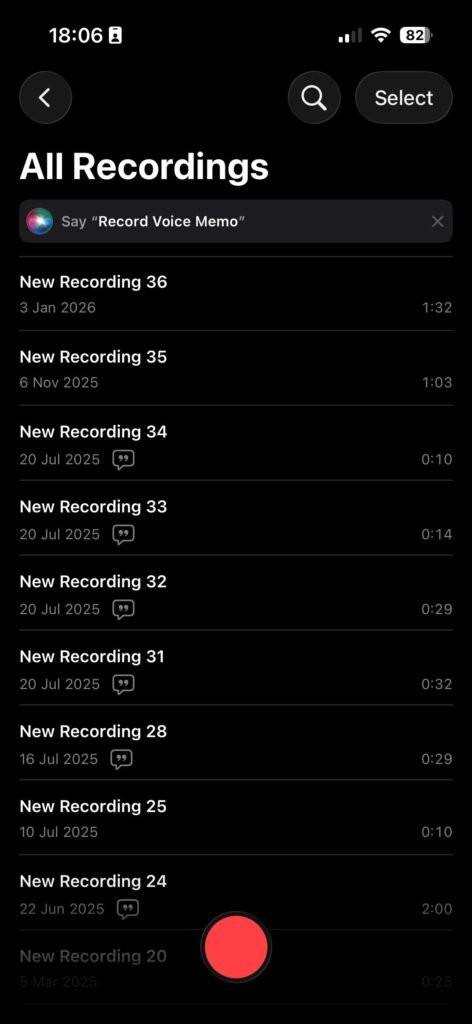
Advanced Voice Memos Features
Voice Memos isn’t just a basic recorder. Here’s what makes it powerful:
The app also supports spatial audio recording on iPhone 15 Pro and later, creating immersive 3D soundscapes.
Follow Apple Headlines on Social
How to Record Audio on iPhone for Free
Beyond Voice Memos, several free apps expand your recording capabilities without costing anything.
Top Free Recording Apps
| App Name | Best For | Key Feature |
|---|---|---|
| GarageBand | Music production | Multi-track recording |
| Voice Record Pro | Interviews | Variable speed playback |
| Just Press Record | Transcription | Real-time text conversion |
| Audio Memos | Professional work | Cloud backup integration |
Using GarageBand for Advanced Recording
GarageBand deserves special mention because it’s completely free and incredibly versatile.
Open GarageBand and select “Audio Recorder” from the instrument menu. You’ll see professional-level controls including:
Musicians recording demos particularly benefit from GarageBand’s ability to add virtual instruments, drums, and effects without additional equipment.
How to Record Audio on iPhone From a Video
Extracting audio from video happens more often than you’d think. Maybe you recorded a lecture on video but only need the audio, or you want to save a song from a concert video as an audio file.
Method 1: Using Shortcuts App
The Shortcuts app (built into iOS) offers the cleanest solution:
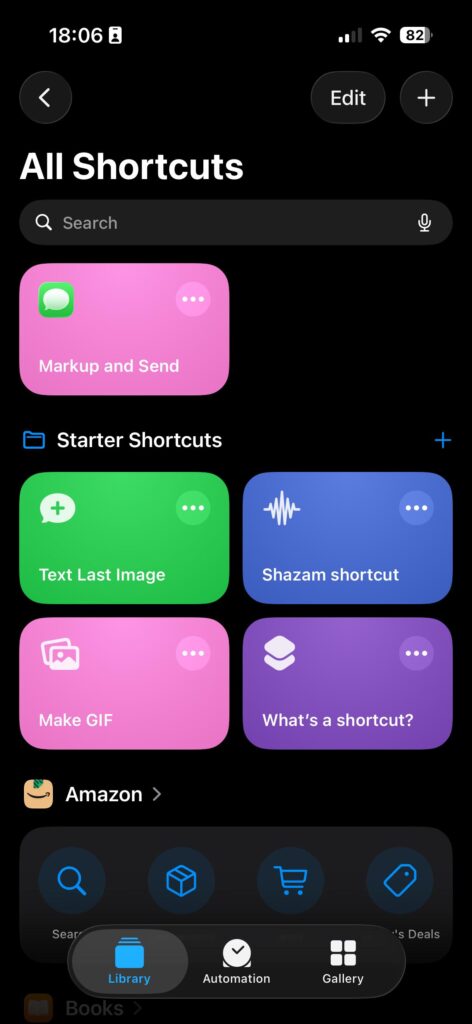
The extracted audio saves as an M4A file with the same quality as the original video’s audio track.
Method 2: Third-Party Converters
Apps like Media Converter and Video to MP3 Converter handle this task with simple interfaces:
These apps typically process videos in seconds, even for hour-long recordings.
How to Record Audio on iPhone While Playing Music
This is where things get technically interesting. By default, starting any recording pauses music playback—but workarounds exist.
The Technical Challenge
iOS prioritizes audio inputs to prevent conflicts. When Voice Memos activates your microphone, the system assumes you want to record only your voice, not background audio.
Solution 1: Using Third-Party Recording Apps
Apps like Hokusai Audio Editor and Voice Record Pro can capture both microphone input and system audio simultaneously:
This creates a single audio file containing both your voice and the music.
Solution 2: Screen Recording Audio Capture
For situations where you need system audio without voice:
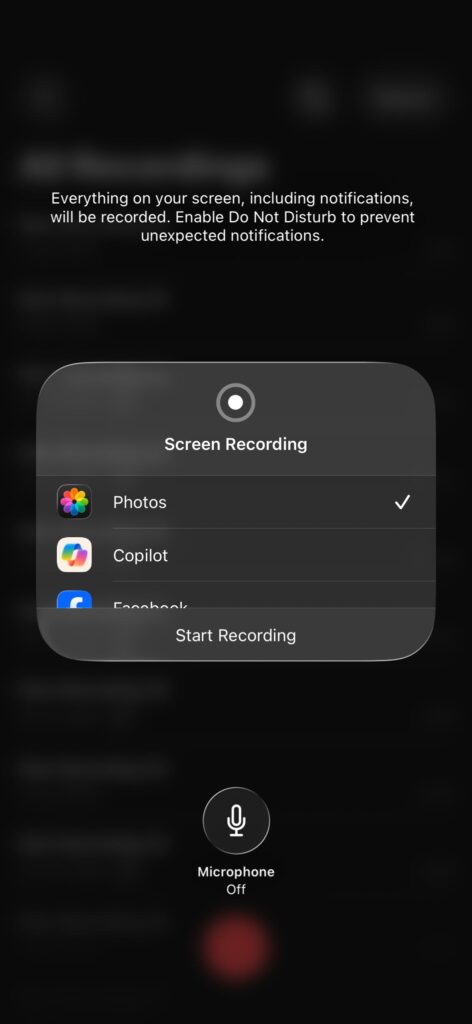
While this captures video too, you can extract audio using the methods described earlier.
Legal Considerations
Recording copyrighted music has legal implications. This technique works best for:
Professional Recording Tips for iPhone Users
Optimize Your Recording Environment
Physical space dramatically affects audio quality. Follow these guidelines:
Accessory Upgrades Worth Considering
While this guide focuses on free methods, certain accessories transform iPhone recording:
Lavalier microphones ($20-50) clip to clothing for hands-free recording with professional clarity.
Lightning-to-XLR adapters connect professional microphones directly to your iPhone.
Pop filters reduce plosive sounds (p’s and b’s) that distort recordings.
File Management Best Practices
Recordings accumulate quickly. Stay organized:
Comparing iPhone Recording Methods
| Method | Audio Quality | Ease of Use | Best Use Case |
|---|---|---|---|
| Voice Memos | High | Very Easy | Quick notes, interviews |
| GarageBand | Professional | Moderate | Music, podcasts |
| Screen Recording | Good | Easy | System audio capture |
| Third-party apps | Varies | Easy-Moderate | Specialized needs |
Real-World Use Cases
For Content Creators
Podcasters use Voice Memos for episode planning, GarageBand for full production, and video extraction for repurposing video content into audio episodes.
For Students
Recording lectures while taking notes (with permission) creates searchable study materials. The transcription features turn hours of recorded content into skimmable text.
For Musicians
Singer-songwriters capture melody ideas anywhere. GarageBand’s multi-tracking lets them build full arrangements before entering a studio.
For Business Professionals
Meeting documentation, interview recording, and voice journaling help professionals stay organized without carrying dedicated equipment.
Troubleshooting Common Recording Issues
Recordings sound muffled: Clean your iPhone’s microphone ports with a soft brush. Lint buildup degrades audio quality significantly.
Audio cuts in and out: Check storage space. iOS requires buffer room for recording. Delete unnecessary files or offload apps.
Recording won’t start: Force-quit the recording app and restart. If persistent, check Settings > Privacy > Microphone to ensure permission is granted.
FAQs
1. Can I record phone calls on iPhone?
iOS doesn’t natively support call recording due to privacy laws. Third-party apps like TapeACall work but require subscription fees and compliance with local recording consent laws.
2. What’s the maximum recording length on Voice Memos?
There’s no time limit—only your available storage constrains recording length. A 128GB iPhone can record approximately 200+ hours of standard-quality audio.
3. Does recording audio drain iPhone battery quickly?
Screen-off recording uses minimal power. Expect about 1% battery per 15 minutes of recording. Background processing and screen usage consume more.
4. Can I edit recordings directly on iPhone?
Yes. Voice Memos includes trimming, and GarageBand offers professional editing. Third-party apps like Ferrite and Hokusai provide even more advanced editing capabilities.
5. How do I improve recording quality without buying equipment?
Record in small, furnished rooms (closets work surprisingly well), speak directly toward the bottom-edge microphone, and use airplane mode to eliminate interference. Enable “Enhanced Recording” in Voice Memos settings on compatible devices.
Conclusion
Recording audio on iPhone has evolved far beyond simple voice notes. Whether you’re using the free Voice Memos app, extracting audio from videos, or capturing sound while music plays, your iPhone offers professional-grade capabilities without additional cost.
The key is matching your method to your specific need. Quick voice notes work perfectly in Voice Memos, while content creation demands GarageBand’s power. Video audio extraction and simultaneous music recording require slightly more technical approaches, but all remain accessible to users at any skill level.
As iPhone microphone technology continues improving with each generation, these recording capabilities will only expand. The iPhone 17 lineup promises even better noise cancellation and higher bit-depth recording, further closing the gap between smartphone and studio.
Ready to start recording? Open Voice Memos right now and test your first recording. Your iPhone’s recording capabilities are waiting to be discovered.

Virginia J. Alfonso is a seasoned technology writer with a passion for all things digital. With over a decade of experience covering the latest in tech innovation, gadgets, and software, Virginia brings a unique blend of technical expertise and accessible writing to her work. Her articles focus on making complex tech topics easy to understand for readers of all levels.