



Is your App Store refusing to open or connect?
You’re not alone.
Thousands of iPhone and iPad users face this frustrating issue daily.
Whether you see error messages, blank screens, or endless loading circles, a non-functional App Store blocks you from downloading apps and updates.
This guide explains why the App Store stops working and provides step-by-step solutions.
You’ll learn how to diagnose connection problems, fix software glitches, and prevent future issues.
By the end, you’ll have your App Store running smoothly again.
Story In short
Why Is My App Store Not Working?
Understanding the root cause helps you fix the problem faster.
Several factors can prevent the App Store from functioning properly.
Common Causes of App Store Issues
Network Connection Problems
- Weak Wi-Fi signals create incomplete connections
- Cellular data restrictions block App Store access
- Router issues prevent proper communication with Apple servers
- VPN interference disrupts normal data flow
Apple Server Outages Sometimes the problem isn’t on your end.
Apple’s servers occasionally experience downtime during maintenance or unexpected outages. Millions of users connect simultaneously, which can overwhelm the system.
Outdated iOS Software Running old iOS versions causes compatibility issues.
Apple regularly updates its services to work with newer software. Your device might struggle to connect if you haven’t updated in months.
Account and Settings Issues
- Expired Apple ID credentials
- Date and time settings set incorrectly
- Restrictions enabled in Screen Time
- Region mismatches between your location and account settings
Storage Space Limitations When your iPhone or iPad runs out of storage, the App Store may refuse to work. The system needs temporary space to process downloads and updates.
What Does “E” on iPhone Mean?
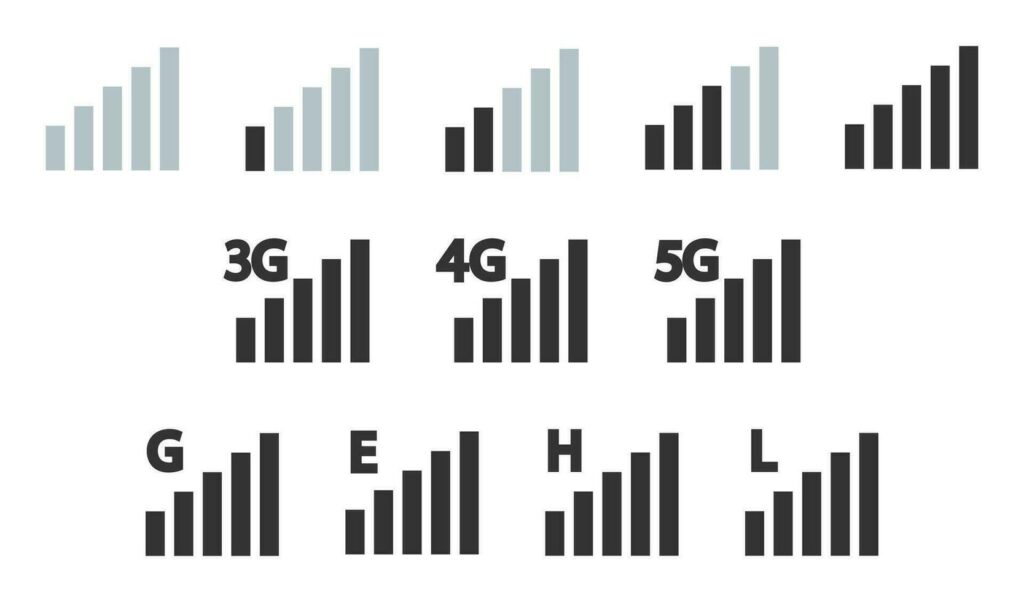
Before diving into fixes, let’s address a related question many users ask.
Understanding the “E” Network Symbol
The “E” symbol appears in your iPhone’s status bar where you normally see 4G or 5G. It stands for EDGE (Enhanced Data rates for GSM Evolution), an older 2G network technology.
Why You See “E” Instead of LTE or 5G
- You’re in an area with poor cellular coverage
- Your carrier’s 4G/5G network is temporarily unavailable
- Network congestion forces your phone to slower speeds
- Your cellular plan doesn’t include higher-speed data
How “E” Network Affects App Store EDGE networks are extremely slow by modern standards. Download speeds rarely exceed 200 Kbps. This makes connecting to the App Store nearly impossible. Large apps won’t download, and even opening the App Store takes forever.
Quick Fix: Switch to Wi-Fi or move to an area with better cellular coverage. The App Store requires at least 3G speeds to function properly.
Troubleshooting Table: App Store Not Working
| Problem | Solution Steps |
|---|---|
| App Store not opening | Restart device, check internet, force quit app |
| Cannot connect to App Store | Check server status, restart, reset network settings |
| Apps won’t update | Ensure storage space, update iOS, restart App Store |
| App Store missing from iPad | Check restrictions, use Spotlight to search App Store |
| Only App Store not working (internet ok) | Reset network, clear cache, sign out & sign in |
| “E” on iPhone, slow App Store | Move to better signal, toggle Airplane mode |
12 Proven Fixes When App Store Cannot Connect
Try these solutions in order. Most users find success within the first few methods.
1. Check Your Internet Connection
Start with the basics. Many App Store problems stem from connectivity issues.
Test Your Connection:
- Open Safari and visit any website
- Try loading a YouTube video
- Check if other apps requiring internet work properly
If Wi-Fi seems connected but doesn’t work:
- Toggle Airplane Mode on for 10 seconds, then off
- Forget your Wi-Fi network and reconnect
- Restart your router by unplugging it for 30 seconds
For cellular data users:
- Go to Settings > Cellular
- Scroll down and ensure App Store is toggled ON
- Check if you have remaining data in your plan
2. Verify Apple System Status
Apple’s servers might be down. This isn’t uncommon during major iOS releases or holidays.
How to Check:
- Visit apple.com/support/systemstatus
- Look for “App Store” in the list
- Green dots mean services are running normally
- Any other color indicates problems on Apple’s end
If Apple servers are down, you must wait. There’s no workaround. Outages typically resolve within a few hours.
3. Sign Out and Back Into Your Apple ID
Account authentication issues frequently cause App Store problems.
Step-by-Step Process:
- Open Settings
- Tap your name at the top
- Scroll down and select “Sign Out”
- Wait 30 seconds
- Sign back in with your Apple ID and password
Important: You’ll need your Apple ID password. Reset it first if you’ve forgotten it.
This method refreshes your account credentials with Apple’s servers. It fixes most authentication-related issues.
4. Force Quit and Restart the App Store
Sometimes the App Store app itself freezes or glitches.
On iPhone with Face ID:
- Swipe up from the bottom and pause mid-screen
- Find the App Store card
- Swipe it up to close
- Reopen the App Store
On iPhone with Home Button:
- Double-press the Home button
- Locate the App Store
- Swipe up to close
- Tap the App Store icon again
This clears temporary data and gives the app a fresh start.
5. Restart Your iPhone or iPad
The classic “turn it off and on again” works surprisingly well.
A: For iPhone X and Newer:
- Press Volume Up, then Volume Down
- Hold the Side button until the Apple logo appears
B: For Older iPhones:
- Hold the Top (or Side) button and Home button together
- Keep holding until you see the Apple logo
C: For iPad:
- Hold the Top button and either Volume button
- Slide to power off, then turn back on
A restart clears system cache and resolves temporary software conflicts.
6. Update Your iOS Software
Running outdated software causes compatibility problems with the App Store.
Check for Updates:
- Go to Settings > General > Software Update
- Wait while your device checks for updates
- Download and install if available
- Your device will restart automatically
Why This Matters: Apple continuously improves security and fixes bugs. Each iOS update includes App Store optimizations. Users on older versions often experience connection failures.
Tip: Connect to Wi-Fi and plug in your charger before updating. Updates can be several gigabytes in size.
7. Reset Network Settings
This fix resolves most “cannot connect to App Store but internet working” situations.
How to Reset Network Settings:
- Open Settings
- Tap General > Transfer or Reset iPhone
- Select Reset > Reset Network Settings
- Enter your passcode
- Confirm the reset
What This Does:
- Clears all saved Wi-Fi networks and passwords
- Resets cellular settings to defaults
- Removes VPN configurations
- Deletes Bluetooth pairings
Important: You’ll need to reconnect to Wi-Fi networks afterward. Have your passwords ready.
This powerful fix eliminates corrupted network configurations that prevent App Store connections.
8. Check Date and Time Settings
Incorrect date and time settings disrupt secure connections to Apple servers.
Verify Your Settings:
- Go to Settings > General > Date & Time
- Enable “Set Automatically”
- Ensure your time zone is correct
Why This Causes Problems: The App Store uses SSL certificates for security. These certificates have expiration dates. If your device thinks it’s in a different time period, it rejects the connection as invalid.
Some users manually change dates to exploit game timers. This always breaks App Store functionality.
9. Disable VPN and Proxy Settings

VPNs and proxies can interfere with App Store connections.
Check Your VPN:
- Go to Settings > VPN
- Toggle off any active VPN connections
- Try accessing the App Store
Check Proxy Settings:
- Settings > Wi-Fi
- Tap the (i) icon next to your network
- Scroll to “HTTP Proxy”
- Ensure it’s set to “Off”
Some schools, offices, and public Wi-Fi networks use proxies. These can block App Store traffic.
10. Clear Storage Space on Your Device
Lack of storage prevents the App Store from functioning.
Check Available Storage:
- Settings > General > iPhone Storage
- Review how much space remains
- You need at least 1-2 GB free
Quick Ways to Free Space:
- Delete unused apps
- Clear Safari cache (Settings > Safari > Clear History and Website Data)
- Remove old photos and videos
- Offload unused apps (Settings > General > iPhone Storage > Offload Unused Apps)
The App Store needs temporary space to verify downloads and process updates. Without it, connections fail.
11. Check Restrictions and Screen Time
Parental controls or Screen Time restrictions might block App Store access.
Verify Restrictions:
- Settings > Screen Time
- Tap Content & Privacy Restrictions
- Check iTunes & App Store Purchases
- Ensure “Installing Apps” is set to “Allow”
Parents often enable these settings and forget. If you don’t remember setting restrictions, someone else might have access to your device.
12. Reset All Settings
If nothing else works, this comprehensive reset often solves persistent issues.
How to Reset All Settings:
- Settings > General > Transfer or Reset iPhone
- Select Reset > Reset All Settings
- Enter your passcode
- Confirm the reset
What This Preserves:
- Your photos, videos, and personal data
- Downloaded apps and content
- Messages and contacts
What This Changes:
- Wi-Fi passwords (you’ll need to reconnect)
- Wallpapers and display settings
- Privacy settings
- Notification preferences
This returns your device to factory settings without deleting content. It’s like a deep clean for your system.
Tips to Prevent App Store Not Work Issues
How to Update Apps on iPad When App Store Won’t Work
Sometimes you need to update specific apps but the App Store isn’t cooperating.
Alternative Update Methods
Using iTunes on Computer:
- Connect your iPad to a computer
- Open iTunes (or Finder on macOS Catalina and newer)
- Select your device
- Navigate to the Apps section
- Update individual apps from there
This method bypasses the iPad’s App Store entirely. It’s especially useful for stubborn connection issues.
Automatic Updates: If you can temporarily access App Store settings:
- Settings > App Store
- Enable “App Updates” under Automatic Downloads
- Apps will update overnight when connected to Wi-Fi
Important Note: You still need a working internet connection. This method just removes the need to manually open the App Store.
What to Do If App Store Is Missing From iPad
The App Store icon disappearing is less common but still happens.
Why the App Store Might Disappear
Screen Time Restrictions: Screen Time settings can hide the App Store icon completely.
Check and Fix:
- Settings > Screen Time > Content & Privacy Restrictions
- Tap “Allowed Apps”
- Toggle “App Store” to ON
Moved to App Library (iOS 14+): The icon might be in your App Library instead of the home screen.
Find It:
- Swipe left past all home screens
- Type “App Store” in the search bar
- Long-press the icon and select “Add to Home Screen”
Profile Restrictions: Corporate or school devices may have profiles that remove the App Store.
Check Profiles:
- Settings > General > VPN & Device Management
- Review installed profiles
- Contact your IT administrator if you see restrictive profiles
Preventing Future App Store Connection Issues
Prevention saves time and frustration. Follow these best practices.
Regular Maintenance Tips
Keep iOS Updated: Enable automatic updates in Settings > General > Software Update > Automatic Updates. Your device downloads and installs updates overnight.
Maintain Adequate Storage: Keep at least 5-10% of your storage free. Delete unnecessary files regularly. Use iCloud for photo storage to save space.
Strong, Stable Wi-Fi: Position your router centrally in your home. Avoid placing it in closets or behind furniture. Consider upgrading if you have an old router.
Restart Weekly: Power off your iPhone or iPad once per week. This clears accumulated cache and prevents minor glitches from becoming major problems.
Monitor App Usage: Regularly review and delete apps you no longer use. They occupy space and sometimes cause conflicts.
Understanding “Cannot Connect to App Store” Error Messages
Different error messages indicate different problems.
Common Error Messages Decoded
“Cannot Connect to App Store” This generic message usually means network problems. Check your internet connection first.
“Your Purchase Could Not Be Completed” This relates to payment issues. Verify your payment method in Settings > [Your Name] > Payment & Shipping.
“This App Is No Longer Available” The developer removed the app from the store. You can’t redownload it.
“Verification Required” Apple needs to verify your account. Tap the message and follow the prompts to reverify your payment information.
“Apple ID Password Is Incorrect” Your credentials changed or expired. Reset your password at iforgot.apple.com.
When to Contact Apple Support
Some problems require professional help.
Signs You Need Expert Assistance
Hardware Issues: If your device is physically damaged, DIY fixes won’t work. Cracked screens or water damage can affect connectivity hardware.
Account Compromises: If you suspect someone accessed your Apple ID without permission, contact Apple immediately. They can secure your account and investigate suspicious activity.
Persistent Problems After All Fixes: You’ve tried everything in this guide multiple times without success. Apple Support can run diagnostics and identify deeper system issues.
How to Contact Apple:
- Visit support.apple.com
- Use the Apple Support app
- Call 1-800-MY-APPLE (1-800-692-7753)
- Visit an Apple Store Genius Bar (schedule online first)
Before Contacting Support: Document everything you’ve tried. Note any error messages exactly as they appear. This helps support technicians diagnose your issue faster.
FAQs
Why can’t I connect to the App Store but my internet works?
This happens when network settings become corrupted or when App Store servers are down. First, check apple.com/support/systemstatus to verify servers are operational. Then reset your network settings through Settings > General > Transfer or Reset iPhone > Reset Network Settings. This fix resolves most connection issues even when other internet functions work normally.
How do I fix the App Store if it keeps saying “Cannot Connect”?
Try these steps in order: restart your device, sign out and back into your Apple ID, check your date and time settings, and disable any VPN or proxy. If those don’t work, reset network settings. This combination fixes 90% of connection errors. Ensure you’re running the latest iOS version, as older software often has compatibility issues.
Why is my App Store not opening on iPhone?
The App Store might freeze due to software glitches or account problems. Force quit the app by swiping up from the bottom of your screen and swiping away the App Store card. Restart your iPhone completely. Check if restrictions are enabled in Screen Time settings that might block access. If the icon is missing entirely, check Content & Privacy Restrictions and ensure App Store is allowed.
Can cellular data restrictions prevent App Store from working?
Yes, absolutely. Go to Settings > Cellular and scroll down to find App Store in your app list. The toggle must be green (enabled) for the App Store to work on cellular data. Some carriers also restrict App Store downloads over cellular, only allowing them on Wi-Fi. This is common with unlimited data plans that have throttling policies.
Why does resetting network settings fix App Store problems?
Network settings store configurations for Wi-Fi, cellular, VPN, and Bluetooth. Over time, these settings can become corrupted through software updates, network changes, or conflicting configurations. Resetting removes all customizations and returns everything to factory defaults. This eliminates corrupted data that prevents the App Store from establishing secure connections with Apple’s servers. You’ll need to reconnect to Wi-Fi networks afterward.
Ready to Fix Your App Store?
Don’t let connection errors stop you from downloading the apps you need.
Start with the simple fixes first and work your way through the list. Most issues resolve within minutes using these proven methods.
Still having trouble? Share your specific error message in the comments below, and our community can help troubleshoot your unique situation.
Bookmark this guide for future reference—it’s your complete resource for all App Store connection problems!
Disclaimer

This article provides general troubleshooting guidance for common App Store connectivity issues. Technology configurations vary by device model, iOS version, and carrier. Apple regularly updates its software and services, which may change some procedures described here. Always back up your data before performing resets or major changes. If you have concerns about warranty status or data loss, consult Apple Support directly. We are not affiliated with Apple Inc. and cannot be held responsible for any data loss or device issues resulting from following these suggestions. For personalized technical support, contact Apple directly through their official support channels.
Virginia J. Alfonso is a seasoned technology writer with a passion for all things digital. With over a decade of experience covering the latest in tech innovation, gadgets, and software, Virginia brings a unique blend of technical expertise and accessible writing to her work. Her articles focus on making complex tech topics easy to understand for readers of all levels.