




What it means to add a sticker to a photo on iPhone?
When you add sticker to photo iPhone, you’re placing a small, movable graphic (like an emoji, icon, or cut‑out person) on top of your picture.
On modern iPhones, stickers can come from the built‑in emoji library, third‑party apps, or even from your own photos.
Unlike filters that change the whole image, stickers let you highlight specific parts of a photo—perfect for memes, birthday posts, or fun group chats.
How to add sticker to photo iPhone (built‑in tools)
You don’t need any extra app to add sticker to photo iPhone if you’re using iOS 16 or later.
Method 1: Using Markup in Photos
1. Open the Photos app and tap the image you want to edit.
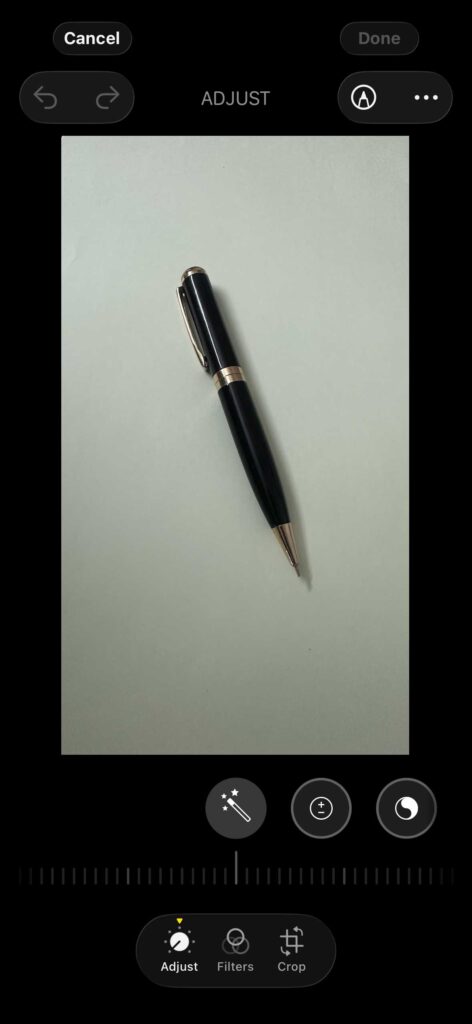
2. Tap Edit, then tap the Markup (pencil) icon.
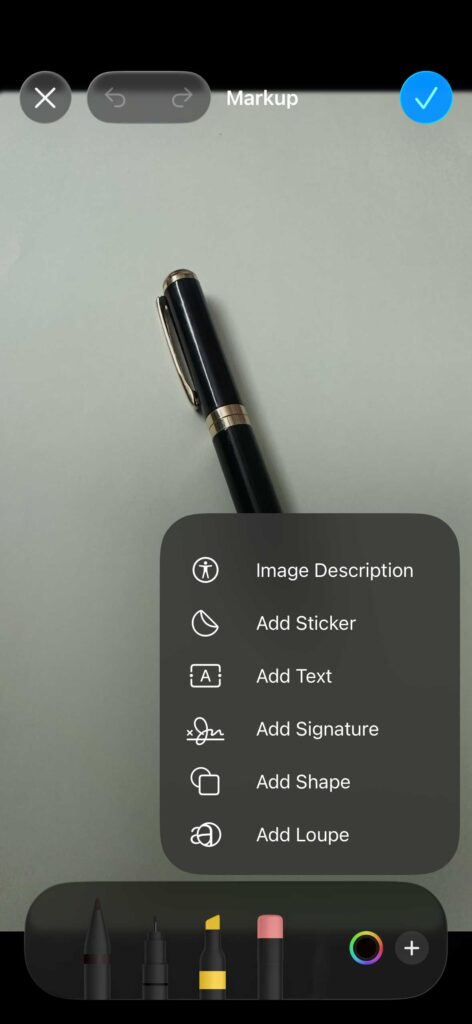
3. Tap the + button and choose Add Sticker.
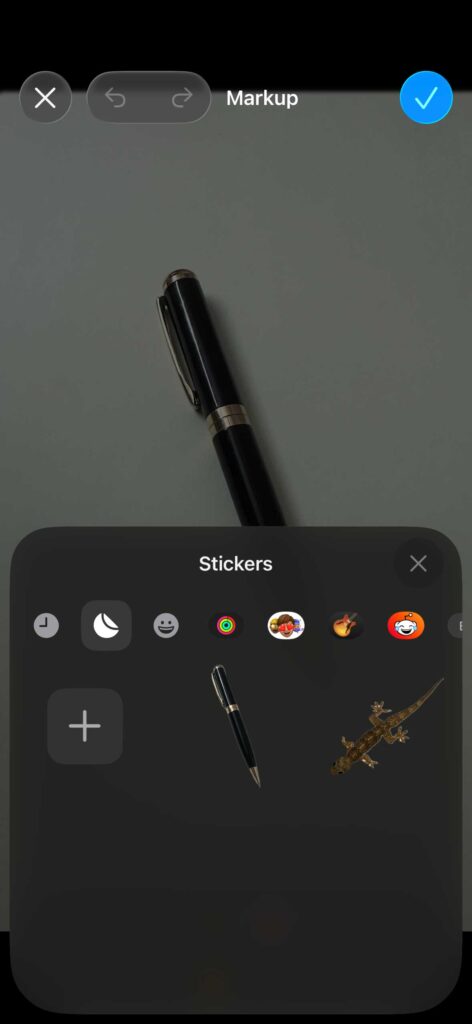
4. Pick a sticker, then drag, resize, or rotate it on your photo.

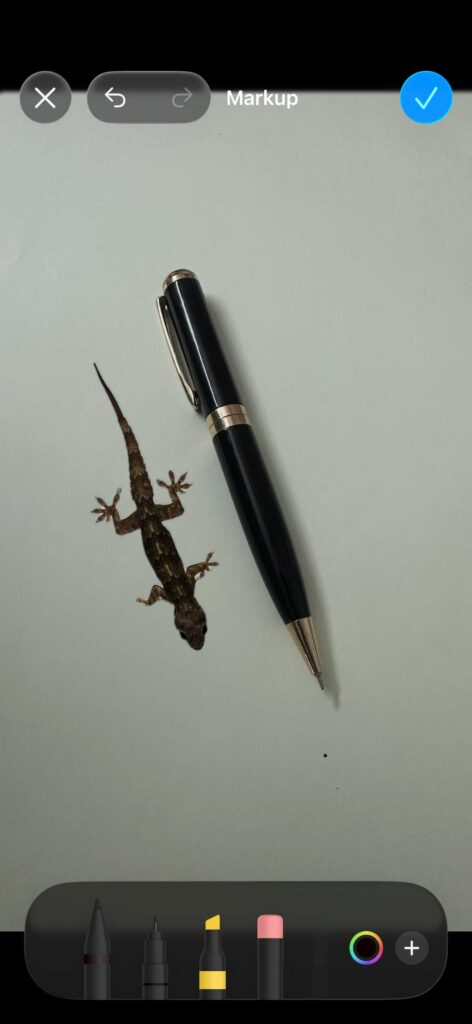
5. Tap Done to save the edited image back to your camera roll.
This method works great if you want to keep the sticker permanently on the photo.
Method 2: Using iMessage stickers
Open Messages and start a new chat.
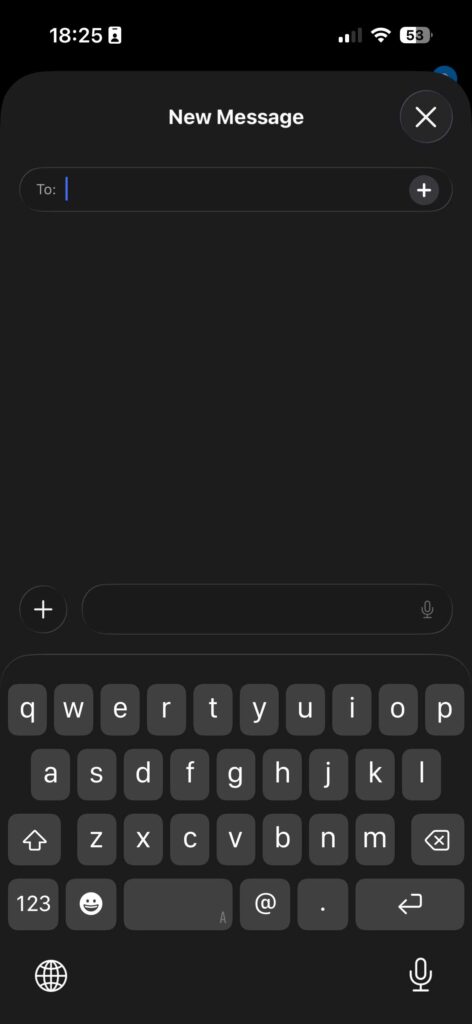
Tap the “+” icon and choose a photo from your library.
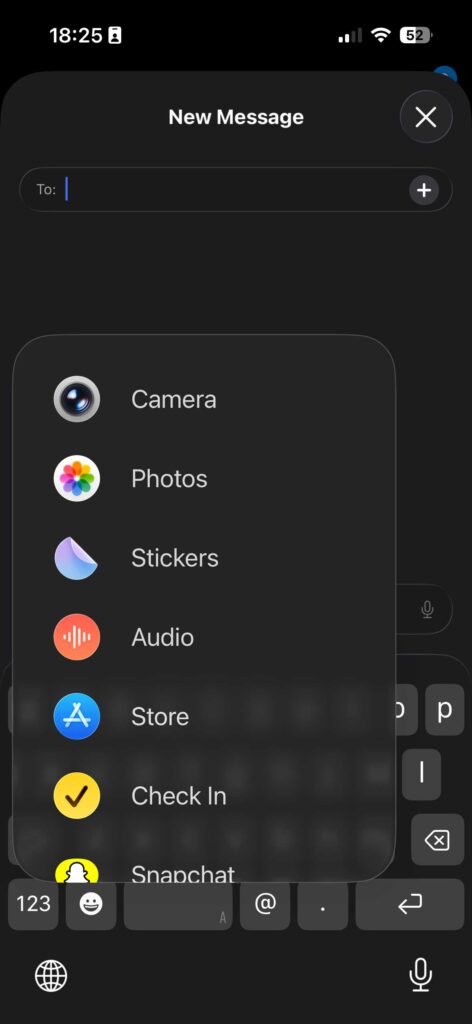
Tap on the Selected Photo and Choose Markup.
Tap the + button and choose Add Sticker.
Pick a sticker, then drag, resize, or rotate it on your photo.
Tap Done to send.
This is handy if you want to quickly decorate a picture before sending it.
Add Sticker to Photo iPhone Free: Best Native Options
You don’t need paid apps. Here are the best free sticker sources built into your iPhone:
| Sticker Type | Where to Find | Best For |
|---|---|---|
| Emoji Stickers | Keyboard > Emoji section | Quick reactions, universal symbols |
| Memoji | Messages > Memoji button | Personalized avatars, expressions |
| Subject-Lifted | Photos app > Long-press | Custom creations from your photos |
| Downloaded Packs | App Store > iMessage Apps | Themed collections, characters |
| Effects Stickers | Messages > Effects button | Animated, celebratory moments |
All these options are completely free and require no subscriptions.
How to create sticker from photo iPhone (free)
Apple lets you create sticker from photo iPhone using the subject‑lift feature in Photos.
Step‑by‑step: turn a photo into a sticker
- Open the Photos app and tap a clear photo (person, pet, or object).
- Touch and hold the main subject until it lifts from the background.
- Tap Add Sticker when the subject is selected.
- The sticker is saved to your sticker tray and can be used in Messages, Notes, and more.
You can repeat this for multiple people or objects to build a small personal sticker pack.
How to edit stickers on iPhone
Once you’ve created or added a sticker, you can edit stickers on iPhone to make them look more fun or professional.
Editing iMessage‑style stickers
- Open Messages and tap the + icon to open the sticker tray.
- Tap and hold the sticker you want to edit, then choose Edit Sticker.
- Apply effects like Outline, Comic, Puffy, or Shiny, then tap Done.
- You can also duplicate or delete stickers from the same menu.
Editing stickers in Markup
When you place a sticker using Markup:
These edits apply directly to the photo and are saved when you tap Done.
Key features of iPhone stickers
Modern iPhone stickers support several useful features that make them more than just static images.
These features make it easy to add sticker to photo iPhone free without paying for premium apps.
Pros and cons of using stickers on iPhone
Pros
- Fun and expressive: Stickers make messages and photos more playful and personal.
- Easy to create: You can create sticker from photo iPhone in seconds with built‑in tools.
- No extra cost: Most sticker options are free on iPhone and in popular photo‑editing apps.
- Reusable: Once created, stickers stay in your sticker tray for future use.
Cons
- Limited design control: Built‑in stickers have fewer customization options than professional design apps.
- iOS‑version dependent: Subject‑lift and some sticker effects need iOS 16 or later.
- App lock‑in: Some sticker packs only work inside specific apps (like iMessage or WhatsApp).
Add sticker to iPhone vs. third‑party apps
You can add sticker to iPhone using Apple’s tools or via apps like Fotor, Canva, or other sticker‑maker apps.
Built‑in iPhone tools
- Best for: Quick edits, everyday chats, and simple personal stickers.
- Pros: Free, fast, no downloads, and works offline.
- Cons: Fewer sticker styles and templates.
Third‑party sticker apps
- Best for: Social‑media posts, branded content, or complex sticker packs.
- Pros: Thousands of stickers, templates, and advanced editing (opacity, layers, animations).
- Cons: Some apps show ads or require in‑app purchases.
For beginners who just want to add sticker to photo iPhone free, the built‑in tools are usually enough.
How to create sticker iPhone WhatsApp (and other apps)
You can’t directly use iPhone’s iMessage stickers inside WhatsApp, but you can still create sticker iPhone WhatsApp‑ready images.
Option 1: Use WhatsApp’s own sticker maker
- Open WhatsApp on your iPhone.
- Go to Settings → Stickers → Create New Sticker.
- Choose a photo, crop the subject, and add text or emojis if you like.
- Tap Done to save the sticker to your WhatsApp sticker tray.
Option 2: Send a sticker‑decorated photo
- Add sticker to photo iPhone using Markup or an editing app.
- Save the edited photo to your camera roll.
- Open WhatsApp, attach the photo, and send it like a normal image.
This works well if you want to share a fun sticker‑style image without building a full WhatsApp sticker pack.
How to add sticker to iPhone for social media and stories
Stickers are also great for Instagram, Facebook, and other platforms, even if you’re editing on iPhone.
Simple workflow
- Create sticker from photo iPhone (using subject‑lift or a sticker app).
- Open your preferred editing app (or use Markup) and add sticker to photo iPhone.
- Adjust size, position, and effects, then export the image.
- Upload it to Instagram Stories, Facebook, or TikTok.
For example, you can:
- Add a “valentine day” sticker to a party photo.
- Use a “Sale” sticker on a product image for Instagram.
This approach keeps your posts lively without needing a desktop editor.
FAQs about adding stickers on iPhone
1. Can I add sticker to photo iPhone for free?
Yes. You can add sticker to photo iPhone free using the built‑in Photos app, Markup tools, or many free sticker‑maker apps in the App Store.
2. How do I create sticker from photo iPhone?
Open Photos, tap and hold the subject, choose Add Sticker, and the cut‑out will be saved to your sticker tray for use in Messages and other apps.
3. How do I edit stickers on iPhone?
In Messages, open the sticker tray, tap and hold a sticker, then choose Edit Sticker to apply effects like Outline, Comic, Puffy, or Shiny.
4. Can I use iPhone stickers in WhatsApp?
You can’t directly import iMessage stickers into WhatsApp, but you can create sticker iPhone WhatsApp using WhatsApp’s built‑in sticker maker or send sticker‑decorated photos.
5. Do I need a new iPhone to add stickers?
No. As long as your iPhone runs iOS 16 or later, you can use subject‑lift and many sticker features. Older models may have fewer effects but still support basic stickers via apps.
Conclusion
Learning how to add sticker to photo iPhone opens up a simple way to make your messages, social posts, and notes more expressive and fun. With built‑in tools and free apps, you can create sticker from photo iPhone, edit stickers on iPhone, and even create sticker iPhone WhatsApp‑ready content without paying extra.
As Apple improves subject‑lift and sticker effects in future iOS updates, expect more advanced features like animated stickers, better transparency controls, and tighter integration with third‑party apps. For now, the best move is to start experimenting with a few personal stickers and see how they can boost your everyday communication.
Try creating your first sticker from a selfie or pet photo today, then share a sticker‑decorated image in a chat or on your favorite social app—see how much more engaging your posts become!

Virginia J. Alfonso is a seasoned technology writer with a passion for all things digital. With over a decade of experience covering the latest in tech innovation, gadgets, and software, Virginia brings a unique blend of technical expertise and accessible writing to her work. Her articles focus on making complex tech topics easy to understand for readers of all levels.