



Your iPhone Won’t Charge – and Lint Is Probably the Culprit
You plug in your iPhone before bed.
Nothing happens.
You wiggle the cable.
Still nothing.
Before you rush to the Apple Store or order a replacement cable, stop — the problem is likely inside your charging port.
A clogged iPhone charging port is one of the most common (and most overlooked) issues iPhone users face.
You can fix it yourself in under five minutes, with tools you already have at home.
A Quick Review Of Topic
Why a Dirty Charging Port Is a Bigger Deal Than You Think
The Hidden Damage You’re Not Seeing
Most people assume a bad cable or dead battery when their iPhone stops charging.


But pocket lint, dust, and debris compress inside the charging port over time — slowly pushing the Lightning or USB-C connector up and away from the internal pins.
This means even a perfectly good cable can’t make a clean electrical connection.
Here’s why this matters beyond just charging:
Cleaning your iPhone charging port regularly – every few months — is basic maintenance that Apple itself recommends.
What You’ll Need: iPhone Charging Port Cleaning Tools
Before you start, gather your supplies.
The right iPhone charging port cleaning tool makes this job simple and safe.
The wrong one can permanently damage your phone.
Safe Tools to Use
Tools You Must Never Use
| Avoid This | Why It’s Dangerous |
|---|---|
| > Metal paperclips or pins | Scratch and bend internal contacts |
| > Needle or SIM ejector tool | Too sharp; can permanently puncture pins |
| > Cotton swabs (dry, standard) | Sheds fibers that worsen the clog |
| > High-pressure air compressors | Force debris deeper into the port |
| > Anything wet (water, saliva) | Risk of short circuit and corrosion |
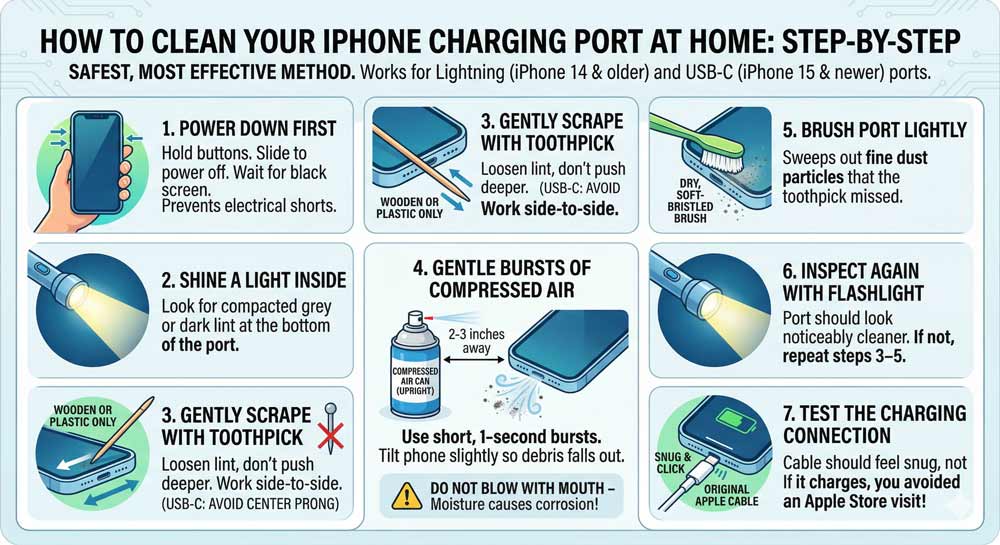
How to Clean Your iPhone Charging Port at Home: Step-by-Step
This is the safest, most effective method. It works for both Lightning ports (iPhone 14 and older) and USB-C ports (iPhone 15 and newer).
Step 1: Power Down Your iPhone First
Always turn off your iPhone before cleaning. This prevents any accidental electrical shorts. Hold the side button and a volume button together. Slide to power off. Wait for the screen to go completely black.
Step 2: Shine a Light Inside the Port
Use a flashlight or your other phone’s torch. Hold it at an angle to the charging port opening. Look for compacted gray or dark lint sitting at the bottom of the port. This compressed lint is the most common cause of charging failure.
Step 3: Use a Toothpick to Scrape Out Debris
Take a wooden or plastic toothpick — never metal. Gently insert it into the port and scrape along the bottom in a forward-and-back motion. Do not dig or poke aggressively. The goal is to loosen and drag out packed lint, not push it deeper.
- Angle the toothpick so it scoops rather than stabs.
- Work from one side to the other across the bottom.
- USB-C port users: Be extra careful around the small center prong — avoid direct contact with it.
Step 4: Give It a Few Gentle Bursts of Compressed Air
Hold the can upright. Use short, 1-second bursts from 2–3 inches away. This dislodges anything the toothpick loosened without driving debris deeper. Tilt the phone slightly so loosened particles fall out.
Do not blow air with your mouth. Your breath carries moisture, and moisture in the charging port can cause corrosion.
Step 5: Brush the Port Lightly
Take a dry, soft-bristled toothbrush (a baby toothbrush or clean eyebrow brush works great). Gently brush back and forth across the port opening. This sweeps out fine dust particles that the toothpick missed.
Step 6: Inspect Again with the Flashlight
Look inside the port again. It should look noticeably cleaner and more metallic. If you still see debris, repeat steps 3–5 once more. Most ports come fully clean after one or two passes.
Step 7: Test the Charging Connection
Power your iPhone back on. Plug in your original Apple cable. A clean connection should feel snug and click into place — not loose or wobbly. If your phone begins charging, congratulations — you just avoided an unnecessary Apple Store visit.
Expert Insight: The Toothpick Angle That Actually Works
Most tutorials tell you to “gently insert a toothpick.” What they don’t tell you is the angle matters enormously.
Instead of going in straight, tilt the toothpick so the tip is angled toward the back wall of the port.
Imagine you’re trying to scoop something off the floor of a narrow box — not stab the floor.
This scooping angle grabs the lint rather than just pushing it around. A single angled scrape often extracts a surprisingly large, tightly packed ball of lint in one pull.
The Real Reason Your Port Gets So Dirty (And How to Stop It)
Think of your iPhone charging port like the pocket of your jeans.
Every day it sits in your front pocket, collecting lint, dust, skin cells, and small fabric fibers.
Over months, that material gets compressed by the charging cable every time you plug in — packing down tighter and tighter. Eventually it forms a dense “lint plug” at the bottom of the port.
It’s exactly like a vacuum cleaner filter that’s never been emptied — the airflow (or in this case, the electrical connection) gets weaker and weaker until it stops working entirely.
The $179 Repair That Wasn’t
A Reddit user in the r/iphone community described paying for a battery replacement because their phone “stopped charging.”
The repair didn’t fix it. When a tech finally inspected the charging port with a light, they pulled out a solid plug of denim lint that had been compacted for over a year.
A toothpick and 90 seconds later, the phone charged perfectly on its original battery. The original battery had been fine the entire time.
This story plays out thousands of times per year at Apple Stores and third-party repair shops across the country. Cleaning the port first is always Step 1.
How to Clean iPhone Charging Port Without a Toothpick
No toothpick on hand? Here are two solid alternatives:
How to Clean iPhone Charging Port With Alcohol
If your port has sticky residue — from sugary drinks, adhesive residue, or dried moisture — plain scraping won’t fully clear it. Here’s how to use isopropyl alcohol safely:
Important: This method is for sticky residue only. For standard lint removal, skip the alcohol — you don’t need it.
How to Clean Charging Port on iPhone From Water Damage
If your iPhone fell in water or you suspect moisture in the port, the rules change:
What If This Doesn’t Work? Troubleshooting Guide
You’ve cleaned the port carefully. The phone still won’t charge. Here’s what to check next.
Check Your Cable First
A damaged cable is often mistaken for a port problem. Try a second certified Apple or MFi-certified cable. Check the cable tip for bent or corroded pins.
Try a Different Power Adapter
Faulty adapters are another common culprit. Try plugging into a computer USB port or a different wall adapter.
Try Wireless Charging (If Your Model Supports It)
iPhone 8 and newer support Qi wireless charging. If wireless charging works but wired doesn’t, your charging port likely needs professional attention — the hardware itself may be damaged.
Restart Your iPhone
A software glitch can occasionally prevent charging recognition. Power the phone fully off, wait 30 seconds, and power back on before testing.
Check for the “Liquid Detected” Warning
If a liquid detection alert is active, iOS is deliberately blocking charging to protect your phone. Wait and allow the port to dry completely.
Visit Apple Support or an Authorized Repair Provider
If none of the above works, the issue may be:
An Apple Genius Bar appointment is free for diagnosis. Out-of-warranty port repair typically costs $79–$149 depending on your iPhone model.
Related Post: Check Your iPhone Warranty
How Often Should You Clean Your iPhone Charging Port?
| Usage Pattern | Recommended Cleaning Frequency |
|---|---|
| Keep phone in jeans pocket daily | Every 4–6 weeks |
| Keep phone in bag or purse | Every 2–3 months |
| Use a case with port cover | Every 4–6 months |
| Office/desk use, rarely pocketed | Every 6 months |
A quick visual inspection every month takes 10 seconds and can prevent a charging failure entirely.
Pro Tips to Keep Your Charging Port Clean Longer
Frequently Asked Questions
Yes. A dry, soft-bristled toothbrush is one of the safest tools for this job. Use gentle back-and-forth strokes across the port opening. It works best for light dust and as a follow-up to toothpick scraping for heavier lint. Never use a wet toothbrush.
Yes, with the right precautions. Use 90% or higher isopropyl alcohol on a barely-damp cotton swab. Power the phone off first and let the port dry for at least 10 minutes before charging again. Do not use rubbing alcohol below 90% — the extra water content increases risk.
This message usually means the Lightning or USB-C connector still isn’t making a clean connection. Try cleaning the cable tip with a dry cloth, inspect the port again under a flashlight, and try a different certified Apple cable.
If cleaning the port doesn’t resolve the issue and wireless charging works fine, you likely have physical damage to the port. Signs of hardware damage include: the cable feels loose in the port, visible bent pins under a flashlight, or the port showing discoloration or corrosion. These require professional repair.
This method circulates on social media — a small dab of hot glue acts like a lint roller to pull debris out. While some users have reported success, it is not recommended. The heat can damage port seals, and dried glue can be extremely difficult to fully remove. Stick with a wooden toothpick and compressed air.
Disclaimer
The information in this article is intended for general informational purposes only. Cleaning your iPhone charging port carries a small risk of damage if performed incorrectly. AppleHeadlines.com is not responsible for any damage to your device resulting from following these instructions. If your iPhone is under warranty or covered by AppleCare+, contact Apple Support before attempting any self-repair. Always power off your device before cleaning any internal components.
📌 Still having charging issues after cleaning?
Visit Apple’s official support page or book a free Genius Bar appointment to get expert help.

Ruth writes in-depth guides about Apple products, focusing on practical solutions for everyday users. Her articles cover device setup, hidden features, troubleshooting, and the latest updates for iOS, watchOS, and other Apple platforms.
He regularly researches Apple updates and tests features on devices like the iPhone and Apple Watch to ensure readers receive accurate and helpful information.